API Search
🔍 API Search
Overview
API Search is a unified search feature that allows users to search and view registered APIs using various conditions.
Path: Left Sidebar > API Search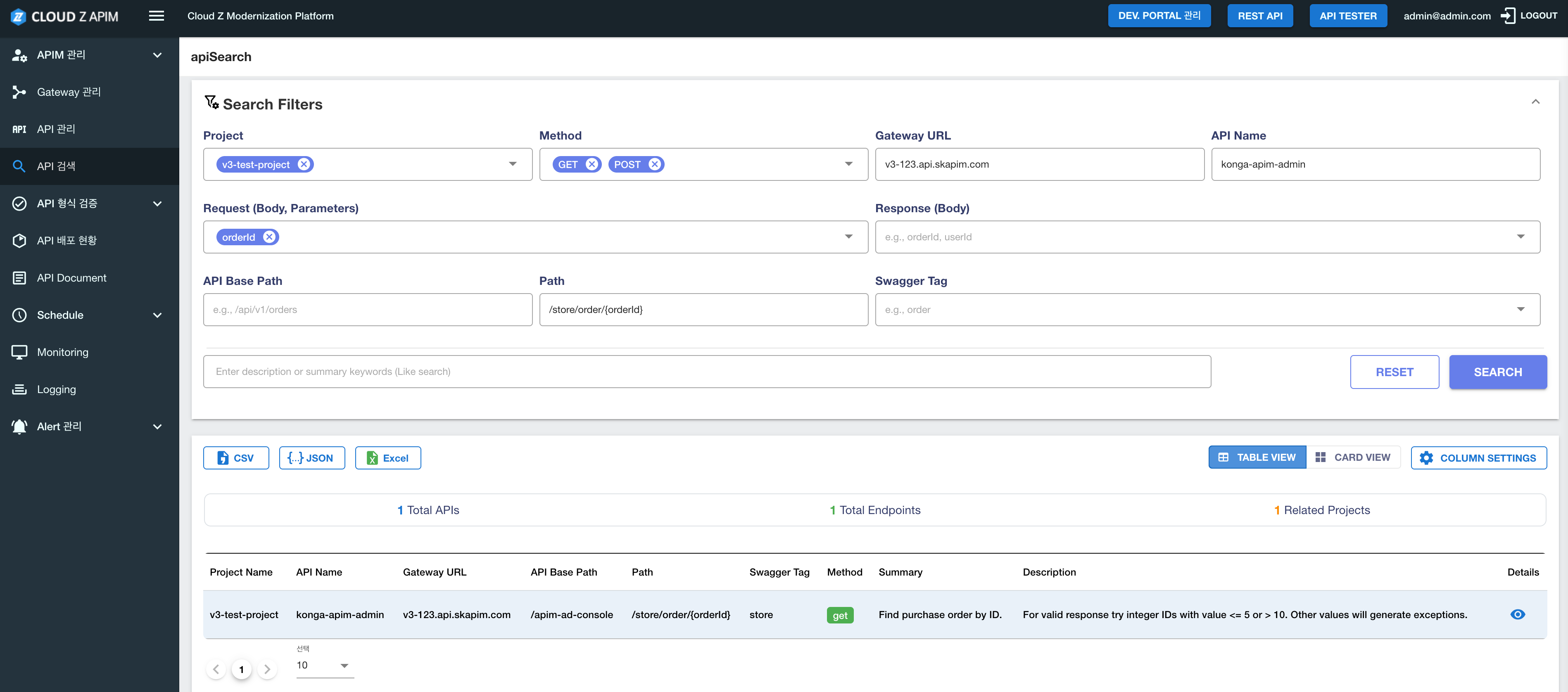
Feature Overview
On the API Search page, users can search and view the result of APIs using multiple conditions such as Project, Gateway URL (Domain), API Name, Path, Method, and more. Search results can be viewed in table view or card view, and exported in CSV, JSON, or Excel formats.
Page Structure
1. Search Filters Section
This section allows user to set filters to define search conditions.
Filter Options
| Filter Item | Description | Example Input |
|---|---|---|
| Project | Select project (multiple selection supported) | Select project from dropdown |
| Method | Filter HTTP Method (GET, POST, PUT, DELETE, etc.) | Select GET, POST, etc. |
| Gateway URL | Search Gateway URL keyword (LIKE search) | api.skapim.com |
| API Name | Search API name keyword (LIKE search) | api01 |
| Request (Body, Parameters) | Search keywords inside Request Body, QueryParameters, PathParameters | orderId, userId |
| Response (Body) | Search keywords in response body | orderId, userId |
| API Base Path | Search API base path | /api/v1/orders |
| Path | Search for API paths after the API Base Path. | /api/v1/orders |
| Swagger Tag | Search Swagger Tag | order |
| Description or Summary | Search description or summary keyword (LIKE search) | Enter the keywords included in the description or summary |
Search Filter Buttons
- Reset: Clears all filters
- Search: Executes search with selected conditions
How the search filter works
1. Combine conditions between filters (AND condition)Each filter is combined with AND condition.
Example:Project A AND Method GET
- Only APIs with Project "A" and Method "GET" are searched.
When multiple values are selected or entered within a single filter, they are combined using the OR condition.
Example:Project A AND (Method GET OR POST)
- APIs with "A" Project and "GET" or “POST” Method are searched.
3. Keyword Search (LIKE Search)
All filter input values (KEYWORD) are searched if they contain the entered value (LIKE %KEYWORD% search).
Features:- Case sensitivity may vary depending on the system configuration.
- Partial match search is supported, so the full exact name is not required.
- Enter api in Gateway URL → api.skapim.com, apistg.skapim.com, etc. are searched
- Enter auth in API Name → my-core-auth, user-auth, auth-service, etc. are searched
- Enter login in Description → all API containing “login” are searched
| Filter Setting | Search Result |
|---|---|
| Project: pjt01 Method: GET | APIs with "pjt01" project AND "GET" Method |
| Gateway URL: api API Name: auth | "api" is included in Gateway URL AND "auth" is included in API Name |
| Method: GET OR POST Path: /v1 | (Method is "GET" OR "POST") AND "/v1" is included in Path |
💡 Tips:
- Multiple filters can be combined (AND) to precisely narrow down API search results.
- Setting multiple values within a single filter (OR) enables a broader search range.
- Keyword search (LIKE) supports partial matching, so the full exact name is not required.
2. Search Results Area
Statistics InformationThe following statistics are displayed at the top of the search results:
- Total APIs – number of matched APIs
- Total Endpoints – number of matched endpoints
- Related Projects – number of related projects
- Table View: Displays search results in a table format (default).
- Card View: Displays search results in a card format.
The search results can be exported as files:
- CSV: export as CSV format
- JSON: export as JSON format
- Excel: exported as Excel format
Allows selecting which columns to display in the table.
3. Search Results Table
Table Columns:| Column name | Description |
|---|---|
| Project Name | Project name |
| API Name | API name |
| Gateway URL | Gateway URL |
| API Base Path | API Base Path |
| Path | API path (E.g., /v1/poc-tcom-cd/...) |
| Swagger Tag | Swagger Tag |
| Method | HTTP method (GET, POST, PUT, etc.) |
| Summary | API summary information |
| Description | API description |
| Details | View detailed information |
- Pagination: Displays results by page when the number of search results is large (e.g., 10 items per page).
- Sorting: Allows changing the sorting order by clicking the column header (when supported).
- Details: Shows detailed information through the button in the Details column.
- Method Tag: Methods are displayed as color‑coded tags (chip), such as GET, POST, PUT, etc.
How to Use
Basic Search
- Select “API Search” menu from the left sidebar
- Set the desired search conditions in the Search Filters section.
- Click the Search button to run the search.
Advanced Search Examples
Example 1: Search for GET‑method APIs in a specific project- Select a project from Project dropdown
- Select “GET” form Method dropdown
- Click Search button
- Enter api.skapim.com in Gateway URL input field
- Click Search button
- Enter bw-core-auth in API name input field
- Enter keyword in Description or Summary input field
- Click Search button
- Enter /api/v1/orders in Path input field
- Click Search button
How to use the search results
- Switch between table and card view: Change the display mode using the Table View or Card View buttons
- View details: Click the button in the Details column of the table
- Export results: Download file by clicking the CSV, JSON, or Excel buttons.
- Column settings: Select which columns to display using the Column Settings button.
Reset search conditions
- Click Reset button to reset all search filters.
Detailed Key Features
Keyword Search (LIKE Search)
All keyword input fields support LIKE %KEYWORD% search. If the value contains the value, it will be searched.
Keyword Search Fields:- Gateway URL: Searches for keywords contained in the Gateway URL
- API Name: Searches for keywords contained in the API name
- Request (Body, Parameters): Searches for keywords contained in the Request Body or Parameters
- Response (Body): Searches for keywords contained in the response body
- API Base Path: Searches for keywords contained in the API Base Path
- Path: Searches for keywords contained in the API path
- Swagger Tag: Searches for keywords contained in the Swagger Tag
- Description or Summary: Searches for keywords contained in the Description or Summary
- Enter otel in Gateway URL → otel-gw.api.skapim.com, etc. are searched
- Enter auth in API Name → bw-core-auth, user-auth, etc. are searched
- Enter /v1/board in Path → /v1/board,
/v1/board/{id}, etc. are searched
💡 Tip: Partial match search is supported, so the full exact name is not required.
Multi-condition Search
Using multiple filters together allows more precise searching. For examples:
- Project + Method
- Gateway URL + API Name
- Path + Swagger Tag
Results Exporting
Search results can be exported in various formats for use in other tools or documentation:
- CSV: Can be opened in spreadsheet
- JSON: Suitable for programmatic processing
- Excel: Saves results as an Excel file
Usage Tips
- Combine Search Conditions: Use multiple filters to quickly find the desired API
- Use Keyword Search: Helpful when the exact name is unknown
- Check Statistics information: Use the statistics at the top of the results to understand the overall scope
- Switch View mode: Switch between Table view and Card view based on preference
- Use Export options: Save search results for sharing or documentation
- Use Pagination: Use pagination for efficiently navigation when there are many results
API detailed information
How to Access: Click button in the Details column of the search results table.
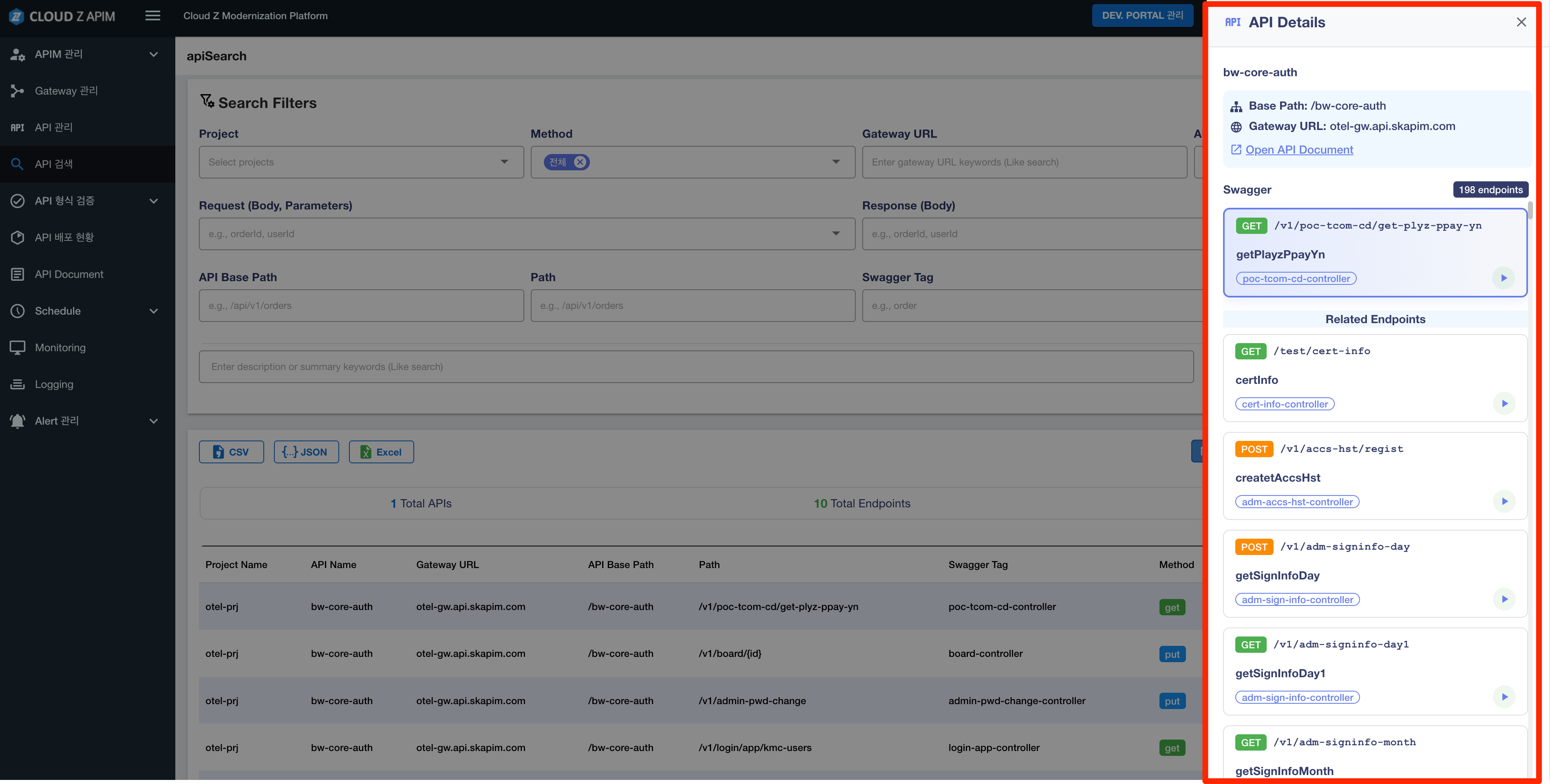
When the Details button for an API is clicked in the search results table, a modal window opens displaying detailed information about that API.
Modal Structure
Modal Features- Overlay: A dark overlay blocks interaction outside the modal
- Responsive Design: Automatically adjusts size based on screen dimensions
- Close Options: Click outside the modal or use the close button (✕)
Main Sections
1. API Information Section (api-info-section)Displays basic API information:
- API Name: API name (e.g., bw-core-auth)
- Base Path: API Base Path (e.g., /bw-core-auth)
- Gateway URL: Gateway URL (e.g., otel-gw.api.skapim.com)
- Open API Document: Button to open the OpenAPI document link
Displays Swagger information and endpoint list:
-
Swagger Information:
- Total number of endpoints (e.g., 198 endpoints)
- Endpoint List :
- Method: HTTP method (GET, POST, PUT, etc.), displayed as chip format
- Path: API path (e.g., /v1/poc-tcom-cd/get-plyz-ppay-yn)
- Summary: API summary (e.g., getPlayzPpayYn)
- Swagger Tag: Swagger tag (e.g., poc-tcom-cd-controller)
- Related Endpoints: Button to view related endpoints
Key Features
1. View Endpoint Information- The Method, Path, Summary, and Swagger Tag information for each endpoint can be viewed
- Methods are displayed as color‑coded chips for easy visual distinction
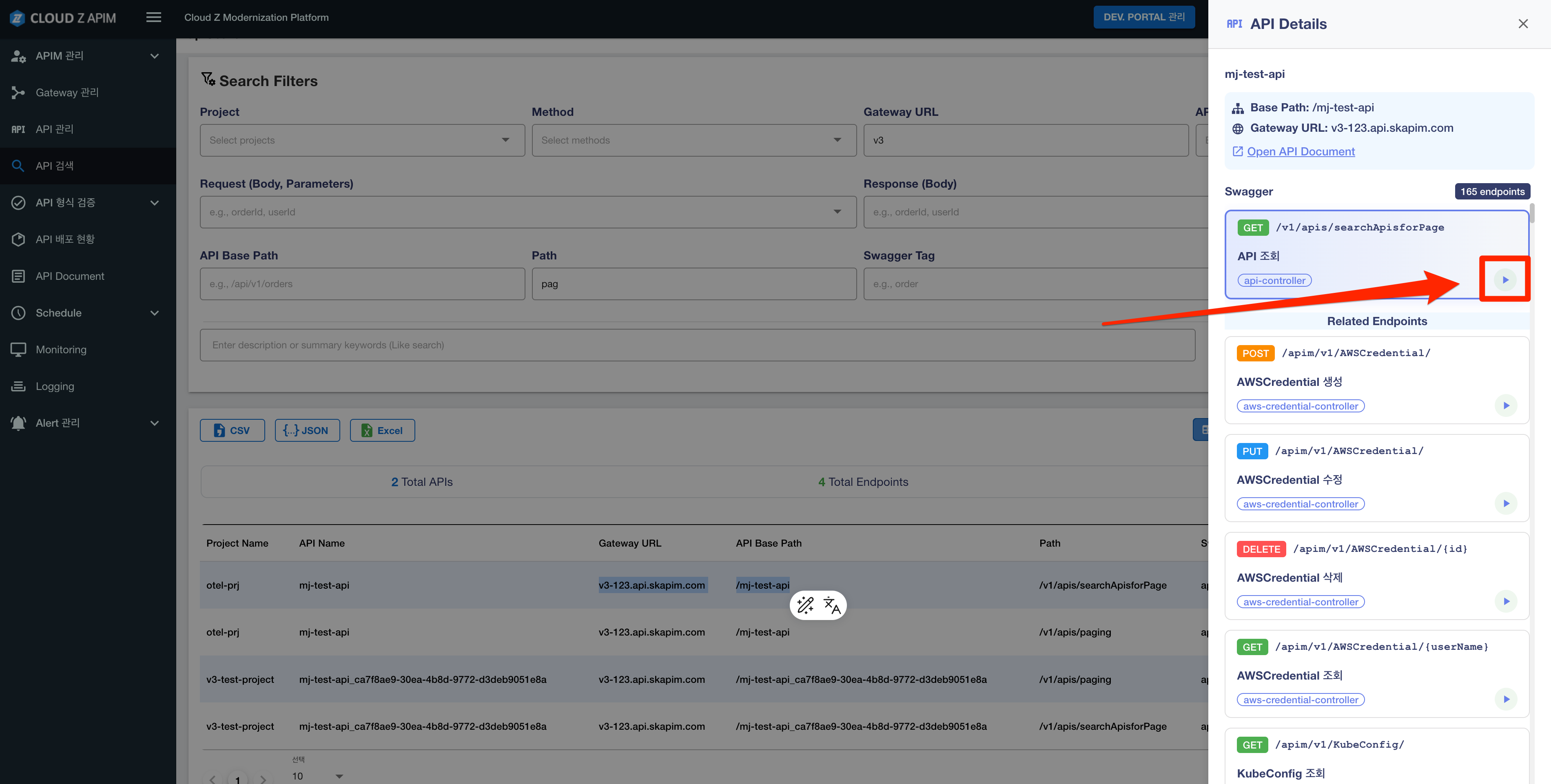
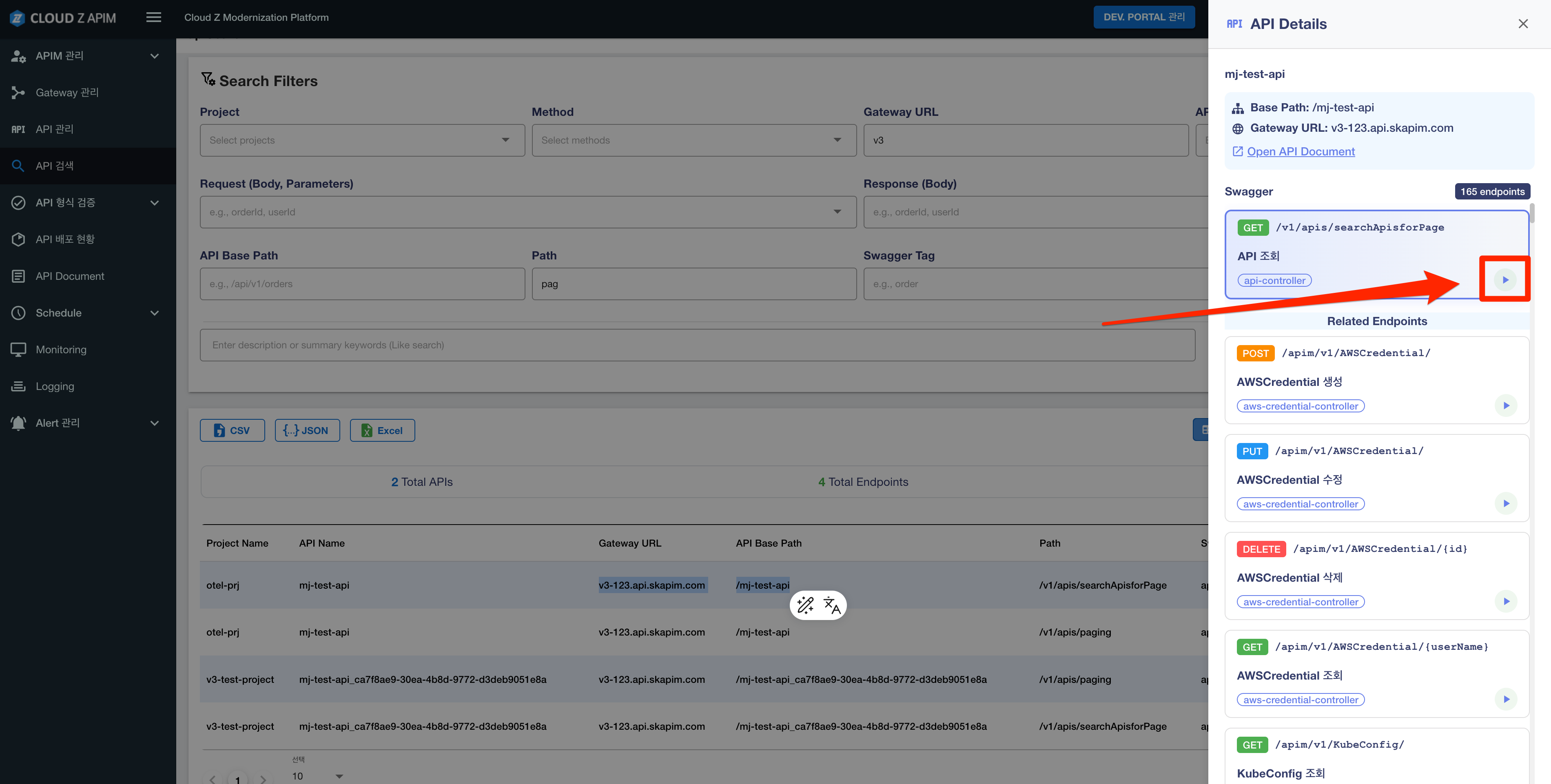
- If you click play button (▶) located on the right side of each endpoint, you can move to the test screen or execution screen for that API endpoint.
- If Play button is clicked:
- The API test interface is displayed, or
- You can be navigated to the execution screen, or
- Detailed execution information is shown
- This feature allows directly testing API and verifying behavior.
- Clicking the Related Endpoints button displays other related endpoints.
- Click Open API Document to open the full OpenAPI documentation of this API.
5. Close the Modal
- Click the ✕ button at the top right of the modal
- Or click outside the modal (overlay area)
How to Use
- Run API search: Set the search filters and click the Search button to display the results.
- Click Details button: Click the Details button in the Details column of the desired API row in the search results table.
- View the modal: The API detail modal will open
- Check information:
- In the API Information section, basic API information can be viewed.
- In the Endpoints section, Swagger information and the list of endpoints can be viewed.
- Click the Play button (▶) next to an endpoint to move to the API test or execution screen.
- Click the Related Endpoints button to explore related endpoints.
- Click the Open API Document button to view the OpenAPI documentation.
- Close the Modal
- Click the close button (✕) at the top right of the modal, or
- Click outside the modal (overlay) to close it
Usage Examples
Example 1: Checking basic API information- Click the Details button for the bw-core-auth API in the search results.
- Check the Base Path and Gateway URL in the API Information section.
- Check the number of endpoints (e.g., 198 ae).
- Check the list of endpoints in the Details modal
- Distinguish GET/POST/PUT using the Method tags
- Understand the function of each endpoint through its Path and Summary
Example 3: Viewing OpenAPI documentation
- Click the Open API Document button in the Details modal
- View the OpenAPI document in a new window or tab
Example 4: Testing an API endpoint
- Find the endpoint to test in the Details modal
- Click the Play button (▶) next to that endpoint
- In the API test/execution screen, call the API directly and check the results
- Configure/set request parameters, headers, and body to test different scenarios
Example 5: Viewing related endpoints
- Click the Related Endpoints button for the selected endpoint
- Check the list of other related endpoints
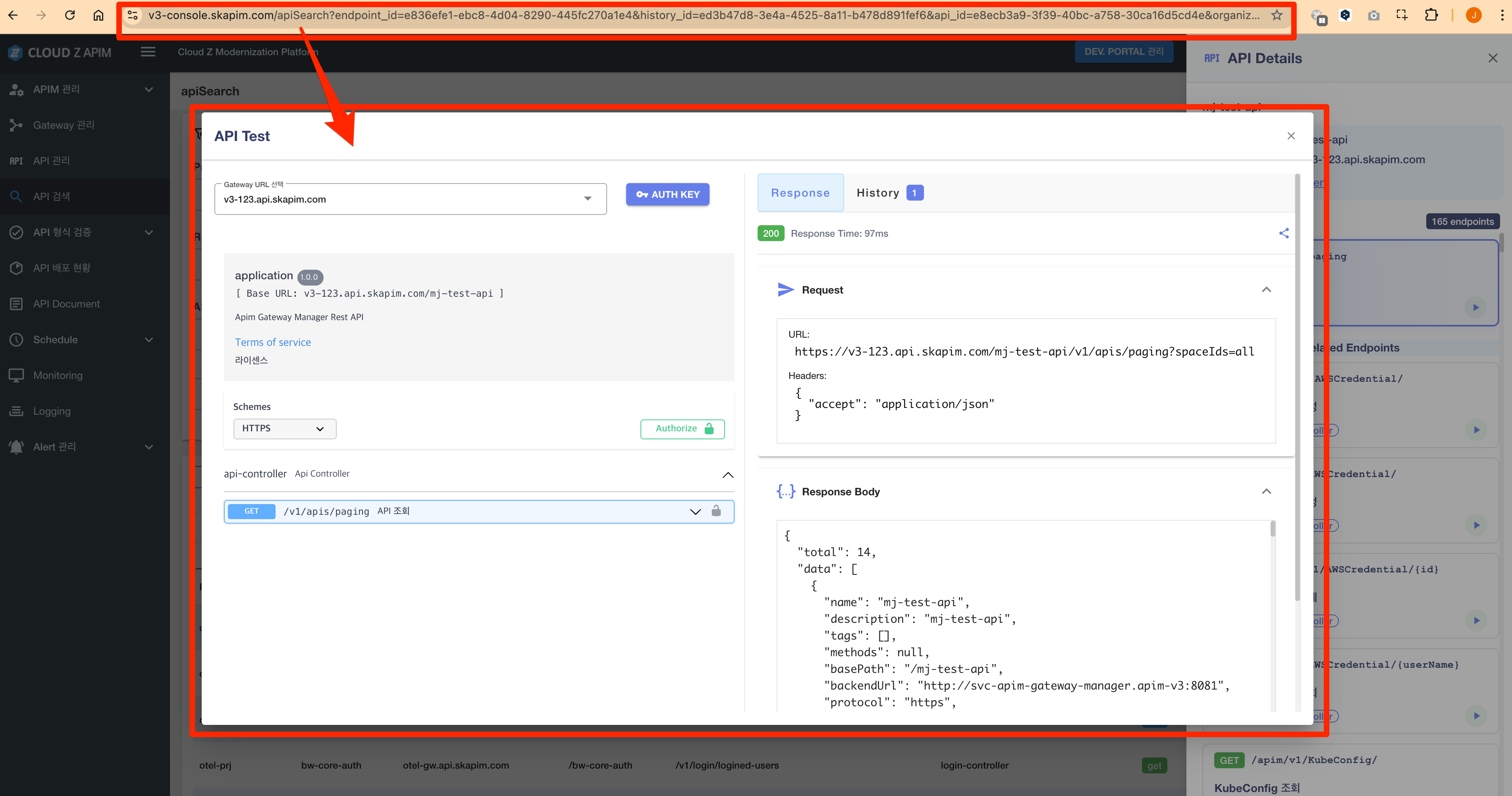
How to use the API Test popup
-
Click Play button: Click the Play button (▶) on the right side of an endpoint opens the API Test popup
-
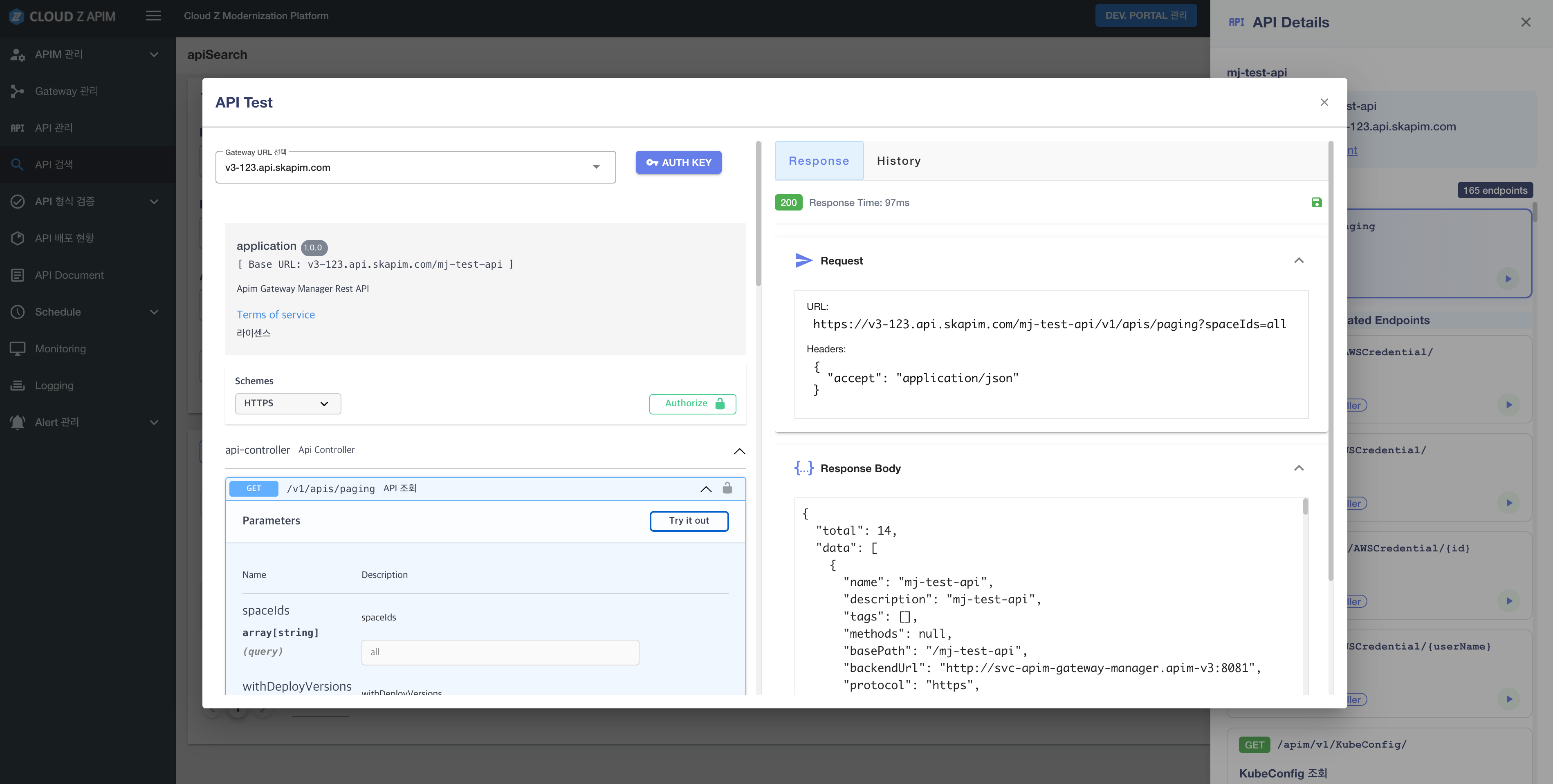
Execute Try it out : Click Try it out in Swagger UI to call and view the results in the right panel.
- Items to Check: Response code, response body, response time, etc.
-
Save to History: Click Save button at the top right of the result panel to store the test result in History.
-
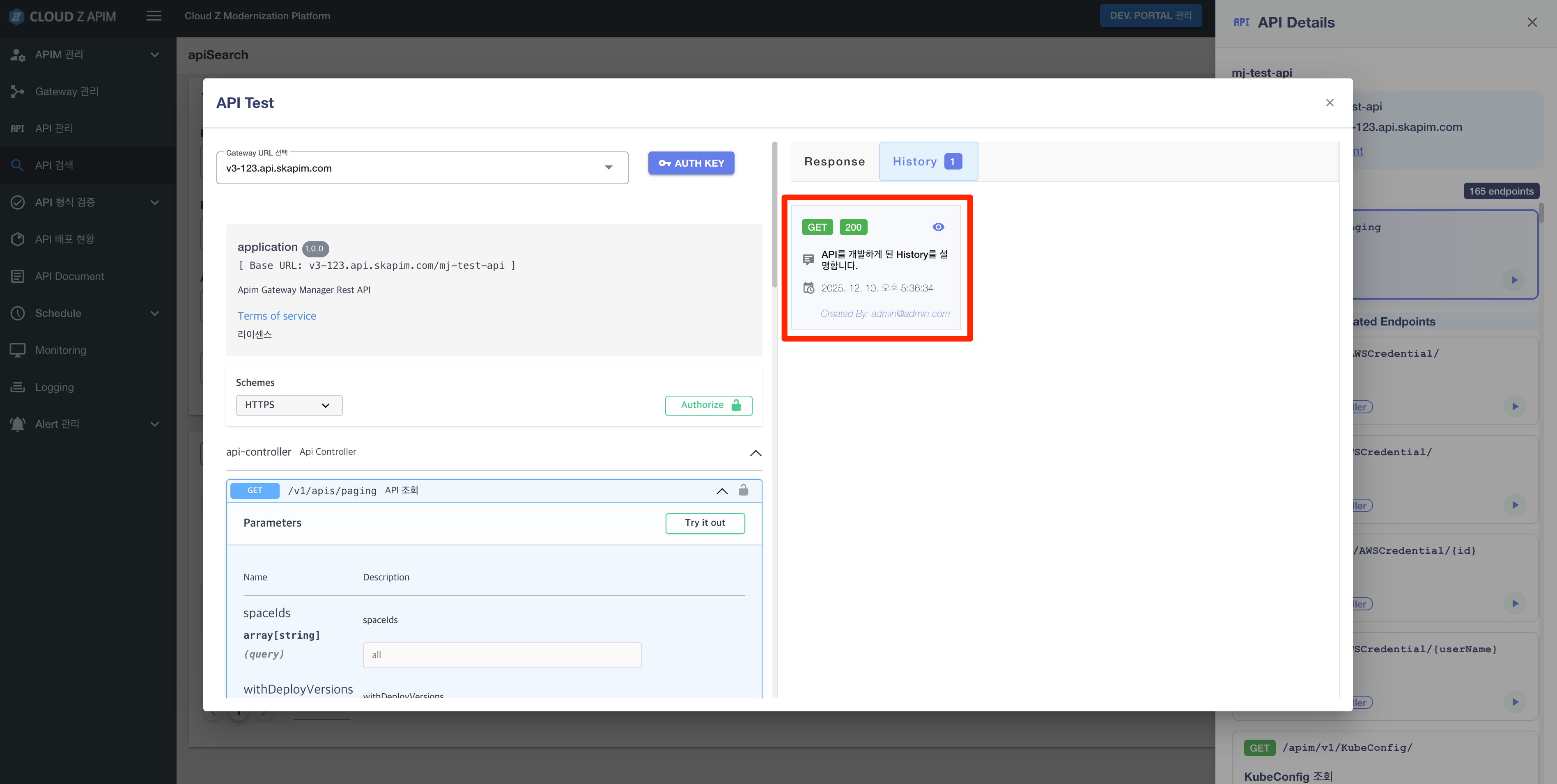
View History: Open the History tab at the top to check the saved test records.
-
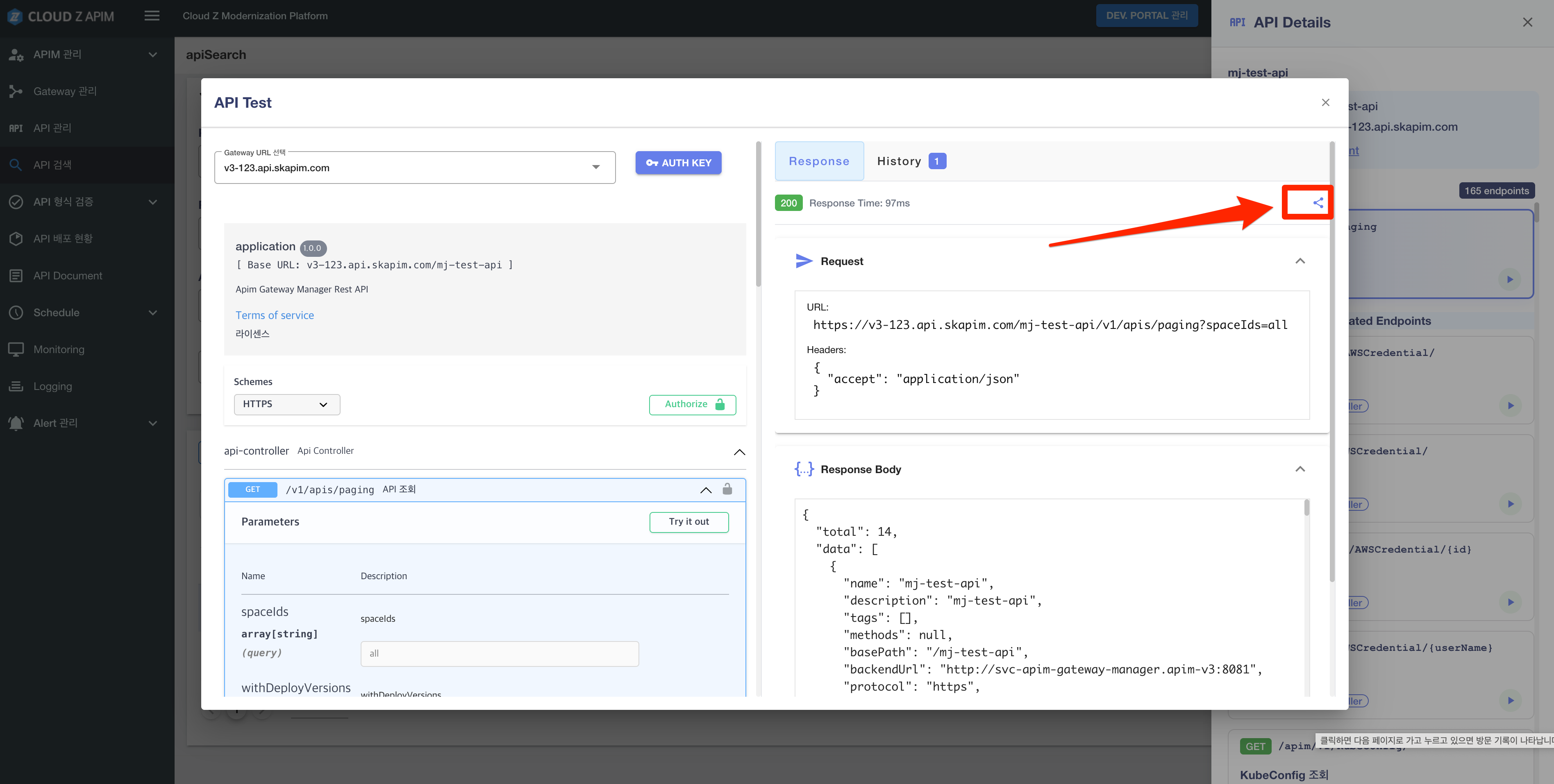
Share a Link: Click the Share button in History to share the test result as a link.
-
Reopening the Link: Paste the shared link into the browser address bar to open the saved History screen and review the same test details.