Schedule list
| Version | Date | Summary of changes | Author |
|---|---|---|---|
| V1.0 | 23/09/2024 | 文档创建 | FPT |
- 日程安排是一个功能,允许开发人员通过运行 API 管理、创建和检索与调度相关的数据。
- 创建新的日程安排以形成日程列表。
1. 创建日程安排
Step 1: 在 Schedule List 屏幕上,点击 Add Schedule 按钮…
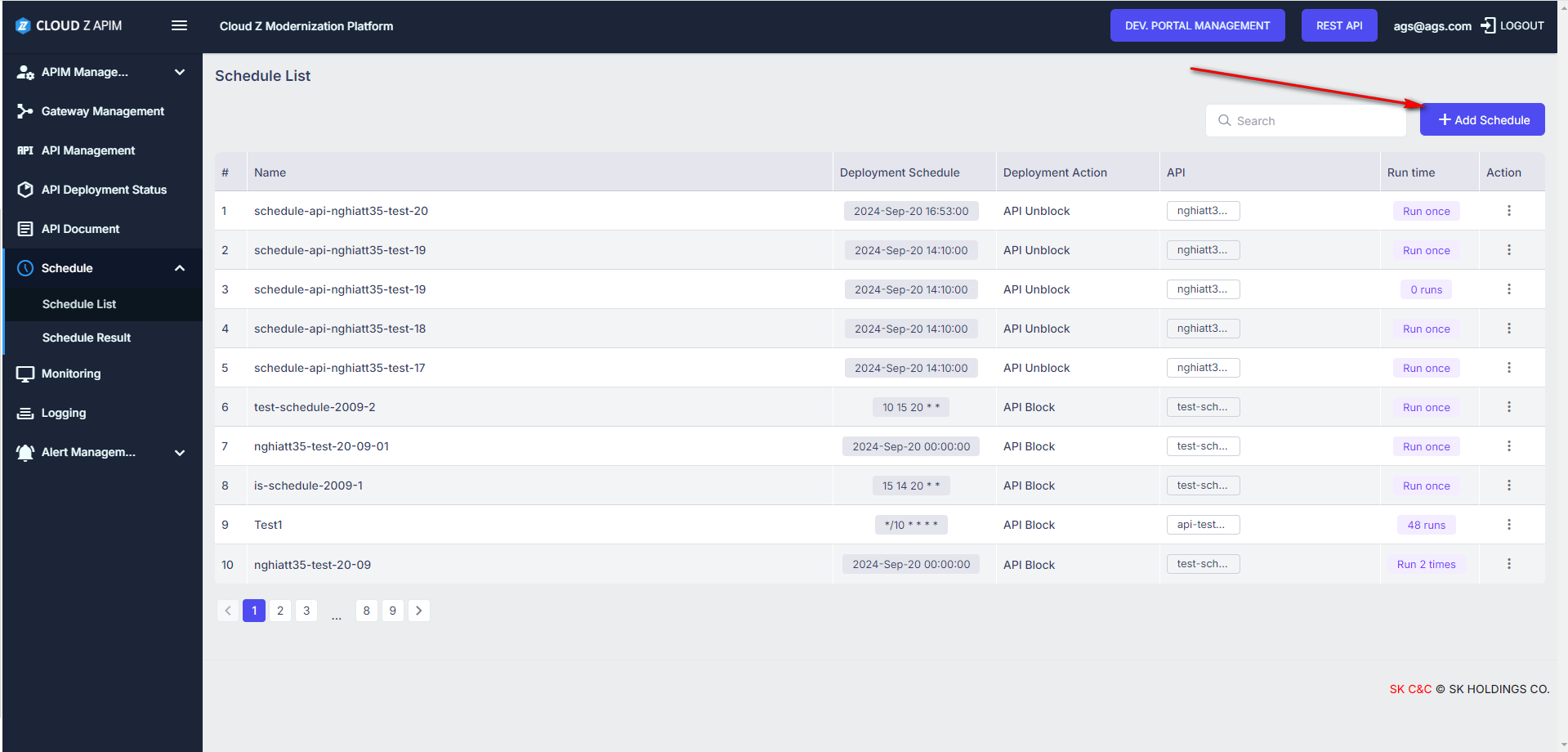
image.png
…以打开 New API Deployment Schedule 屏幕。
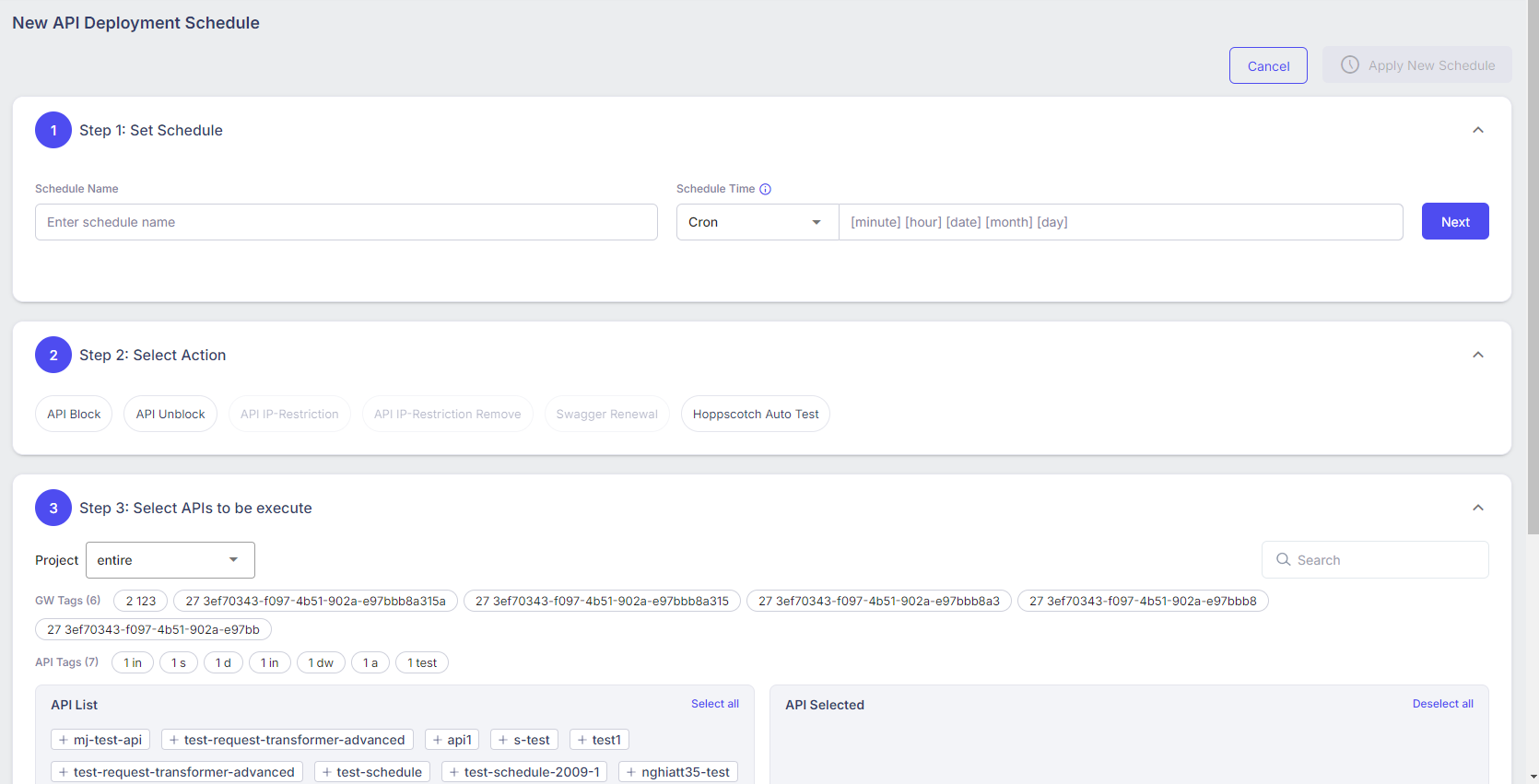
image.png
Step 2: 在“Step 1: Set Schedule””部分输入数据:
- 将 Schedule Name 的数据作为字符串输入。
- 日程时间有两个选项:“Cron”和“Fix Date Once”。

image.png
- 如果选择“Fix Date Once”选项:
- 以 dd/mm/yyyy HH:mm. 格式输入 Schedule Time
- When this option is executed, the API will run only once at the configured time.
- 如果选择“Cron”选项:
- 以 [minute] [hour] [date] [month] [day]. 格式输入 Schedule Time
- 点击信息图标查看指南。
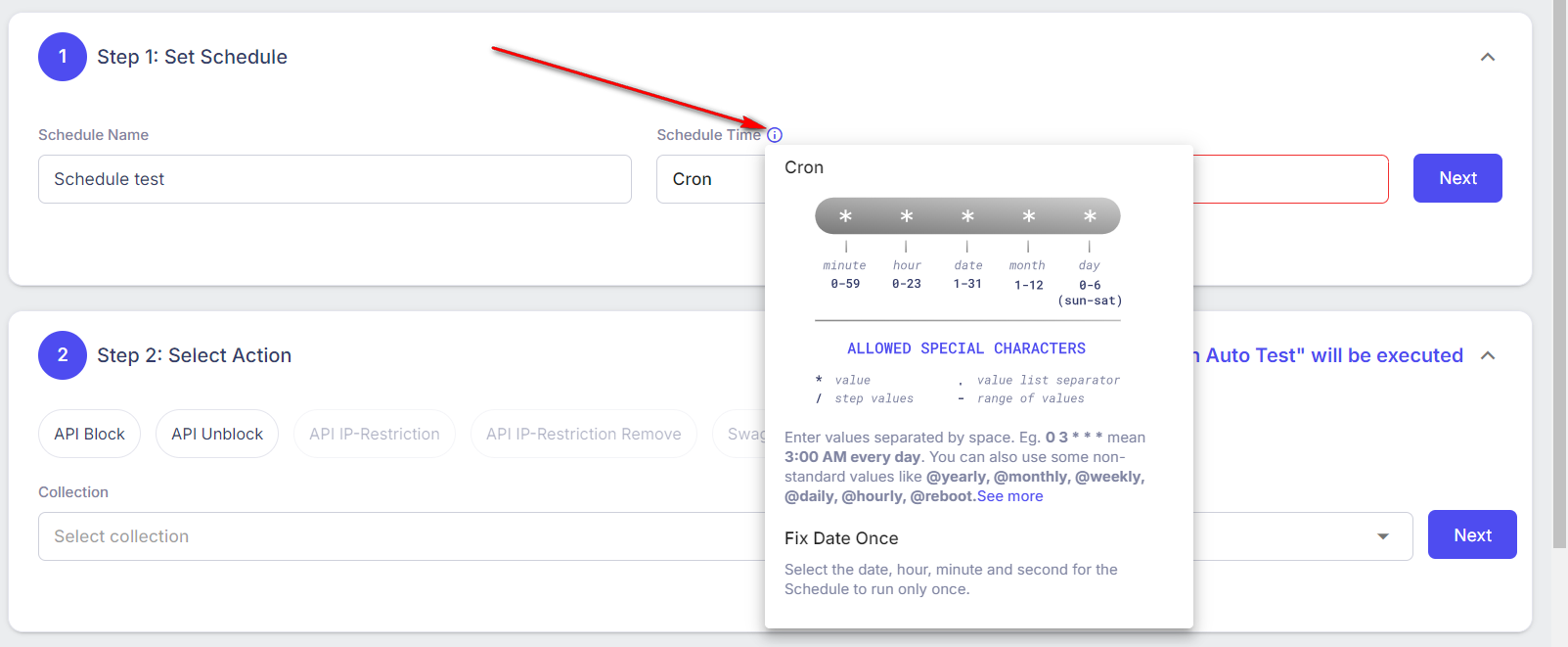
image.png
- When this option is executed, the API will run more time at the configured time.
Step 3: 在 Step 2: Select Action 部分输入数据。
- 点击操作按钮进行选择。

image.png
- 如果您选择 API Block 选项,将显示 2 个字段 Status 和 Message。
- 点击 Status 字段将显示下拉列表,然后选择一个状态。
- 输入消息的内容。
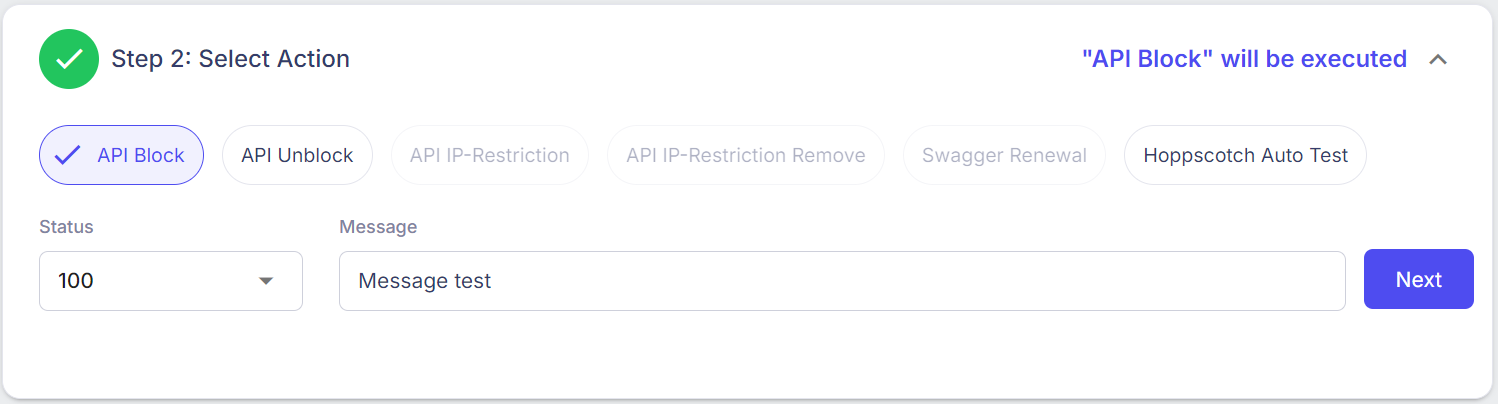
image.png
- Meaning of this configuration is: 当使用此配置运行 API 时,响应将仅返回调度的状态和消息;不会返回 API 的响应。
- 如果您选择 API Unblock 选项,将不会显示任何字段。

image.png
- Meaning of this configuration is: API 正常运行,没有任何影响。
- 如果您选择 Hoppscoth Auto Test 选项。
- 显示两个字段 Collection 和 Environment.。
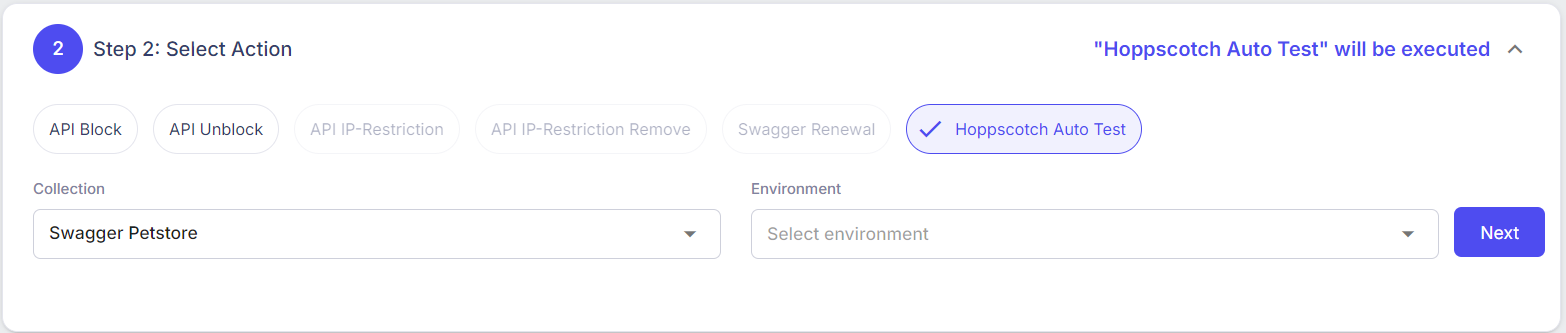
image.png
- 选择集合和环境;这些数据在 https://api-auto-test.apimags.skcloud.io 配置。
- Meaning of this configuration is: 在 https://api-auto-test.apimags.skcloud.io/ 创建的 API 集合将在配置的调度时间自动运行。
Step 4: 在 Step 3: Select APIs to be execute 部分输入数据。
- 使用 API Block 或 API Unblock 选项(在“Step 2: Select Action” 部分中选择)。
- 点击 API 列表部分显示的 (+) 图标。所选的 API 将应用于调度。
- 用户可以使用过滤器快速搜索 API。
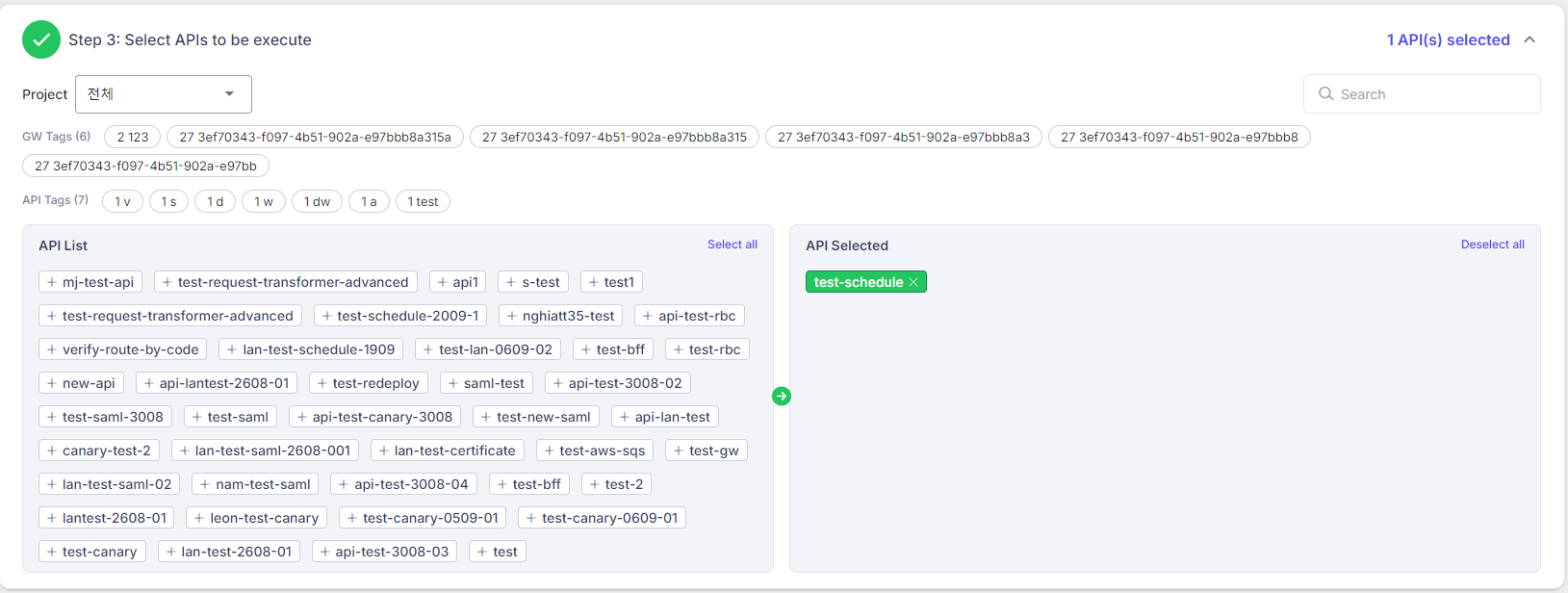
image.png
- 使用 Hoppscoth Auto Test 选项。
- 在 API 集合中选择 API。
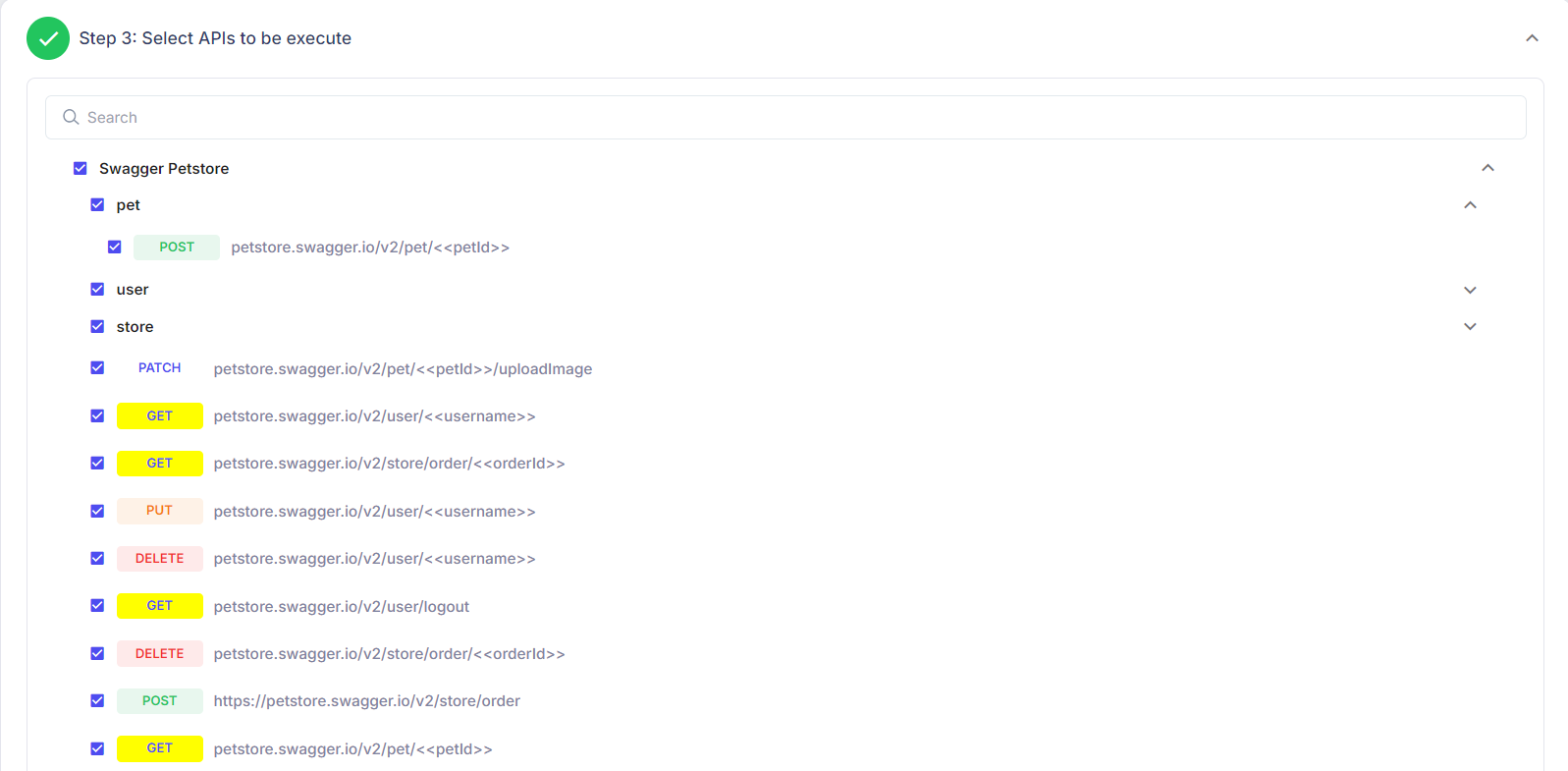
image.png
- 向下滚动以查看 API 详细信息。
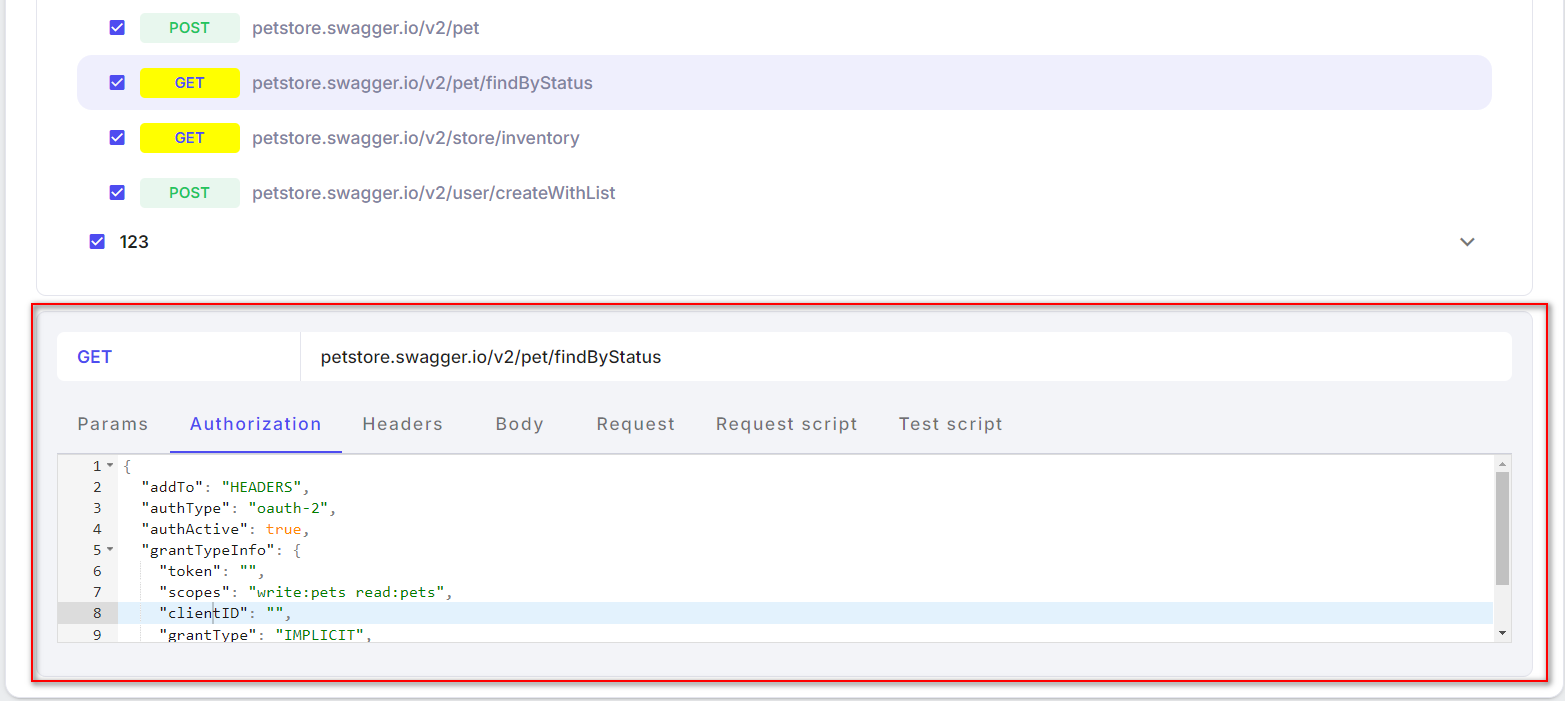
image.png
Step 5: 点击右上角的 Apply New Schedule 按钮。
2. 调度列表
- 成功创建的调度将在此 Schedule list 屏幕中显示。
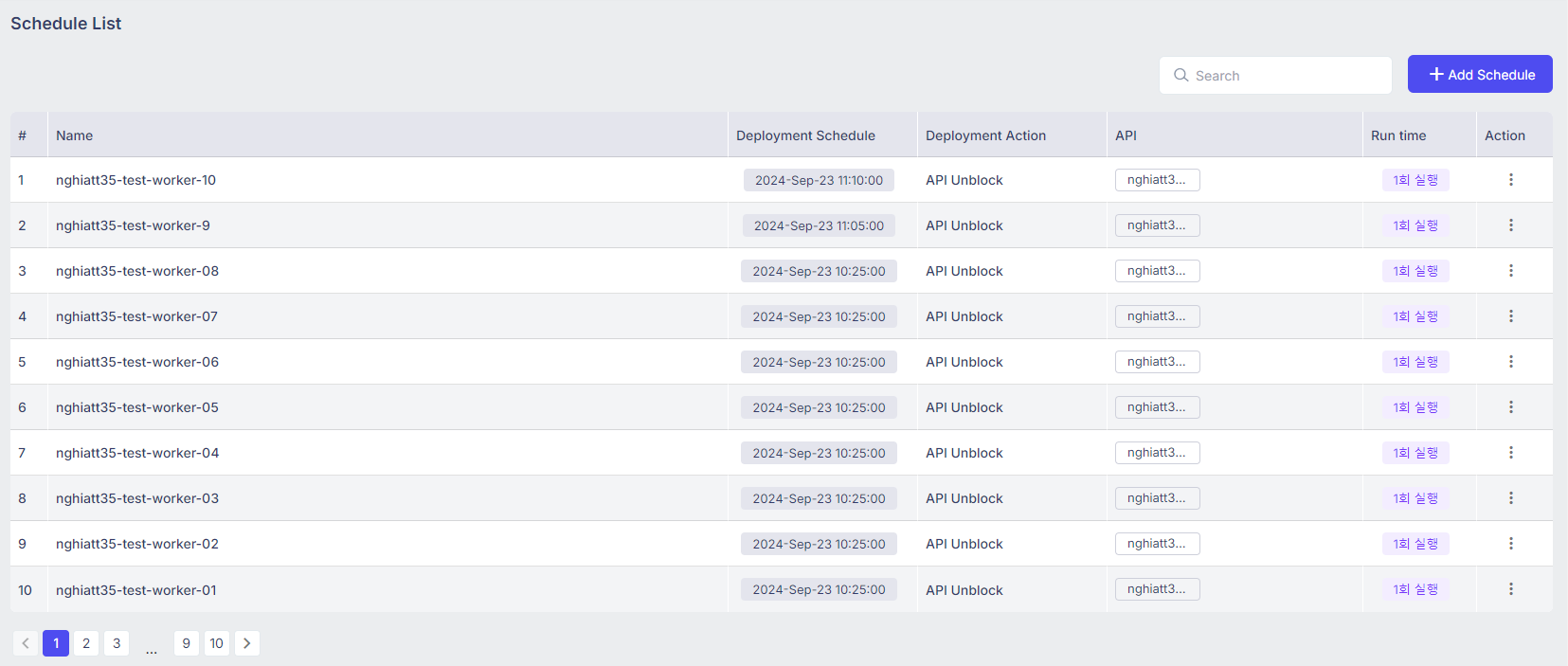
image.png
- 调度列表包括以下信息: | Column | Description | | --- | --- | | 名称 | 调度的名称 | | 部署调度 | 在 Step 1: Set Schedule 部分配置的调度时间 | | 部署操作 | 在 Step 2: Select Action 部分选择的操作 | | API | 应用于调度的 API 名称。 | | 运行时间 | 调度设置的运行 API 的时间。 | | 操作 | 操作: |
- 触发:调度将立即运行,无论设置的调度时间如何。
- 复制:克隆一条与旧调度记录相同信息的记录。
- 编辑:打开更新调度屏幕。
- 删除:删除调度。 |
- 用户可以通过 Name, Deployment Schedule, Deployment Action, API name, Run time. 搜索调度。
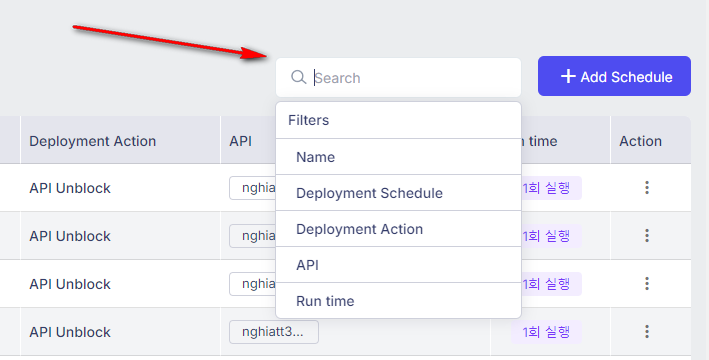
image.png
3. 操作
- 点击操作列中的省略号图标。
- 操作:
- Trigger: 调度将立即运行,无论设置的调度时间如何。
- Duplicate: 克隆一条与旧日程记录相同的信息记录。
- Edit: 打开更新日程屏幕。
- Delete: 删除日程。
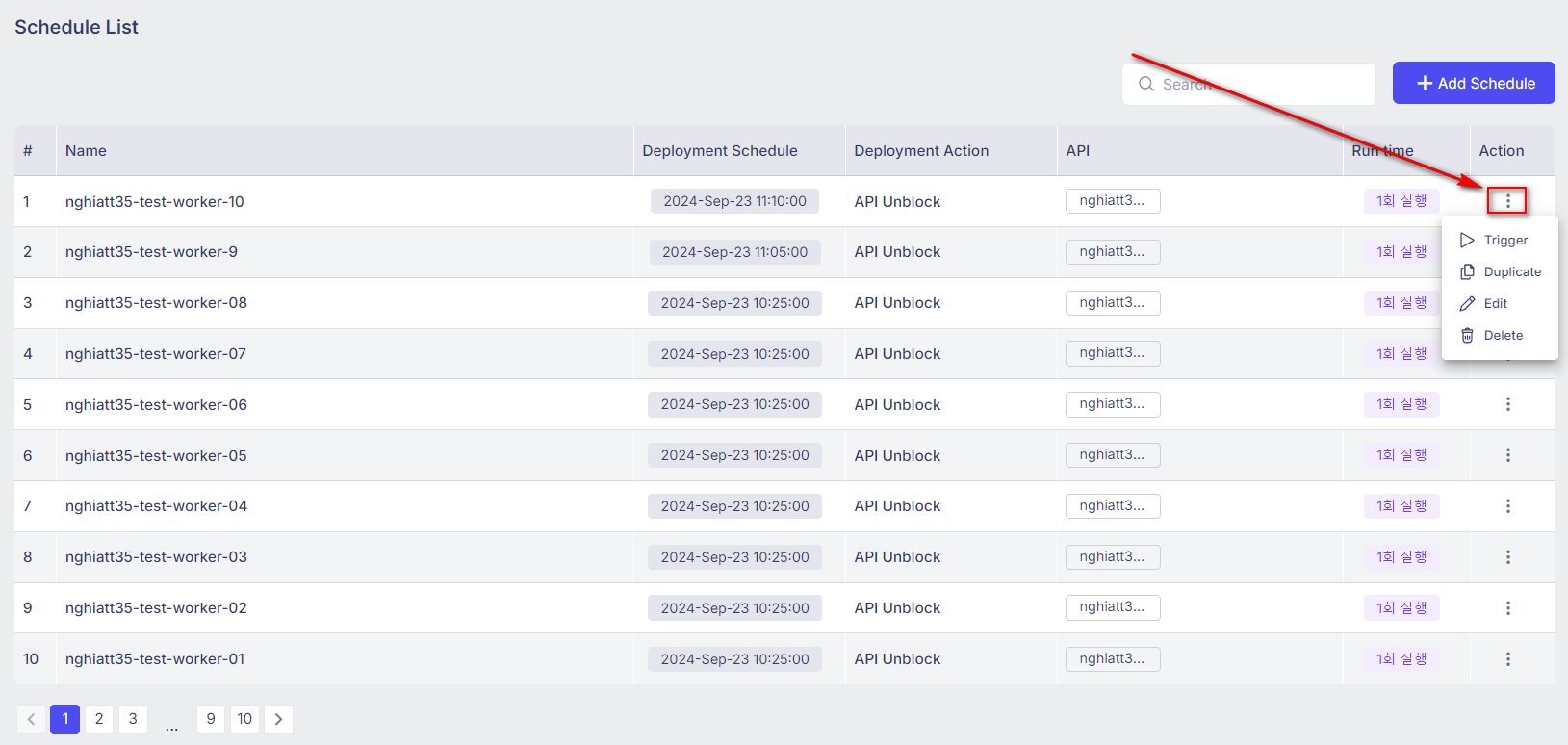
image.png
3.1. Trigger
Step 1: 点击 Trigger 选项以打开 Trigger Schedule 弹出窗口。
Step 2: 点击 OK, trigger it now 按钮,此日程将立即运行。
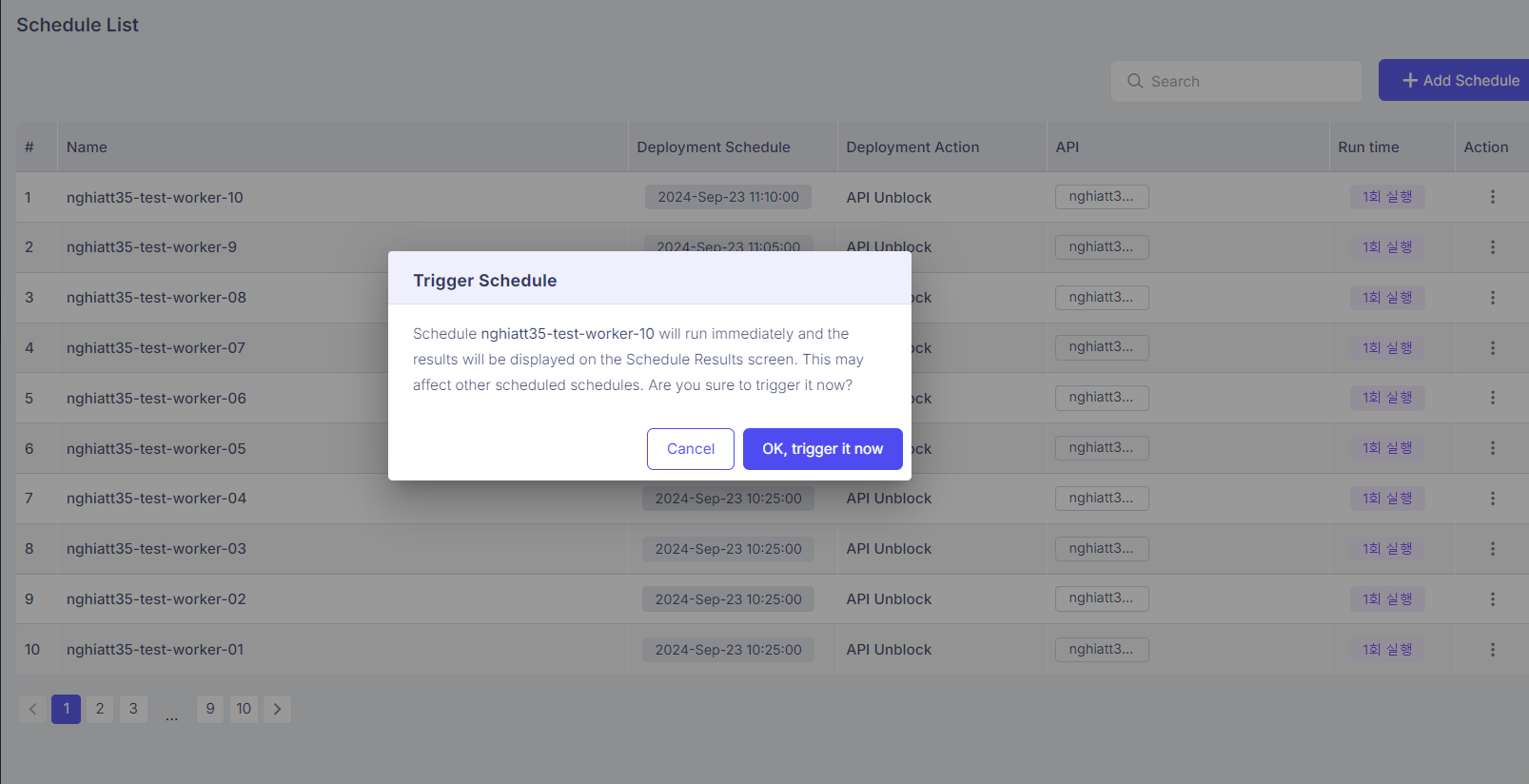
image.png
3.2. Duplicate
Step 1: 点击 Duplicate 选项以打开 Duplicate API Deployment Schedule 屏幕。
- 此屏幕上的信息克隆了所有旧日程,但尚未保存。
- 用户可以在此屏幕上更新数据。
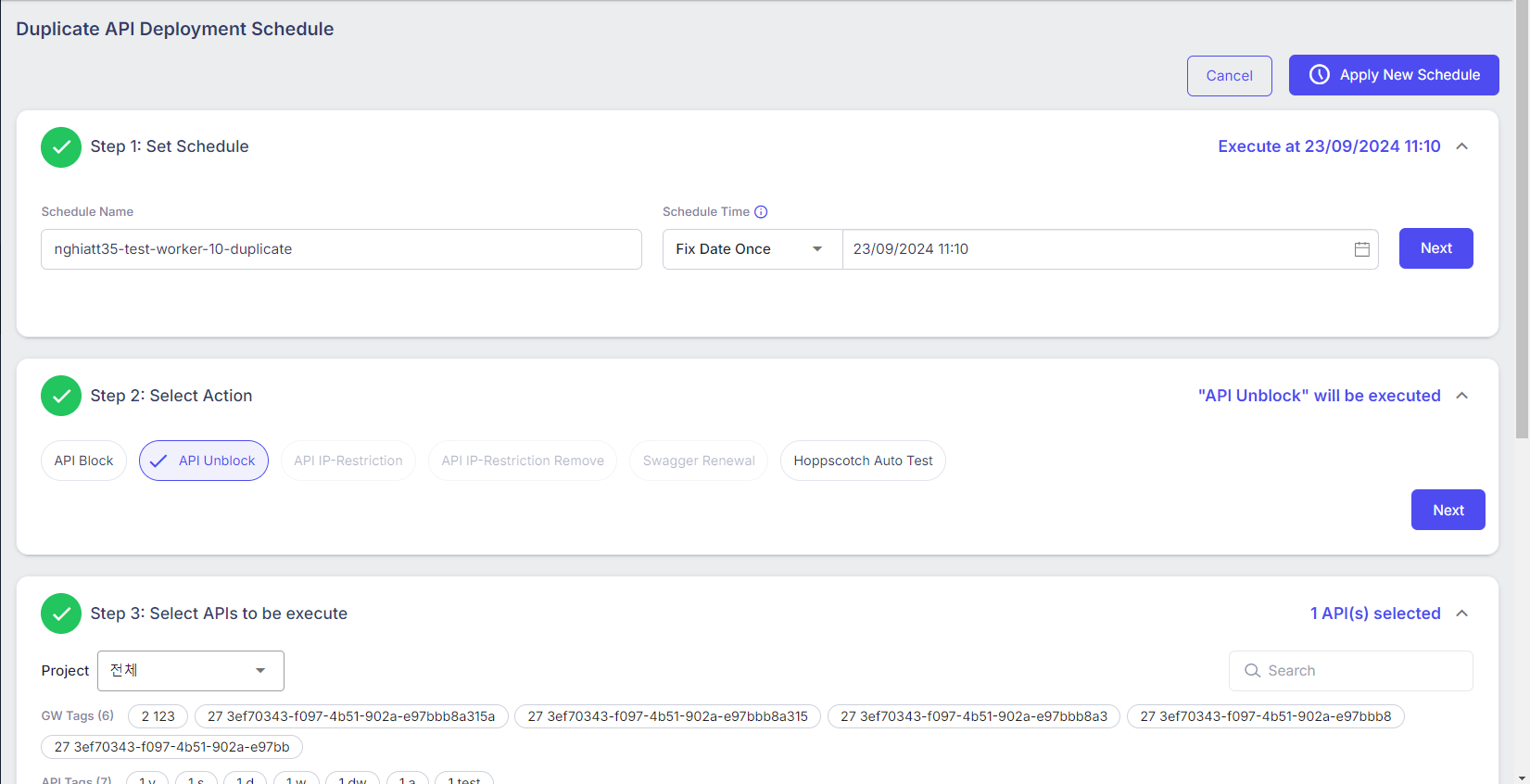
image.png
Step 2: 如有需要,请编辑数据。
Step 3: 点击右上角的 Apply New Schedule 按钮以保存。
3.3. Edit
Step 1: 点击 Duplicate 选项以打开 Update API Deployment Schedule 屏幕。用户可以在此屏幕上更新数据。
Step 2: 如有需要,请编辑数据。
Step 3: 点击右上角的 Apply New Schedule 按钮以保存。
3.4. Delete
Step 1: 点击 Delete 选项以打开 Delete Schedule 弹出窗口。
Step 2: 点击 OK, delete it now 按钮。
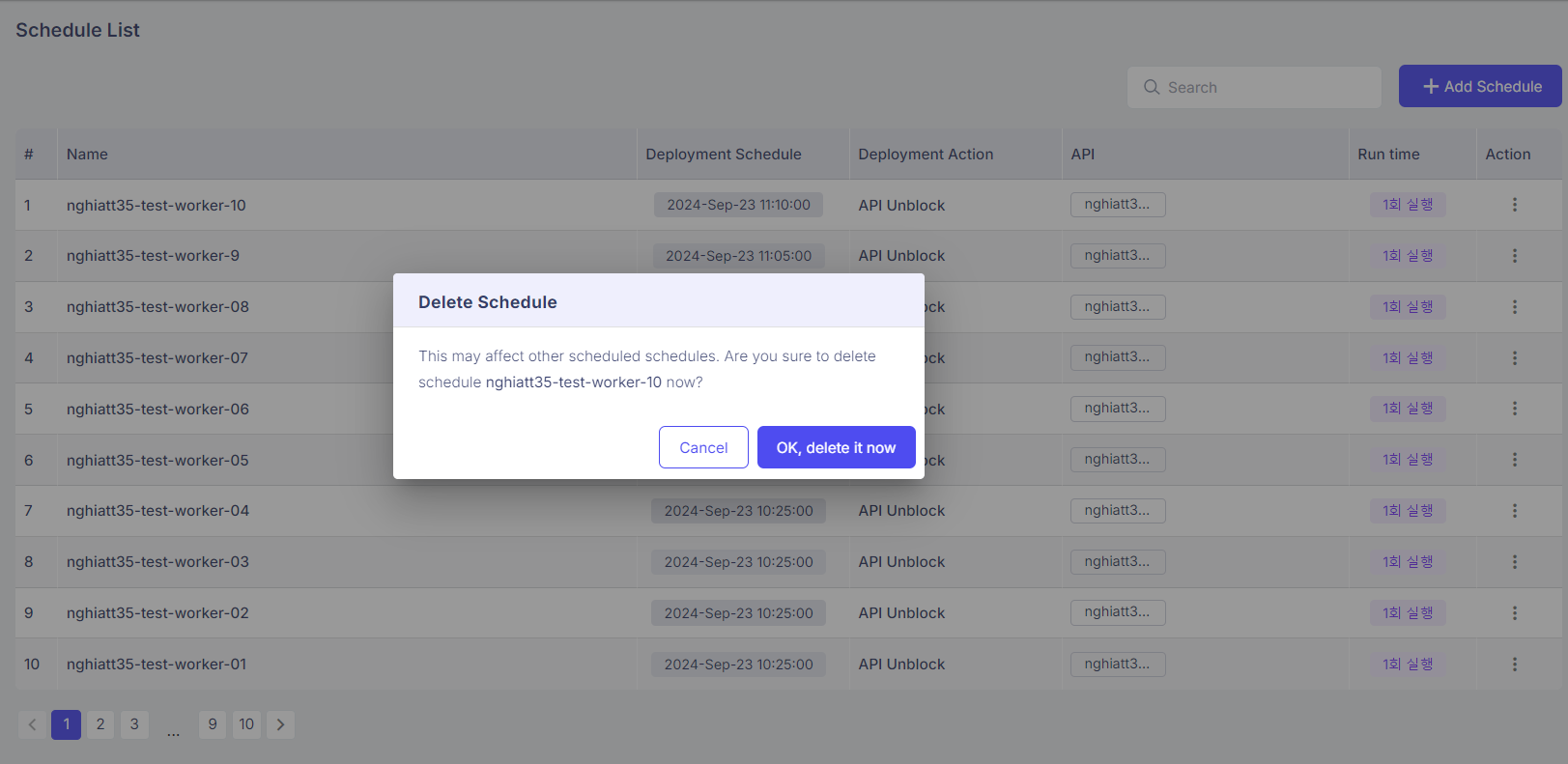
image.png
—end—