Audit Log Settings
What is Audit log?
It is a feature that records API activity to support monitoring, traceability, and compliance auditing. It can capture request details such as headers and body based on configuration, typically focusing on mutating methods (POST/PUT/PATCH/DELETE) and logging GET only when required. And payload size may be limited to prevent excessive storage usage.
User permission:
This function just allows for users with global-administrator role.
Audit Log Settings
-
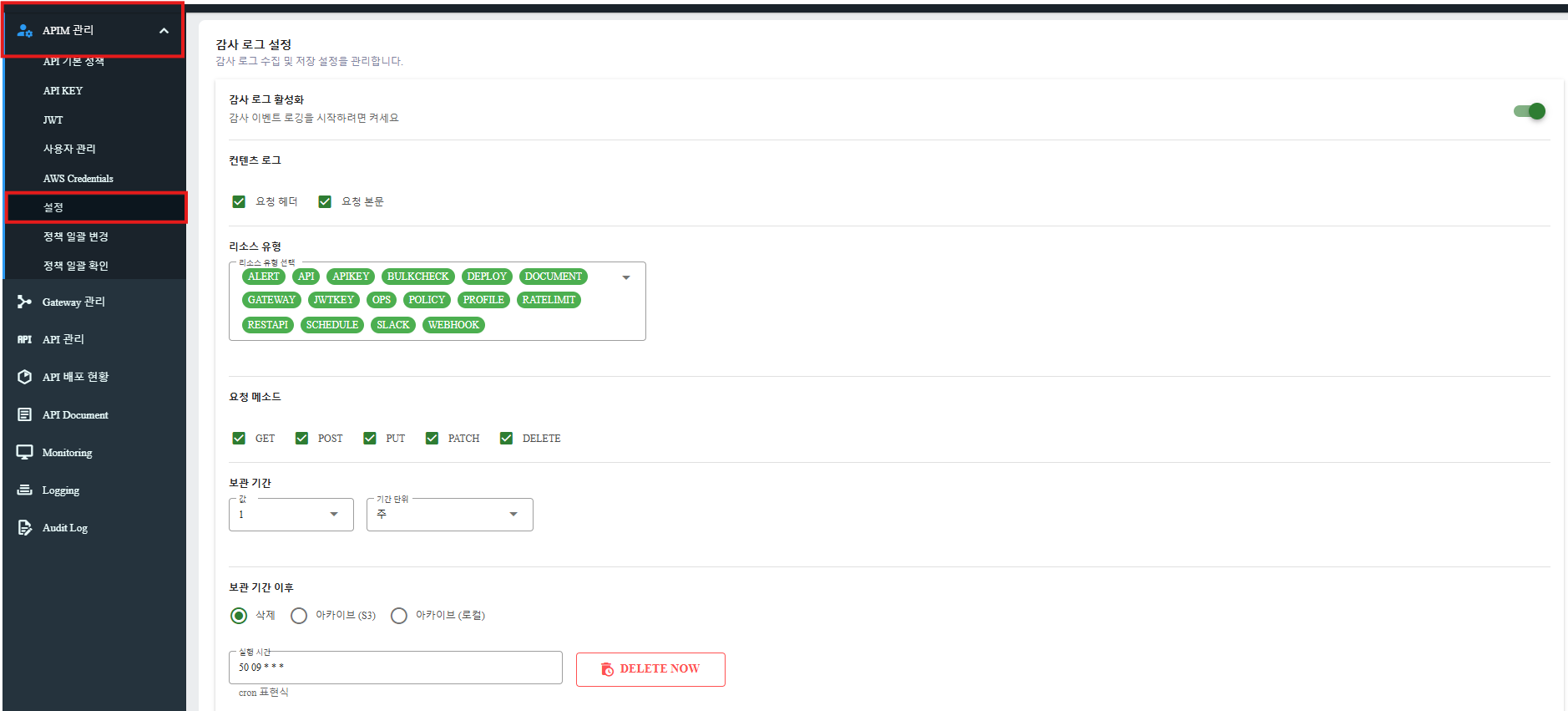
From the left menu, select APIM Management > Setting:
-
In the Settings tab:
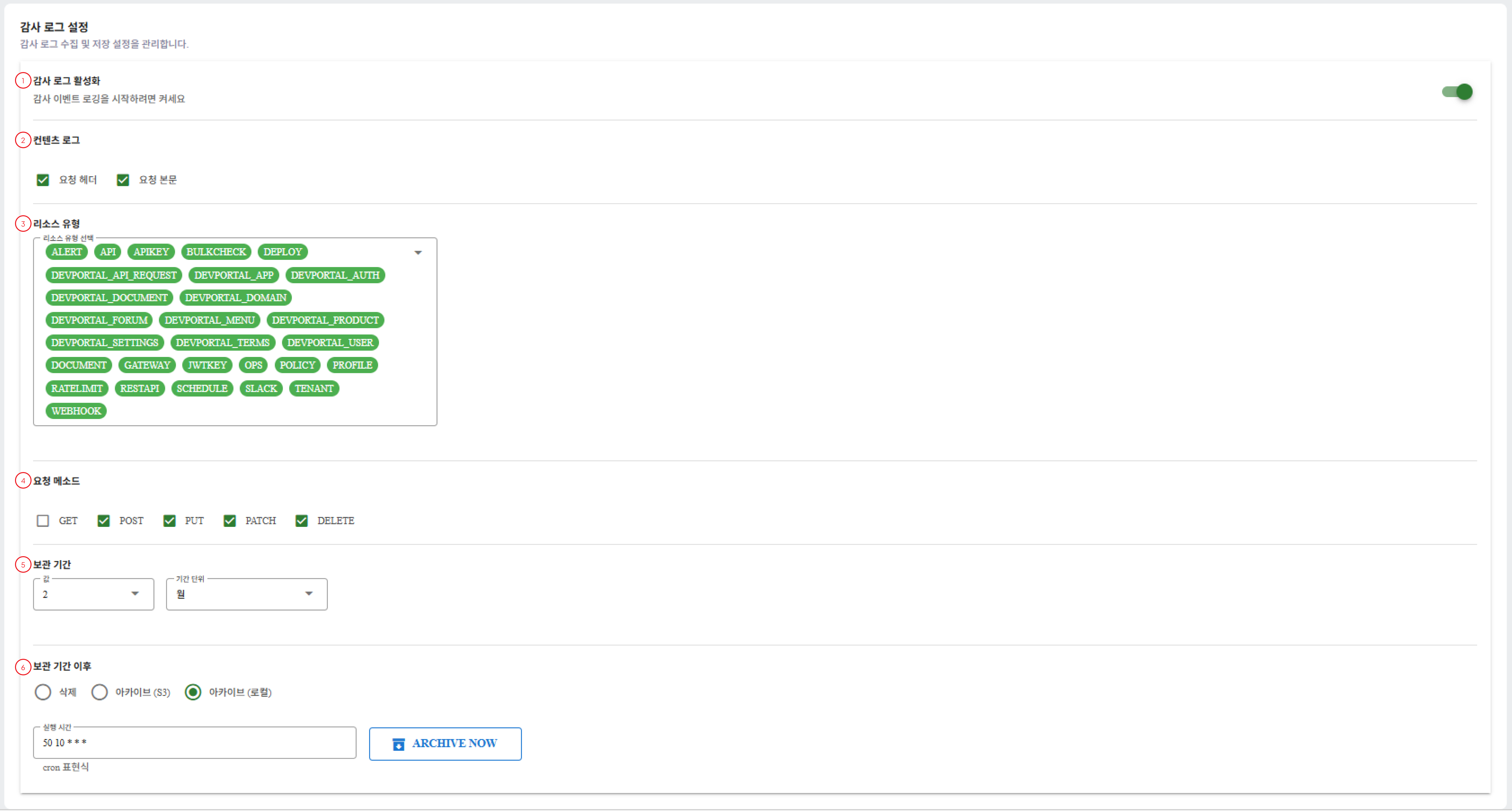
① Enable Audit Log: Turn audit logging on/off for the system. When enabled, API activities will be recorded based on the settings below.
② Content Log (Request header/ Request body): Select which parts of the request to store in the audit log (headers and/or body). Use carefully to avoid storing sensitive data and to reduce storage usage.
③ Resource Types: Choose which resource modules/features (e.g., API, Policy, Deploy, Webhook, etc.) should have their actions recorded in the audit log.
④ Request Types: Select which HTTP methods to log (GET/POST/PUT/PATCH/DELETE). Typically, mutating methods are logged; GET can be enabled only when needed.
⑤ Retention Period: Define how long audit records are kept in the live database, it includes with:
- Period: Number of time units to keep logs in the live database
- Unit: The unit for the value (e.g., Month)
⑥ After Retention Period:
User can select the action after the retention period:
- Delete:

+) Execution Time: user could fill as the format of Cron syntax
+) Delete now: runs it immediately for currently expired logs.
- Archive (S3):

+) S3 Bucket URL: Enter the S3 bucket path for archiving logs (e.g: s3://apim-audit-logs-archive)
+) Execution Time: user could fill as the format of Cron syntax.
And then click on Archive Now.
- Archive (Local)

User could fill as the format of Cron syntax in Execution Time field and then click on Archive Now.
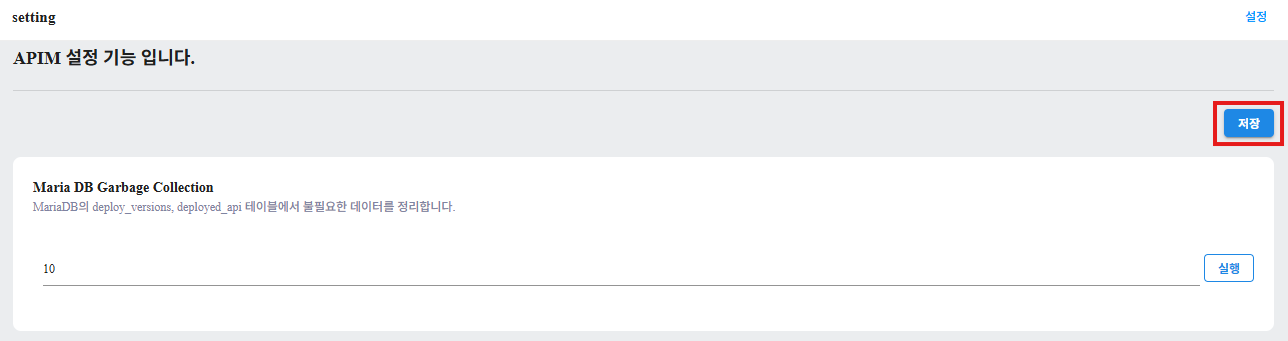
- Save
After user fill all fields in order to create Audit Logs, please scroll up and click on Save button for completing.
View Audit Logs List
After setting Audit Logs successfully, user could view the list of Audit Logs as below:
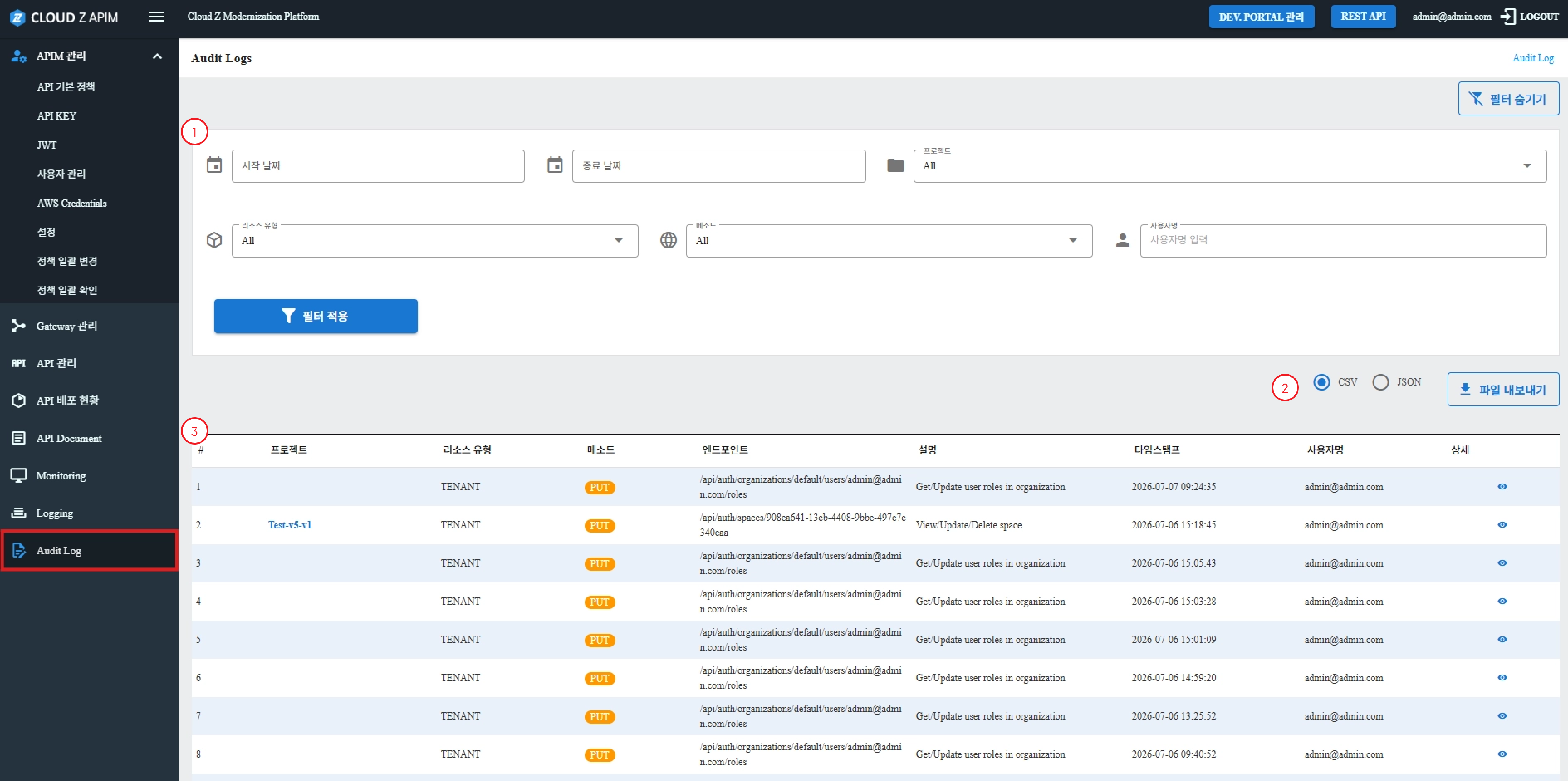
① Search function: User can use the Search function to quickly find specific audit log:
- Date Range: Allows user to select start and end dates for filtering logs.
- Project: Filter by project.
- Resource Type: Filter by resource type.
- Method: Filters by request method (GET, POST, PUT, PATCH, DELETE).
- Username: Filters logs by entering a username.
② The table contains the following details:
- Project (Link): Project name as a hyperlink to the project details page.
- Resource Type: Displays resource type for each log entry.
- Method: Displays request method as colored badge (GET, POST, PUT, PATCH, DELETE).
- Endpoint: Shows the relative API path.
- Description: Short explanation of the endpoint’s purpose.
- Timestamp: Date/time in format: YYYY-MM-DD HH:mm:ss.
- Username: Displays username.
- View Details icon: Icon to view log details; clicking navigates to Log Details screen.
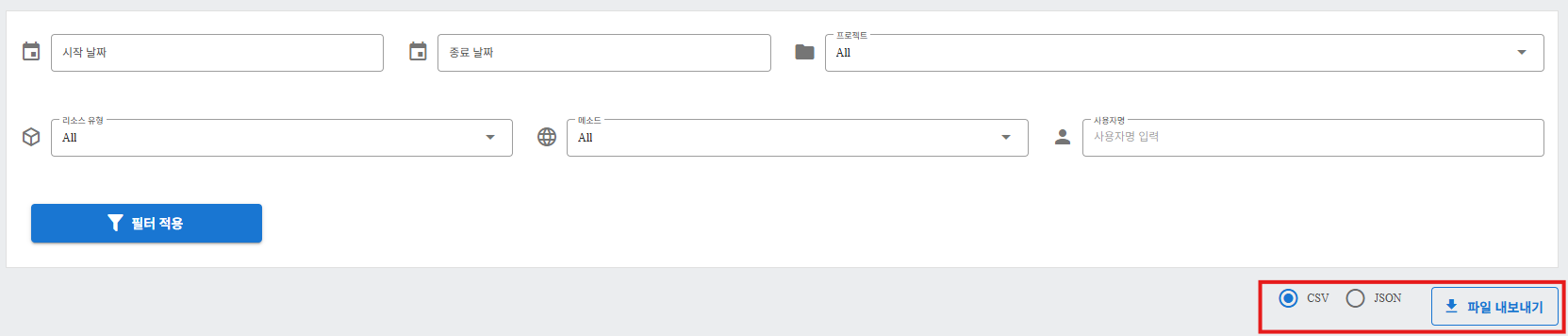
③ User can export the list of Audit Logs as CSV or JSON file:
View Details of Audit Logs
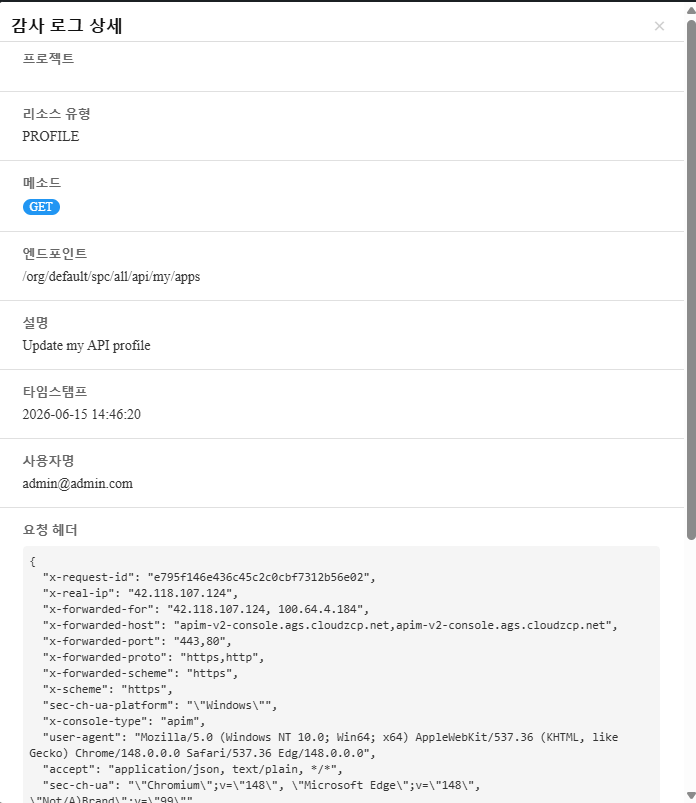
User can navigate to Audit Logs listing page and click on View Details icon of each record to open the log details page in pop-up window: