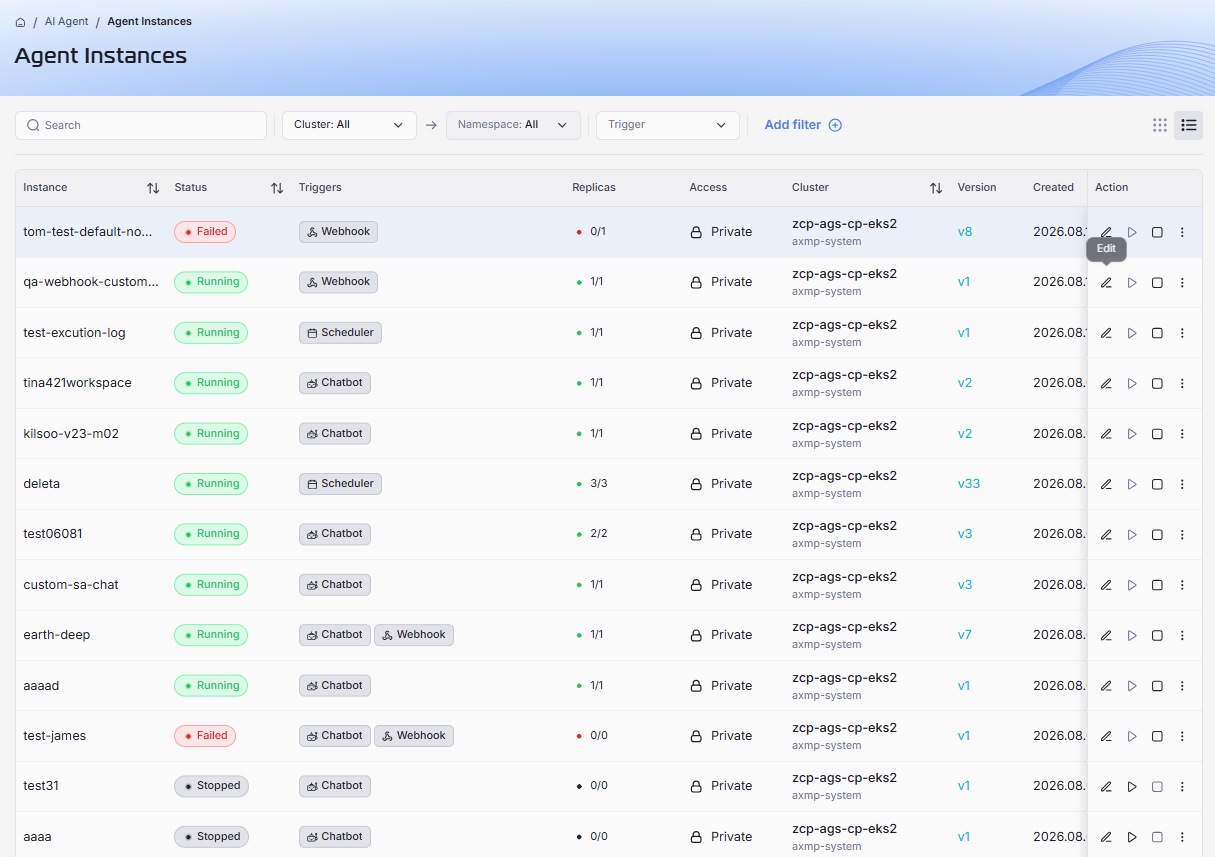
View List Agent Instances
The Agent Instances page in AI Workspace helps you monitor and manage all deployed agent instances in your environment.
From the left navigation panel, go to AI Agent and select Agent Instances to open the listing page.
On this page, you can view each instance status, readiness, trigger type, deployment location, and available actions.
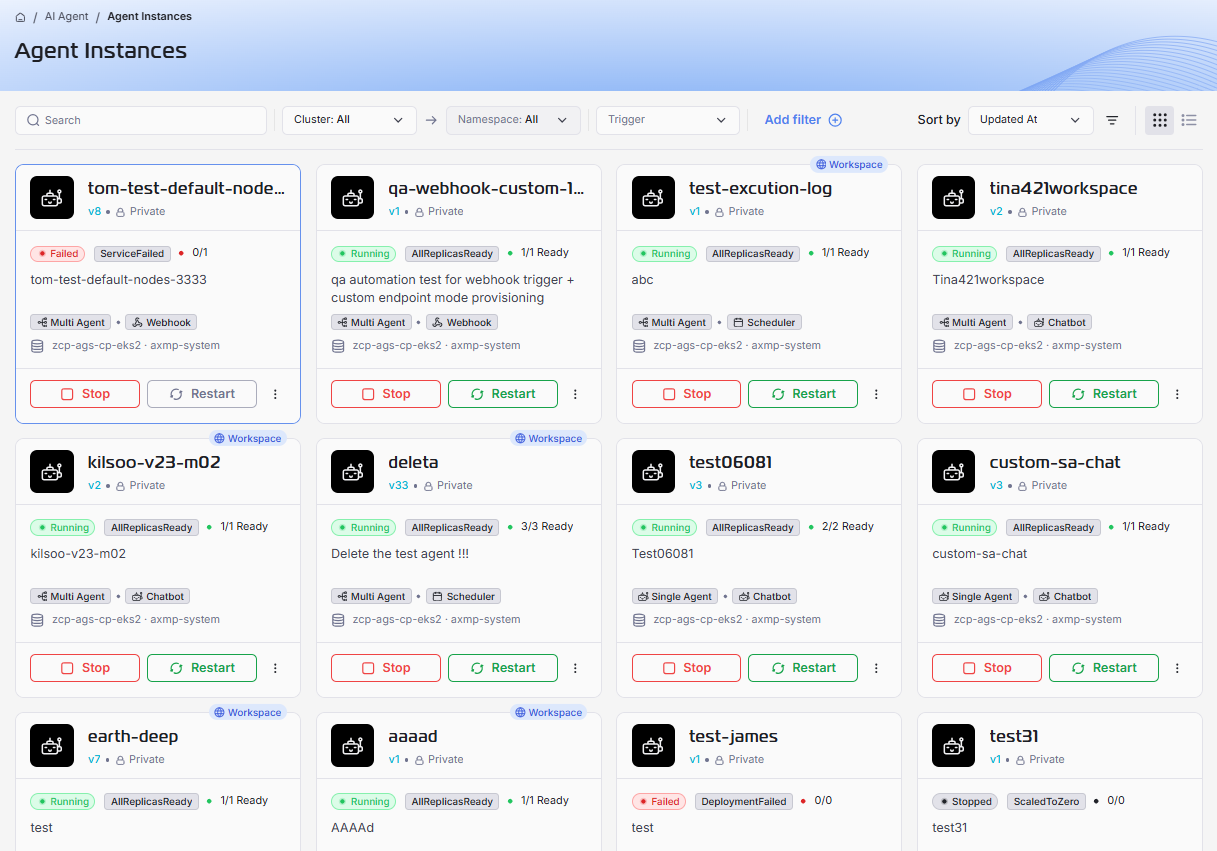
1. Search and Filter Instances
At the top of the page, use the search and filtering controls to quickly locate target instances.
Search
Use the Search box to find an instance by name. The list updates in real time as you type.
Quick Filters
Use the quick filter dropdowns beside the search box to narrow down results:
- Cluster: Show instances from a selected Kubernetes cluster.
- Namespace: Show instances from a selected namespace.
- Trigger: Filter by trigger type such as Webhook, Scheduler, or Chatbot.
Add Filter
Click Add filter to apply additional filter rules (for example status, access, or version-related attributes depending on available options in your environment).
2. Sort the Agent Instance List
Use the Sort by dropdown in the upper-right area to reorder displayed instances.
- Updated At: Default sorting by the most recently updated instances.
- Other sort options may include fields such as name, status, or creation time depending on your workspace configuration.
Use the sort direction toggle icon next to Sort by to switch between ascending and descending order.
3. Change Agent Instance List Layout
The Agent Instances page supports two layouts:
- Grid View: Card-based layout for quick visual monitoring and action buttons.
- List View: Table layout for scanning many instances at once.
Use the layout icons in the top-right corner to switch between these views.
Grid View Details
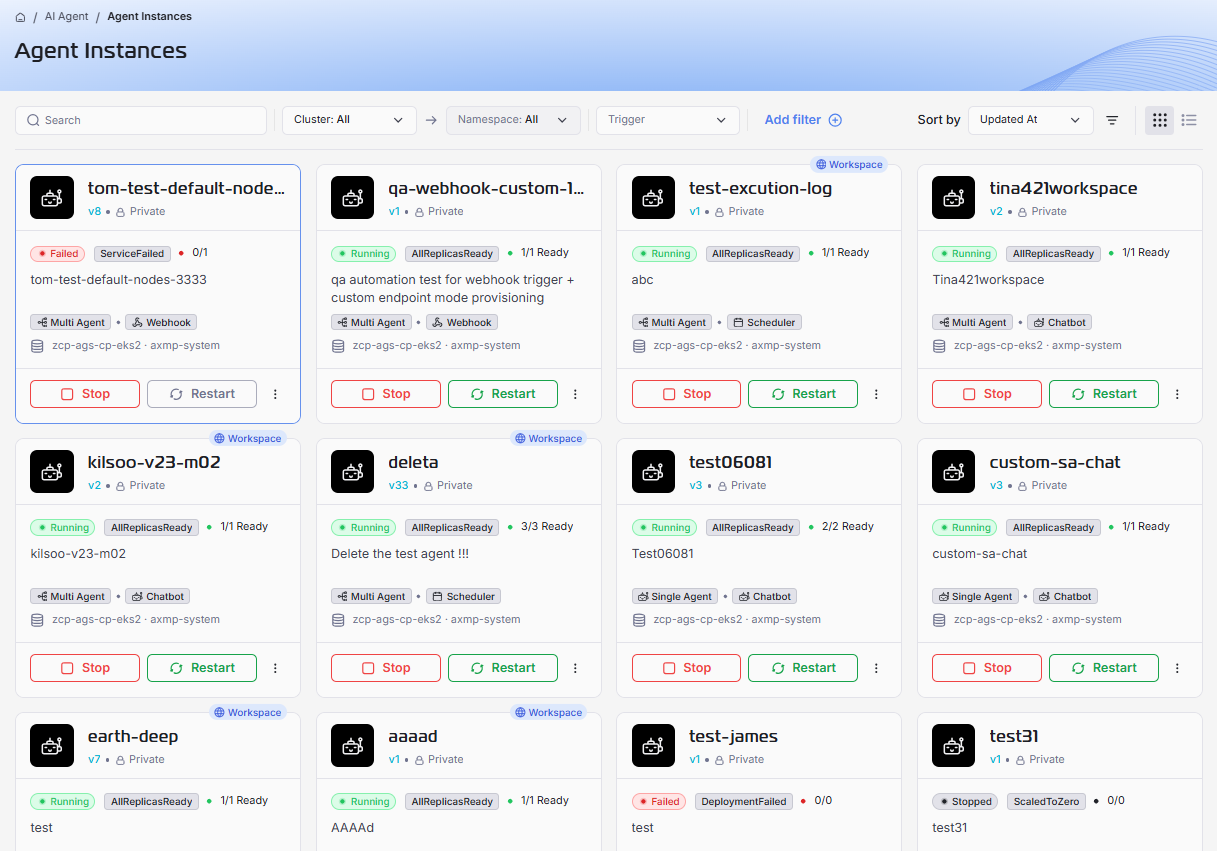
In Grid View, each instance card typically shows:
- Instance Name: The unique instance identifier.
- Version: Current deployed version (for example v1, v2, v3).
- Access: Access scope such as Private.
- Status: Current runtime state (for example Running, Failed, Stopped).
- Condition Badges: Additional health markers such as AllReplicasReady, ServiceFailed, DeploymentFailed, or ScaledToZero.
- Replicas: Readiness ratio displayed as ready/desired (for example 1/1, 0/1, 0/0, or 3/3).
- Description: Short instance description if available.
- Agent Type / Trigger Tags: Tags such as Single Agent, Multi Agent, Webhook, Scheduler, or Chatbot.
- Cluster and Namespace: Deployment location shown at the bottom of the card.
- Actions: Buttons such as Stop, Restart, or Resume.
- (⋮) for quick action buttons:
- Edit
- Share
- Publish to Workspace
- Publish to Agent Registry
- Delete
List View Details
In List View, instances are shown in a compact table with columns with all field columns as grid view.