跳到主要内容

GPU Pool Detail

This screen allows the System Administrator to view detailed information of GPU Pools that already exist in the system.

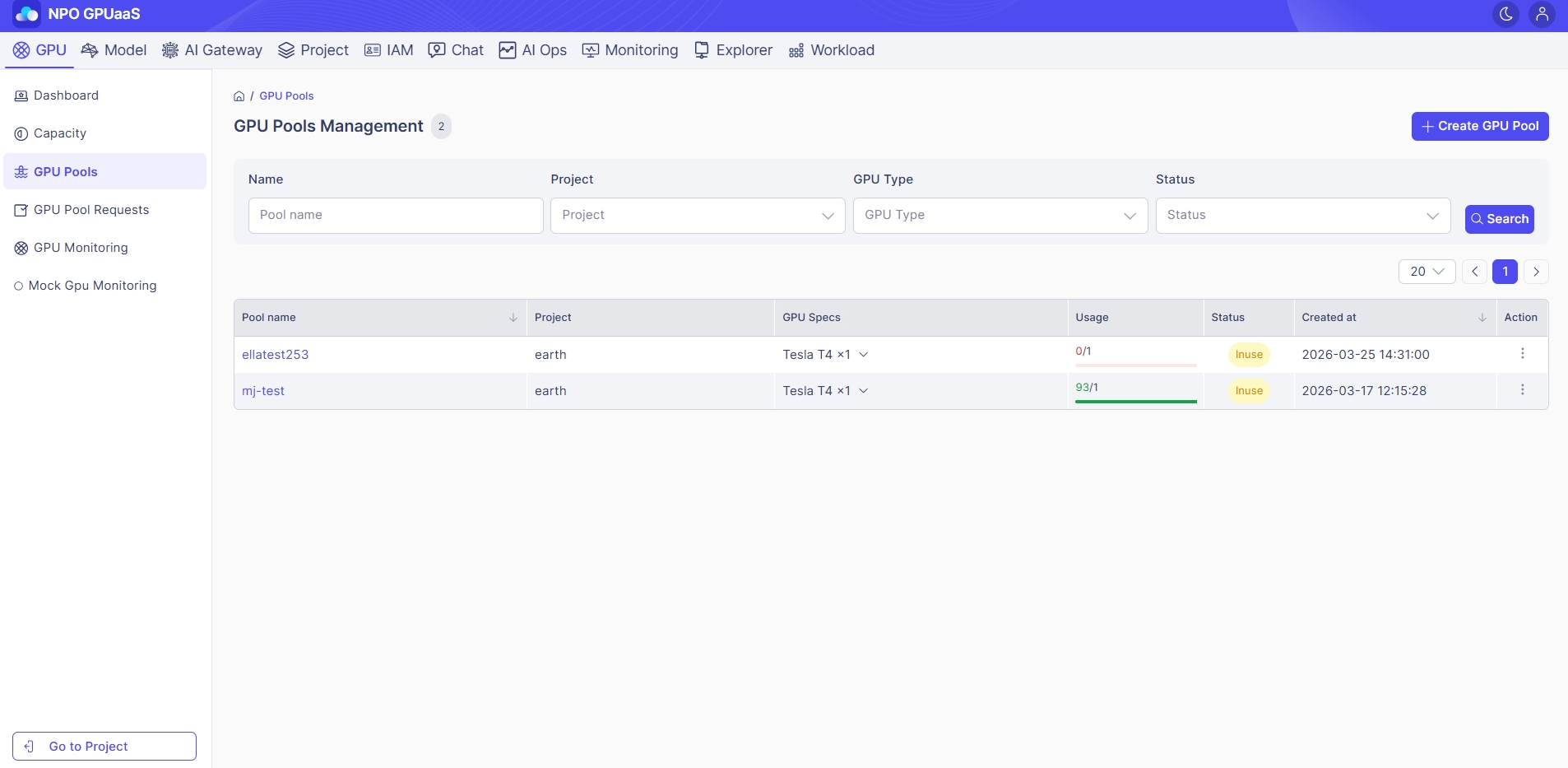
  1. From the System Admin Control Panel, click GPU in the main navigation. Then, in the left-side navigation, select GPU Pools:

2. Click the three-dot icon and select Manage profiles: 

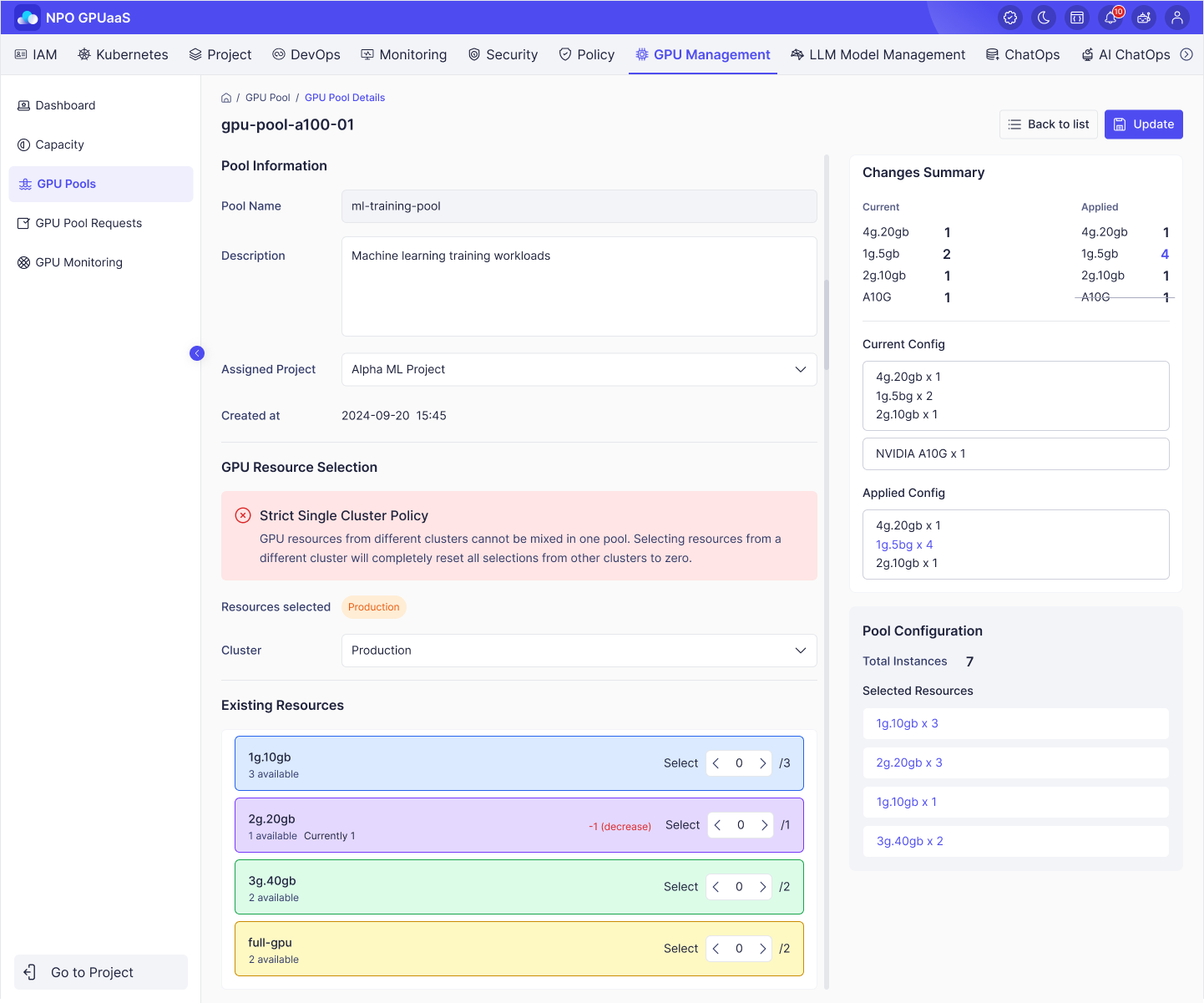
  1. System navigates to the corresponding GPU Pool Detail screen with the following information.

  • Pool Name: Name of GPU pool.
  • Description: Display the purpose of this pool.
  • Assigned Project: Shows the project that the pool has been assigned to.
  • Created at: Date and time the pool was created.
  • GPU Resource Selection:
    • Cluster: Display the cluster where the GPU Pool was created.
    • Existing Resources:
      • For each GPU type, display the number of units included in the pool.
      • Use the selector next to each resource to change the allocated amount as required.

4. On the right panel, review your changes summary (if any): 

  • Changes summary: Displays a summary of selected resources with their current and newly applied quantities and displays a comparison between the current configuration and the newly applied configuration.
  • Pool Configuration: Shows a summary of selected GPU instances, types, and quantities.

5. After confirming all changes, click Update to update the GPU Pool.Â