Groups
Group Management
RBAC-style organizational layer for grouping users. Define team/group structure and role mapping, attach users to those groups so permissions and sharing policies can be applied consistently across the app.
Group DashboardThe Group Management dashboard provides a complete view of existing groups and their assigned roles.
View Existing Groups
The main table displays all created groups with key information:
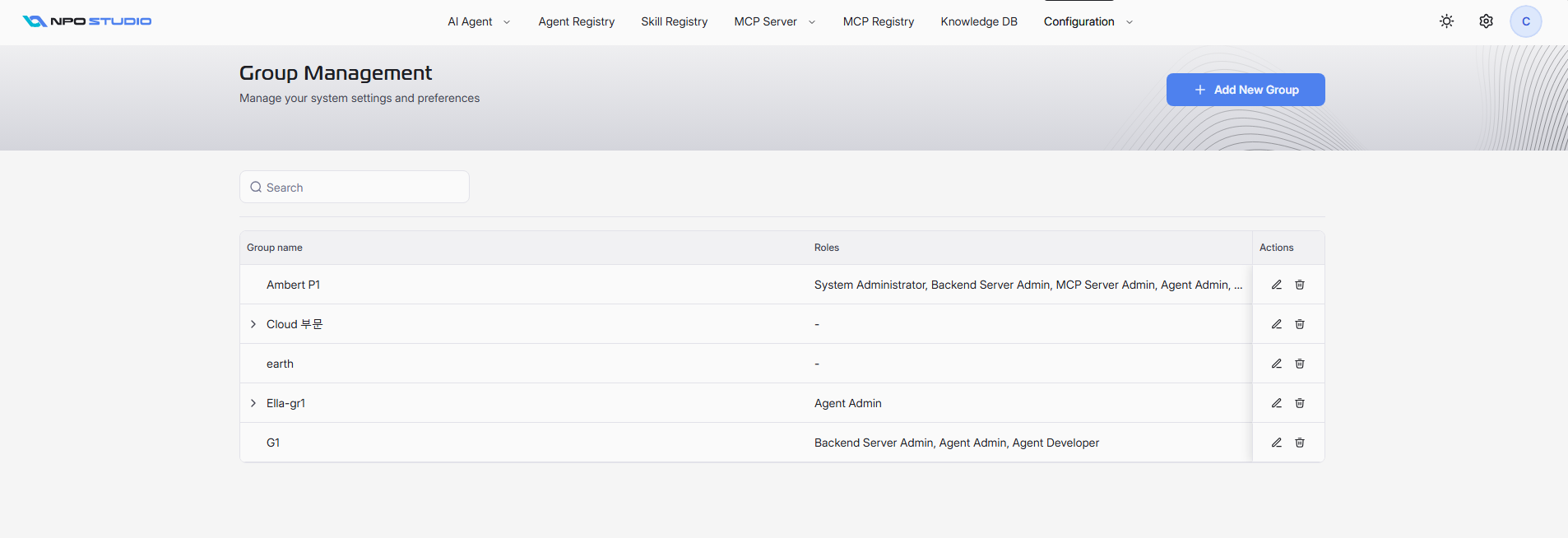
- Group name: The display name of each group.
- Roles: Role assignments currently linked to the group (for example: System Administrator, Backend Server Admin, MCP Server Admin, Agent Admin, Agent Developer).
- Actions:
- Edit: Open the selected group to review or update details.
- Delete: Remove the group.
Additional controls on this screen:
- Search: Filter groups by name.
- Add New Group: Create a new group.
Add a New Group
To create a group, click Add New Group and complete the form:
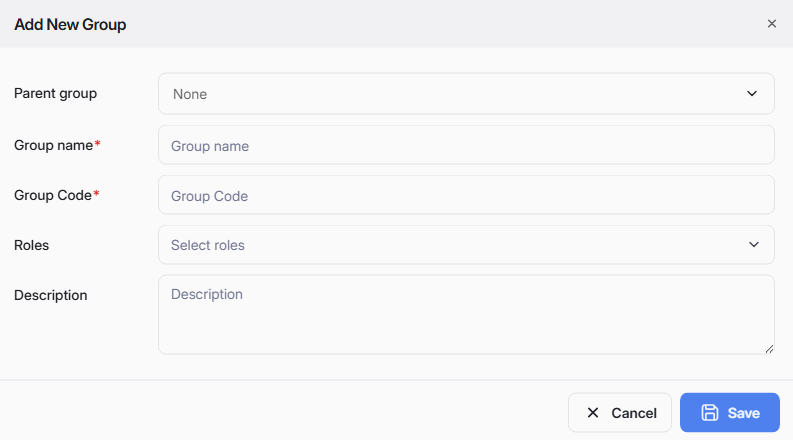
- Parent group: Select a parent group if this is a child group. Leave as None for a top-level group.
- Group name (required): Enter the display name.
- Group Code (required): Enter a unique code used for identification.
- Roles: Select one or more roles to grant to members of this group.
- Description: Optional description for business context.
After completing required fields, click Save to create the group, or Cancel to close without saving.
Group Detail Page
After selecting a group from the list, the detail page provides two tabs: Overview and Users.
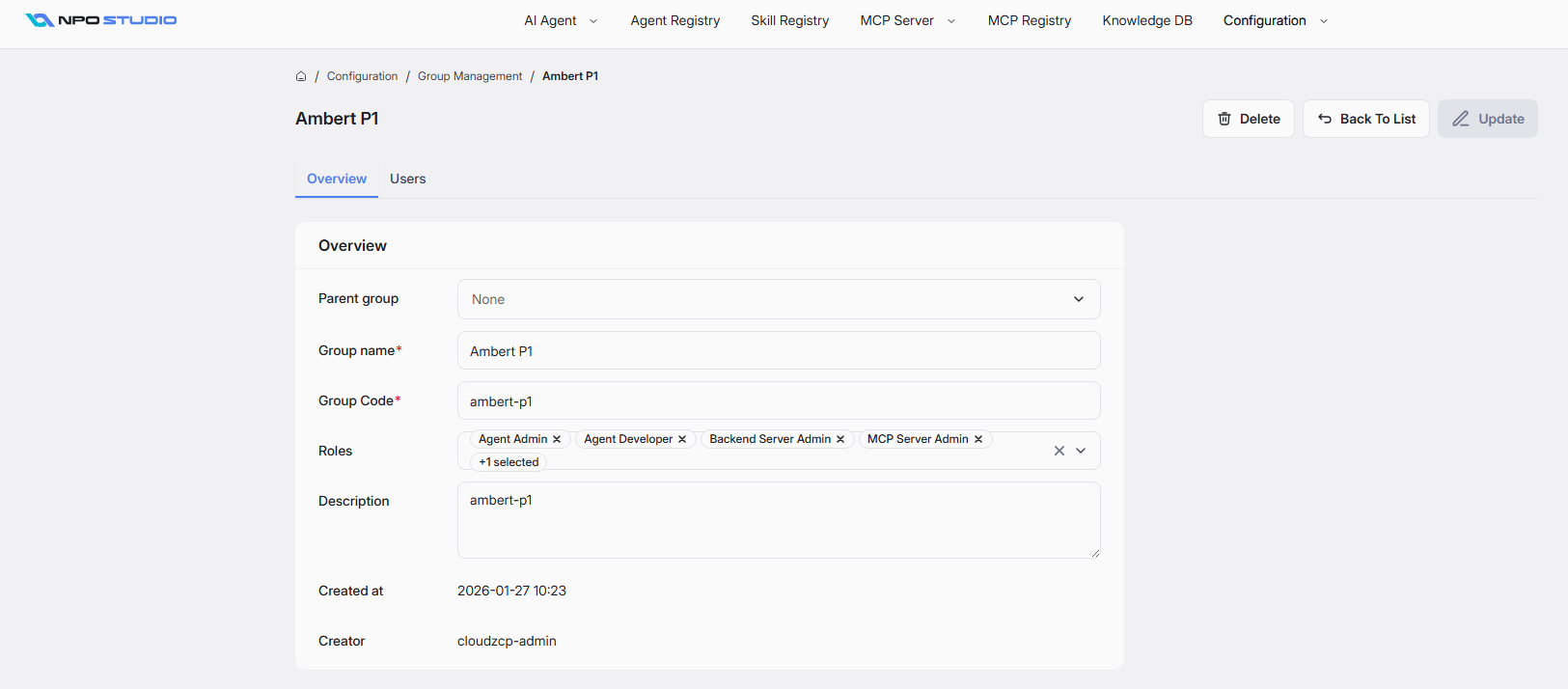
Overview Tab
The Overview tab contains group metadata and editable configuration:
- Parent group
- Group name
- Group Code
- Roles
- Description
- Created at: Record creation timestamp.
- Creator: Account that created the group.
Top-right actions:
- Update: Save changes made to group details.
- Delete: Remove the current group.
- Back To List: Return to the Group Management list.
Users Tab
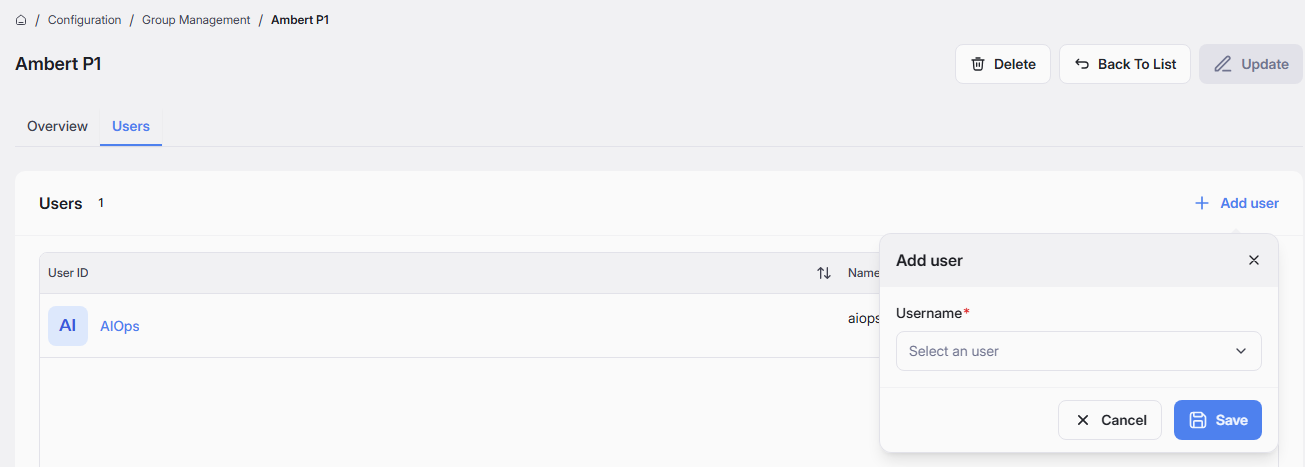
The Users tab is used to manage users belonging to the selected group.
Available capabilities:
-
Add user: Add new users to the group. On click system display pop-up to add user, you can select user from existing user list to add to group. One user can be added to more than one group.
-
View user list: Display current members information including User ID, Name, Email
-
Remove user: Delete a user from the group using the action icon.