View List of MCP Registry
The MCP Registry is a centralized dashboard where you can discover, monitor, and manage all registered MCP servers. It provides a comprehensive catalog of both internal and externally published services available within your organization.
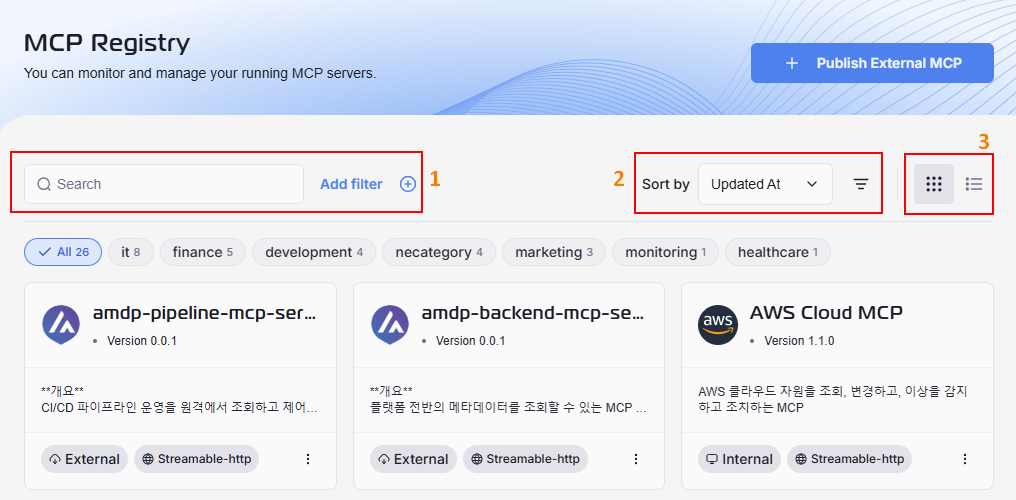
1. Search and Filter
To easily find specific MCP servers, use the set of tools located below the header.
- Search: Use the search box to quickly find servers by typing in their name or keywords from their description.
- Add filter: Click this button to apply attribute-based filters to refine the server list.
Use filters and search together for precise results.
Tag-Based Filtering
Below the search bar is a list of clickable tags for quick, one-click registry filtering:
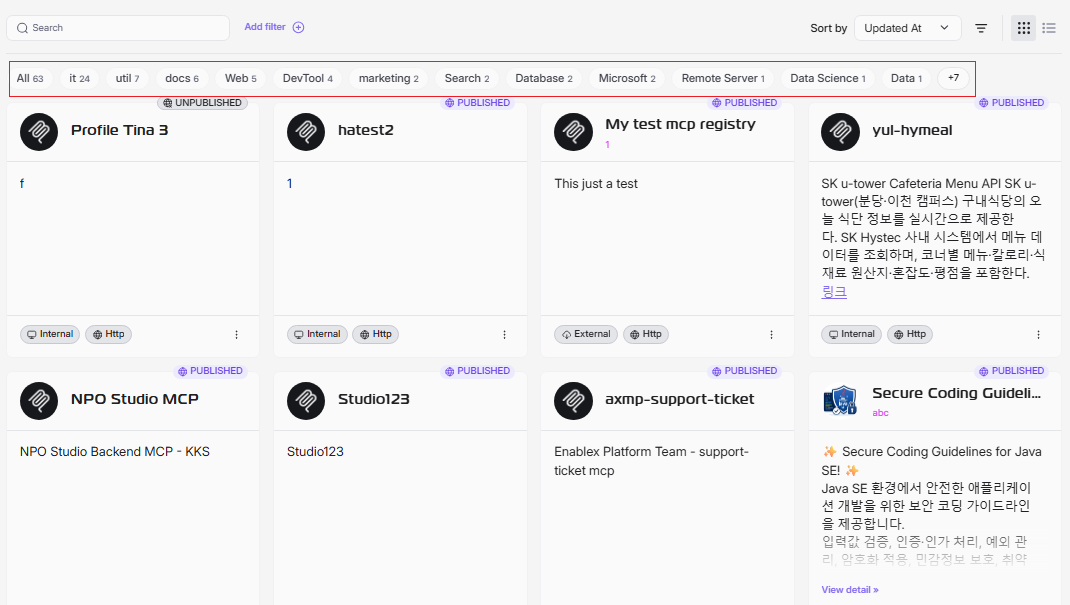
- Click any tag (e.g.,
web,marketing,Devtoo) to instantly display only MCP servers associated with that category. - The number next to each tag indicates how many servers currently have that tag.
- Click All to remove the tag filter and view all registered servers.
2. Sort
You can customize the display of the registry to suit your needs.
Use the Sort by dropdown menu (defaulting to Updated At) to organize the servers by criteria like name or version. Click the icon next to it to toggle between ascending and descending order. Other sorting options include: Name, Version, Created At.
3. Change Layout
Switch between Grid View (default) and List View by clicking the corresponding icons on the far right.
Grid View
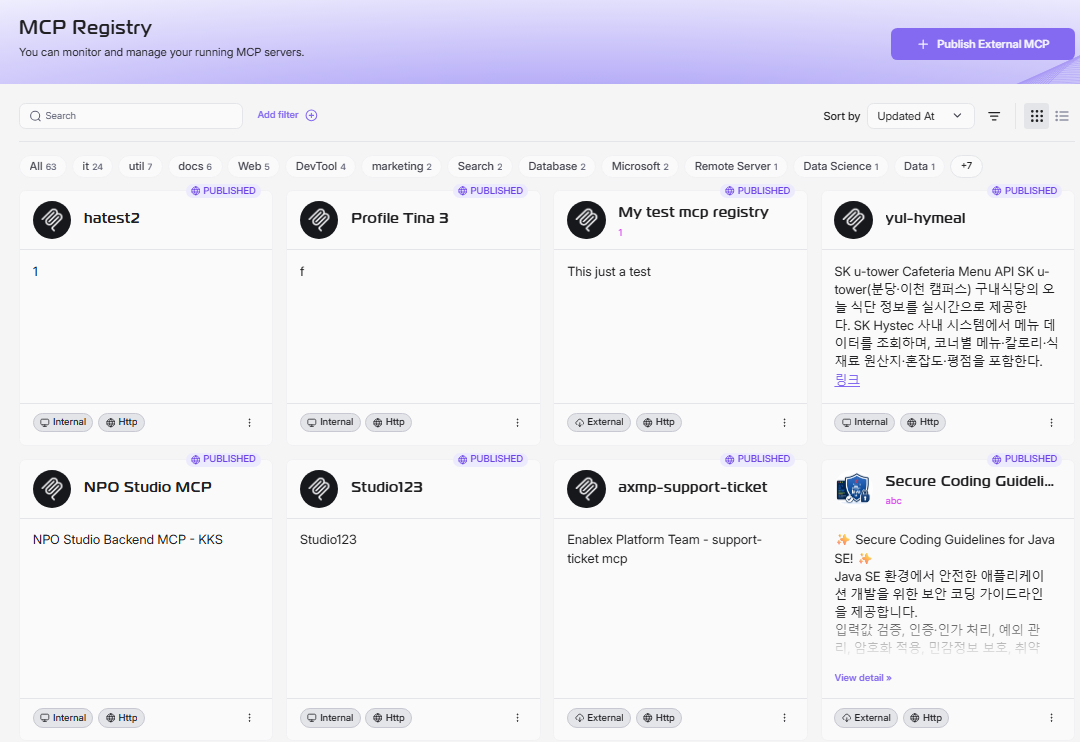
Each card in the grid view provides a summary of a registered MCP server.
- Server Name and Icon: The display name and associated logo.
- Publish badge: The badge indicate that the MCP Server published or unpublished.
- Description: A brief summary of the server's functionality.
- Labels: Tags at the bottom of the card provide key information at a glance, such as:
- Origin: Indicates if the service is
InternalorExternal. - Technical Details: Describe protocols or features, like
Streamable-http.
- Origin: Indicates if the service is
- More Options: Click the three-dot menu on a card to access additional actions, such as viewing JSON MCP, editing the registration, or publishing/unpublishing the server.
List View
The list view presents registered MCP servers in a structured, tabular format for easy comparison and bulk management.
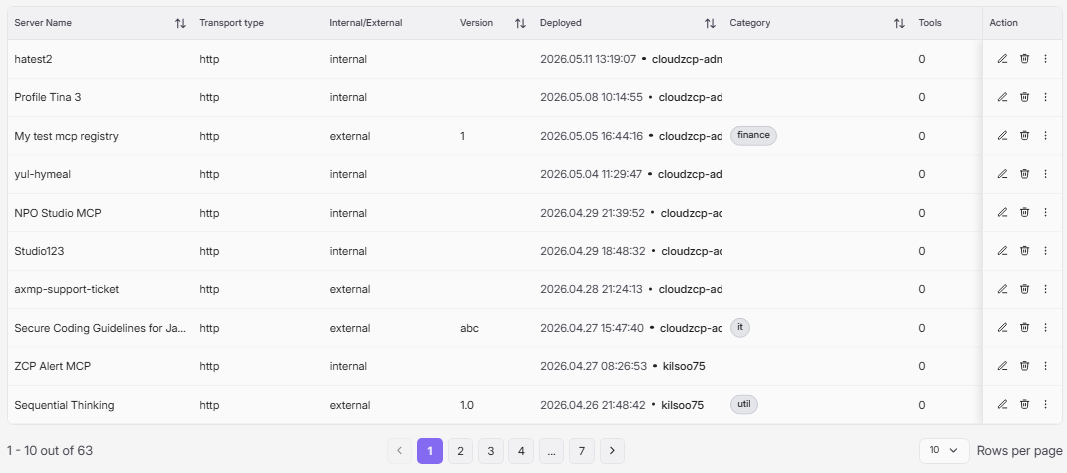
Each server is displayed as a row, with key details organized into columns:
- Server Name: The display name of the MCP server.
- Transport Type: Protocol or method used.
- Internal/External: Indicates whether the service is internal or external to your organization.
- Version: The current version number.
- Deployed: Shows the deployment date and time and who deployed the server.
- Category: Relevant tags to categorize the type of server, such as department, function, or environment.
- Tools: Number of tools or integrations associated with the server.
- Action: Quick access icons for viewing JSON MCP Server, deleting, or publishing/unpublishing the server.