View List of MCP Instances
From the MCP Server main menu, click on MCP Instances to open the page listing all provisioned MCP Profiles.
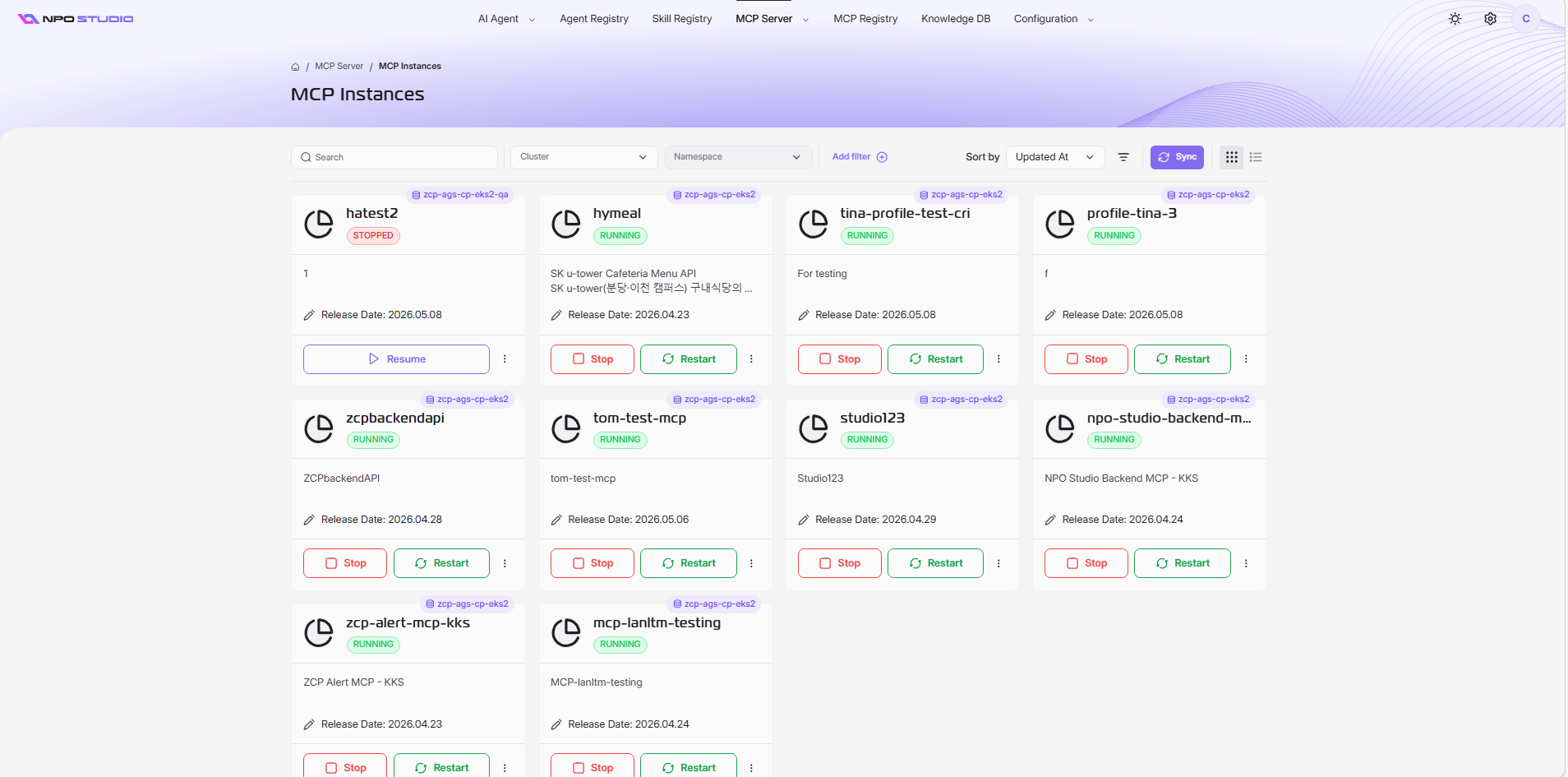
The MCP Instances page displays a grid of all active server instances running in your system. Each instance card represents a distinct deployment, showing its operational status, version, and other relevant metadata.
1. Search and Filter Instances
Search
At the top left of the MCP Instances page, you’ll see a search box. Enter keywords to quickly locate specific instances by name or description. As you type, the list of instances will update in real time to match your search criteria.
Filter
Next to the search box, use the Add filter option to apply custom filters and refine the list of instances displayed. You can filter by various attributes such as name, label, status, created by, updated at.
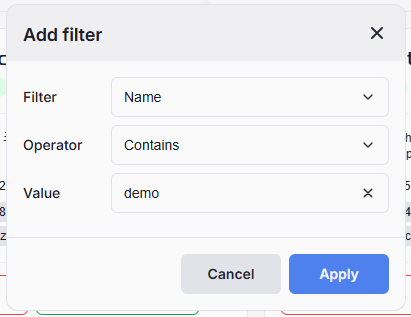
You also can select Cluster and Namespace from the existing list to narrow down filter scope

2. Sort the MCP Instance List
At the top right of the MCP Instances page, you will find a Sort by dropdown menu. Use this to select criteria for sorting your instances:
- Updated At: (Default) Sort instances by their last update time. This is useful for seeing the most recently active deployments.
- Name: Sort instances alphabetically by name.
- Status: Group instances based on their current operational status (e.g.,
RUNNING,STOPPED). - Created at: Sort instances by their created date.
- Server Name: Sort instances by their server name.
You can also click the icon beside the Sort by dropdown to toggle between ascending and descending order for your selected sort criteria.
3. Change MCP Instance List Layout
Changing Views
By default, the MCP Instances page displays instances in Grid View.
- To switch to List View, click the list icon.
- To return to Grid View, click the grid icon.
Grid View Details

Each card in Grid View provides a comprehensive overview of an instance, including:
- Cluster Name: The cluster name which the MCP instance belongs to.
- Instance Name: The unique name identifying the MCP instance (MCP Profile name).
- Status: The current operational state (e.g.,Â
RUNNING,STOPPED). - Description: A brief overview describing the instance’s main functions or purpose.
- Release Date: The date the instance was created.
- Action: Provides icons for quick actions, such as start & stop or resume and accessing the more options (â‹®) menu to publish/unpublish, edit, delete, view MCP JSON and playground the instance.
List View Details
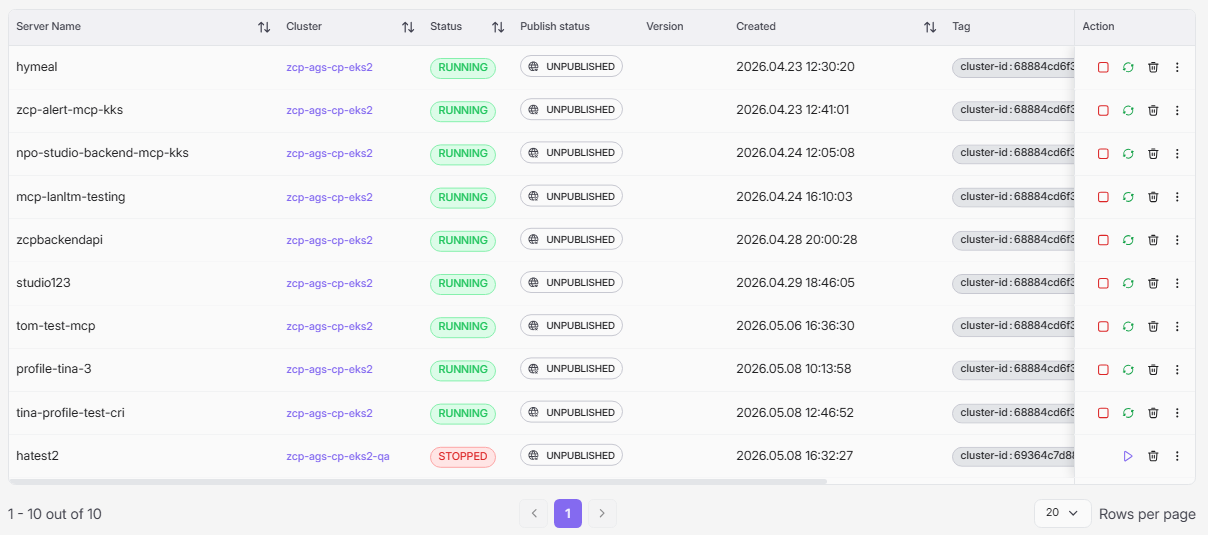
The List View presents MCP instances in a compact table format. This layout is useful for quickly scanning a large number of instances.