View API Settings
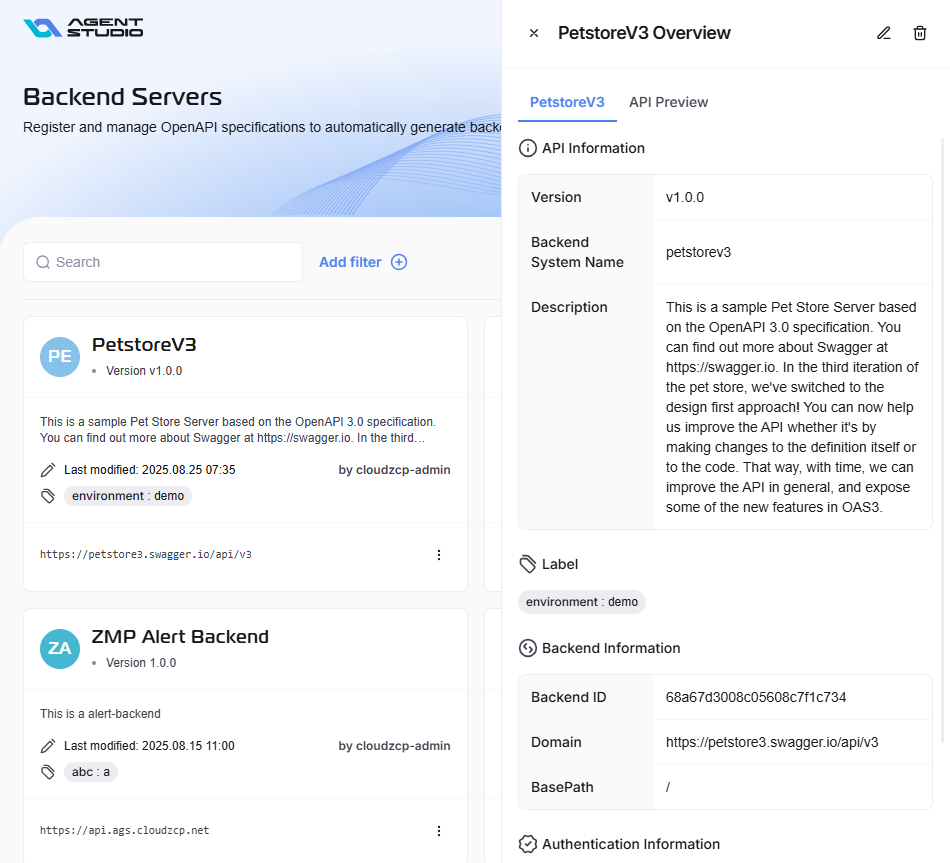
To view API settings, navigate to the Backend Servers page. Locate the API you need. Click on the API to open the detailed summary.
Use the Search and Filter tools to quickly find the API you need.
Overview
The Overview tab provides key details about the selected API, including its configuration and metadata.
API Information
This section contains general, high-level information that identifies and describes the API.
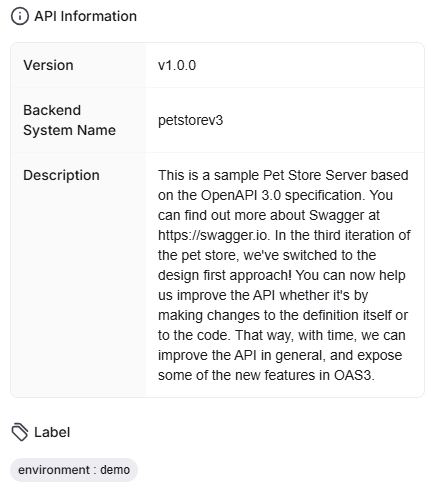
- Version: Indicates the specific release version of the API, following semantic versioning (e.g.,
v1.0.0). This helps track updates and changes over time. - Backend System Name: The unique internal identifier or codename for the API within the system (e.g.,
petstorev3). - Description: A detailed narrative explaining the API's purpose, the specification it's based on (like OpenAPI 3.0), its design approach, and its goals.
- Label: Key-value pairs used to categorize, filter, and organize APIs. They provide a flexible way to add custom metadata. An API can have multiple labels for different purposes.
Backend Information
This section details the technical endpoint information required to interact with the API.
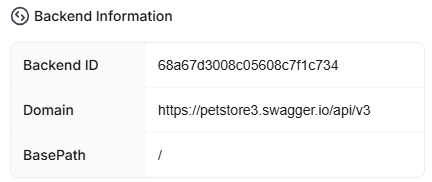
- Backend ID: A unique, system-generated alphanumeric string that identifies the specific backend service powering the API (e.g.,
68a67d3008c05608c7f1c734). - Domain: The primary web address where the API is hosted. This is the base URL for all API calls (e.g.,
https://petstore3.swagger.io/api/v3). - BasePath: The path segment that is appended to the Domain to create the full base URL for the API endpoints. A value of / indicates that the endpoints are accessed directly from the domain root.
Authentication Information
This section specifies the security requirements for accessing the API.

- Authentication Type: Defines the method used to secure the API. For example, the value is None, which means the API is public and does not require any credentials or tokens for access.
Meta Information
This section provides audit and tracking information about the API's lifecycle within the system.
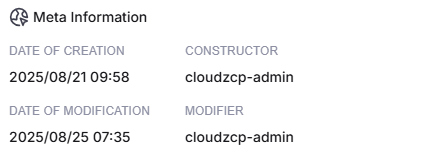
- Date of Creation: The exact date and time the API was initially registered in the system.
- Constructor: The username or ID of the individual or process that created the API.
- Date of Modification: The timestamp indicating when the API's configuration was last updated.
- Modifier: The username or ID of the individual or process that made the most recent changes.
API Preview
The API Preview tab provides an interactive user interface, often powered by tools like Swagger UI, allowing you to explore and test the API's endpoints directly from your browser.
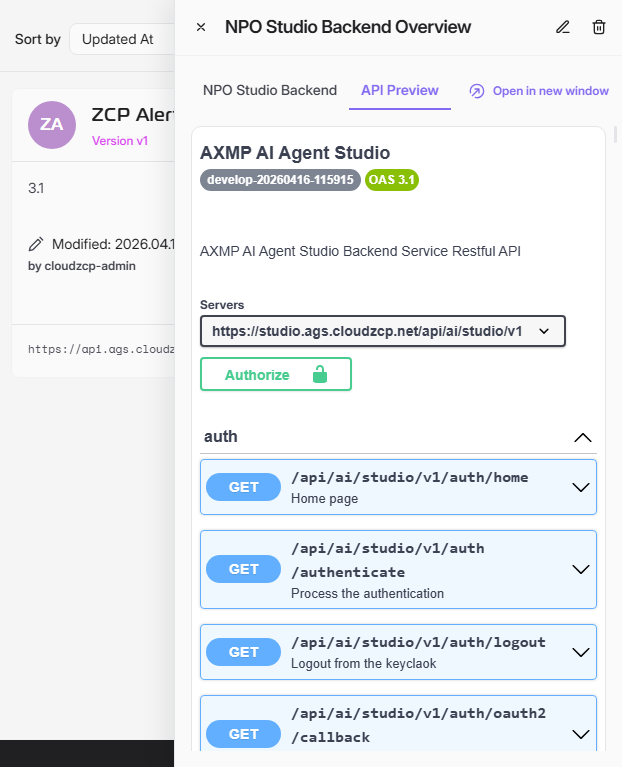
API Specification
In this section, you can find the primary identifying details of the API specification.

- API Title: The official name of the API.
- Version Badges: Small tags indicating the API's version number (e.g.,
1.0.27) and the specification it adheres to (e.g.,OAS 3.1for OpenAPI Specification 3.0). - Description: A human-readable summary of the API.
API Authentication
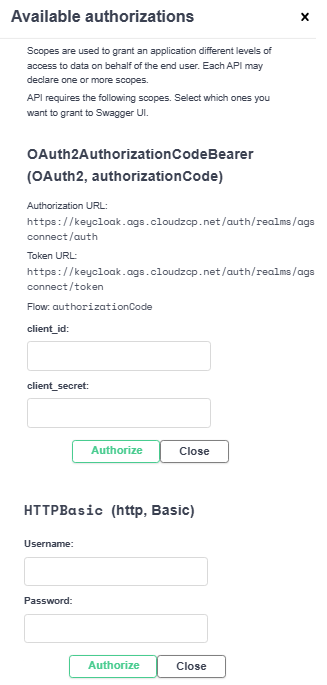
In this section, you can find the elements that allow you to configure and authenticate your test requests.

- Servers: A dropdown menu to select the target server environment for your API calls. This allows you to switch between different base URLs, such as development, staging, or production environments.
- Authorize: A button that opens dialog Available authorizations where you can enter your authentication credentials, like an API key or an OAuth2 token. Once set, these credentials will be automatically included in any test requests you make from this page.
API Endpoints
This is the core of the API Preview, where all available operations are listed.
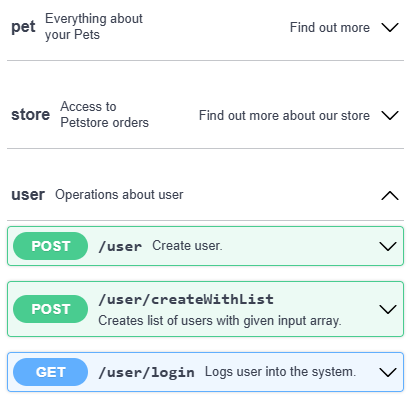
- Endpoint Groups: Endpoints are organized into logical groups based on a "tag," which usually corresponds to a specific resource. In this example, all endpoints are grouped under the pet tag.
- Endpoint Details: Each line represents a single operation you can perform and includes:
- HTTP Method: The type of action, such as
PUT(update),POST(create), orGET(read). - Path: The specific URL path for the endpoint (e.g., /pet, /pet/findByStatus).
- Description: A brief summary of what the endpoint does.
- Authentication Indicator: The lock icon indicates whether an endpoint requires authentication. An unlocked icon means it's open, while a locked icon means you must provide credentials using the Authorize button.
- HTTP Method: The type of action, such as
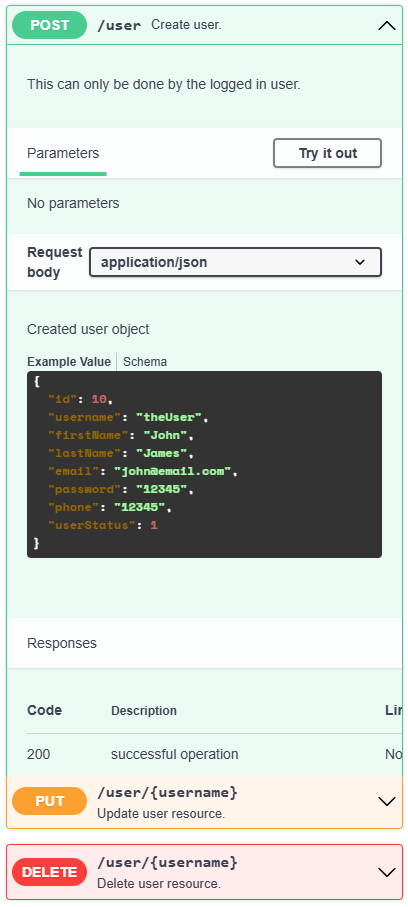
By clicking on any endpoint row, you can expand it to view detailed information, including required parameters, request body structure, and possible responses, and even execute a live API call:
Schemas
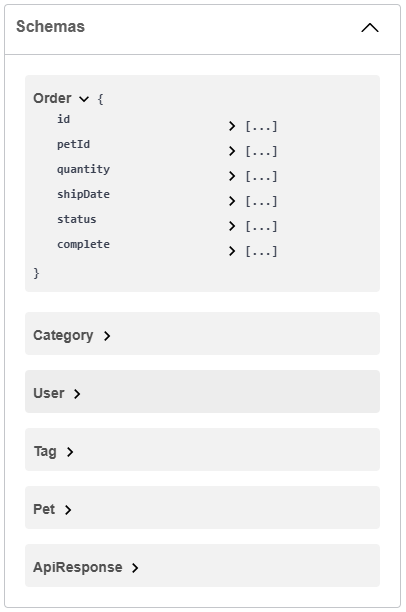
Located at the bottom of the preview page, the Schemas section defines the structure of all data models used in the API's requests and responses.
- Schema List: This area lists all the defined data objects, such as
Pet,Order, andUser. - View Details: You can click on any schema name to expand it. This reveals a detailed view of the object’s properties, including field names (e.g.,
id,name), their data types (integer,string), and example.