Gateway Config List
The Gateway Config List screen allows users to manage shared resource, replica, and tag templates for Gateway instances so multiple Gateways can reference the same config and apply consistent resource policies.
Access Gateway Config List Screen
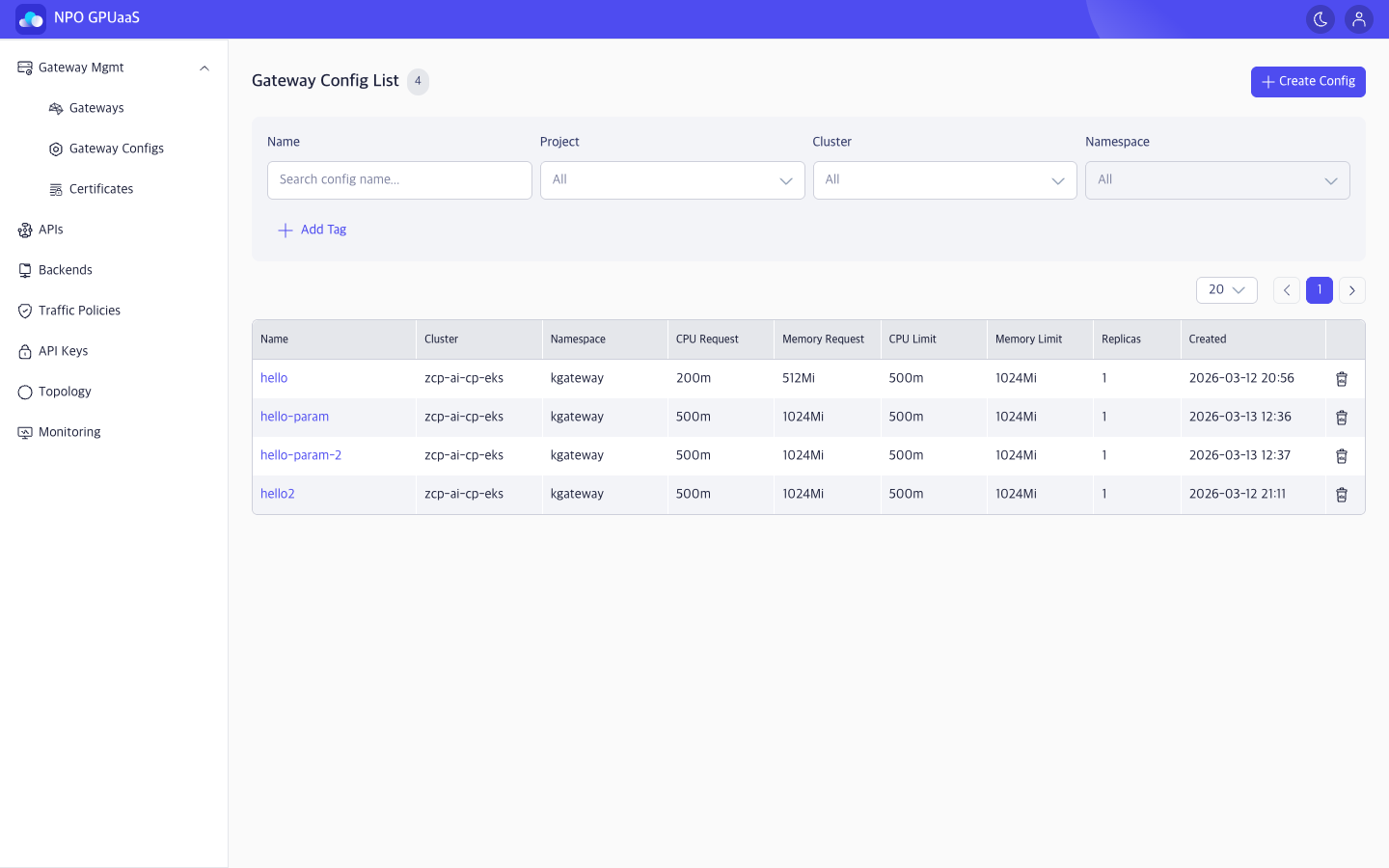
In the left-side navigation, select Gateway Mgmt > Gateway Configs to navigate to Gateway Config List screen.
Search the Gateway Config
You can use the Search function to quickly find specific gateway config:
- Name: Filter by Gateway config name
- Project: Filter by Project (default: All)
- Cluster: Filter by Cluster (default: All)
- Namespace: Filter by Namespace (default: All)
Search results are displayed immediately after the user enters a keyword or selects a value.
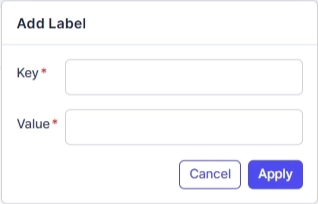
User can click Add Tag to add tag filters. Multiple tags are supported and combined using AND logic:
View Gateway Config List
You can see a table listing all Gateway Configs matching your filters (if any). The information includes:
- Name: Config name (click to open detail)
- Cluster: Deployment cluster
- Namespace: Deployment namespace
- CPU Request: Requested CPU (e.g.,200m, 500m)
- Memory Request: Requested memory (e.g., 512Mi, 1024Mi)
- CPU Limit: CPU limit
- Memory Limit: Memory limit
- Replicas: Number of replicas
- Created: Date and time when the volume was created (format: YYYY-MM-DD HH:MM)
Action Menu
Create Config
User can click Create Config to create a new Gateway Config. When clicked, navigates to Create Gateway Config screen.
View Details
User can click the Config name to open the Gateway Config Details page.
Delete
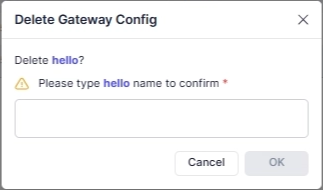
User can delete a config by clicking the Trash icon. Upon clicking, a confirmation popup will appear, and users must enter the gateway config name to confirm deletion: