Share MCP Registry
Use Share MCP Instance to control who can access your MCP instance.
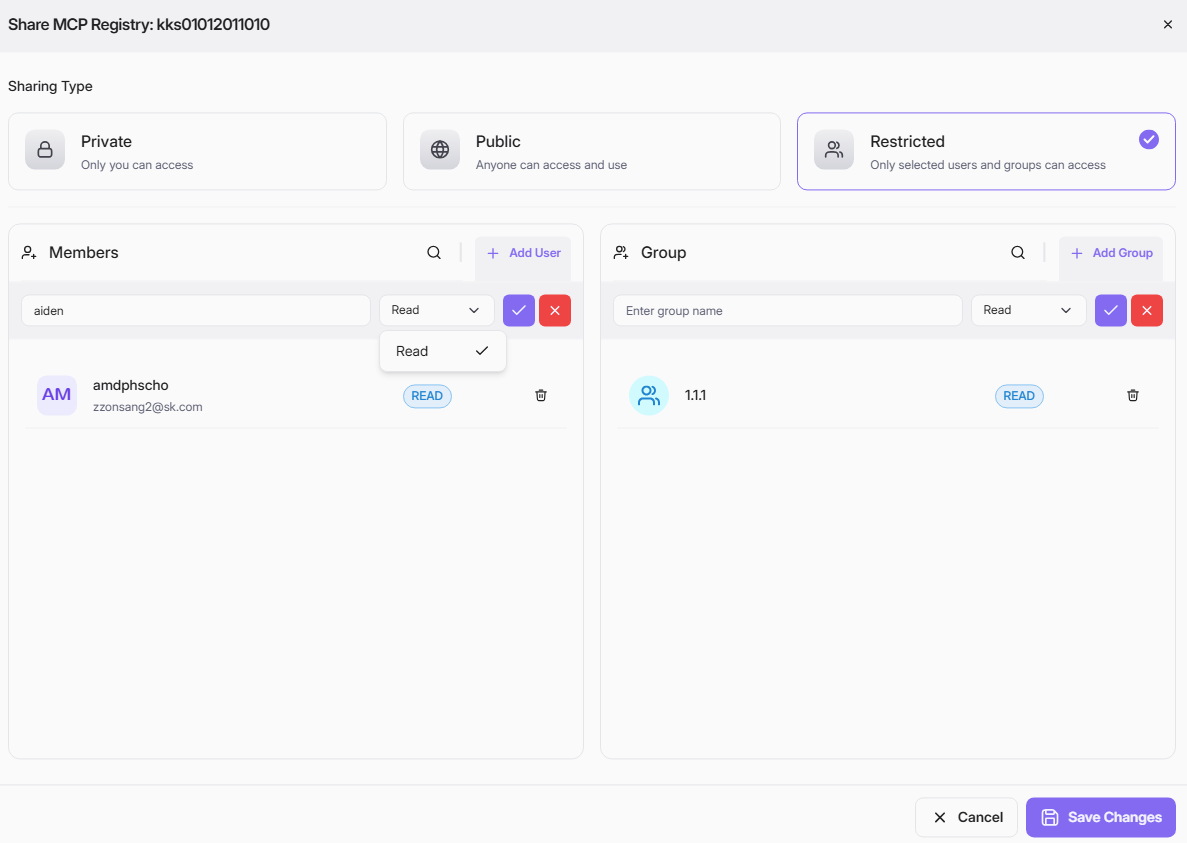
Quick Steps
- Go to MCP Registry, click on vertical ellipsis at the card of external or internal MCP Registry and select Share.
- Choose a Sharing Type:
- Private: only you can access.
- Public: anyone can access and use.
- Restricted: only selected users and groups can access.
- If you choose Restricted:
- In Members, search a user, choose permission (Read only), then click the check icon.
- In Group, search a group, choose permission (Read only), then click the check icon.
- Remove users or groups with the delete icon if needed.
- Click Save Changes.
Permission Meaning
- Read: can access and use the instance.