跳到主要内容

inference-service-list

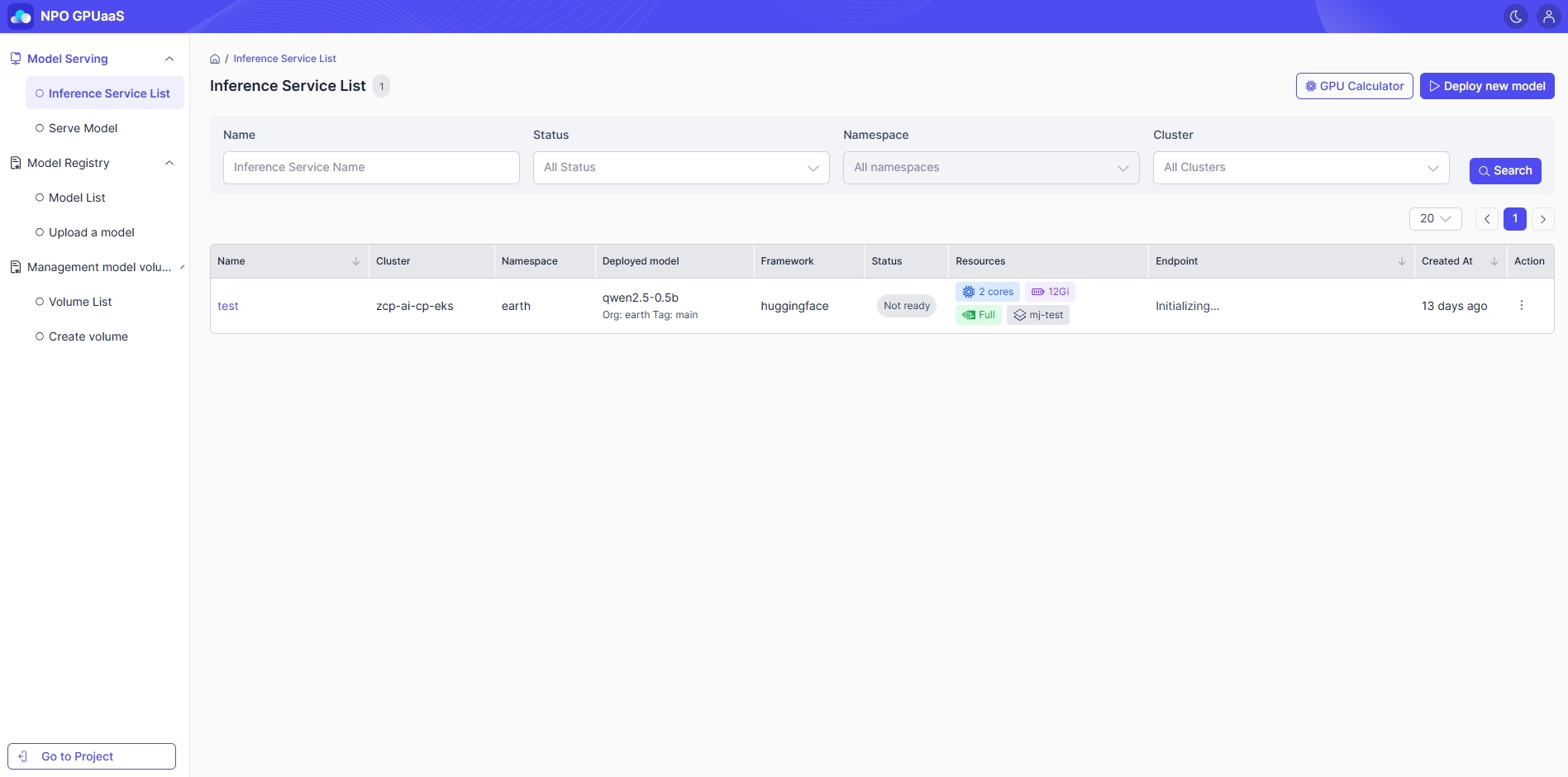
The **Inference Service List **screen allows system administrators to view, filter, and manage all Inference Service in the system.

Access Inference Service List Screen

From the System Admin Control Panel, click **Model **in the main navigation. Then, in the left-side navigation, select Inference Service List.

Search the Deployed Model

You can use the Search function to quickly find specific model. The search can be done based on the filters below:

  • **Name: **Filter by Deployment name.
  • Status: Filter by status of model (e.g. Running, Not Ready, Stopped)
  • Namespace: Filter by namespace.
  • Cluster: Filter by cluster.

The system automatically updates the model list in real time as users select criteria or enter values.

View Deployed Model List

User can view Deployed Model List with the following information:

  • Deployment name
  • Cluster: Name of cluster
  • Namespace: Namespace for deployment
  • Deployed model: Name of deployed model
    • Orange: Project name
    • Blue: Version (tag) of the model
  • Framework: Serving framework
  • Status: Status of model (e.g. Running, Not Ready, Stopped, Unknown)
  • Resources:
    • Blue: CPU information
    • Purple: RAM information
    • Green/ Orange/ Outline: Name of GPU resource profile
      • Green: Full GPU
      • Orange: MIG
      • Outline: No GPU
    • Light cyan: Number of GPU resource profiles
    • Gray: Pool Name
  • Endpoint: Model URL
  • Created at: Deployment creation date time

Action Menu

Start

  • Only displayed when the status of model is “Stopped”.
  • Allows users to trigger the process to initialize and run the model.

Playground

Allows user to test deployed models in real time and verify their performance.

Pause

  • Only displayed when the status of model is “Not ready” or “Running”
  • Allows the user to stop a running model.

Detail

When clicked, the user is navigated to the Deployment Details screen.

Edit

When clicked, the user is navigated to the Deployment Details screen.