Delete an MCP Registry
On the MCP Registry page where all published MCP Server are managed. You can use the search bar or browse the list/grid to find the instance you want to delete.
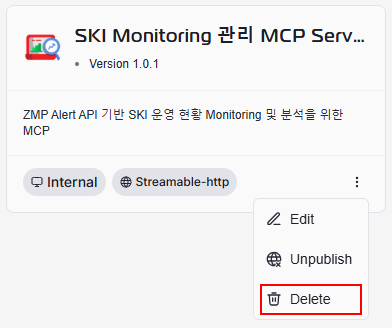
In Grid View mode, click on the three-dot menu to find the delete button (thrash icon).
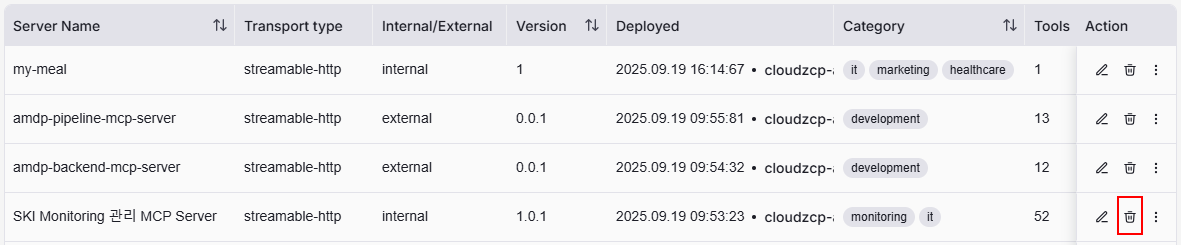
In the List View mode, click on the delete button (thrash icon) on the selected instance:
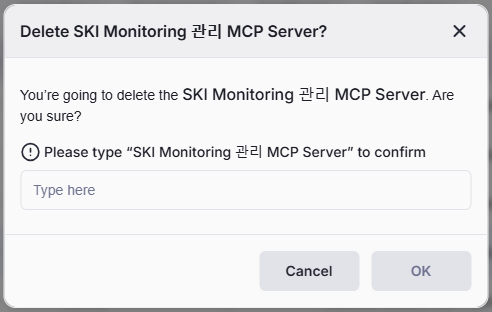
After clicking Delete, a confirmation dialog will appear to prevent accidental deletions. You can review the MCP server name to ensure that it is the one you want to delete. If it is correct, type the MCP server name in the text box and click OK to proceed with the deletion. If it is not the correct server or you change your mind, click Cancel to avoid deleting it.
When the deletion is successful, you will see this toast message on the bottom left of the screen:
