Skill Registry
The Skill Registry section allows users to create, discover, and manage reusable skills for AI agents. Skills are reusable instruction sets (defined in SKILL.md files) that standardize agent behavior. Skills can include workflow definitions, tool usage patterns, and domain-specific knowledge. They help standardize instructions and make agent behavior consistent across teams.
Skill Registry Dashboard
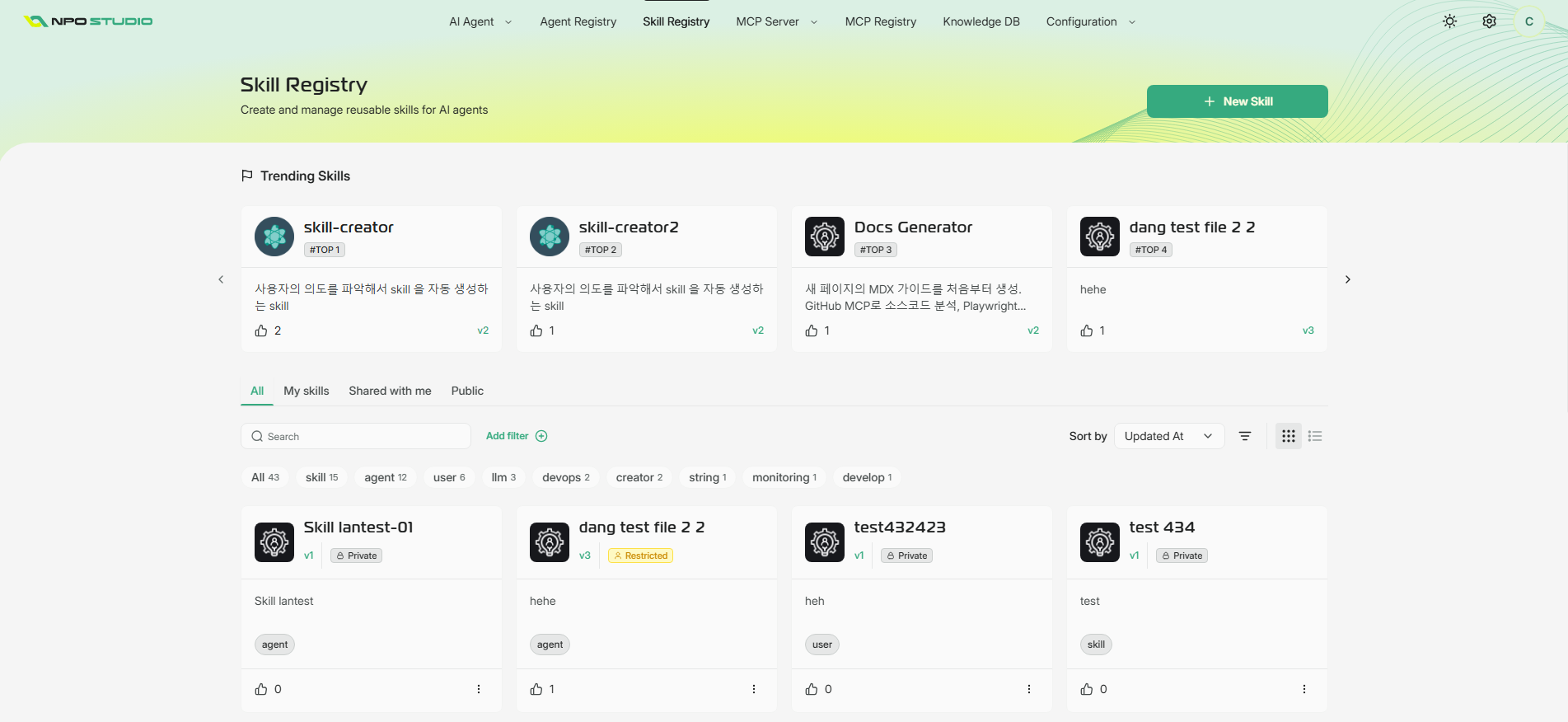
The Skill Registry dashboard provides an overview of available skills and quick access to creation and filtering tools.
Explore Skills
In the main registry view, you can browse:
- Trending Skills: Highlighted skills with ranking indicators and engagement metrics.
- Skill cards: Each card shows the skill name, version, visibility tag (for example, Private or Restricted), short description, and interaction actions.
Filter and Sort Skills
Use built-in controls to quickly find relevant skills:
- Tabs: All, My skills, Shared with me, and Public.
- Search: Find skills by name or keyword.
- Category chips: Narrow results by category tags (for example, agent, user, devops, monitoring).
- Sort: Reorder results by fields such as Updated At.
- View switcher: Toggle between grid and list display modes.
Skill Actions
Each skill in the registry has a context menu (accessed via the three-dot icon) that provides quick operations for managing and using the skill.
Edit
Opens the skill detail page where you can modify:
- Basic Information (name, categories, description, cover image)
- SKILL.md content
- Attached files
Use this action after creating a skill to refine its instructions or metadata.
Copy Skill.md
Copies the full SKILL.md markdown content to your clipboard.
Use case: Quickly export the skill instructions for:
- Sharing with team members via chat or email
- Using as a template for a new skill
- Creating a local backup
Download
Downloads the entire skill as a packaged file, including:
- Metadata (name, categories, description)
- SKILL.md content
- All attached files (scripts, references, assets)
- Version history
Use case: Archiving a skill or migrating it to another NPO Studio instance.
Share
Opens the sharing dialog to grant other users access to the skill.
You can:
- Share with specific users or groups
- Set permission levels (view-only, edit, etc.)
- Control visibility (Private, Shared, Public)
This allows team members to discover and reuse your skills without duplicating effort.
Detail sharing behavior can be referred to section Share a Credential in Getting Started | Notion
Duplicate
Creates a copy of the skill with all its content and metadata.
The duplicated skill:
- Gets a new name (e.g., "Original Skill Copy")
- Is marked as Private by default
- Retains all SKILL.md content and attached files
- Has its own version history starting fresh
Use case: Using an existing skill as a starting point for a variation or specialized version.
Delete
Permanently removes the skill from the registry.
Warning: This action cannot be undone. Before deleting, ensure:
- No active agents are referencing this skill
- You have backed up any critical content if needed
- The skill is no longer shared with or in use by other teams
Deleted skills cannot be recovered.
Create a New Skill
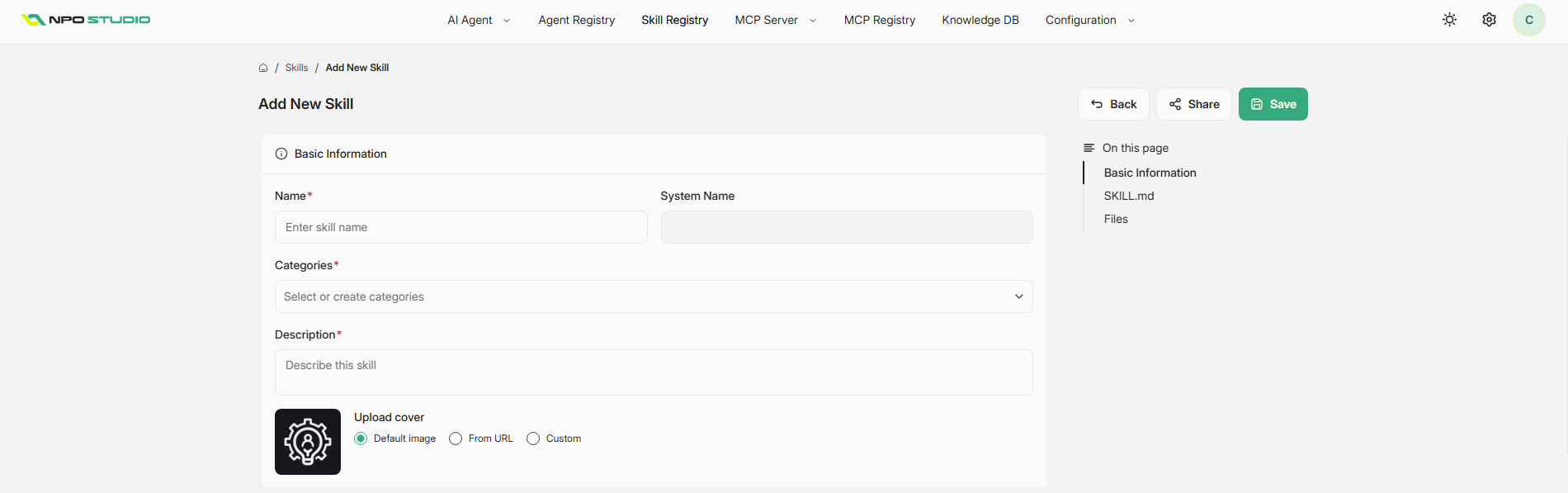
Click New Skill to open the creation form. The Add New Skill page includes structured sections for metadata, content, and supporting files.
Basic Information
Complete the required metadata fields:
- Name (required): Display name of the skill.
- System Name: Internal identifier generated or entered for system use.
- Categories (required): Select existing categories or create new ones.
- Description (required): Brief summary of what the skill does.
- Upload cover: Choose one of the cover options:
- Default image
- From URL
- Custom
Top-right actions on this page:
- Back: Return to the previous page.
- Share: Share the skill draft or published skill with others.
- Save: Save current changes.
Skill.md Editor
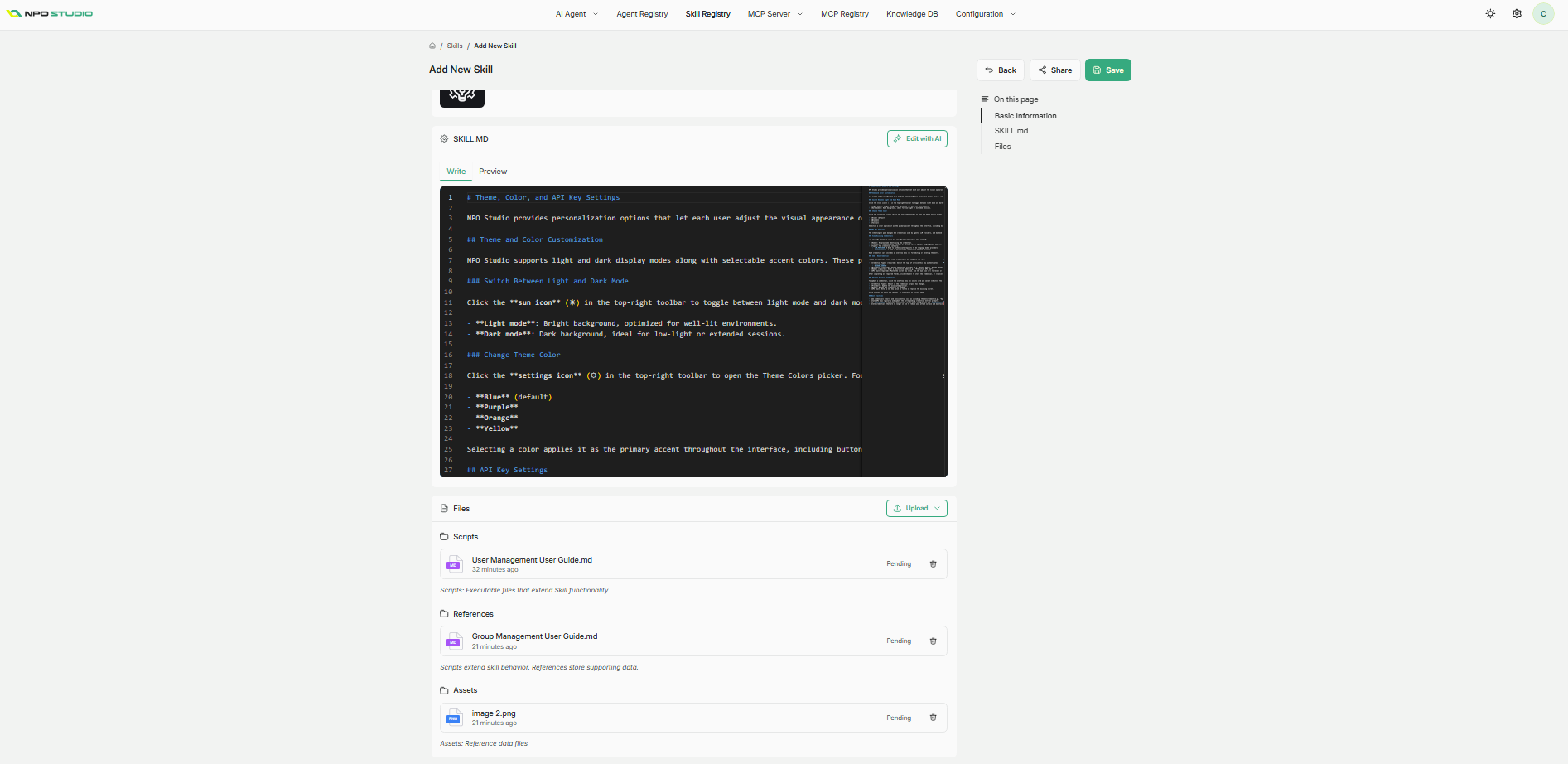
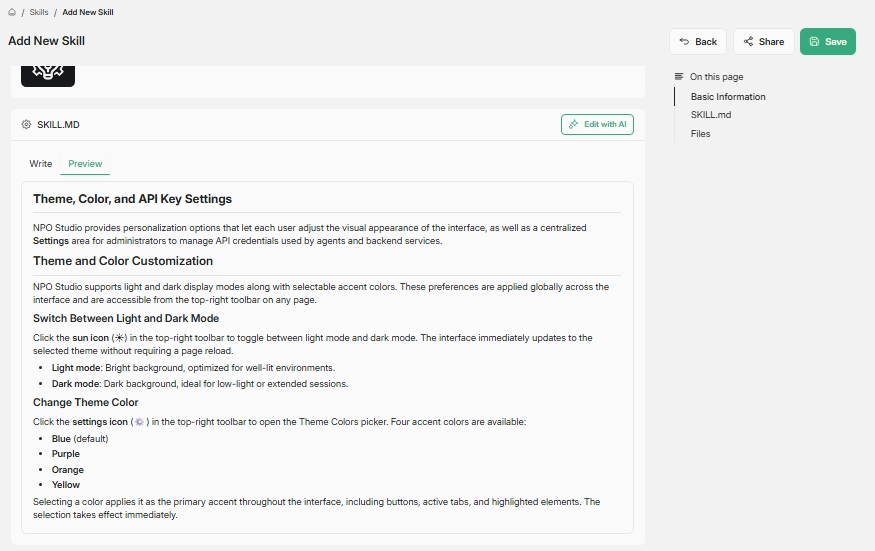
The SKILL.md section is where core skill instructions are authored.
Available capabilities:
- Write / Preview tabs: Switch between markdown editing and rendered output.
- Edit with AI: Open AI-assisted editing for improvements.
- On this page panel: Navigate quickly to sections such as Basic Information, SKILL.md, and Files.
AI Editing Assistant
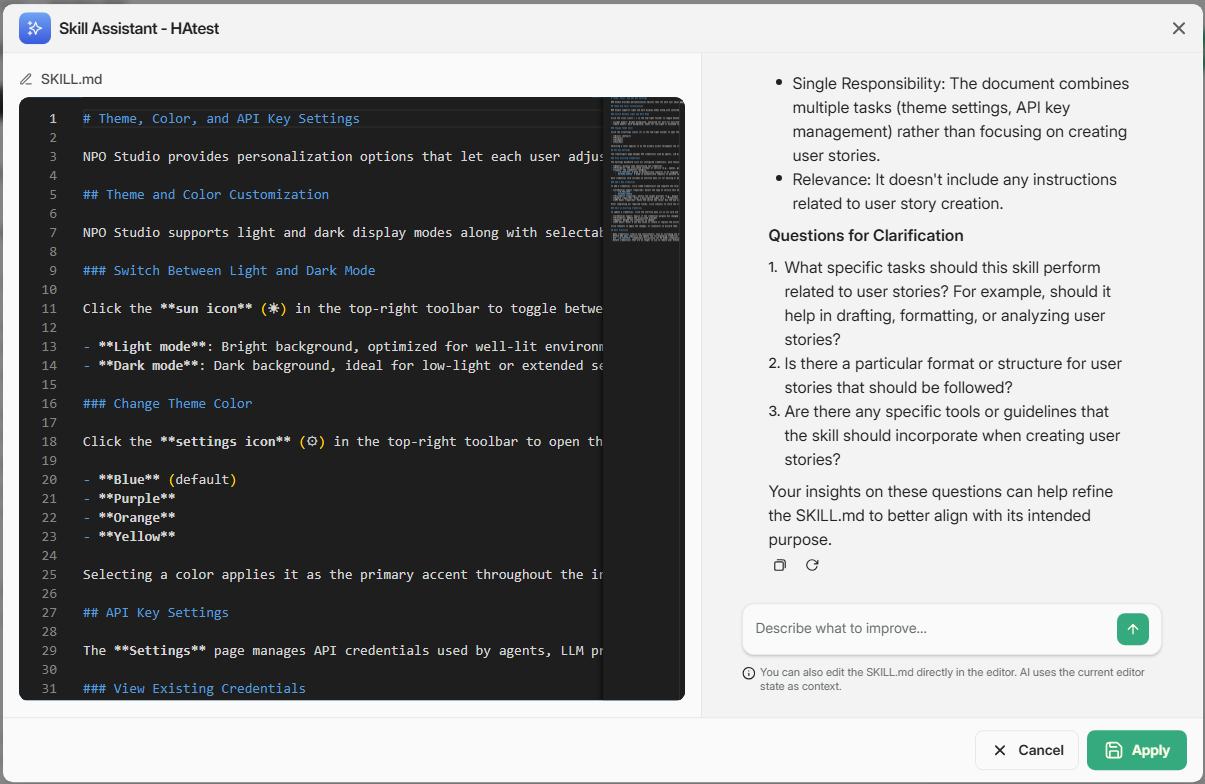
When using Edit with AI, the assistant can review structure and suggest improvements. Typical feedback includes:
- Scope and responsibility clarity.
- Relevance to intended skill purpose.
- Clarifying questions before finalizing instructions.
After reviewing suggestions, you can apply updates directly to SKILL.md.
Files Section
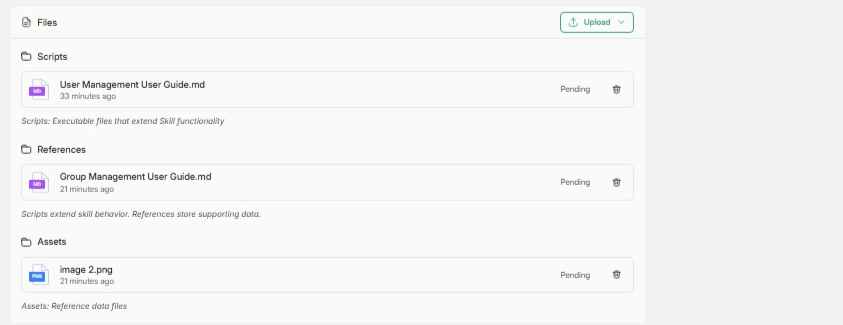
The Files area stores additional resources used by the skill.
File Types
The page supports three resource groups:
- Scripts: Executable files that extend skill behavior.
- References: Supporting documents used as contextual knowledge.
- Assets: Reference data files such as images or supporting media.
Upload and Status
- Use Upload to add files to each group.
- Newly added files may appear with processing status (for example, Pending) before they are fully available.
Version History
The Version History section tracks all changes made to a skill over time, allowing you to review past versions, compare differences, and pin a specific version as the default.
View Version Records
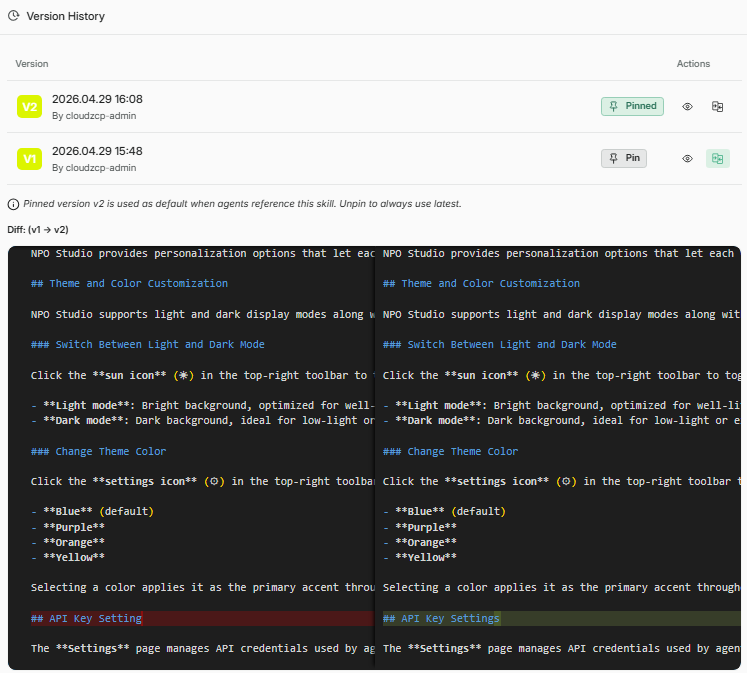
The Version History page lists all skill versions in reverse chronological order. Each version record shows:
- Version timestamp: Date and time the version was created (e.g., 2026.04.29 16:08).
- Creator: The user account that made the version (e.g., cloudzcp-admin).
- Actions: Buttons to manage the version:
- Pin / Pinned: Mark a version as the default or remove the pin.
- Eye icon: View the version.
- Copy icon: Copy version reference or metadata.
Pin a Version as Default
By default, agents reference the latest version of a skill. You can pin an earlier version to use it as the default instead.
To pin a version:
- Locate the desired version in the list.
- Click the Pin button.
- The version is now marked as Pinned and used whenever agents reference this skill.
Note: Only one version can be pinned at a time.
View Pinned Version Info
When a version is pinned, a note appears at the bottom of the page:
"Pinned version [version label] is used as default when agents reference this skill. Unpin to always use latest."
This reminder helps you confirm which version is active for all agent references.
Compare Versions with Diff View
Click on a version to open the diff viewer, which displays side-by-side comparisons of content changes between versions.
The diff shows:
- Left column: Content from the earlier version.
- Right column: Content from the later version.
- Highlighted differences: Changes such as added, removed, or modified text are highlighted for quick identification.
This helps you understand what was changed, added, or removed in each update.