Timetable
A separate page (Workload Management → Time Table) for viewing workload run history and scheduling future priority bumps on a 12-hour timeline.
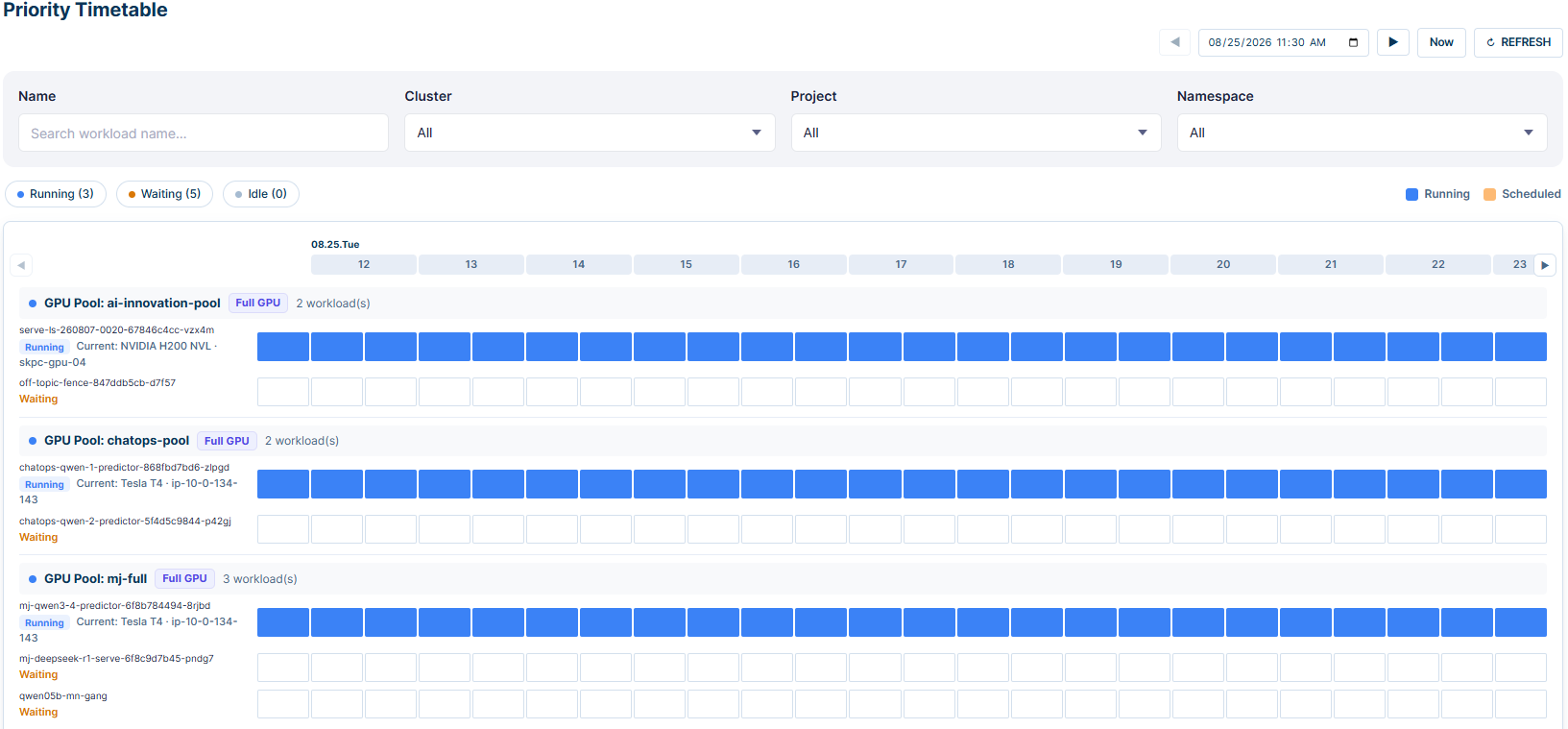
Breadcrumb: Workload / Timetable
1. Header Controls
| Element | Description |
|---|---|
| ◀ / ▶ buttons | Shift the visible 12-hour window backward or forward. The ◀ button is disabled when the window start is already at the current time |
| 지금 (Now) button | Resets the window to the current time. |
| REFRESH button | Manually reloads timetable data. |
2. Scope Filters
| Filter | Description |
|---|---|
| Name | Search workloads |
| Cluster | Limit to a specific cluster. Defaults to All (fan-out across all clusters). |
| Project | Filter by project. |
| Namespace | Filter by Kubernetes namespace. |
3. Legend Bar
Displays workload state counts and color key:
- Running (n) · Waiting (n) · Idle (n) — count pills with colored dots.
- Color key (right): ■ Running (blue) · ■ Scheduled (orange) — explains the two cell fill colors used in the timeline.
4. Timeline Grid
The timeline shows a 12-hour window divided into 30-minute cells (24 cells total). Workloads are grouped by GPU Pool.
Pool group header:| Element | Description |
|---|---|
| Colored dot | Pool identifier color. |
| GPU Pool: [name] | Pool name. |
| Type tag | GPU sharing mode of the pool — Full GPU / MIG / Time Slicing. |
| Workload count | Number of workloads in this pool currently visible. |
| Element | Description |
|---|---|
| Pod name | Workload pod name. |
| ⏰ N pill | Number of scheduled priority bumps on this workload. Hovering shows the next scheduled fire time and total count. |
| Running chip + GPU label | Shown when the workload is actively running — displays current GPU (e.g. 현재: NVIDIA H200 NVL · skpc-gpu-04). |
| Waiting label | Shown in orange when the workload is not yet scheduled. |
| Cell color | Meaning |
|---|---|
| Blue | Workload is running / occupying the GPU during that time slot. |
| Orange | A scheduled priority bump — the workload is set to receive elevated priority at that time. |
| Striped overlay | Priority lowering segment (bump returning to baseline). |
| Empty | No activity in that 30-minute slot. |
- Moving the mouse over the timeline shows a vertical blue line with the exact time label at the top (hh:mm precision).
- Hovering over a cell shows a tooltip with the cell's detail (e.g. workload name, scheduled time, bump info).
Unknown Pool group: If a scheduled pod cannot be matched to any pool in the current cluster (e.g. pod not yet running or renamed by a rolling update), it appears under a gray "Pool 미상" group with an ⓘ note.
5. Scheduling a Priority Bump
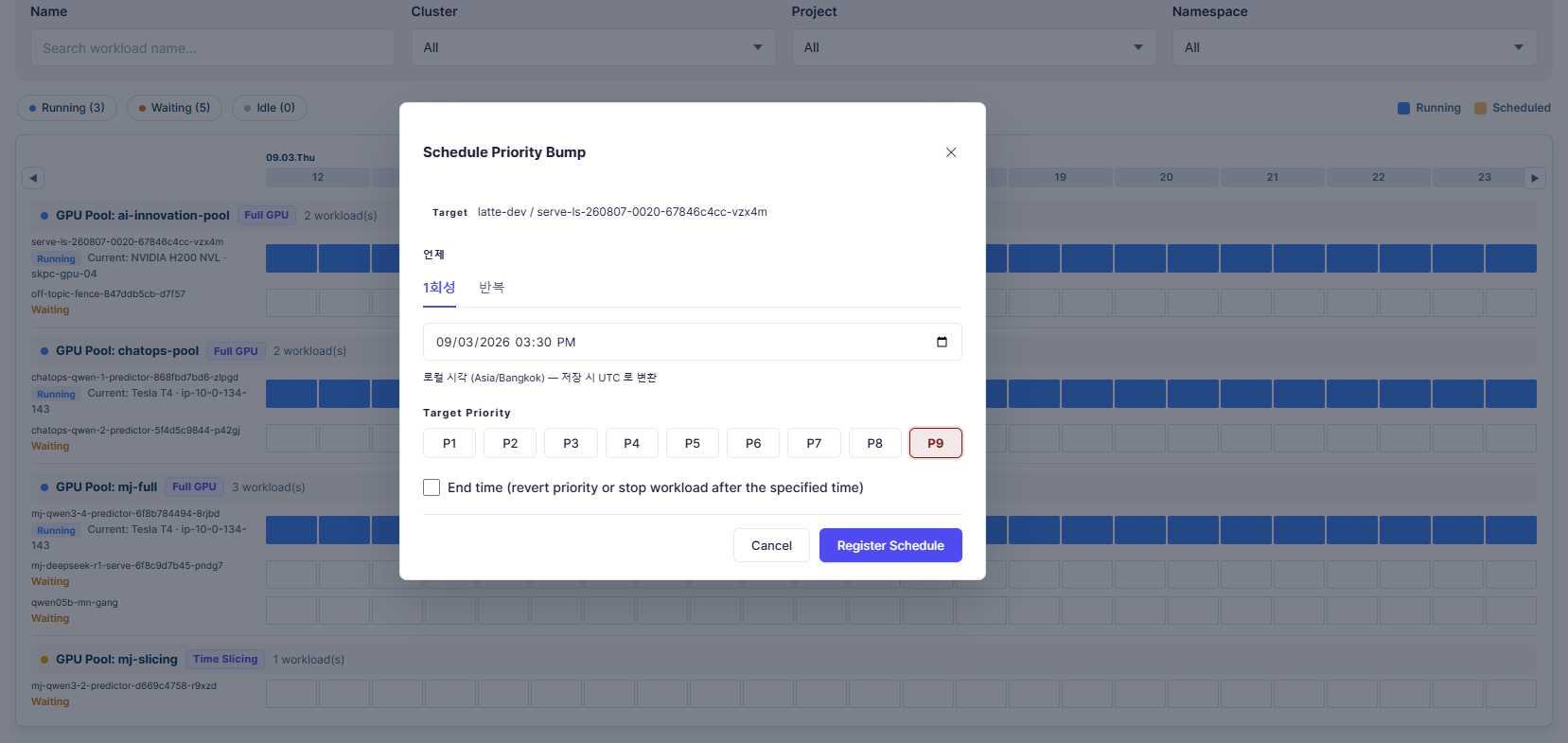
Trigger: Click or drag across cells on any workload row (mousedown → mouseup). A single click on one cell counts as a one-cell drag. After releasing the mouse, the dialog opens.
If the workload already has existing scheduled bumps, the dialog opens in list view first (titled "예약된 Priority Bump") showing all existing schedules with a delete button per entry and a + 새 예약 (New Schedule) button. If no existing schedules, it opens directly in create view.
Target: Displays the namespace and pod name of the workload (e.g. sko-playground / chatops-qwen-1-predictor-868fbd7bd6-zlpgd).
언제 (When) — Schedule Timing
Two tabs for scheduling mode:
| Tab | Description |
|---|---|
| 1회성 (One-time) | Schedule a single priority bump at a specific date and time. A datetime picker is shown; time is entered in local timezone and automatically converted to UTC when saved. Shows a warning if a past time is selected. |
| 반복 (Recurring/Cron) | Schedule a repeating priority bump using cron. Shows 5 preset buttons arranged in a grid: Every day at 3 AM (0 3 * * *), Every day at midnight (0 0 * * *), Weekdays at 9 AM (0 9 * * 1-5), Weekends only at 1 AM (0 1 * * 6,0), Every hour on the hour (0 * * * *). An Advanced (cron 직접) expander allows entering a custom cron expression directly. |
Target Priority
A row of priority buttons P1 through P9. Click to select the desired priority level for the bump. The selected priority is highlighted.
End Time
A checkbox: "End time (revert priority or stop workload after the specified time)" — when checked, an additional time picker appears to define when the priority bump expires and the workload reverts to its original priority (or stops).
Actions
| Button | Description |
|---|---|
| ← Back to list | Returns to the list view of existing schedules (only shown when navigating from list view). |
| Cancel | Close the dialog without saving. |
| Register Schedule | Confirm and save the priority bump schedule. A progress bar notification ("Schedule created — confirming cron...") appears at the top of the page while the system waits for the cron scheduler to confirm the new schedule. |