GPU Capacity Management
Overview
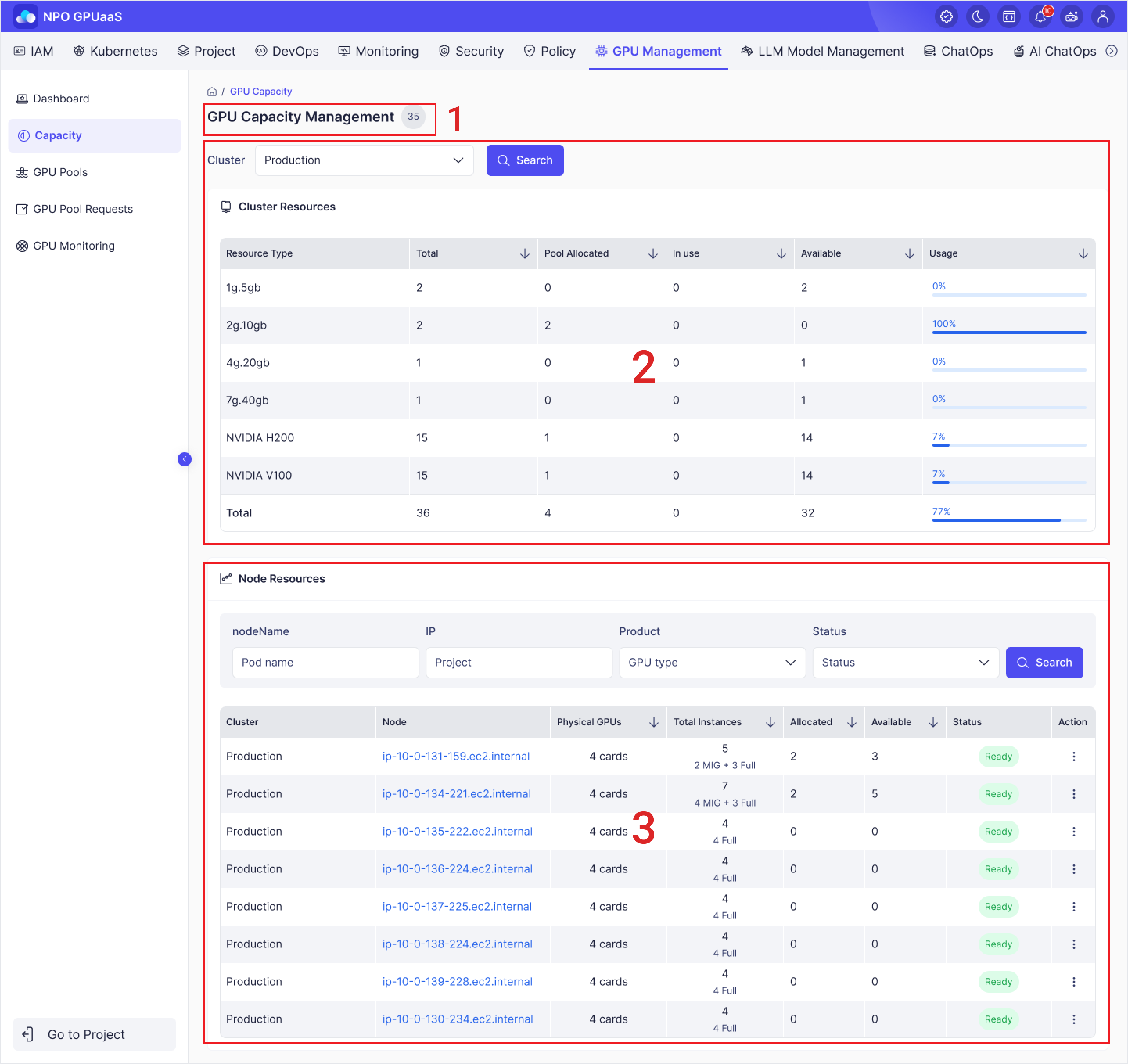
GPU Capacity Management is an administrator page that provides detailed management of GPU resources for each node within the GPUaaS infrastructure. On this page, user can monitor in real time the number of physical GPUs installed per node, the number of created instances, allocation status, available status, and readiness status for each GPU node connected to a cluster. Additionally, it allows users to perform configuration changes, reprovisioning, and deletion operations on individual nodes.
-
Header Section – Displays the title and total number of nodes
-
Cluster Resources Section - Provides a list of GPU resources with search/filter, sorting.
-
Node Resources Section – Provides a list of nodes with search/filter, sorting, and action options
Cluster Resources Section
Search
This function allows users to select a cluster to view the corresponding resources within that cluster.
View List of GPU Resources
Users can view the list of GPU resources in the cluster and their usage status with the following information:
- Resource Type: Type of GPU resource
- Total: Total number of profiles of that type
- Pool Allocated: Number of profiles allocated to pools
- In Use: Number of profiles currently in use
- Available: Number of available profiles
- Usage: Percentage of profiles currently in use
Node Resources Section
Search
If the list is long, user can use the search bar above the table section. This function allows user to search by node name, IP, product and status.
View List of Nodes with GPUs
User can see a list of nodes that currently having GPU resources with the information:
- Cluster: Name of the cluster to which the GPU node belongs. (e.g., zcp-ai-cp-eks)
- Node: Hostname or IP address of a GPU node; user can click on the node’s name to view the node’s details page.
- Physical GPUs: Number of physical GPUs on that node (e.g., 8 cards).
- Total Instances: Total number of GPU instances (Full or MIG) created on that node. (e.g., 20 MIG, 1 Full)
- Allocated: Number of GPU instances already allocated to the current project or pool.
- Available: Number of currently available (unallocated) GPU instances. If it is 0, all are in use or in preparation.
- Status: Node status:
- Ready: Working properly and can be allocated
- Maintenance: Under maintenance and new allocation limits
- Provisioning: Provisioning in progress
- Not Ready: Unavailable status
Action Menu
User can click on the three-dot button to access action menu for features like:
- Config: Change the MIG profile and configuration settings of a GPU node.
- Re-provision: Reconfigure and provision resources on GPU nodes in case user want to recover from node errors or apply configuration changes.
- View details: View node capacity information and GPU configuration status.
- Delete: Remove the GPU node from the system (Admin privileges required).
- The node cannot be used during reprovisioning. Ongoing tasks may be affected.
- Deletion is irreversible and will remove all GPU resources for the node.