Node Details
이 페이지에서는 노드에 대한 자세한 정보를 조회하고 해당 노드의 설정을 변경할 수 있습니다. 사용자는 노드 이름을 클릭하거나 작업 메뉴에서 View details 또는 Config을 선택하여 접근할 수 있습니다.
노드 세부정보 페이지는 다음과 같이 구성되어 있습니다:
- 헤더 색션: 노드 이름, "Back to list" 버튼 및 "Update" 버튼을 표시합니다.
- Overview 탭: 노드 리소스 요약 및 자세한 GPU 구성을 제공합니다.
- Configuration 탭: MIG 설정 및 GPU 프로필을 관리합니다.
헤더 색션
헤더 섹션에는 다음과 같은 정보가 포함되어 있습니다:
- 제목: 노드 이름
- Back to list 버튼: 노드 목록 페이지로 돌아갑니다.
- Update 버튼: Configuration 탭에서 변경 사항이 있을 때 표시됩니다.
- Configuration 탭에서만 표시됩니다.
- MIG 설정이 수정될 때 활성화됩니다.
- 클릭하여 변경 사항을 저장합니다.
Overview 탭
이 탭은 특정 선택된 노드의 GPU 리소스 상태를 실시간으로 모니터링하는 데에 사용됩니다. 이 화면에서는 노드의 GPU 모델, 수량, 활용률, 사용 가능 상태 및 풀 할당 상태를 확인할 수 있습니다.
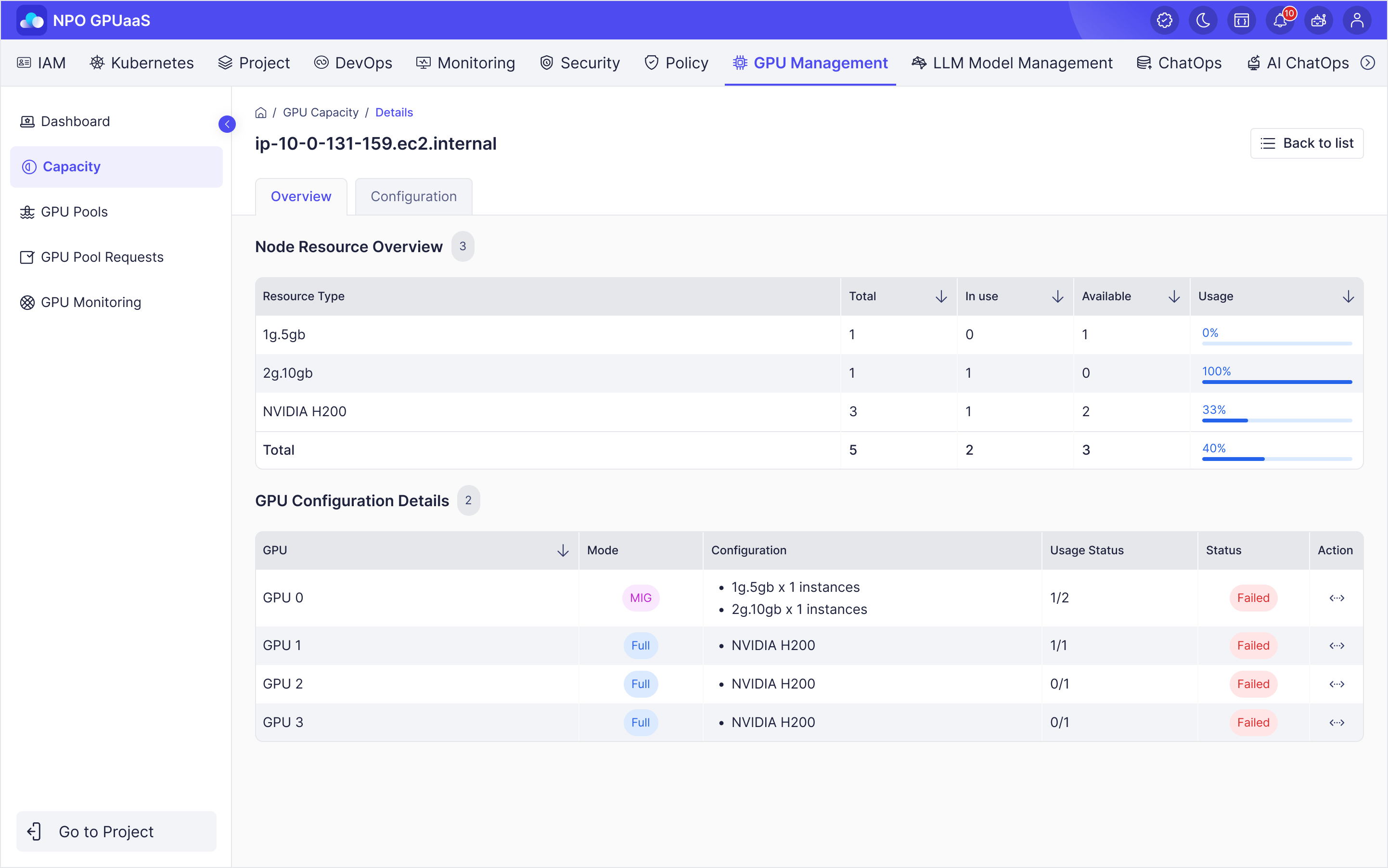
노드 리소스 개요
표시된 정보:
| 컬럼 | 설명 |
|---|---|
| Resource Type | 리소스 유형 (GPU, 메모리 등) |
| Total | 사용 가능한 인스턴스의 총 수량 |
| Pool Allocated | GPU 풀에 할당된 리소스 수량 |
| In Use | 현재 사용 중인 인스턴스 량 |
| Pending | 대기 중인 인스턴스 수량 |
| Available | 사용 가능한 인스턴스 수량 |
| Usage | 활용도 (%) (시각적 막대 차트) |
수량 총계 행:
- 각 열의 총계를 표시합니다.
- 전체 리소스 사용 상태를 쉽게 파악할 수 있도록 합니다.
사용 목적:
- 노드의 전체 리소스 사용 상태 확인
- 풀 할당 상태 검토
- 사용 가능한 리소스 식별
GPU 구성 세부정보
표시된 정보:
| Column | Description |
|---|---|
| GPU | GPU 식별자 (예: GPU-0) |
| Mode | GPU 모드 (전체 GPU, MIG 사용 가능 등) |
| Configuration | GPU 구성 세부정보: • 전체 GPU: 단일 GPU로 표시됨 • MIG 사용: 구성별 프로필 표시 (예: 7g.40gb x 1 instances) |
| Usage Status | 구성별 사용 상태 및 각 구성의 사용 중인 수량와 총 수량을 표시합니다. |
| Usage Status | GPU의 현재 상태 |
| 액션 | MIG 설정 및 GPU 프로필을 관리할 수 있는 Configuration 탭으로 이동하는 아이콘 |
Usage:
- 각 GPU의 모드 및 구성 확인
- GPU 사용 상태 모니터링
- 설정을 변경해야 하는 경우 구성 탭으로 이동
Configuration 탭
이 탭은 MIG 구성을 관리하고 GPU 노드 내 개별 GPU의 모드를 변경하는 데 사용됩니다. 관리자는 이 탭을 사용하여 GPU가 단일 모드(전체 GPU)로 사용될지 또는 여러 인스턴스(MIG GPU)로 분할되어 여러 작업을 병렬로 수행할지 설정할 수 있습니다.
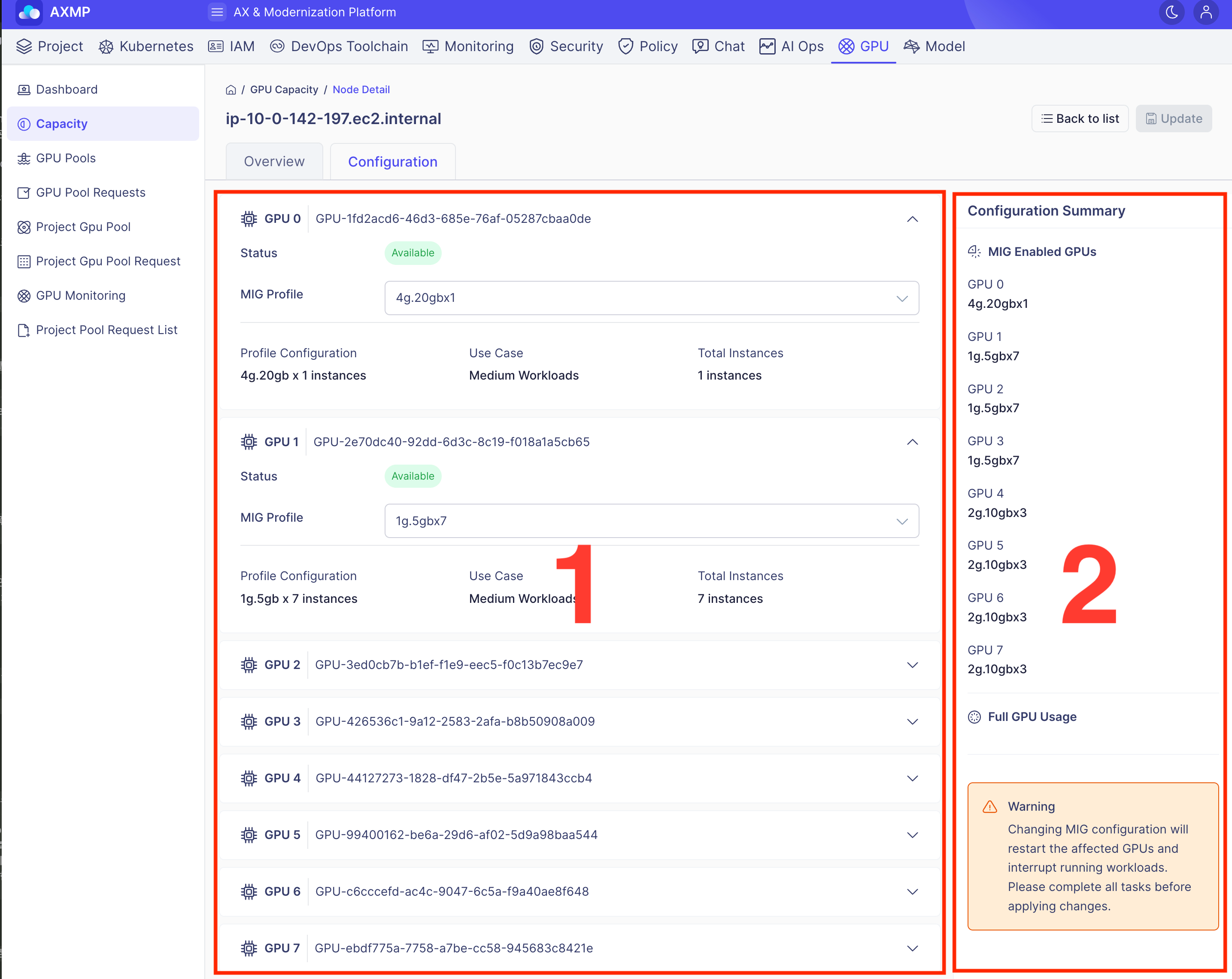
Configuration 탭은 다음과 같이 구성되어 있습니다:
- 설정 목록: 각 GPU에 대한 설정 카드
- 설정 요약: 설정에 대한 변경 사항 요약
설정 목록
각 GPU의 설정을 관리하기 위한 카드가 표시됩니다.
GPU Card Details:각 카드는 다음 정보를 표시합니다:
- GPU Number: GPU 장치 식별자 (예: GPU 0 A100-80GB)
- Status: GPU 현재 상태 (Available, In Use 등)
- MIG Profile: MIG 프로필을 선택하는 드롭다운
- MIG 프로필 옵션 :
- Full GPU: 전체 GPU를 사용합니다.
- MIG Profiles: 각 GPU에 대한 지원 프로필 목록
- 프로필이 선택되면 자세한 정보가 표시되며, 각 프로필의 사양 및 인스턴스 수량을 확인할 수 있습니다:
- Profile Configuration: 최근 설정된 프로필 구성
- Use Case: 사용 목적
- Total Instances: 인스턴스의 총 수량
- MIG 프로필 옵션 :
- 설정에 대한 모든 변경 사항은 자동으로 추적됩니다.
- 업데이트 버튼이 활성화됩니다.
구성 요약
설정에 대한 변경 사항 요약이 표시됩니다.
표시된 정보:- 수정된 GPU 설정 요약
- 변경 전후의 설정 비교
- 모든 변경 사항 검토
GPU 구성을 변경하기 전에 현재 실행 중인 모든 워크로드(학습, 추론, 모델, 배포)를 반드시 종료해야 합니다. 실행 중인 인스턴스가 남아 있는 상태에서 MIG 모드를 변경하면 GPU 프로세스가 강제 종료될 수 있으며, 이로 인해 데이터 손실이 발생할 수 있습니다. Update를 클릭하여 구성을 안전하게 변경하기 전에 모든 작업이 완료되었는지 반드시 확인할 필요가 있습니다.
사용 목적:- 모든 변경 사항을 한눈에 쉽게 검토
- 업데이트하기 전에 변경 사항 확인
설정 변경 및 저장
설정 변경 방법:
- 구성 목록에서 각 GPU에 대한 MIG 프로필을 선택합니다.
- 변경 사항이 구성 요약에 반영됩니다.
- 업데이트 버튼이 활성화됩니다.
- 업데이트 버튼을 클릭합니다.
- 변경 사항이 저장되었는지 확인합니다.
중요 주의사항:
- 설정 변경에는 GPU 재시작이 필요할 수 있습니다.
- 진행 중인 작업에 영향을 미칠 수 있습니다.
- 변경하기 전에 현재 실행 중인 작업을 확인하는 것이 좋습니다.
저장 후:
- 성공 메시지가 표시됩니다.
- 목록 페이지로 자동 리디렉션됩니다.
- 업데이트된 설정이 적용됩니다.