GPU Pool Management
GPU Pool Management 화면은 시스템 관리자가 GPU 리소스를 풀이라고 하는 논리적 단위로 그룹화하여 관리할 수 있도록 합니다. 이 화면에서 관리자는 새로운 GPU 풀을 생성하고 GPU 풀 이름, 프로젝트 연결 상태, GPU 구성 사양, 활용률, 건강 상태 및 생성 날짜와 같은 주요 정보를 한눈에 쉽게 볼 수 있습니다.
GPU 풀 관리 접근
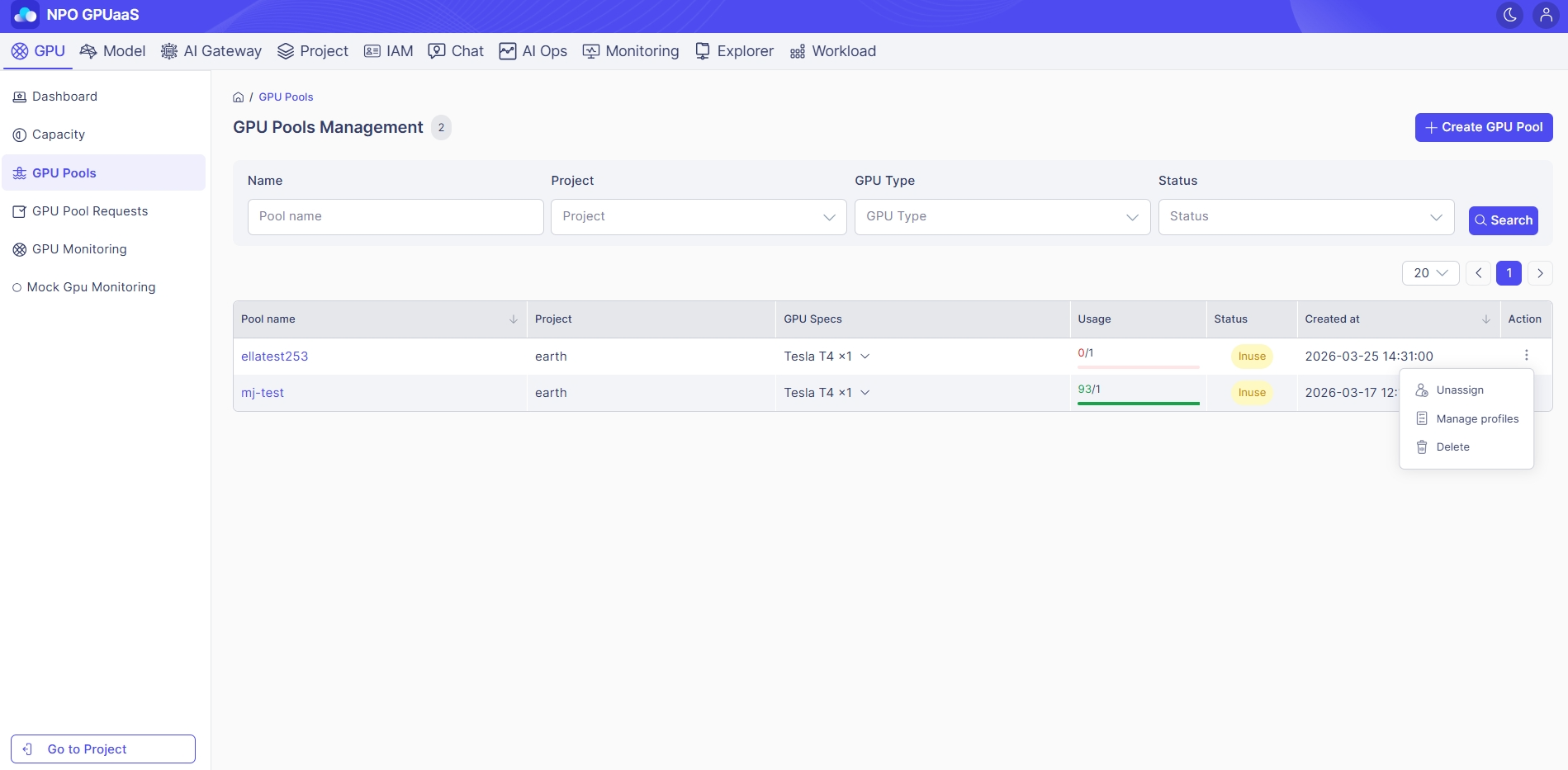
시스템 관리 제어판에서, 기본 탐색에서 GPU을 클릭합니다. 그런 다음 왼쪽 탐색에서 GPU Pool를 선택합니다:
GPU 풀 검색
특정 GPU 풀을 빠르게 찾기 위해 Search 기능을 사용할 수 있습니다. 검색은 아래의 필터를 기반으로 수행할 수 있습니다:
- Name: 풀 이름으로 필터링
- Project: 특정 프로젝트 또는 모든 프로젝트를 선택할 수 있는 드롭다운.
- GPU Type: GPU 유형으로 필터링.
- Status: GPU 상태로 필터링 (예: 사용 가능).
원하는 필터를 설정한 후, 아래의 테이블을 새로 고치기 위해 Search 버튼을 클릭합니다.
GPU 풀 생성
이 버튼은 "GPU 풀 생성" 페이지를 열며, 여기서 풀 이름, GPU 유형, 용량, 프로젝트 및 기타 설정을 지정할 수 있습니다.
GPU 풀 목록 보기
이 페이지에서는 필터와 일치하는 모든 GPU 풀을 나열하는 테이블을 볼 수 있습니다 (있는 경우). 정보는 다음과 같습니다:
- Pool name: GPU 풀의 이름; 클릭하면 선택한 풀의 상세 페이지로 이동합니다.
- Project: 풀과 연결된 프로젝트의 이름
- "할당되지 않음": 아직 프로젝트에 할당되지 않음.
- GPU Specs: 풀에 포함된 GPU의 사양 및 수량 (예: 1g.5gb x1)
- Usage: 현재 GPU 풀에서 사용 중인 GPU/총 GPU 비율 (예: 0/4)
- Status: 현재 상태
- Available: 사용 가능한 상태
- INUSE: 프로젝트에 할당되어 사용 중
- UNHEALTHY: 일부 노드에 문제가 있음
- Created at: GPU 풀 생성 날짜 및 시간 (예: 2025-10-21).
작업 메뉴
할당 해제/할당
- 할당 해제:
- GPU 풀이 프로젝트에 할당되었을 때 표시됩니다.
- 사용자가 GPU 풀에서 프로젝트의 할당을 해제할 수 있습니다.
- 할당:
- GPU 풀이 어떤 프로젝트에도 할당되지 않았을 때 표시됩니다.
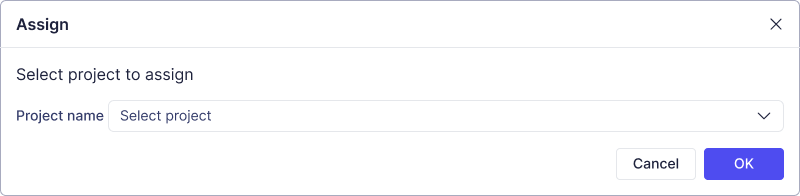
- 사용자가 특정 프로젝트에 GPU 풀을 할당할 수 있습니다.
- 클릭하면 사용자가 GPU 풀을 할당할 프로젝트를 선택할 수 있는 팝업이 표시됩니다:
프로필 관리
- 클릭하면 시스템이 GPU Pool Detail 화면으로 이동하여 사용자가 GPU 풀에서 GPU 사양 구성을 자세히 보고 관리할 수 있습니다.
GPU 풀 삭제
- 사용자가 GPU 풀을 삭제할 수 있습니다.
- 클릭하면 확인 팝업이 표시됩니다. 사용자는 GPU 풀의 이름을 입력하여 확인한 후, OK를 클릭하여 GPU 풀 삭제를 완료합니다.