Publish or Unpublish an MCP Server Registry
On the MCP Registry dashboard, you can easily manage the publication status of your MCP server registries.
How to Publish an MCP Server Registry
備考
Only MCP servers with status UNPUBLISHED can be published.
You have several ways to publish an MCP server registry:
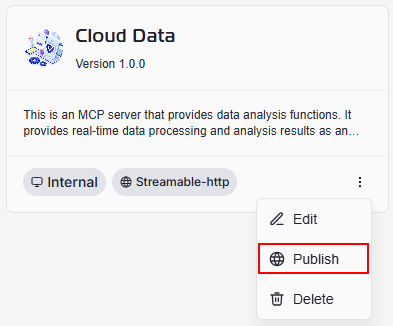
1. From Grid View
- On the MCP Registry listing page in grid view, locate the server you wish to publish.
- Click the More Options menu (three-dot icon) on the server’s tile.
- Select Publish from the menu.
2. From List View
- On the MCP Registry listing page in list view, locate the server you wish to publish.
- Click the More Options menu (three-dot icon) on the server’s row.
- Select Publish from the menu.

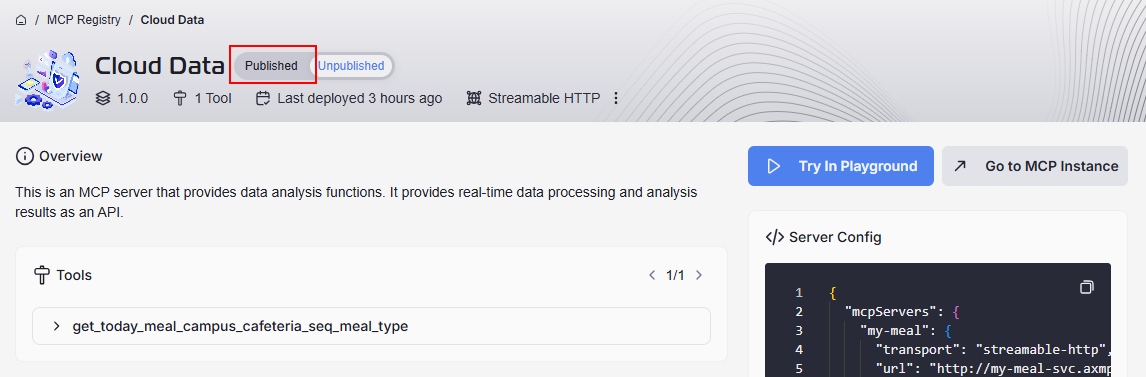
3. From MCP Server Registry Details Page
- Click on the MCP server registry to view its details.
- At the top right, next to the server name, you’ll see a toggle button.
- Click the toggle to switch the status from Unpublished to Published.
ヒント
- Grid View:Â Best for visual browsing when you have many registries.
- List View:Â Best for sorting and filtering registries with detailed information.
- Details Page:Â Useful for reviewing registry configuration and tools before changing publication status.
Confirm publication
After triggering the publish or unpublish action:
- A confirmation dialog appears prompting you to confirm your decision.
- The dialog will display the MCP server name so you can review and ensure you are making changes to the correct registry.
- You will see two options:
- Yes:Â Confirms the action and proceeds to publish the registry.
- No:Â Cancels the action and no changes will be made.

If you want your MCP server appear in search results or can be integrated into workflows or applications, choose Yes to publish it.
When the MCP server was successfully published, a toast message will appear at the bottom left of the screen:

How to Unpublish a MCP Server Registry
Unpublishing follows a similar process:
- Use the More Options (three-dot icon) on either the grid or list view to select Unpublish.
- Alternatively, on the registry details page, use the toggle next to the server name to switch the status to Unpublished.
- Review the MCP server name to confirm the the action and proceeds to unpublish the registry.