Publish an Internal Registry
When you finish publishing an MCP instance, it appears in the MCP Registry page as an Internal Registry.
To internally publish an MCP instance, please refer to the Publish an Instance section in Publish/Unpublish an MCP Instance manual guide.
When publishing, you need to configure the MCP server’s registry information during the publishing confirmation step:
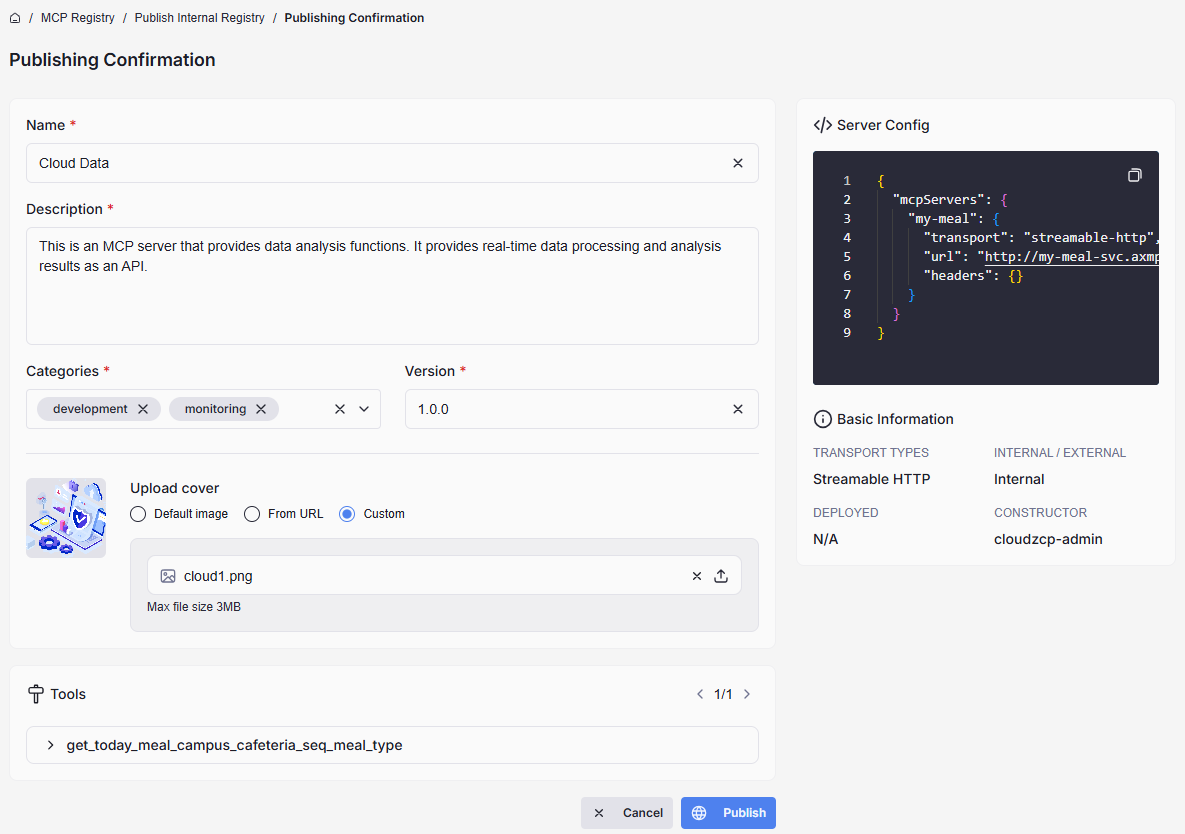
- Name: Enter a unique, descriptive display name for your MCP server.
- Description: Provide a summary of the MCP Instance's functionality, main features, and intended use case.
- Categories: Choose from suggestions or add your own tags to help users classify and find the instance.
- Version: Enter a version number to distinguish different versions or updates.
- Upload cover: Upload a representative image (PNG, JPG) for your MCP Instance.
- Tool (not editable here, but shown for reference): List of API endpoints or tools provided by the instance.
- Server Config (not editable here, but shown for reference): Sample JSON configuration, including endpoint URL and headers.
- Basic Information (not editable here, but shown for reference):
- Transport Type: Indicates the communication protocol used (e.g.,
Streamable HTTP). - Internal/External:Â Shows whether the registry is internal or external.
- Deployed:Â
- Constructor:Â Creator of the instance.
- Transport Type: Indicates the communication protocol used (e.g.,
Once configured, click Publish to complete the confirmation.
After successful publication, you can access it from the MCP Registry page and find in the list MCP Server when creating AI Agent.