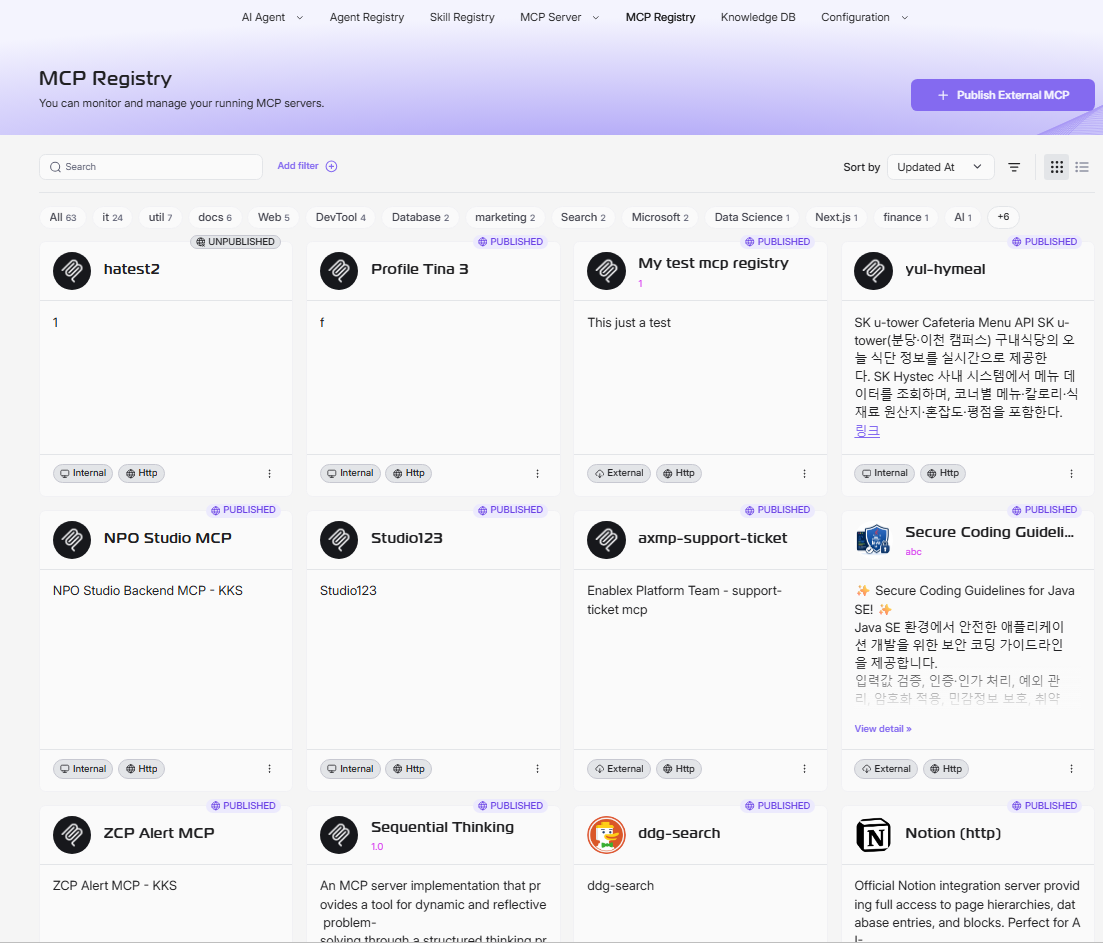
Publish or Unpublish an MCP Instance
Publish an Instance
This action is only available for instances that are currently UNPUBLISHED. Publishing making a running MCP server instance publicly available in the MCP Registry so that other users/agents can discover and use it.
In Grid View
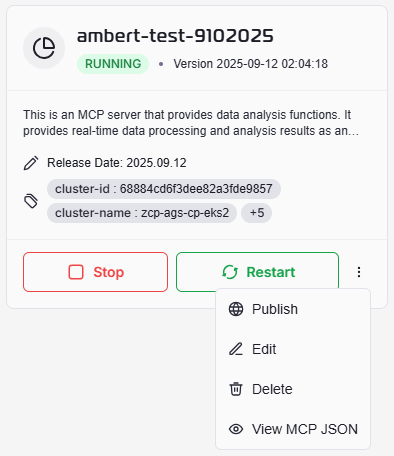
-
Locate the instance card for the server you want to publish.
-
On the right side of the action buttons, click the more options icon (â‹®) to open a menu.
-
Select Publish from the list of actions. A Publishing Settings screen shall be displayed with all information of current MCP Profile to check before final publish.
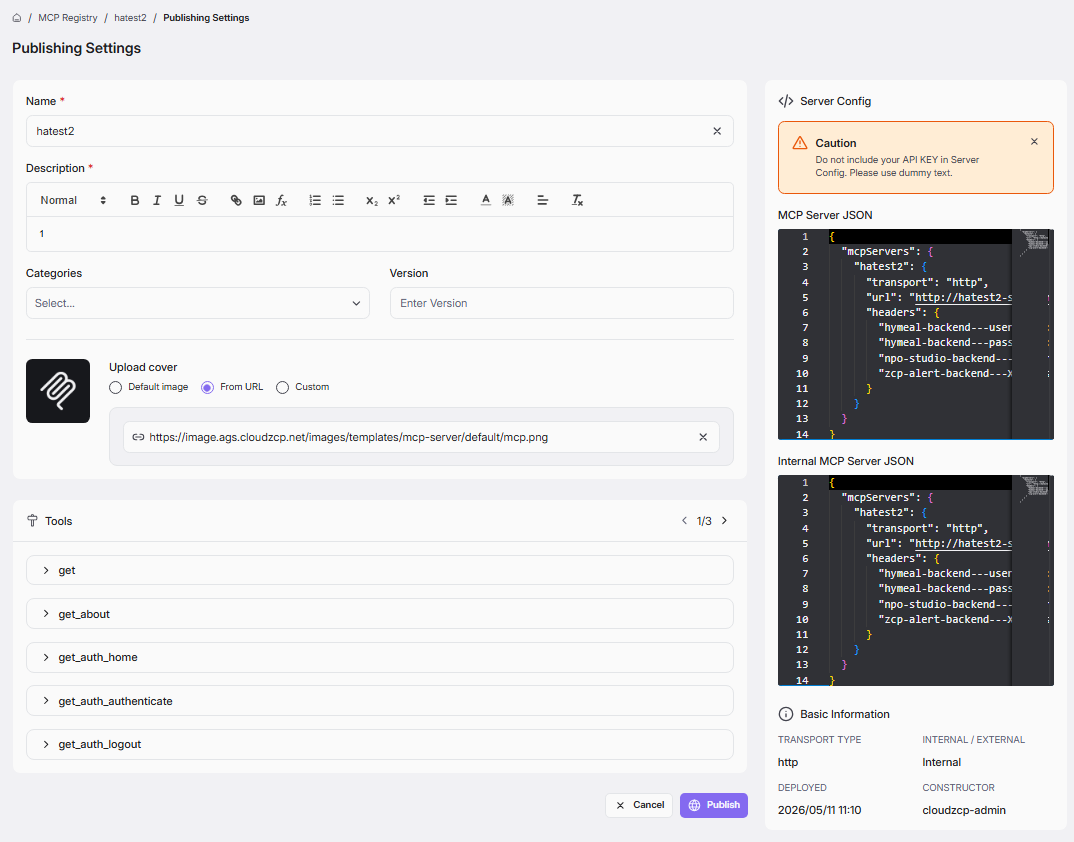
-
Once review completed, click “Publish†at the end of the screen. Successful screen after Publish shall be like below, where you can next Try In Playground
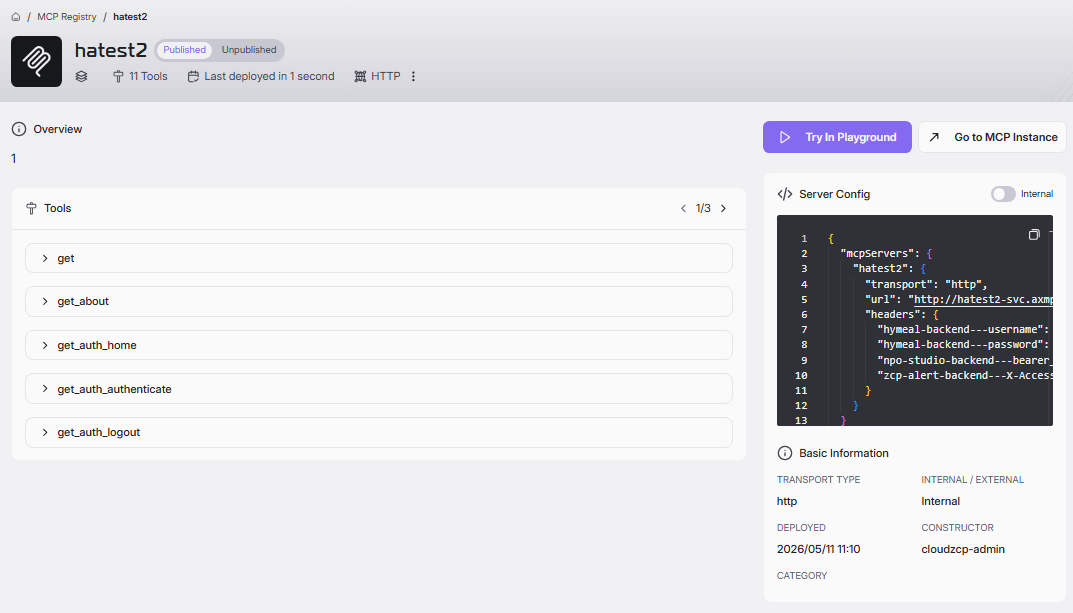
In List View
- Find the row corresponding to the instance you wish to publish. The Publish status column will show UNPUBLISHED.
- Navigate to the Action column at the far right of the row.
- Click the more options icon (â‹®) to open a dropdown menu.
- Select Publish from the menu. The text in the Publish status column will update to PUBLISHED.
Unpublish an Instance
This action is only available for instances that are currently PUBLISHED.
In Grid View
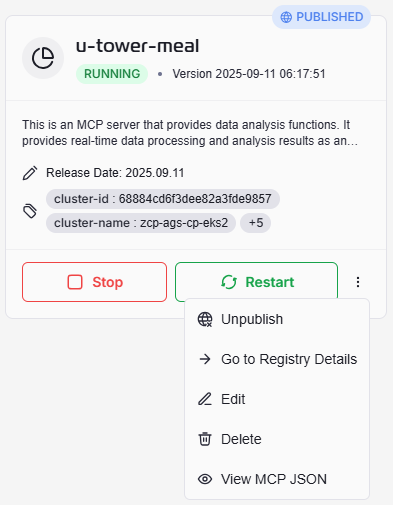
- Locate the card for the PUBLISHED instance you want to unpublish. It will be marked with a PUBLISHED status indicator.
- Click the more options icon (â‹®) on the card.
- Select Unpublish from the menu.
- The PUBLISHED status indicator on the card will disappear.
In List View
- Find the row for the PUBLISHED instance. The Publish status column will clearly indicate this.
- In the Action column, click the more options icon (â‹®).
- Select Unpublish from the dropdown menu.
- The text in the Publish status column will revert to UNPUBLISHED.
On Screen Detail
After publish successfully, you can unpublish your MCP Instance on screen view Detail.
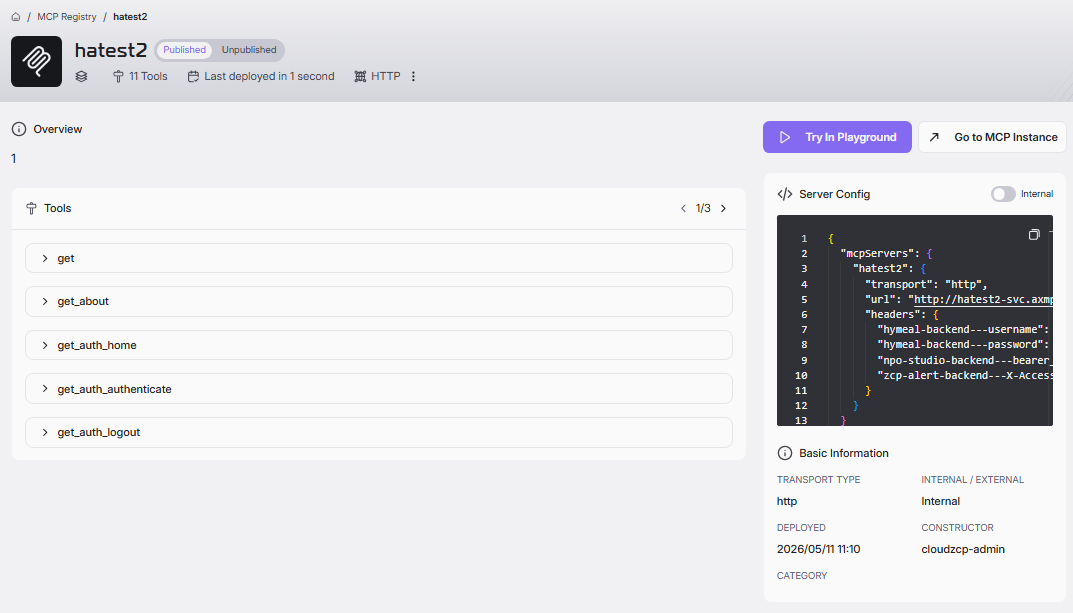
- Click on the Instance card on Instance listing
- On screen detail, locate the toggle Publish/Unpublished and click Unpublished. A dialog confirm shall appear, click Yes to confirm. Successful unpublishment shall turn the toggle to Unpublished.

Status Published/Unpublished can be quickly viewed on screen MCP Registry. Refer to View List of MCP Registry | Notion for further details.