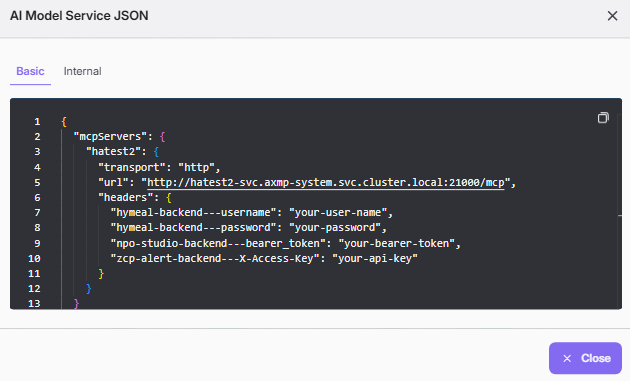
Edit MCP Instance and View MCP JSON
After an MCP Server Profile has been provisioned, you can edit the deployment and network settings of individual MCP instances. The Edit dialog allows you to adjust compute resources and networking without recreating the profile.
Opening the Edit Dialog
- Navigate to MCP Instance listing.
- Locate the MCP instance you want to modify (e.g., "hatest2").
- Click the vertical ellipsis and select edit action to open the Edit dialog.
The dialog title shows Edit: <instance name> and contains two tabs: Deployment Spec and Network.
Deployment Spec Tab
Use this tab to adjust the compute resources allocated to the MCP instance.
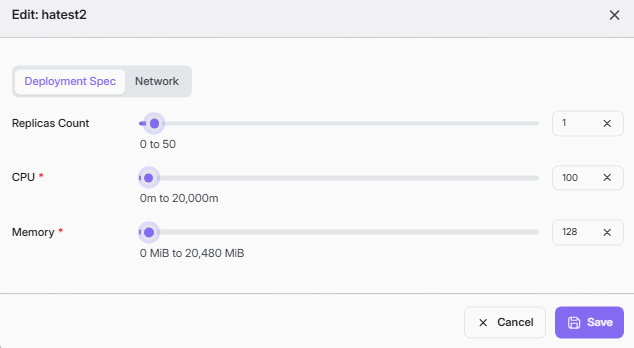
- The number of running pod instances for this MCP Server.
- Adjustable via slider or direct input (range: 0 to 50).
- Click the × button next to the value to reset the field.
CPUÂ (Required)
- CPU allocation in millicores (m).
- Adjustable via slider or direct input (range: 0m to 20,000m).
- Example:Â 100Â means 100m (0.1 vCPU).
Memory (Required)
- Memory allocation in MiB.
- Adjustable via slider or direct input (range: 0 MiB to 20,480 MiB).
- Example:Â 128Â means 128 MiB.
After making changes, click Save to apply or Cancel to discard.
Network Tab
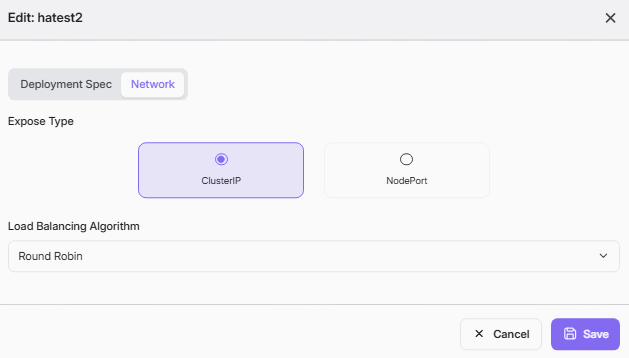
Use this tab to modify how the MCP instance is exposed to traffic.
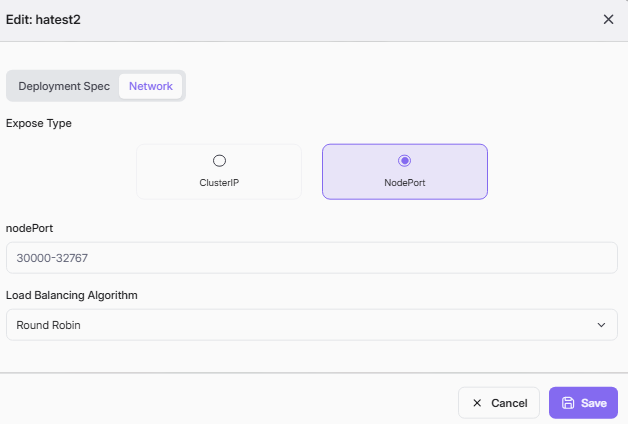
Expose Type
Choose one of two service exposure modes:
ClusterIP- Exposes the service internally within the Kubernetes cluster only.
- No external port is assigned.
- Best suited for instances accessed via Ingress or internal service mesh.
- Exposes the service on a static port on every cluster node.
- When selected, the nodePort field appears.
nodePort (Visible when Expose Type = NodePort)
- The port number on each node that forwards traffic to the MCP service.
- Valid range: 30000–32767.
- Enter a specific port or use the placeholder range to pick one.
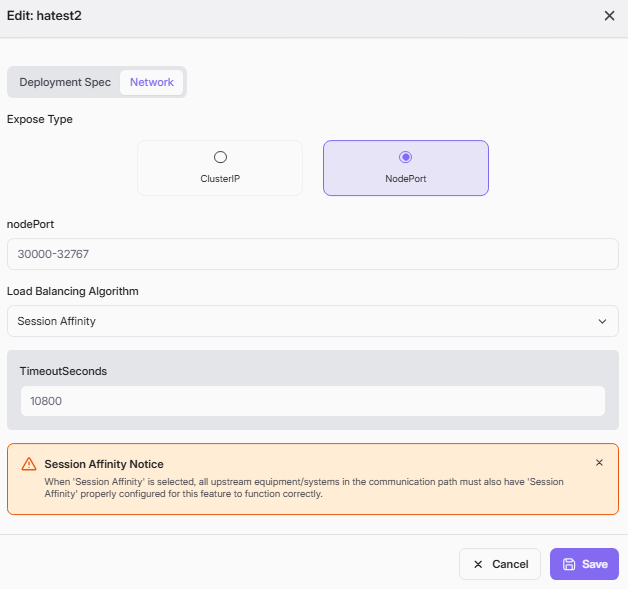
Load Balancing Algorithm
Select the traffic distribution strategy from the dropdown:
Round Robin (Default)
- Distributes incoming requests evenly across all replicas in sequential order.
- No additional configuration required.
- Recommended for most use cases with stateless workloads.
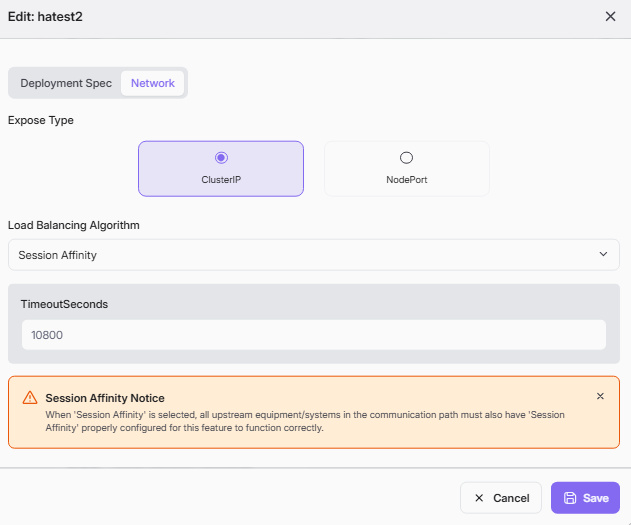
- Routes all requests from the same client to the same replica for the duration of the session.
- When selected, an additional TimeoutSeconds field appears.
TimeoutSeconds (Visible when Load Balancing Algorithm = Session Affinity)
- Defines how long (in seconds) the session affinity binding lasts.
- Default value:Â 10800Â (3 hours).
- After this timeout, the client may be routed to a different replica.
Session Affinity Notice When "Session Affinity" is selected, all upstream equipment/systems in the communication path must also have "Session Affinity" properly configured for this feature to function correctly.
How to Choose the Right Configuration
| Scenario | Expose Type | Load Balancing | Notes |
|---|---|---|---|
| Internal service, stateless | ClusterIP | Round Robin | Simplest setup |
| Internal service, stateful sessions | ClusterIP | Session Affinity | Set appropriate TimeoutSeconds |
| External access needed | NodePort | Round Robin | Ensure port 30000–32767 is open |
| External access, stateful sessions | NodePort | Session Affinity | Configure timeout + upstream affinity |
View MCP JSON
- Navigate to MCP Instance listing.
- Locate the MCP instance you want to view (e.g., "hatest2").
- Click the vertical ellipsis and select View MCP JSON action to open the view modal.