Vector DB
A vector database is a specialized database that stores and indexes high-dimensional vectors (numerical representations of data like text, images, or audio). In AI, it enables semantic search — finding content by meaning rather than exact keyword matches. It is the backbone of RAG (Retrieval-Augmented Generation) pipelines and Knowledge DBs.
Vector DB List
The Vector DB page under Configuration > Vector DB displays all registered vector database connections. Use the Search, Type, and Status filters to find specific entries. Toggle between card view and table view using the icons in the top-right corner.
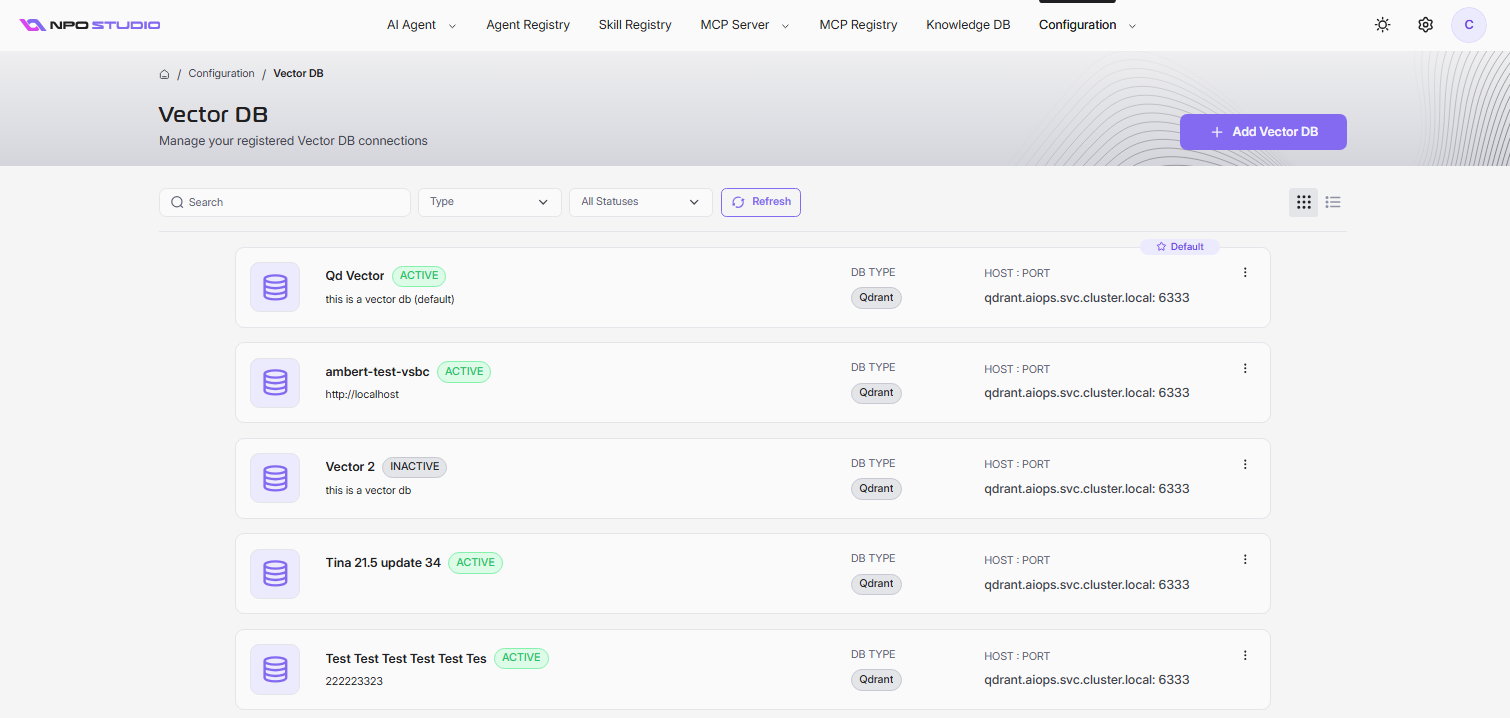
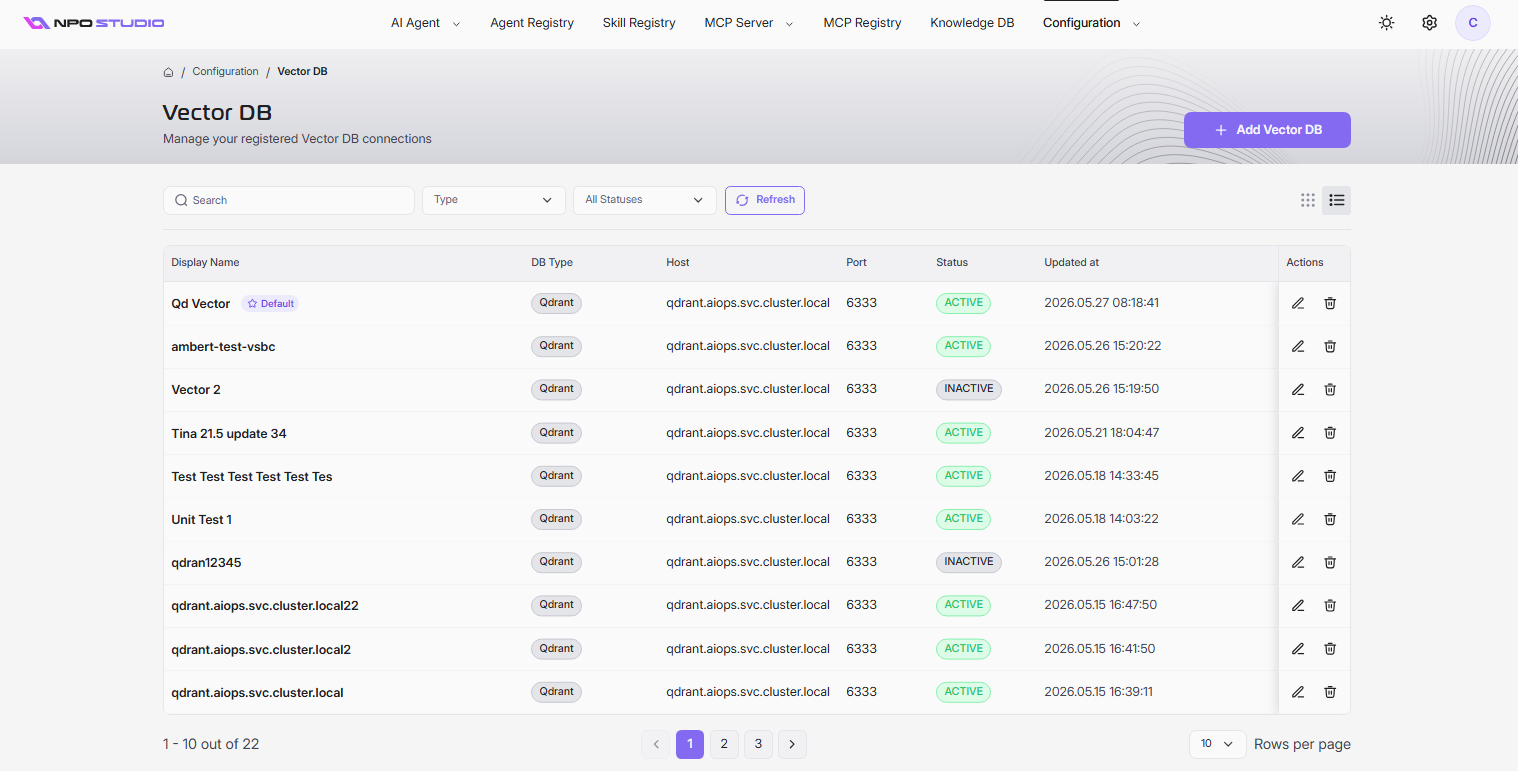
Each entry shows:
| Column | Description |
|---|---|
| Display Name | The name of the vector DB connection. One entry can be marked as Default. |
| DB Type | The vector database engine (e.g., Qdrant). |
| Host | The hostname or address of the vector DB instance. |
| Port | The port number for the connection. |
| Status | ACTIVE or INACTIVE. |
| Updated at | The last modified timestamp. |
| Actions | Edit or delete the connection. |
Add a Vector DB
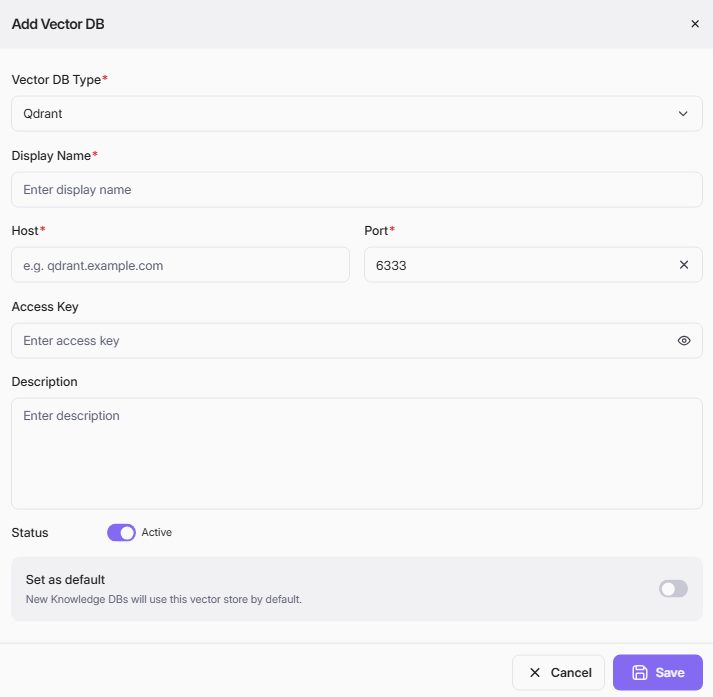
- Click + Add Vector DB.
- Fill in the required fields and click Save.
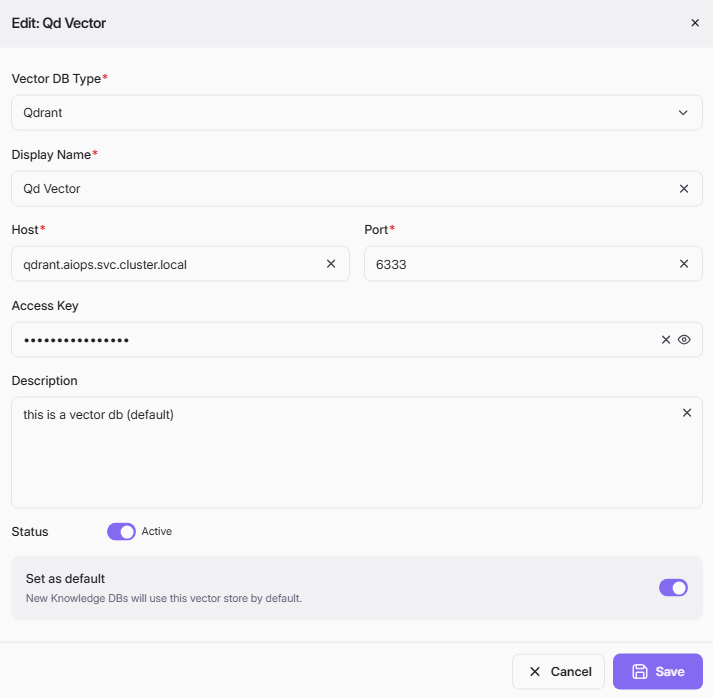
| Field | Required | Description |
|---|---|---|
| Vector DB Type | Yes | The database engine (e.g., Qdrant). |
| Display Name | Yes | A unique name for the connection. |
| Host | Yes | The server address (e.g., qdrant.aiops.svc.cluster.local). |
| Port | Yes | The connection port (e.g., 6333). |
| Access Key | No | Authentication key for the vector DB instance. |
| Description | No | A brief description of the connection. |
| Status | No | Toggle the connection Active or Inactive. Defaults to Active. |
| Set as default | No | When enabled, new Knowledge DBs will use this vector store by default. |
Edit a Vector DB
- Click the edit icon (pencil) on the entry you want to modify.
- Update the fields as needed.
- Click Save.
Delete a Vector DB
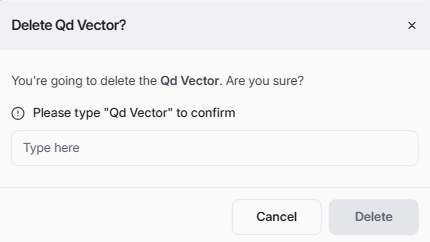
- Click the delete icon (trash) on the entry you want to remove.
- Type the exact display name to confirm.
- Click Delete.