Playground Agent
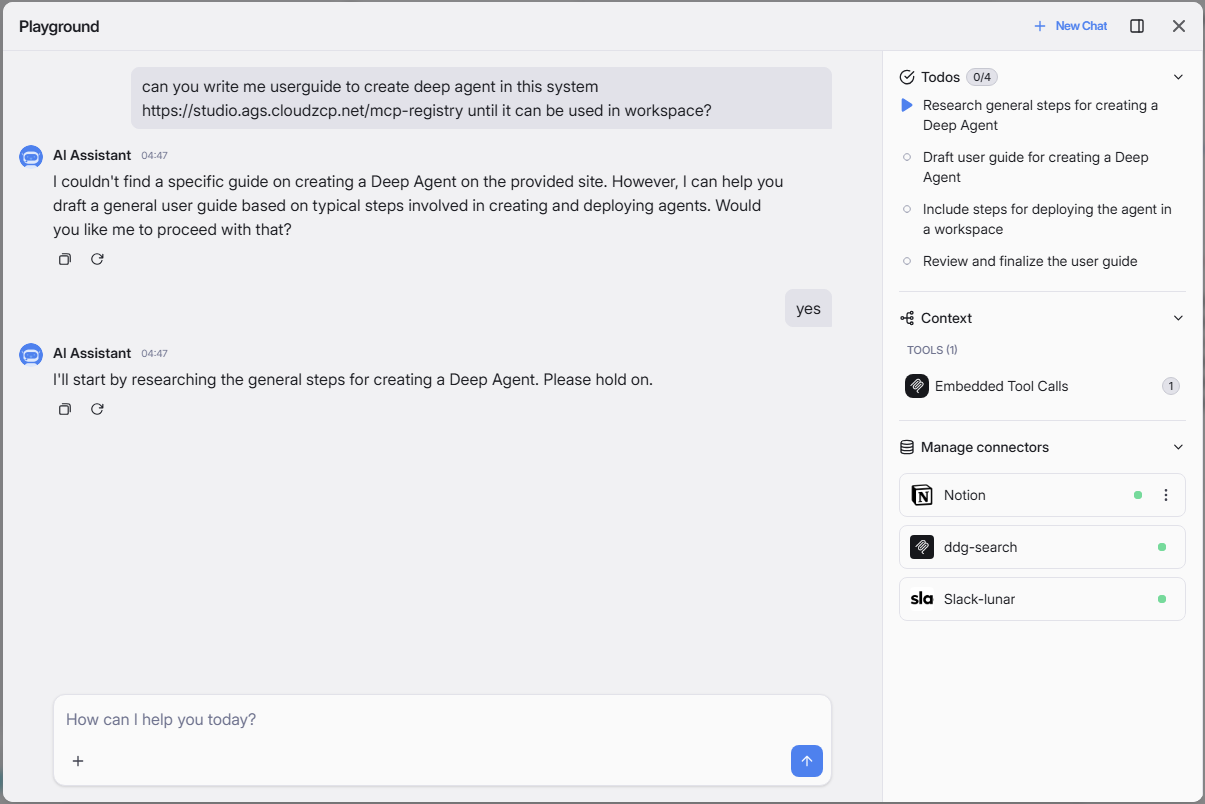
Before publishing, Agent should be tested using Playground function. The Playground allows you to interact with your agent in a sandbox environment, verify MCP Server connections, test skills, and ensure everything works as expected.
The Agent Playground provides a chat-based testing interface where you can:
- Send messages to your agent and review responses
- Connect and authenticate MCP Servers (Connectors)
- Select and test Skills attached to the agent
- Verify tool availability from connected MCP Servers
- Manage connectors and skills configuration
Accessing the Playground
- Open your AI Agent in the design canvas.
- Click the Playground button to launch the testing interface.
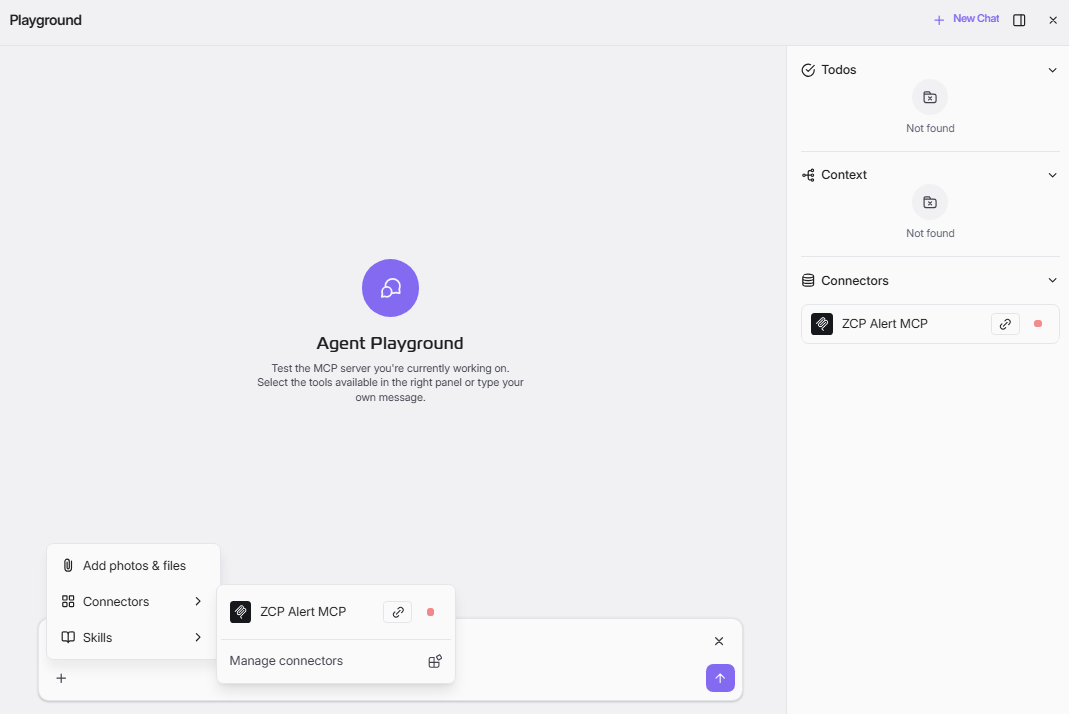
- The Playground opens with:
- Chat area (center): Main conversation interface to interact with your agent.
- Right panel: Displays Todos, Context, and Connectors sections.
- Input toolbar (bottom): Options to add files, select connectors, and choose skills.
Authenticating MCP Servers
When your agent uses MCP Servers that require OAuth authentication, you must authenticate before testing.
Step 1: Handle Unauthenticated MCP Servers
If an MCP Server is not yet authenticated, a dialog appears:
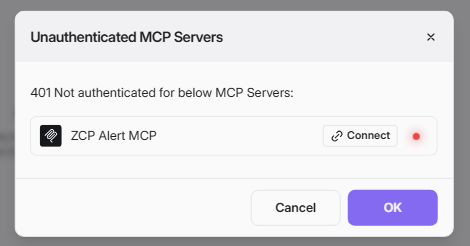
- Title: "Unauthenticated MCP Servers"
- Message: "401 Not authenticated for below MCP Servers:"
- A list of unauthenticated servers is displayed (e.g., "ZCP Alert MCP").
- Click Connect next to the server you want to authenticate.
Step 2: Authorize the Application
After clicking Connect, a browser window opens with an Application Access Request page:
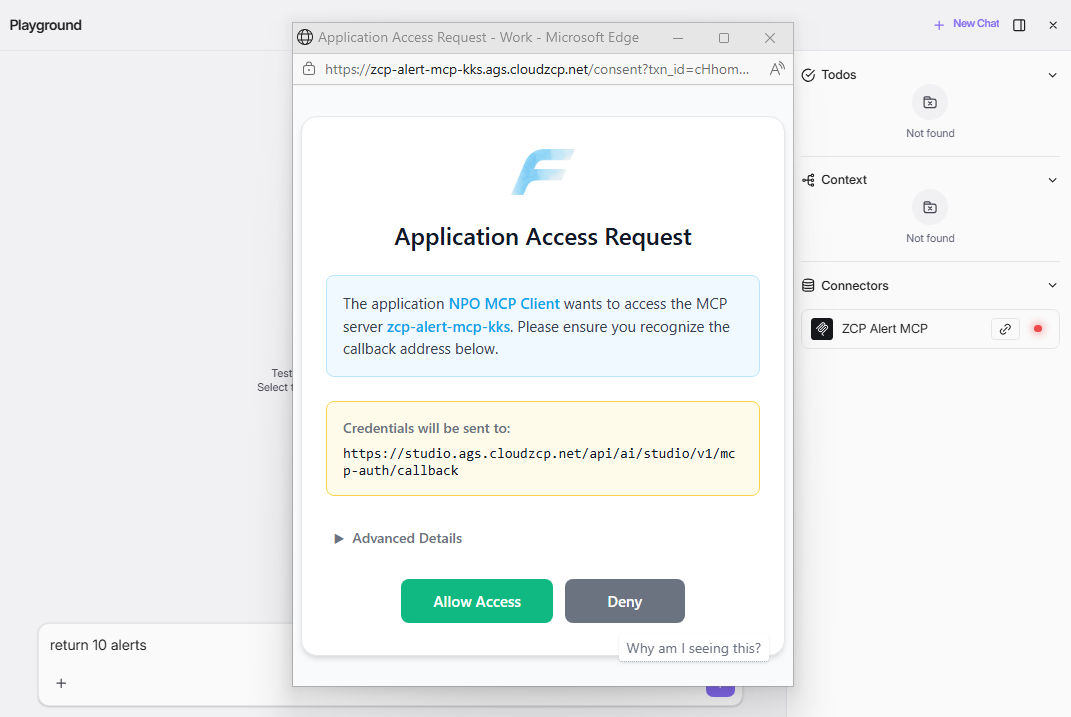
- Application name: The MCP Client requesting access (e.g., "NPO MCP Client").
- Server name: The MCP Server being accessed (e.g., "zcp-alert-mcp-kks").
- Callback URL: The credentials destination URL is displayed for verification.
- Review the access request details carefully.
- Click Allow Access to grant permission, or Deny to reject.
- Expand Advanced Details for additional information if needed.
Step 3: Confirm Authentication
Upon successful authentication, a confirmation page appears:
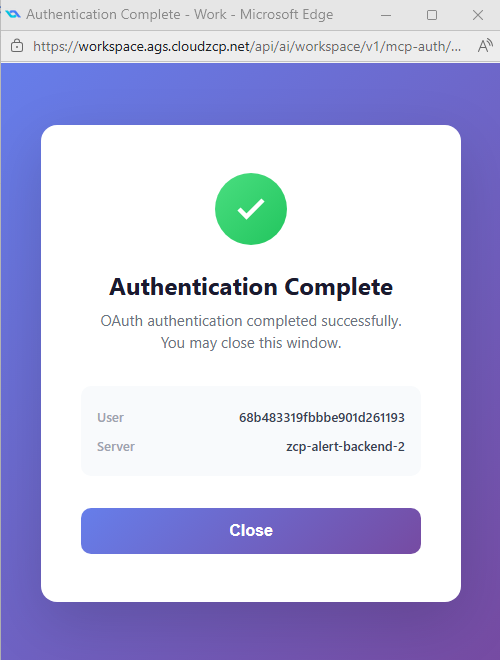
- Title: "Authentication Complete"
- Message: "OAuth authentication completed successfully. You may close this window."
- User: Your authenticated user ID is displayed.
- Server: The connected backend server name is shown.
- Click Close to return to the Playground.
Note: The connector status indicator changes from red (disconnected) to green (connected) after successful authentication.
Using Connectors
Connectors are MCP Servers that provide tools to your agent.
Selecting Connectors in Chat
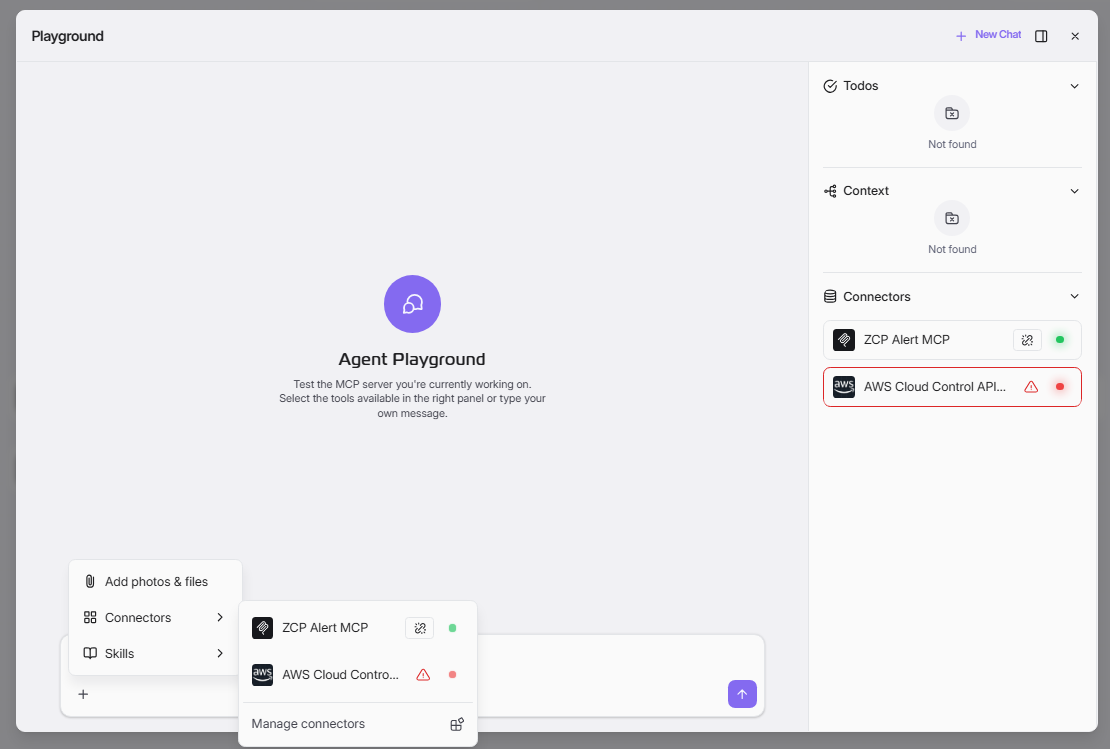
- Click the + button or the input area at the bottom of the Playground.
- Select Connectors from the menu.
- A submenu displays all available connectors (e.g., "ZCP Alert MCP").
- Click a connector to enable it for the current conversation.
- Click Manage connectors to open the Customize panel for advanced settings.
Connector Status Indicators
Each connector shows a status indicator:
- Red dot (â—): Not connected / authentication required.
- Green dot (â—): Connected and ready to use.
- Link icon (🔗): Click to initiate or re-authenticate the connection.
Using Skills
Skills are reusable task components that extend your agent's capabilities.
Selecting Skills in Chat
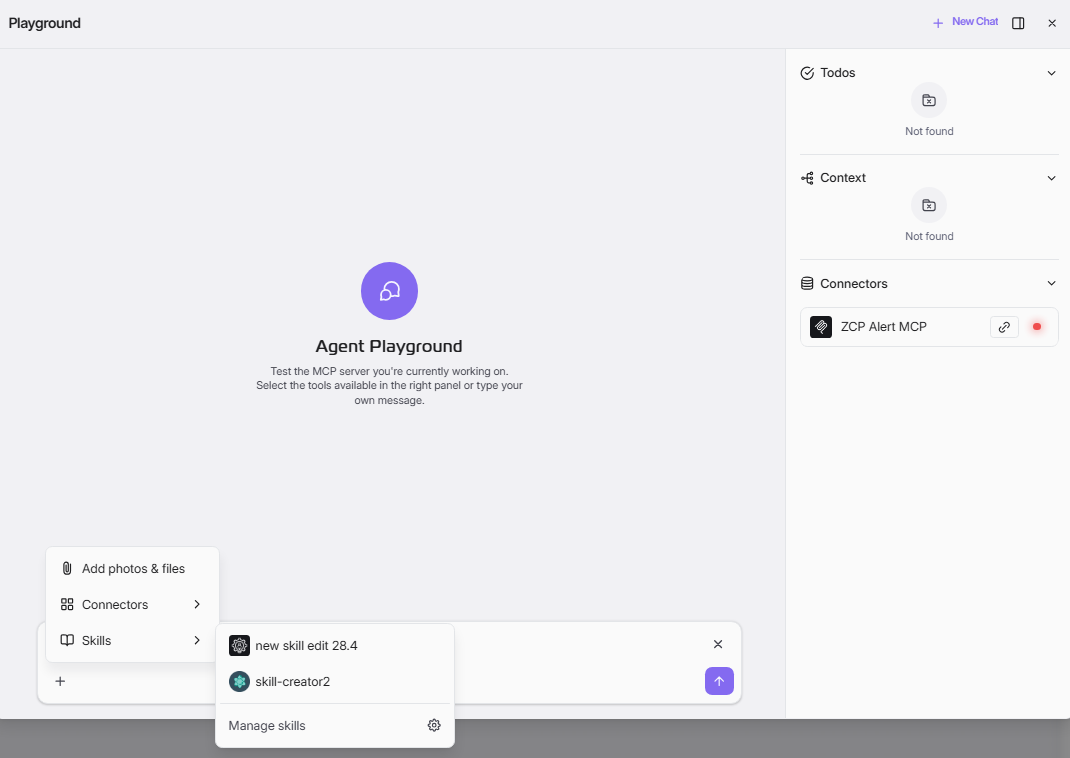
- Click the + button or the input area at the bottom of the Playground.
- Select Skills from the menu.
- A submenu displays all available skills (e.g., "new skill edit 28.4", "skill-creator2").
- Click a skill to attach it to the current conversation.
- Click Manage skills to open the Customize panel for skill configuration.
Customize Panel
The Customize panel allows you to manage Connectors and Skills in detail.
Managing Connectors
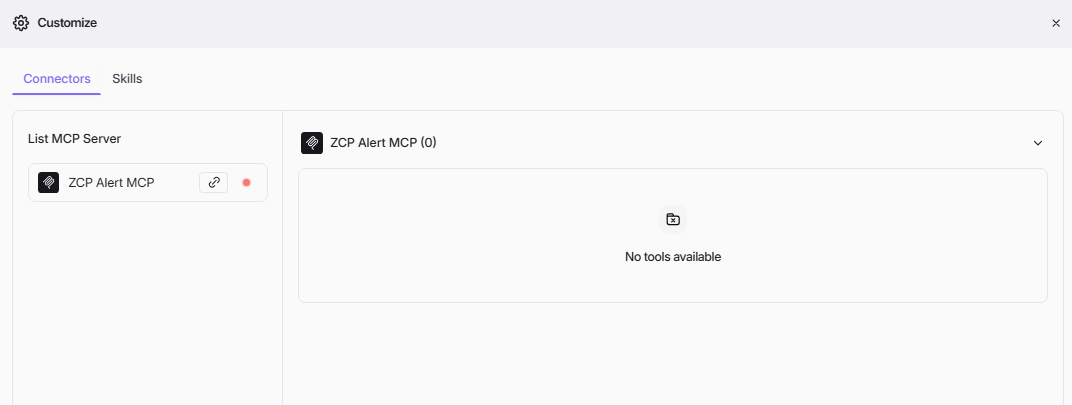
- Click Manage connectors from the Connectors submenu, or open the Customize panel directly.
- The Connectors tab displays:
- Left panel: List of all MCP Servers with their connection status.
- Right panel: Tools available from the selected MCP Server.
- Select an MCP Server from the list to view its available tools.
- If "No tools available" is shown, the MCP Server may need:
- Authentication (click the link icon to connect).
- Tool configuration on the server side.
- Verification that the backend is running and accessible.
Managing Skills
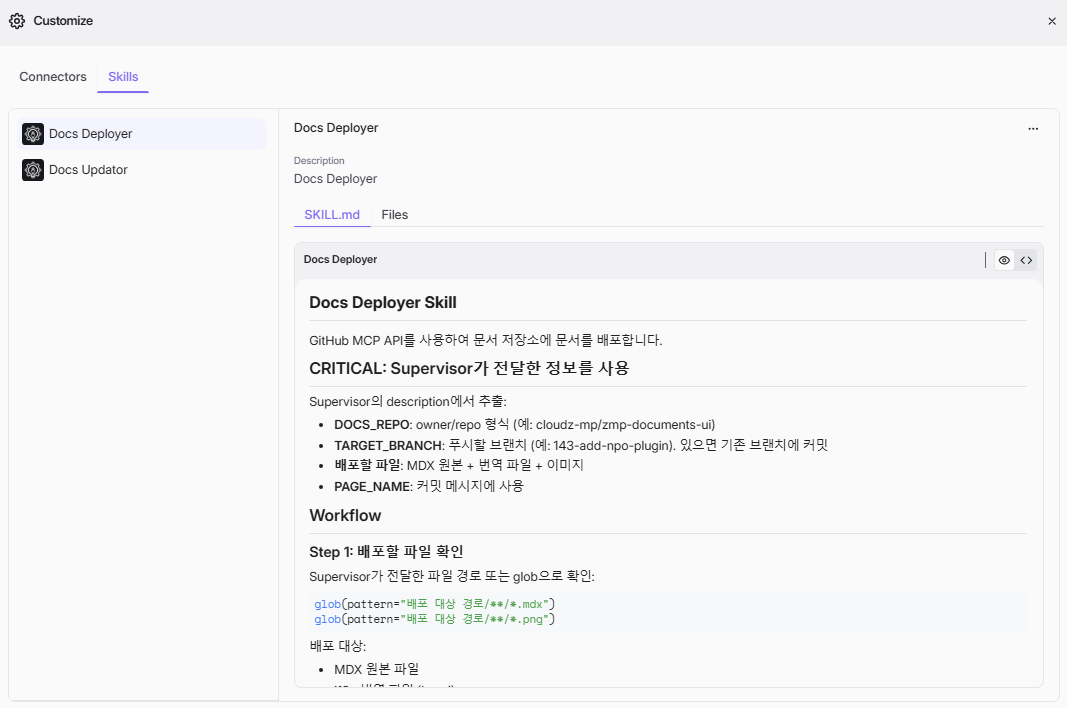
- Click Manage skills from the Skills submenu, or switch to the Skills tab in the Customize panel.
- The Skills tab displays:
- Left panel: List of all configured skills (e.g., "Docs Deployer", "Docs Updator").
- Right panel: Skill details including description, SKILL.md content, and attached files.
- Select a skill to view its:
- Description: Brief overview of the skill's purpose.
- SKILL.md: Detailed instructions and workflow definition.
- Files: Associated files and resources.
Testing Your Agent
Sending Messages
- Type your message in the input field at the bottom of the chat area.
- Click the Send button (arrow icon) or press Enter.
- The agent processes your message using the configured LLM, connectors, and skills.
- Responses appear in the chat area.
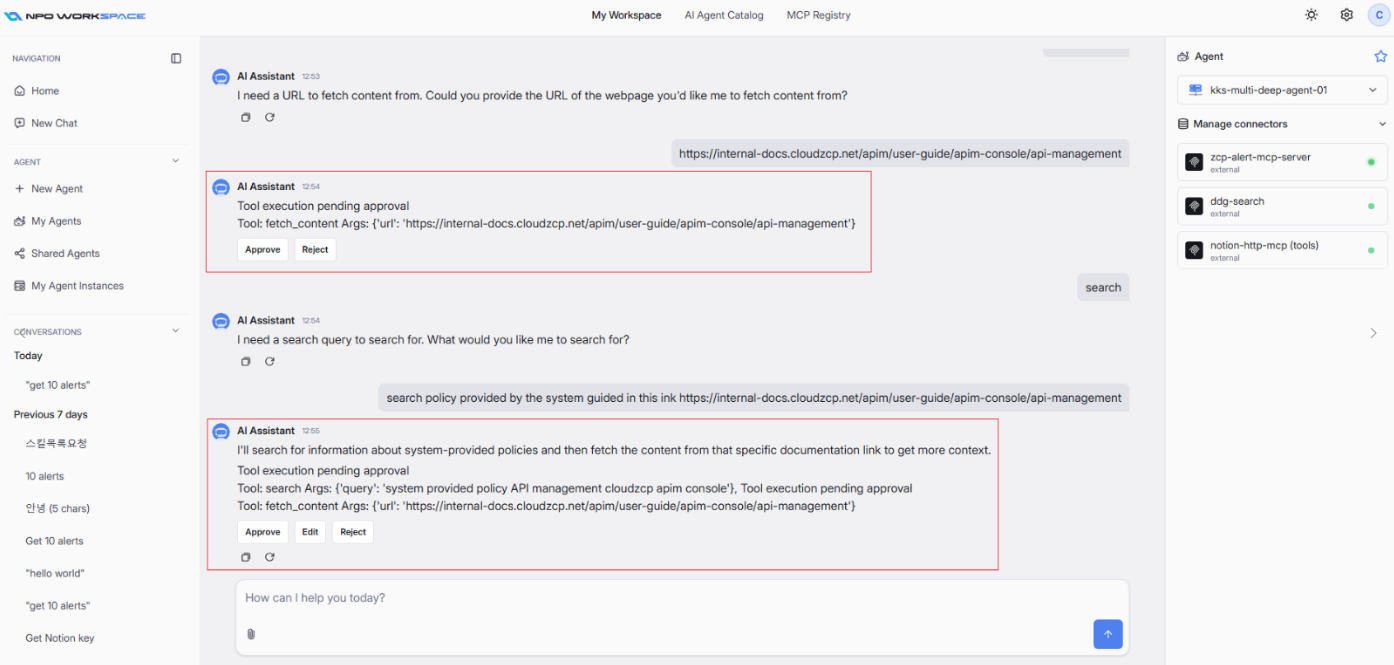
If agent call a tool with human in the loop is set, the chat looks like image below with intervention waiting for human decision.
Adding Files and Photos
- Click the + button at the bottom of the Playground.
- Select Add photos & files.
- Upload files to include as context in your conversation.
Monitoring the Right Panel
The right panel provides real-time status:
| Section | Description |
|---|---|
| Todos | Displays task items the agent is tracking. Shows "Not found" if none exist. |
| Context | Shows context data being used by the agent. Shows "Not found" if none exist. |
| Connectors | Lists connected MCP Servers with their status indicators. |
Troubleshooting
MCP Server Shows "No tools available"
- Verify the MCP Server is authenticated (status should be green).
- Check that the backend server is running and accessible.
- Ensure tools are properly configured in the MCP Server Profile.
- Try disconnecting and reconnecting the MCP Server.
Authentication Fails (401 Error)
- Verify your OAuth credentials (Client ID, Client Secret) are correct.
- Check that the OAuth provider URL is accessible.
- Ensure your user account has permission to access the MCP Server.
- Try clicking Connect again to re-initiate the OAuth flow.
Connector Status Remains Red After Authentication
- Refresh the Playground page.
- Check if the authentication callback URL is correctly configured.
- Verify network connectivity to the MCP Server endpoint.
Best Practices
- Test incrementally: Start by testing basic chat, then add connectors and skills one at a time.
- Verify authentication first: Ensure all MCP Servers show green status before testing tool-dependent features.
- Check tool availability: Use the Customize panel to confirm tools are loaded from connected MCP Servers.
- Review skill definitions: Open the Skills tab to verify SKILL.md instructions match your expected behavior.
- Start a new chat: Click + New Chat to reset the conversation context when switching test scenarios.
- Test before publishing: Always validate agent behavior thoroughly in the Playground before publishing to production.