Provision MCP Profile
An MCP Profile is a blueprint/template that defines an MCP server's configuration (its backend services, tools, metadata, etc.). Provisioning MCP Profile means deploying an MCP Server instance based on a pre-configured MCP Profile definition.
On the MCP Profiles page where all MCP Profiles are managed, you can use the search bar or browse the list/grid to find the MCP Server profile you want to provision.
Locate the MCP profile card in Grid View or the profile row in List View. Click on the edit button (pencil icon) of the profile to open the profile workspace editor.
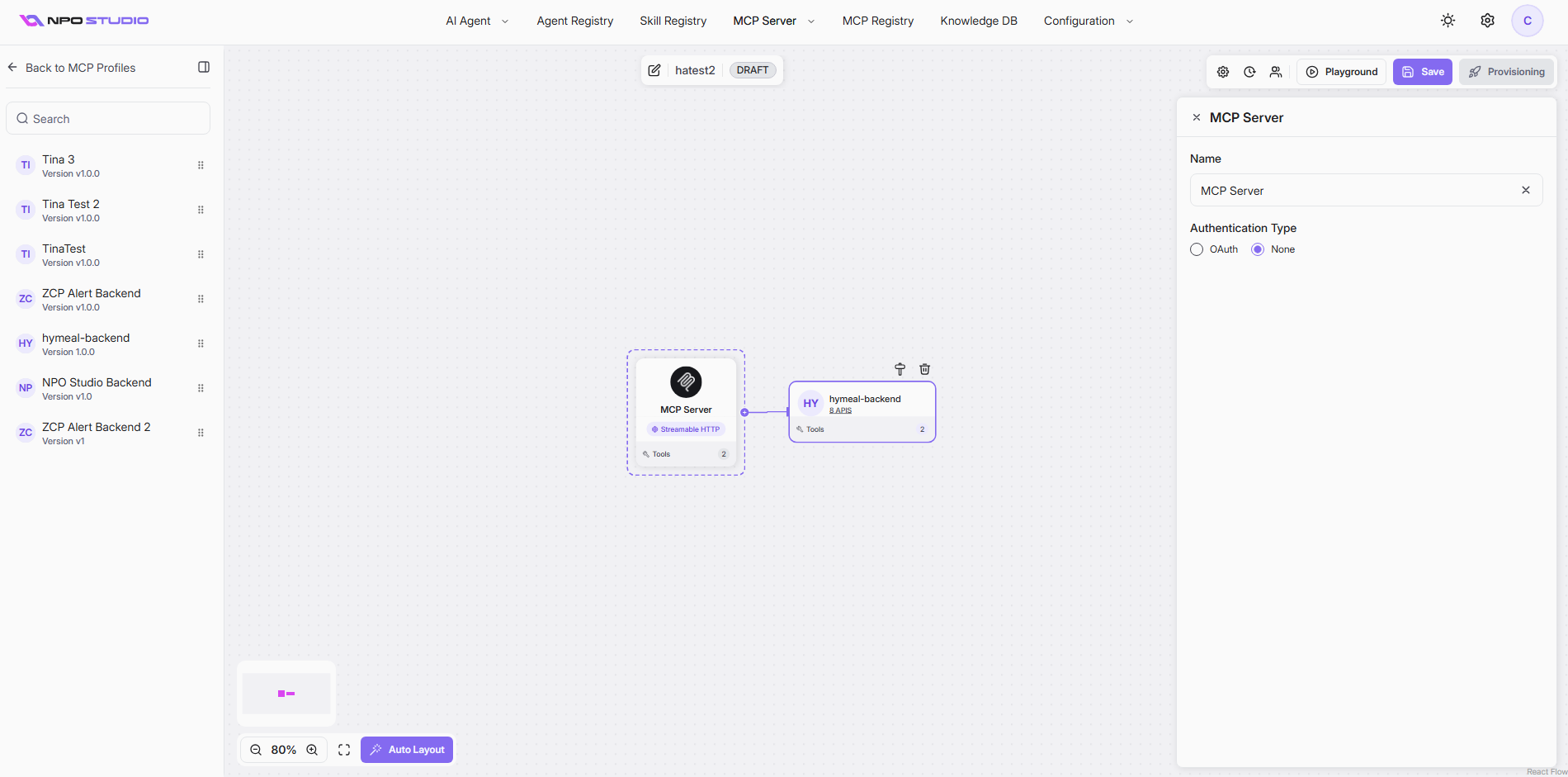
Once inside the profile workspace editor, look for the Provisioning button at the top right corner. This button allows you to create a new MCP server instance based on the current profile configuration. If the button is disabled, it means you must Save first then it can be enabled for provisioning.
When you click Provisioning, this dialog appears to guide you through the deployment options. Select Cluster and Namespace then configure settings in two tabs: Deployment Spec and Network.
Deployment Spec Tab
This tab controls compute capacity and scaling behavior.
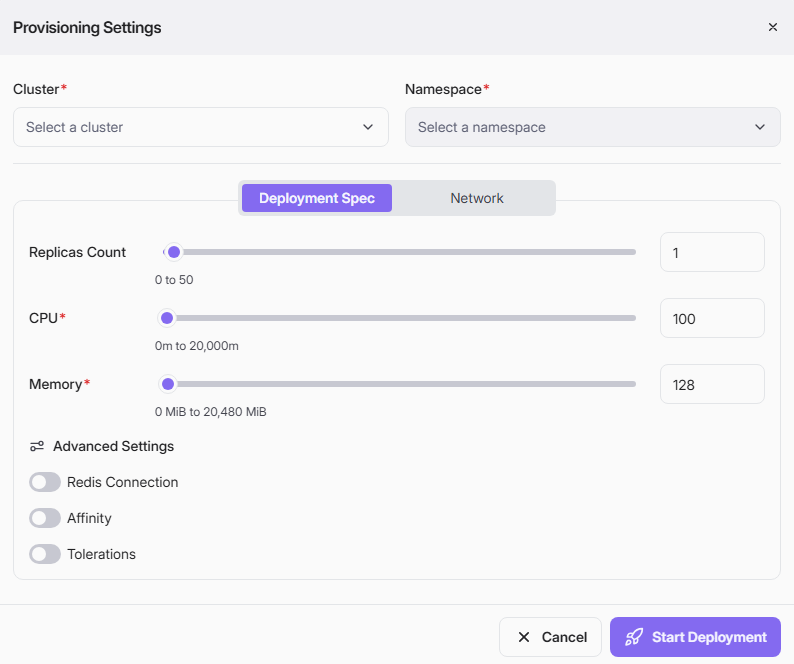
- Meaning: Number of MCP Server pod instances to run.
- Range shown in UI: 0 to 50.
- Impact:
- Higher value improves availability and throughput.
- Lower value reduces infrastructure cost.
- Practical note: Use at least 2 replicas for production high availability.
CPU (Required)
- Meaning: CPU request/limit for the MCP Server workload, measured in millicores (m).
- Range shown in UI: 0m to 20,000m.
- Example in screenshot: 200 (typically interpreted as 200m, or 0.2 vCPU).
- Impact:
- Too low can cause throttling and slower response times.
- Too high may waste cluster resources.
Memory (Required)
- Meaning: Memory allocation for the MCP Server workload, measured in MiB.
- Range shown in UI: 0 MiB to 20,480 MiB.
- Example in screenshot: 256 (256 MiB).
- Impact:
- Too low can trigger out-of-memory restarts.
- Too high can reduce node utilization efficiency.
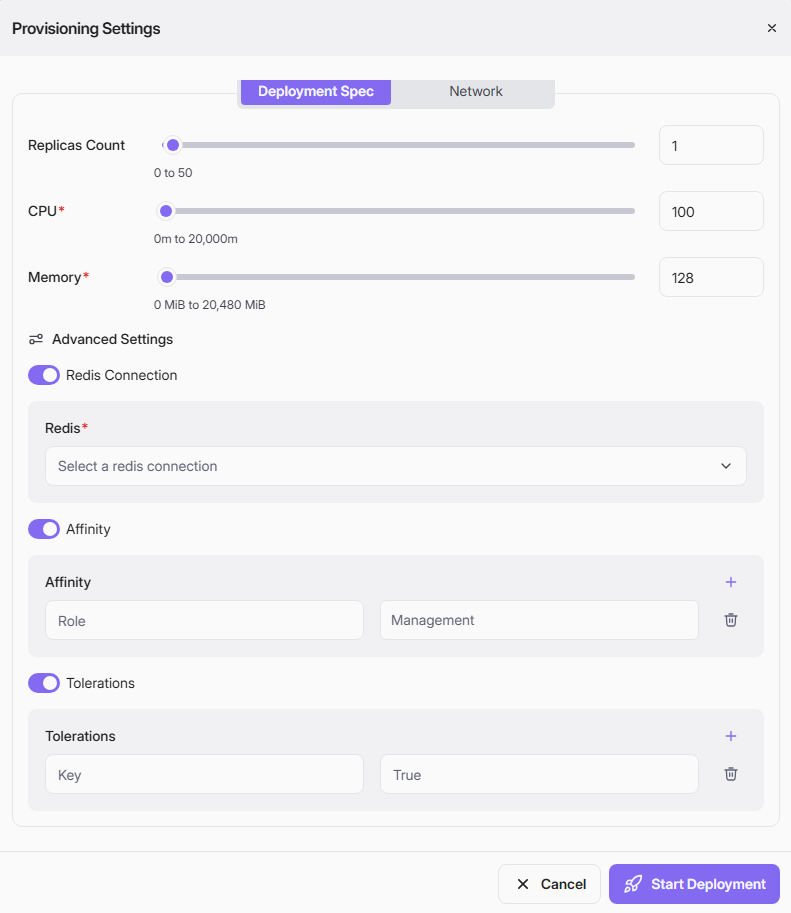
Redis (Required): Enables Redis integration for the service. When turned on, the Redis dropdown loads from existing database connections where DB Type = Redis. Select one Redis connection to bind to this deployment.
Affinity: Adds pod scheduling rules so workloads prefer or require specific nodes (for example by role, environment, or management label). Use this to keep services on suitable nodes.
Tolerations: Allows pods to be scheduled onto tainted nodes by matching taint keys/effects. Use this when your target nodes are reserved or isolated with taints.
Network Tab
This tab defines how the MCP Server is exposed to internal or external traffic.
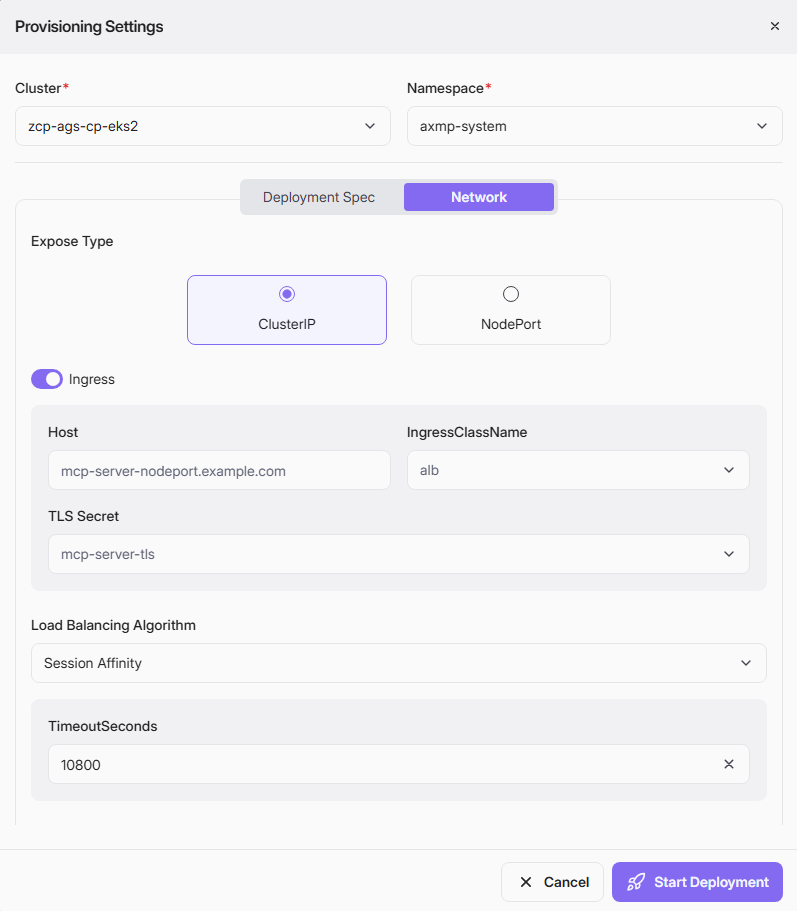
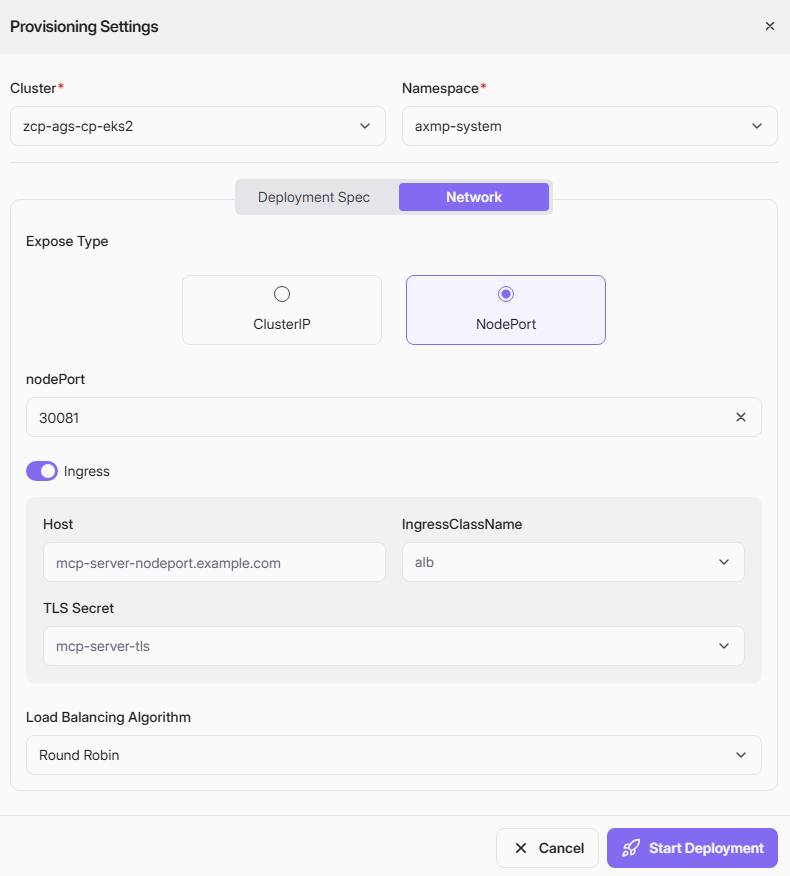
- ClusterIP:
- Internal-only service exposure inside the Kubernetes cluster.
- Recommended when traffic is routed through Ingress or internal gateways.
- NodePort:
- Exposes service on a static port on each cluster node.
- Useful for direct access or environments without Ingress.
nodePort (Shown when Expose Type = NodePort)
- Meaning: Fixed external port on each node that forwards to the MCP service.
- Example in screenshot: 30081.
- Practical note: Ensure firewall/security group rules allow access to this port.
Ingress (Toggle)
- Meaning: Enables HTTP/HTTPS ingress routing rules for this MCP service.
- Behavior:
- ON: Requires host and ingress metadata.
- OFF: No ingress rule is created.
When Ingress is ON, these fields are used:
Host- Meaning: Public DNS hostname used to route requests to this MCP profile.
- Example in screenshot: mcp-server-nodeport.example.com.
- Meaning: Ingress controller class that should process this ingress rule.
- Example in screenshot: alb.
- Practical note: Must match an ingress controller installed in your cluster.
- Meaning: Kubernetes secret name containing TLS certificate and private key.
- Example in screenshot: mcp-server-tls.
- Purpose: Enables HTTPS termination at ingress.
- Meaning: Strategy used to distribute requests across replicas.
- Example shown: Round Robin.
- Typical usage:
- Round Robin for even traffic distribution.
- Other algorithms (if available) may optimize for sticky sessions or least connections.
When all information is ready, click Start Deployment as it is enabled to finish provisioning MCP server.
Once the instance created, a success toast message will be display.