跳到主要内容

Topology

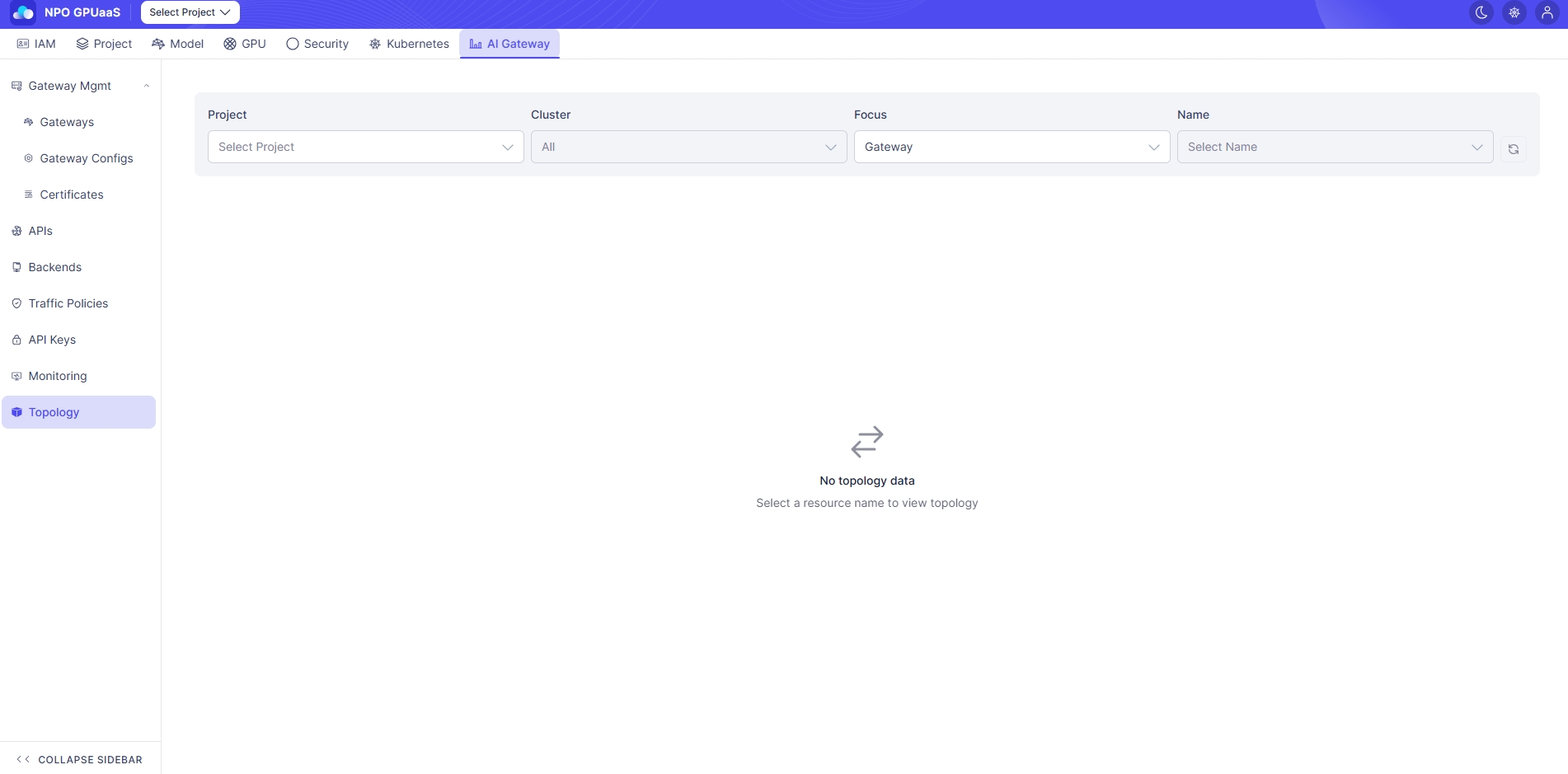
The Topology screen visualizes the relationship graph among Gateways, APIs, Backends, Policies, and Secrets, enabling users to view traffic flow, policy attachments, and backend mappings at a glance.

Access Topology Screen

In the left-side navigation, select Topology:

Search the Topology

You can filter to define the scope of the topology graph:

  • Project: Filter by Project
  • Cluster: Filter by cluster. (Default: All)
  • Focus: Filter by resource type used as the center of the graph (Default: Gateway)
  • Name:
    • Filter by specific resource instance of the selected Focus type. (Default: none)
    • If this value is empty, the graph will not be displayed.

Search results are displayed immediately after the user enters a keyword or selects a value.

View Topology Graph

  • On this section, user can view the Graph canvas, where the topology graph is centered around the selected Focus.
    • E.g: When Focus = Gateway and you choose a specific Name (a Gateway instance), that Gateway becomes the center node and related resources appear as connected nodes around it.

Node Interaction

In a data-filled environment, nodes in the graph support interactions such as:

  • Click/hover on a node to view its metadata.
  • Double-click a node to navigate to that resource’s detail screen.