Request a Custom GPU Pool
Bạn có thể bắt đầu yêu cầu một GPU Pool tùy chỉnh từ các điểm truy cập khác nhau trong hệ thống.
Entry Point A: Bắt đầu từ màn hình GPU Pool
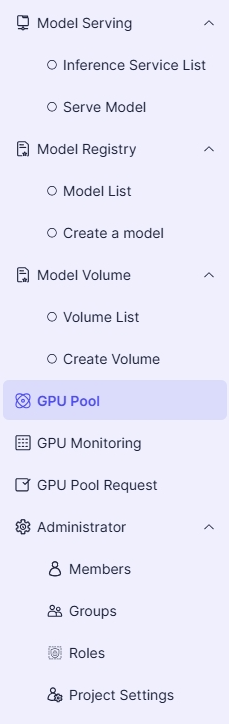
- Trong menu dự án bên trái, chọn GPU Pool:
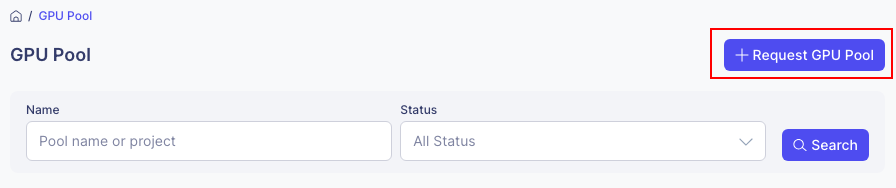
- Trên màn hình GPU Pool, nhấp vào nút Request GPU Pool:
Entry Point B: Bắt đầu từ màn hình yêu cầu GPU Pool
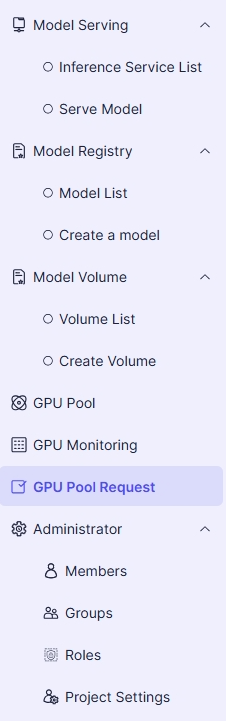
- Trong menu dự án bên trái, chọn GPU Pool Request:
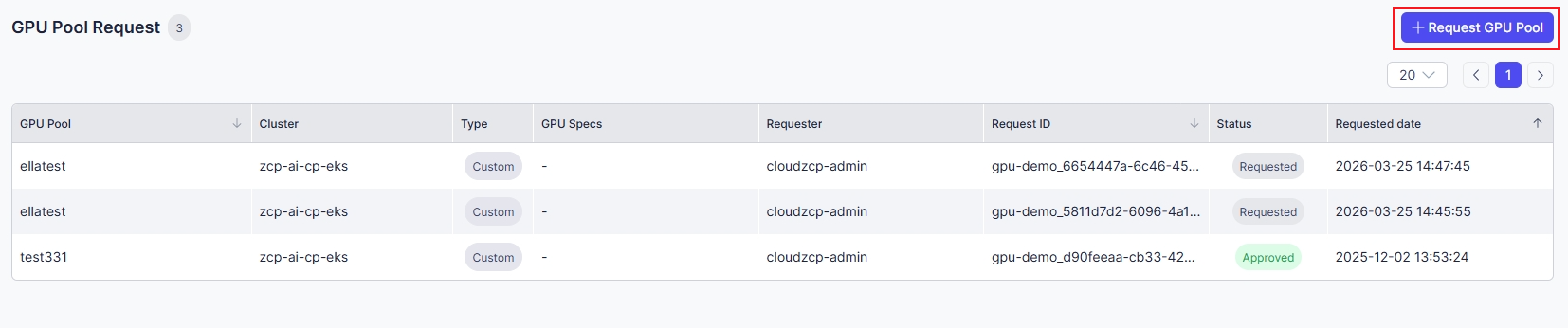
- Trên màn hình yêu cầu GPU Pool, nhấp vào nút Request GPU Pool:
Các bước chung (Áp dụng cho tất cả các điểm truy cập)
- Trong phần Chọn Pool, chọn Custom Pool.
- Nhập Tên Pool và Mô tả.
- Điền thông tin yêu cầu.
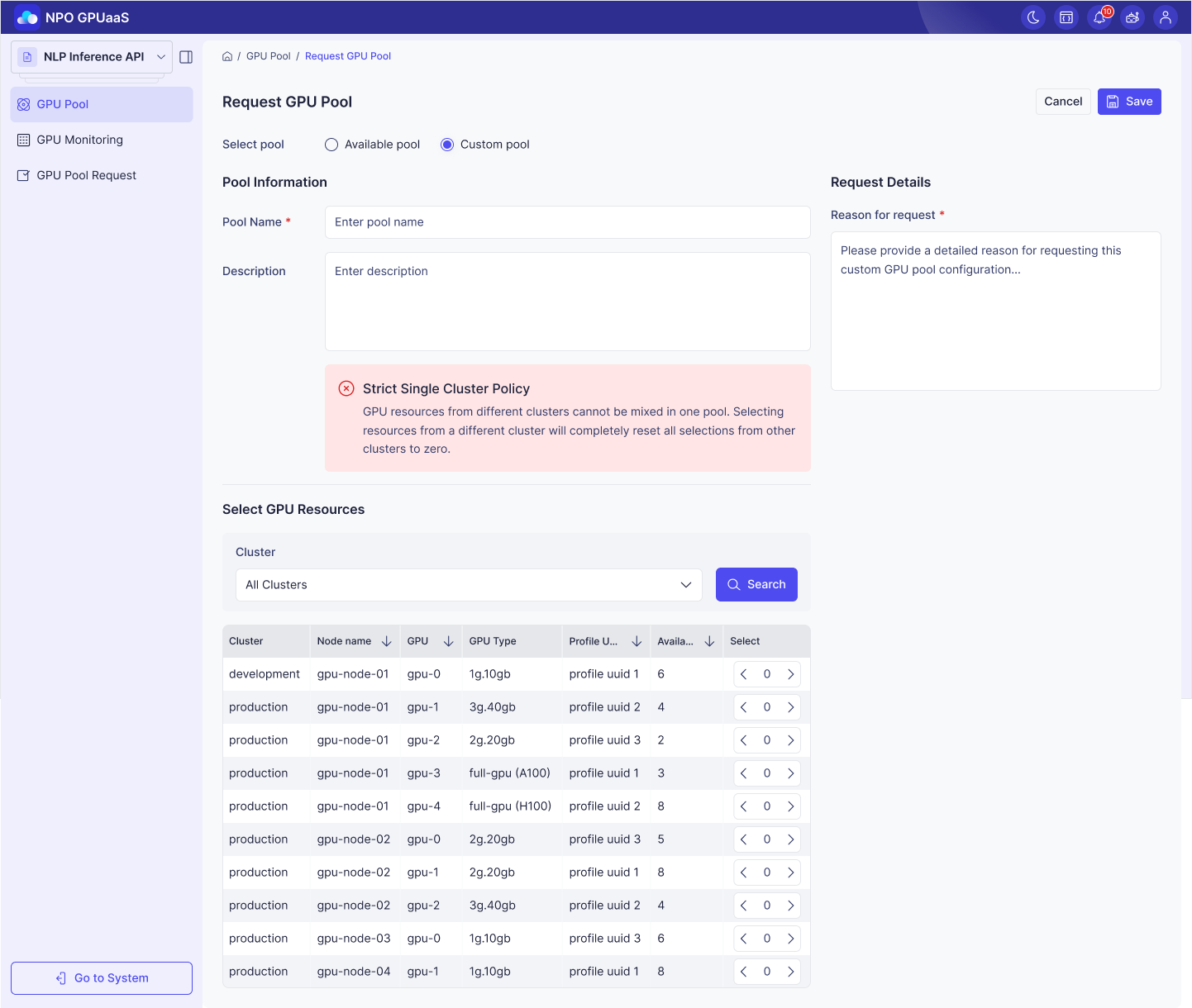
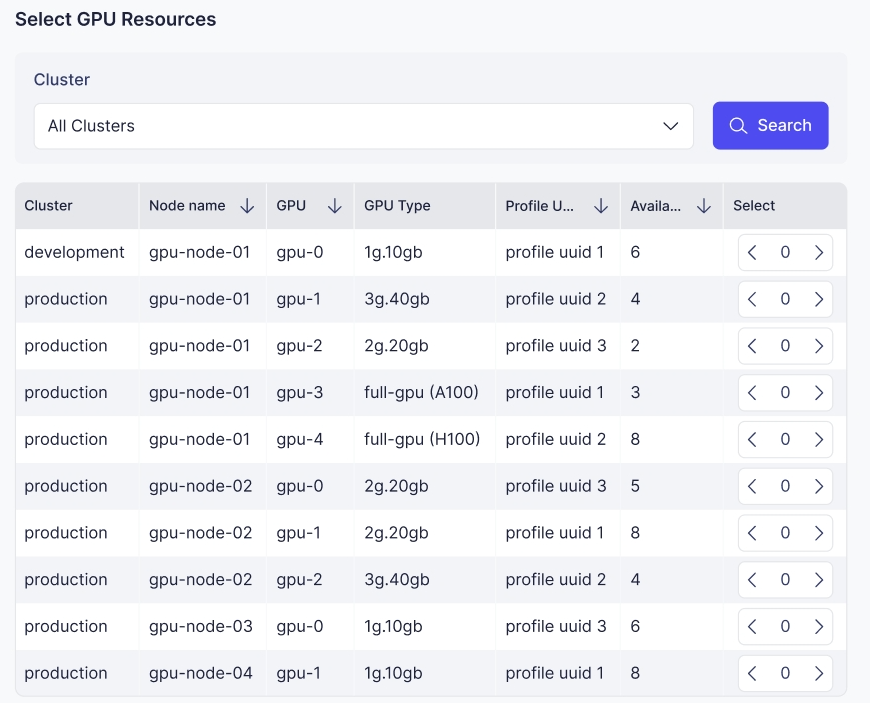
- Chọn Cluster, sau đó nhấp vào nút Search.
- Xem lại Loại GPU và chọn số lượng cần thiết.
-
Nhấp vào nút Save để gửi yêu cầu của bạn.
-
Sau khi yêu cầu được tạo thành công, nó sẽ được hiển thị trong Danh sách yêu cầu GPU Pool.

- Khi quản trị viên phê duyệt, bạn sẽ có thể xem GPU Pool trong dự án của mình.
