Request a Custom GPU Pool
시스템의 다양한 진입점에서 커스텀 GPU 풀 요청을 시작할 수 있습니다.
Entry Point A: GPU 풀 화면에서 시작하기
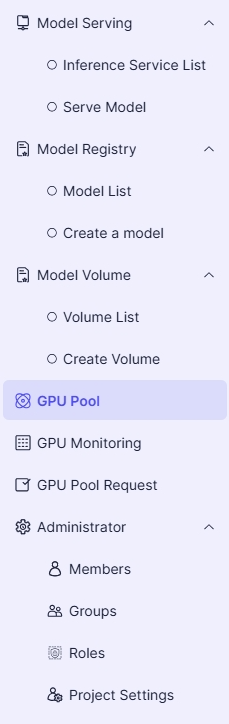
- 왼쪽 프로젝트 메뉴에서 GPU Pool을 선택합니다:
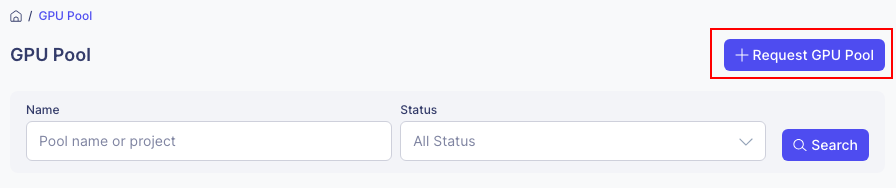
- GPU 풀 화면에서 Request GPU Pool 버튼을 클릭합니다:
Entry Point B: GPU 풀 요청 화면에서 시작하기
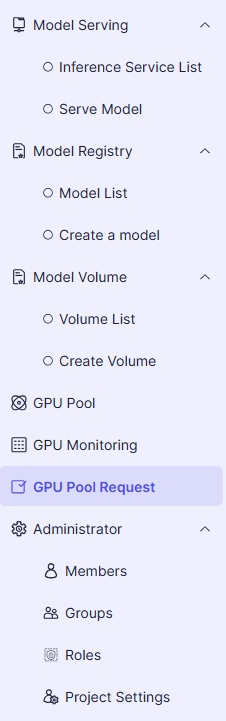
- 왼쪽 프로젝트 메뉴에서 GPU Pool Request을 선택합니다:
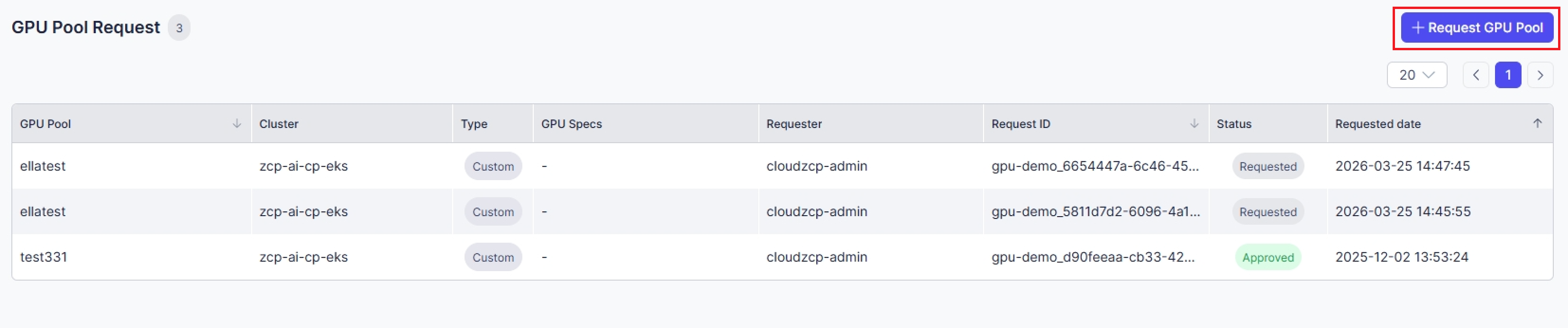
- GPU 풀 요청 화면에서 Request GPU Pool 버튼을 클릭합니다:
공통 단계 (모든 진입점에 적용)
- 풀 선택 섹션에서 Custom Pool을 선택합니다.
- 풀 이름과 설명을 입력합니다.
- 요청 정보를 작성합니다.
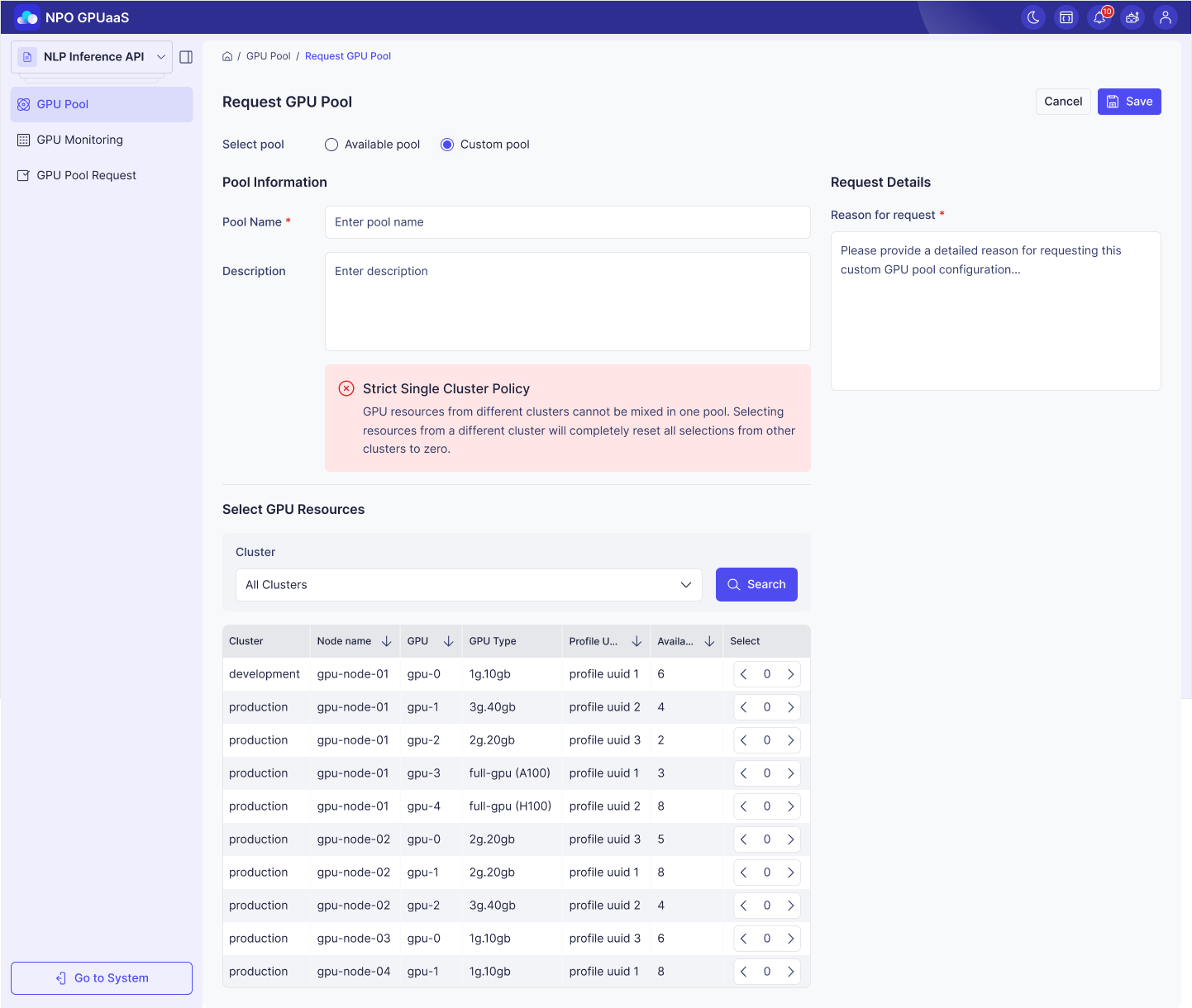
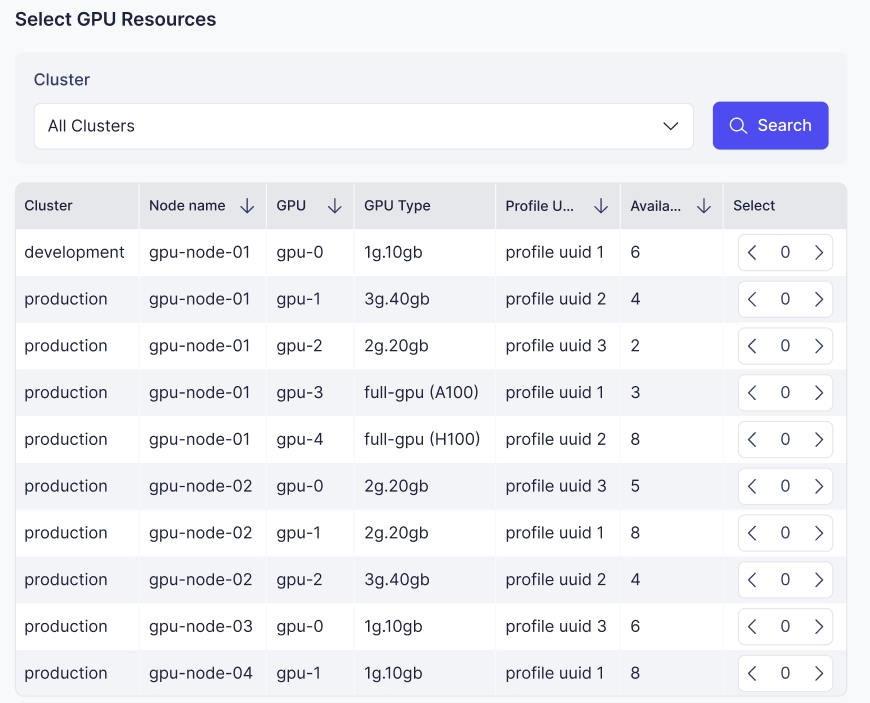
- 클러스터를 선택한 후 Search 버튼을 클릭합니다.
- GPU 유형을 검토하고 필요한 수량을 선택합니다.
-
Save 버튼을 클릭하여 요청을 제출합니다.
-
요청이 성공적으로 생성되면 GPU 풀 요청 목록에 표시됩니다.

- 관리자가 승인하면 프로젝트에서 GPU 풀을 조회할 수 있습니다.
