Volume List
Màn hình Volume List cho phép các quản trị viên hệ thống xem và quản lý tất cả các khối lượng mô hình trong hệ thống. Điều này cải thiện hiệu suất khởi động và đảm bảo sử dụng tài nguyên hiệu quả trong quá trình triển khai và thực thi mô hình.
Truy cập Danh sách Khối lượng
Từ Bảng điều khiển Quản trị Hệ thống, nhấp vào Model trong điều hướng chính. Sau đó, trong điều hướng bên trái, chọn Volume List.
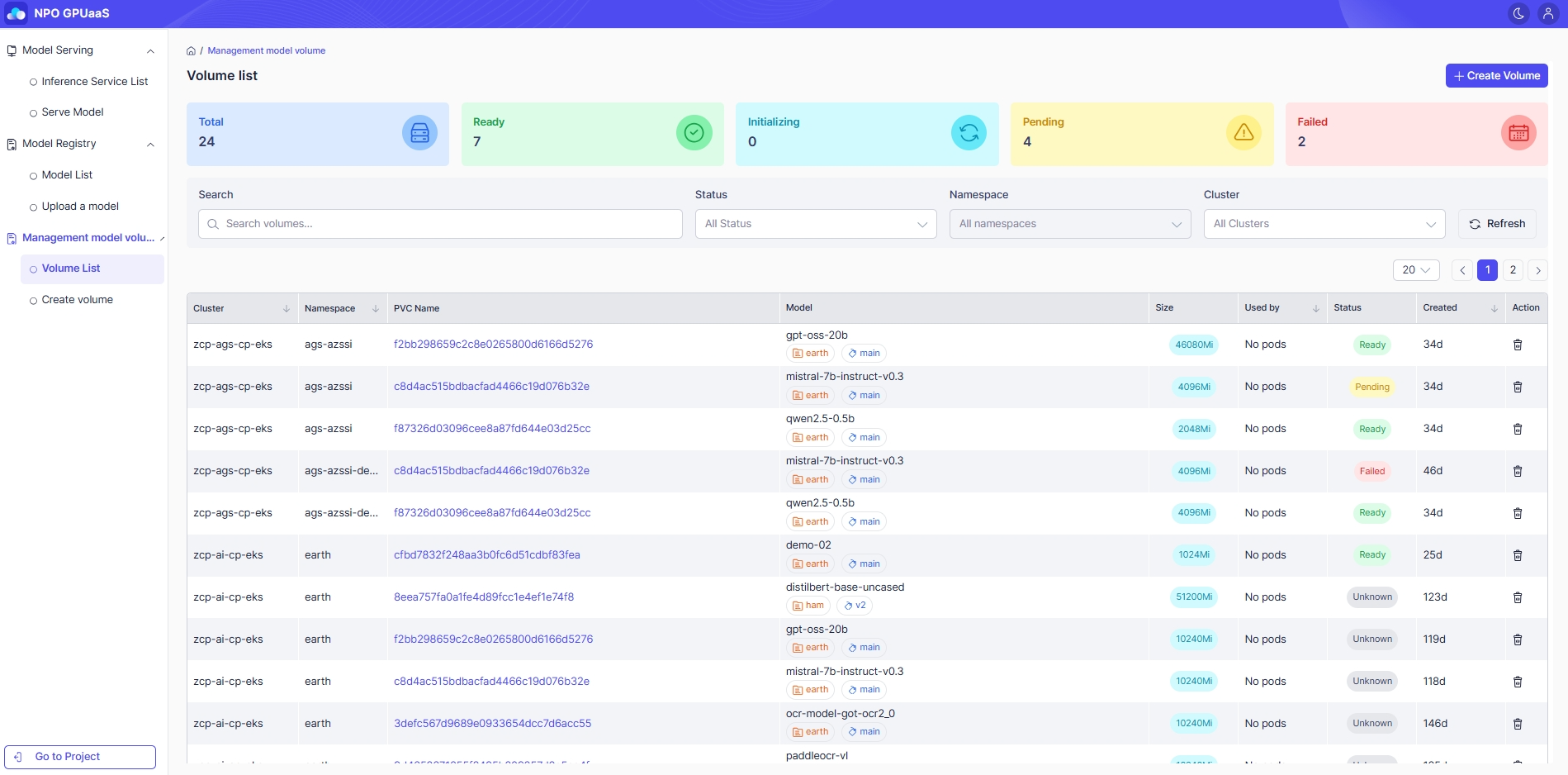
Phần Thẻ
Hiển thị thông tin thống kê về các khối lượng mô hình được phân loại theo trạng thái, cung cấp cho người dùng cái nhìn tổng quan nhanh chóng về tính khả dụng của khối lượng và sức khỏe hoạt động trên toàn hệ thống.
- Total: Tổng số khối lượng mô hình trong hệ thống.
- Ready: Số lượng khối lượng đã sẵn sàng để sử dụng.
- Initializing: Số lượng khối lượng đang được khởi tạo.
- Pending: Số lượng khối lượng đang chờ tài nguyên hoặc điều kiện được đáp ứng.
- Failed: Số lượng khối lượng không thể khởi tạo hoặc gặp lỗi.
Tìm kiếm Khối lượng
Người dùng có thể nhanh chóng tìm kiếm Khối lượng bằng cách sử dụng các tiêu chí sau:
- Search (từ khóa): Nhập từ khóa để nhanh chóng tìm các bản ghi liên quan.
- Status: Menu thả xuống để chọn một trạng thái cụ thể hoặc tất cả trạng thái. (ví dụ: Thất bại, Đang chờ).
- Namespace: Menu thả xuống để chọn một không gian tên cụ thể hoặc tất cả không gian tên.
- Cluster: Menu thả xuống để chọn một cụm cụ thể hoặc tất cả cụm.
Hệ thống tự động cập nhật danh sách mô hình theo thời gian thực khi người dùng chọn tiêu chí hoặc nhập giá trị.
Xem Danh sách Khối lượng
Người dùng có thể xem Danh sách Mô hình với các thông tin sau:
- Cluster: Cụm nơi khối lượng được tạo và quản lý.
- Namespace: Không gian tên trong đó khối lượng được tạo và quản lý.
- PVC Name: Tên của Yêu cầu Khối lượng Bền vững (PVC) liên kết với khối lượng.
- Model:
- Orange: Dự án
- Blue: Thẻ
- Size: Tổng dung lượng lưu trữ
- Used by: Số lượng pod hiện đang sử dụng khối lượng này.
- Status: : Trạng thái hiện tại của khối lượng
- Created: : Ngày và giờ khi khối lượng được tạo.
Menu Hành Động
Xóa
Cho phép người dùng xóa khối lượng tương ứng.