View/Update Agent Details
Access Your Agent
- Select My Agent from the left side navigation menu.
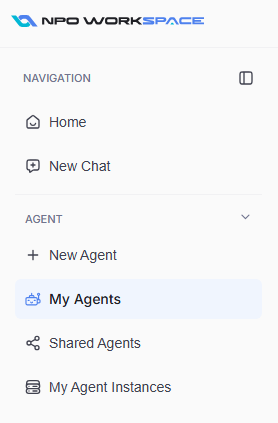
- From the agent list, click on the agent you wish to view or update.
- When making any change, always click Save to apply updates.
- Use the Playground button to test your agent in real time.
Overview
On the Overview tab, you can view and edit the basic configuration of your selected agent.
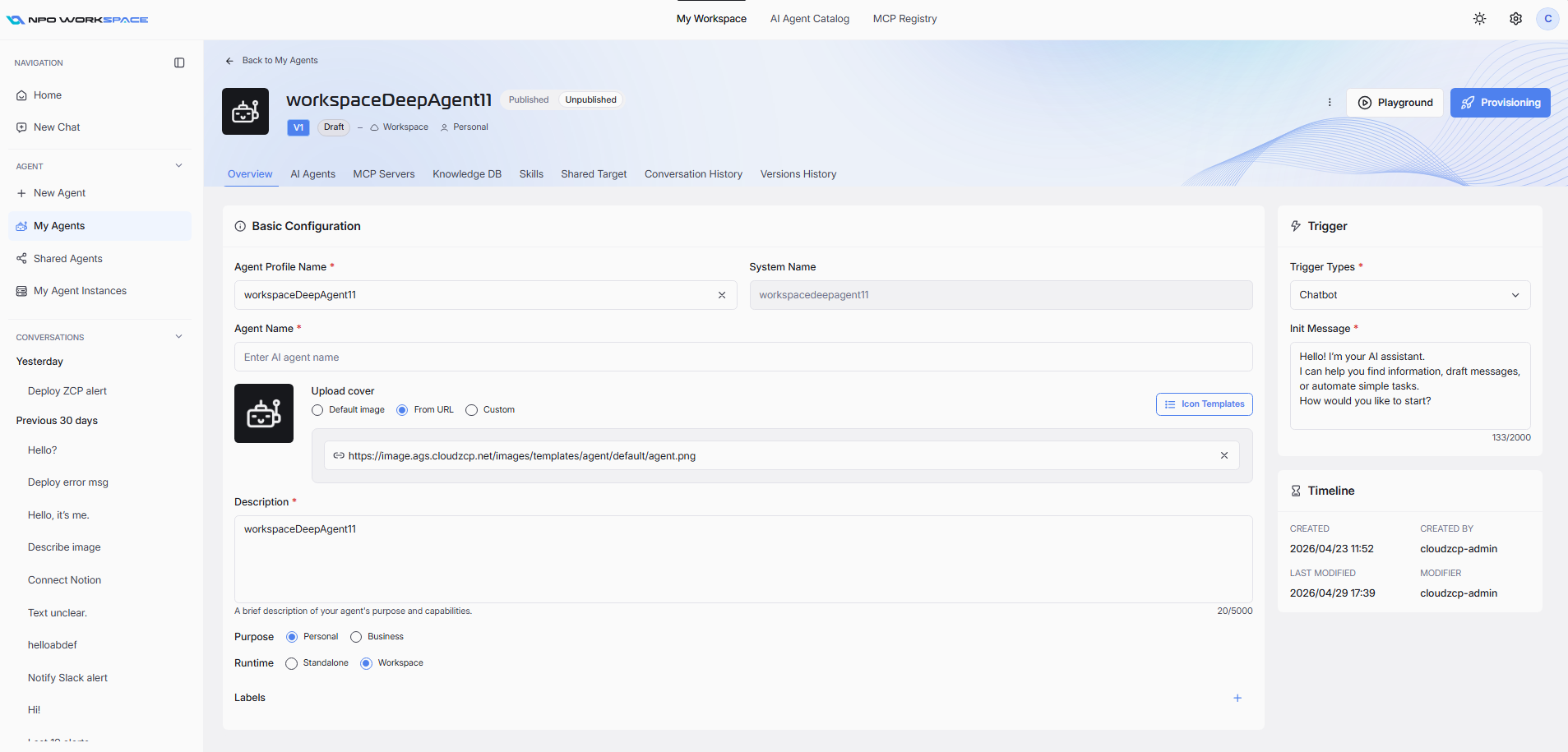
On this tab, you can update the following information:
- Agent Profile Name:Â Display name for the agent (e.g., "Book Library").
- System Name:Â Internal system identifier (e.g., "book-library").
- Agent Name:Â Custom identifier (e.g., "FindYourBook").
- Upload Cover: Add or change the agent’s cover image using Default, URL, or Custom options.
- Description:Â Brief summary of the agent's capabilities and purpose.
- Purpose:Â Indicate if the agent is for Personal or Business use.
- Runtime:Â Select between Standalone or Workspace operation.
- Labels:Â Add categories or supported languages as tags for easier searching and management.
- Trigger Types:Â Trigger type of your agent that you selected when update agent. You can reselect here.
- Init Message: Init message you input when update agent. You can edit this message on the right hand side.
- Timeline section: a section show you who and when your agent was created or modified.
After making updates, click Provisioning to apply your changes.
AI Agents
On the AI Agents tab, you can review and adjust the AI Agent settings powering your agent.
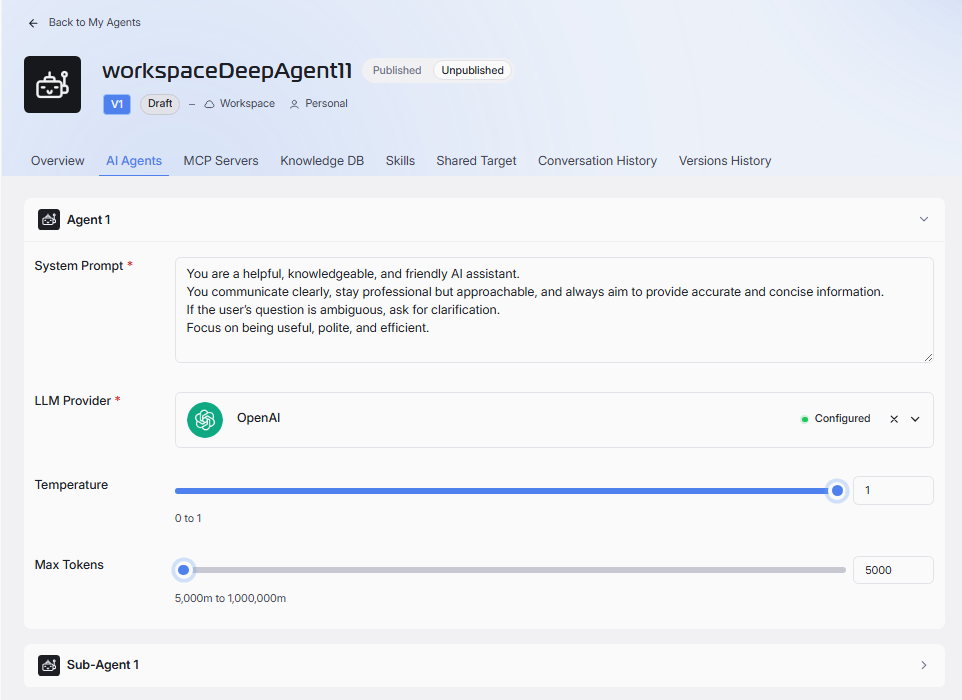
- System Prompt:Â The prompt you configure when setup agent. You can update it here.
- LLM Provider:Â Choose from available providers (e.g., OpenAI). You can see the current configuration status.
- Temperature: Adjust the model's creativity and randomness (range: 0 to 1). Temperature is a parameter that controls how random vs. how deterministic the model’s outputs are.
- Max Tokens:Â Set the maximum number of tokens (words/characters) the model can generate per response (range: 5,000 to 1,000,000).
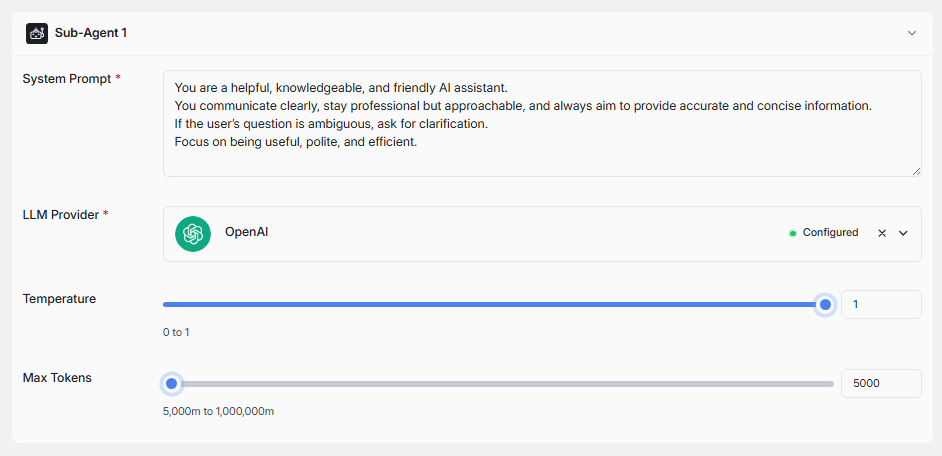
If the Agent is a Deep Agent, you also can find Sub-Agent information under the main agent with the same information structure as a main agent.
MCP Servers
The MCP Servers tab lets you manage all MCP Servers connected to your agent.
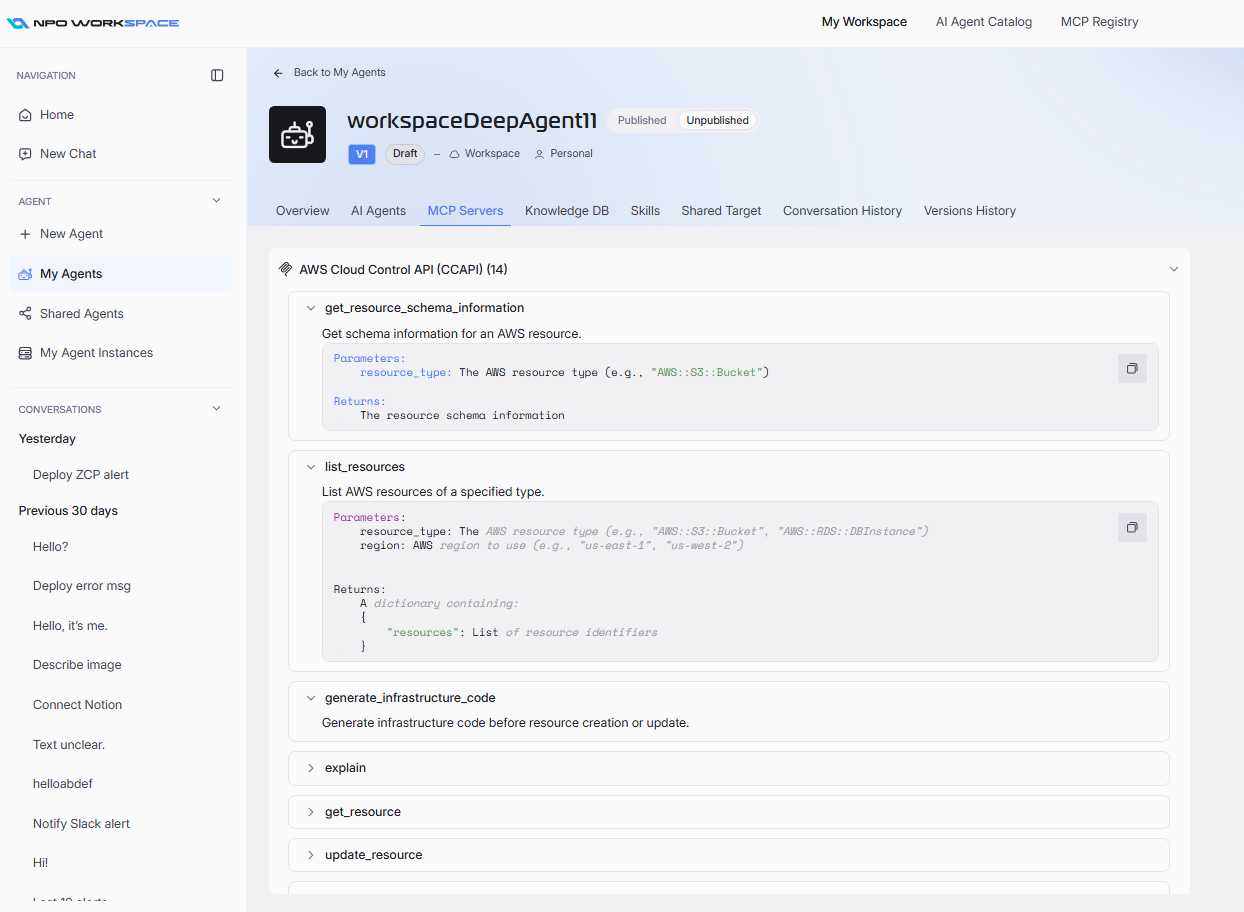
You can view which servers/tools are currently enabled for your agent.
Knowledge DB
The Knowledge DB tab allows you to manage the agent's knowledge sources. You can switch between different databases to see their details and add/remove files.
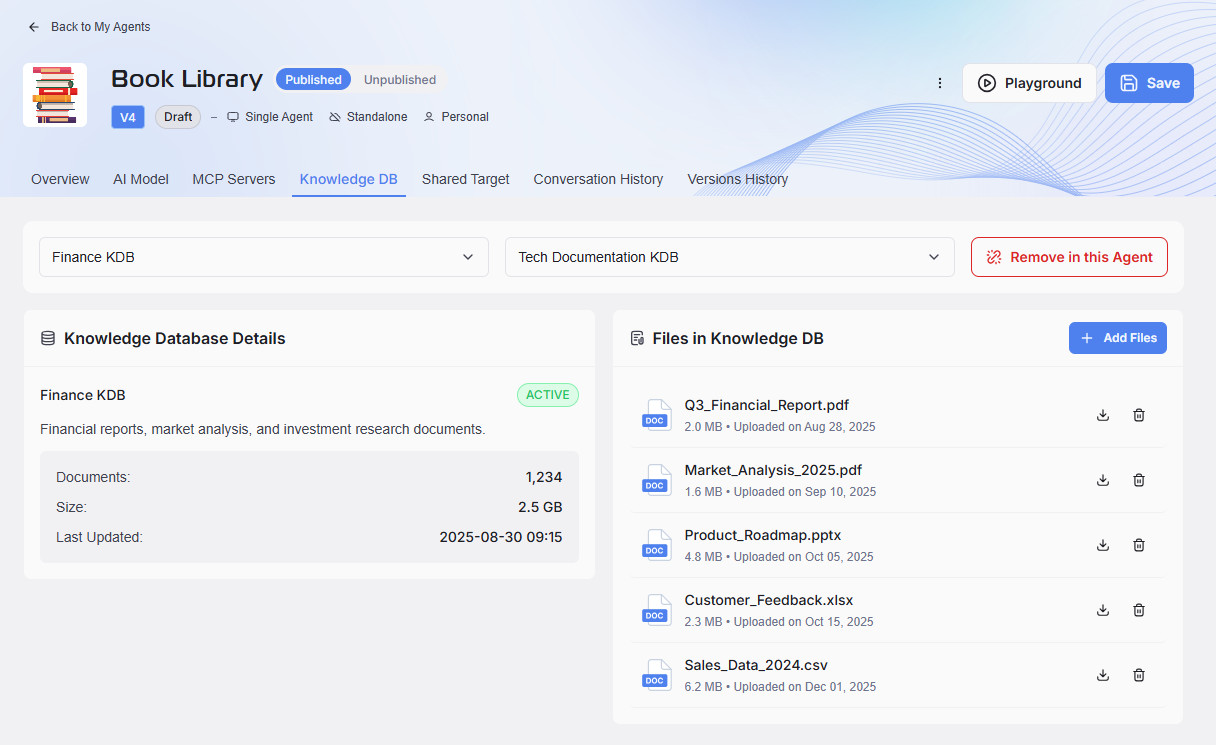
- Knowledge Database Details: This section include database status (ACTIVE), description, total documents, size, and last update timestamp.
- Files in Knowledge DB:Â This section allows you to view all uploaded files (PDF, XLSX, CSV, PPTX).
- Each entry shows file size and upload date.
- Use the trash icon to delete unnecessary files.
- Click + Add Files to upload new documents.
Use the Remove in this Agent button to disconnect the entire database from the agent.
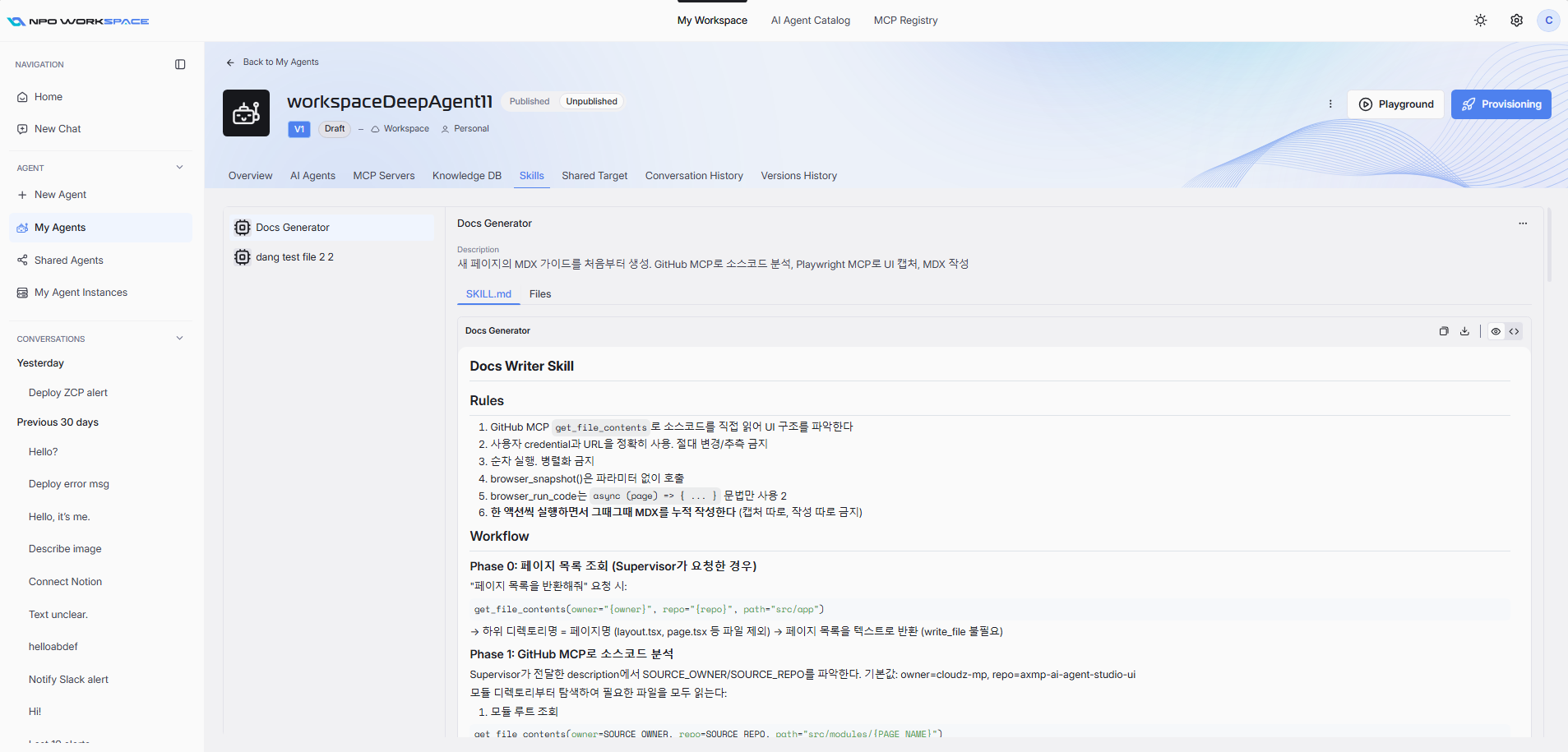
Skills
The Skills tab controls skills that yourr agent is currently using. When select each skill, you can view skill files and content but unable to edit/delete them.
Shared Target
The Shared Target tab controls agent sharing and access permissions.
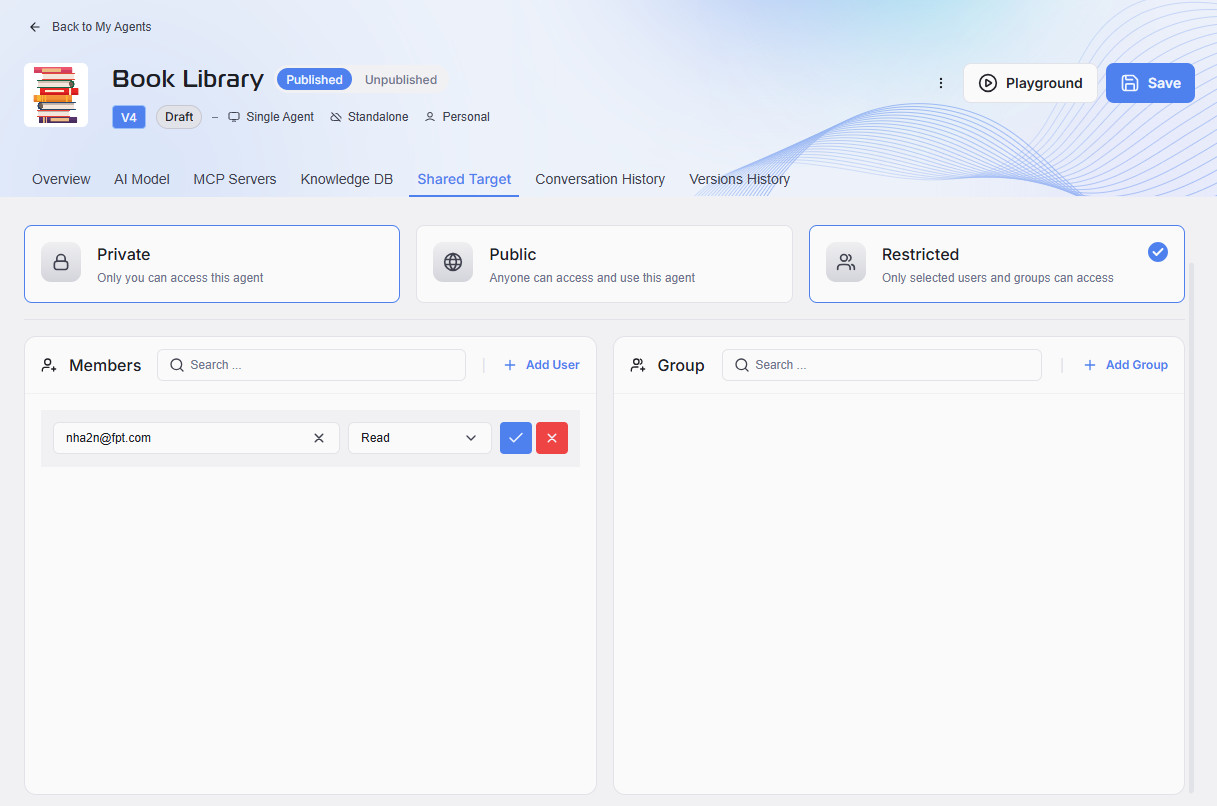
There are three sharing options for the agent:
- Private:Â Only you can access this agent.
- Public:Â Anyone can access and use this agent.
- Restricted:Â Access is limited to selected users or groups.
If you select Restricted, you can manage access by adding or removing users and groups:
- Members: Add individual users, set their permissions, and remove them as needed.
- Groups: Add groups to provide access to multiple users at once.
Conversation History
The Conversation History tab provides a record of past interactions with the agent.
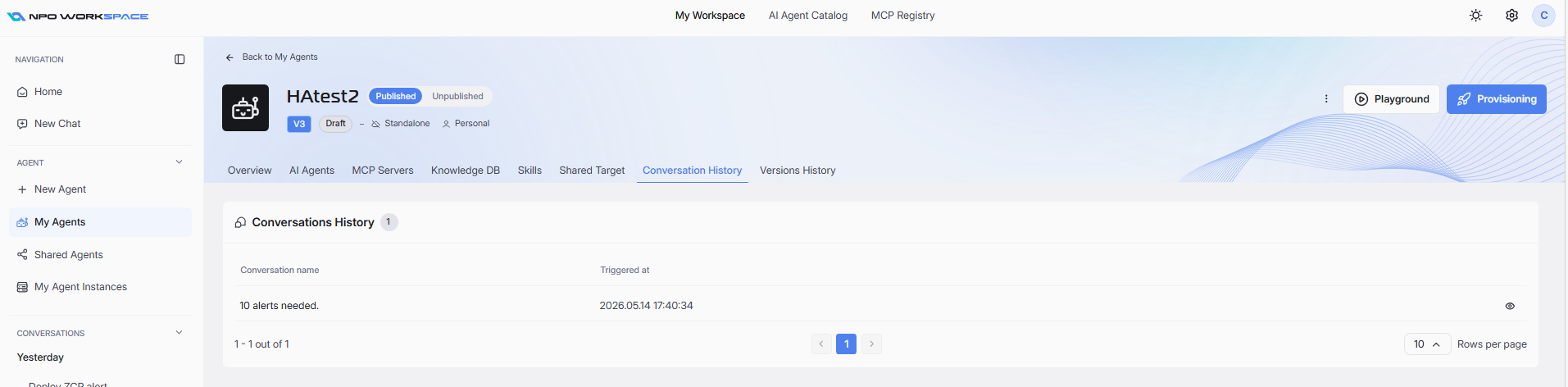
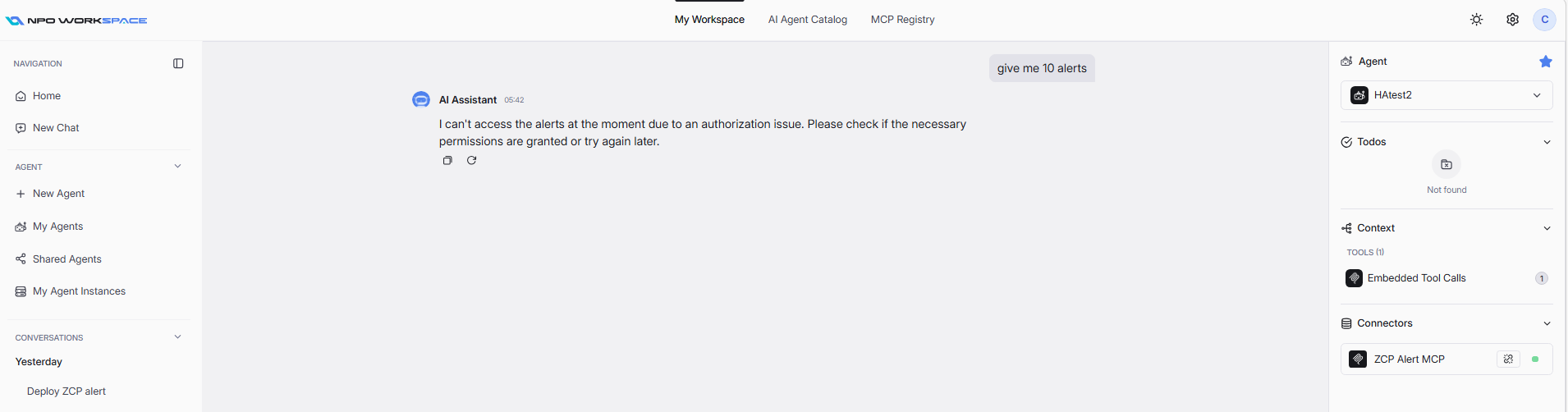
Here you can review previous conversations to analyze agent responses, identify issues, or refine prompt settings by click button eye icon at the end of the conversation row.
Version History
The Versions History tab tracks all versions of the agent.
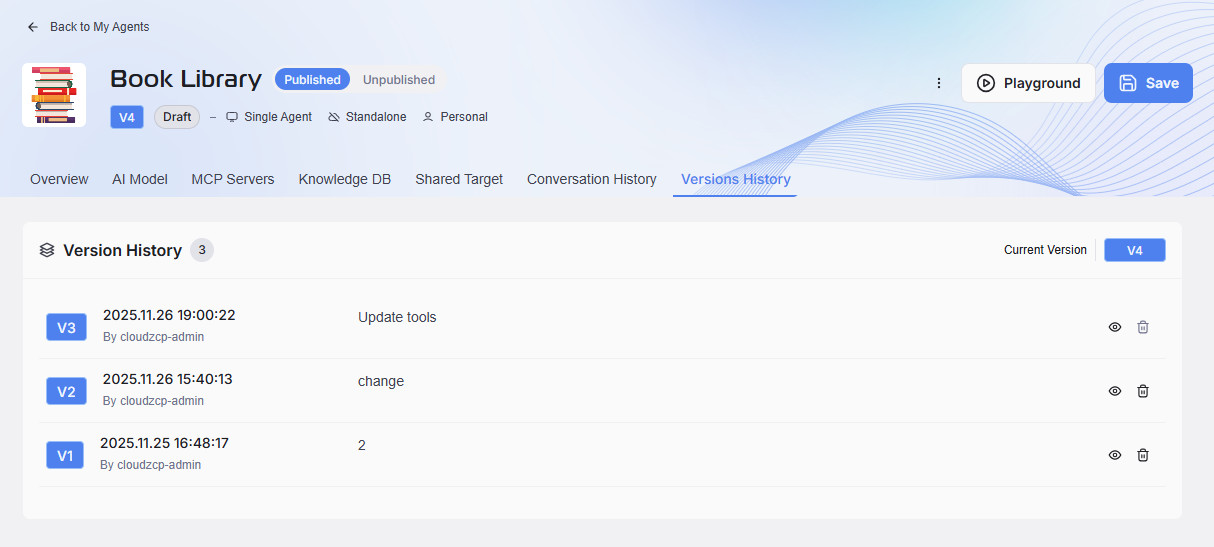
Each update creates a new version entry. You can delete previous versions except for the latest and the latest published versions.