MCP Instance actions
Managing the lifecycle of your MCP instances is a core task. The primary actions—Resume, Stop, Sync and Restart—allow you to control the operational state of your deployments directly from the MCP Instances page.
The available actions depend on the instance's current status.
Stopping an Instance
This action is available for instances that are currently RUNNING. Stopping an instance will safely shut it down.
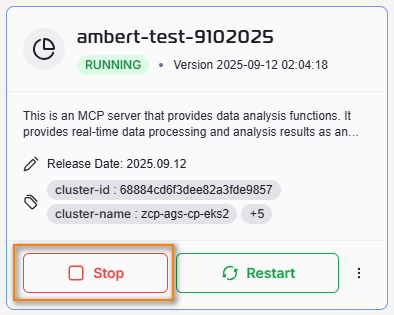
- Locate the running instance you wish to stop on the screen MCP Instance listing.
- Click the red STOP button (in grid view) or the red stop icon (in list view).
- A confirmation dialog may appear. Confirm the action to proceed.
- The instance’s status will change to
STOPPED.
Restarting an Instance
This action is available for RUNNING instances and performs a complete reboot cycle (a stop followed by a start).
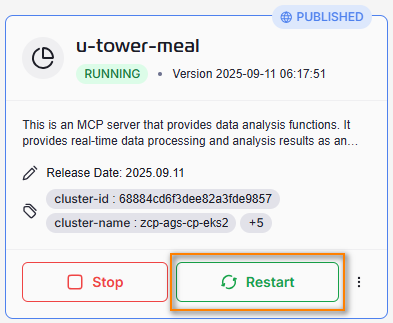
- Locate the card for the RUNNING instance you need to restart.
- Click the green RESTART button (in grid view) or the green restart icon (in list view).
- You will see a toast message showing that your restarting process has completed.
Resuming an Instance
This action is available for instances that are currently in a STOPPED state. Resuming will bring the instance back online.
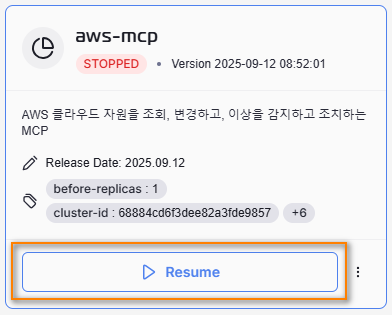
- Locate the card for the instance marked as STOPPED.
- Click the blue RESUME button (in grid view) or the blue resume icon (in list view).
- The instance's status will change to
PENDINGand thenRUNNINGonce it is fully operational.
Syncing MCP Instance(s)
After changes made to any instance, for example: provisioning a new MCP Instance, stop a MCP Instance, etc., click “Sync†button to sync all the latest updates and display latest status of impacted instance(s).