Share and Delete KDB
You can control who can access a Knowledge DB from the Share Knowledge DB dialog.
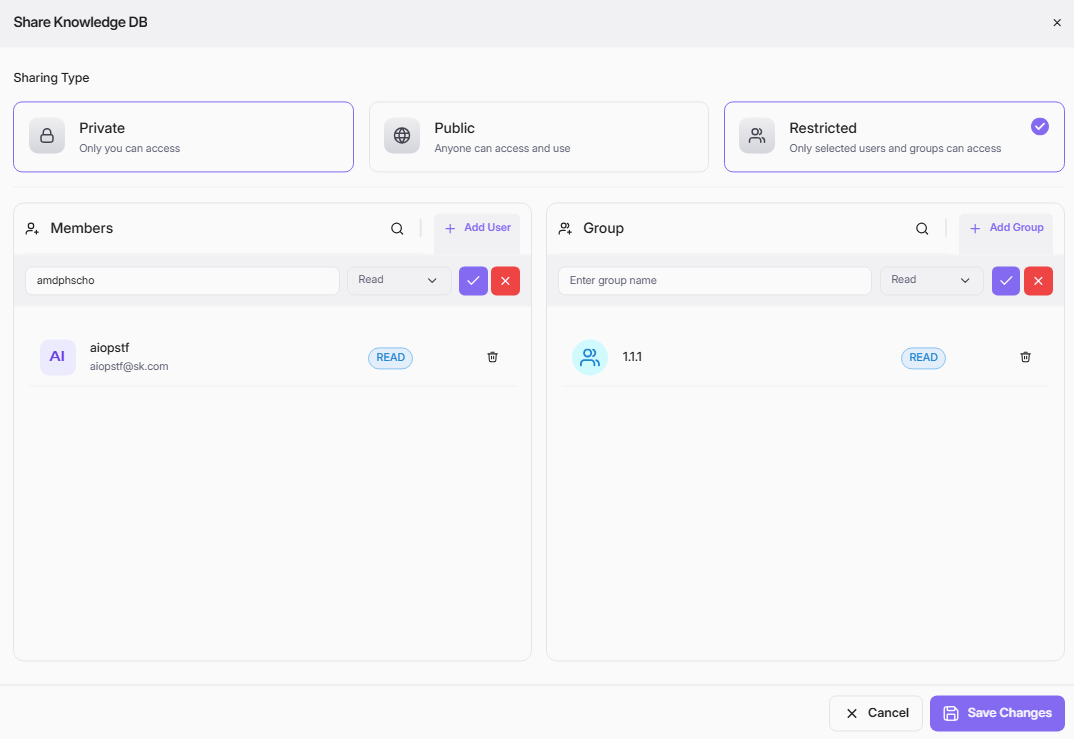
Open Share Dialog
- Go to Knowledge DB.
- Find the target KDB in list view or card view.
- Click the Share action on that KDB.
Sharing Types
Select one sharing type at the top of the dialog:
- Private: Only you can access.
- Public: Anyone can access and use.
- Restricted: Only selected users and groups can access.
Share with Users (Members)
- In the Members panel, search and select a user.
- Choose permission level (for example Read).
- Click Add User or confirm with the check icon.
- The user appears in the member list.
To remove a user, click the delete icon on that user row.
Share with Groups
- In the Group panel, search and select a group.
- Choose permission level (for example Read).
- Click Add Group or confirm with the check icon.
- The group appears in the group list.
To remove a group, click the delete icon on that group row.
Save Sharing Changes
- Review selected sharing type, members, and groups.
- Click Save Changes to apply.
- Click Cancel to discard.
Delete KDB
- Go to Knowledge DB.
- Find the target KDB.
- Click the Delete action.
- Confirm deletion in the dialog.
After deletion, the KDB and its access settings are removed from the list.