Oauth Provider
An OAuth Provider is an identity service that authenticates users and issues access tokens on their behalf. In NPO Studio, OAuth Providers are registered under Configuration > OAuth Provider and made available to MCP Servers — enabling MCP tools to securely access third-party APIs (e.g., Google, GitHub, Azure) using delegated user credentials.
OAuth Provider List
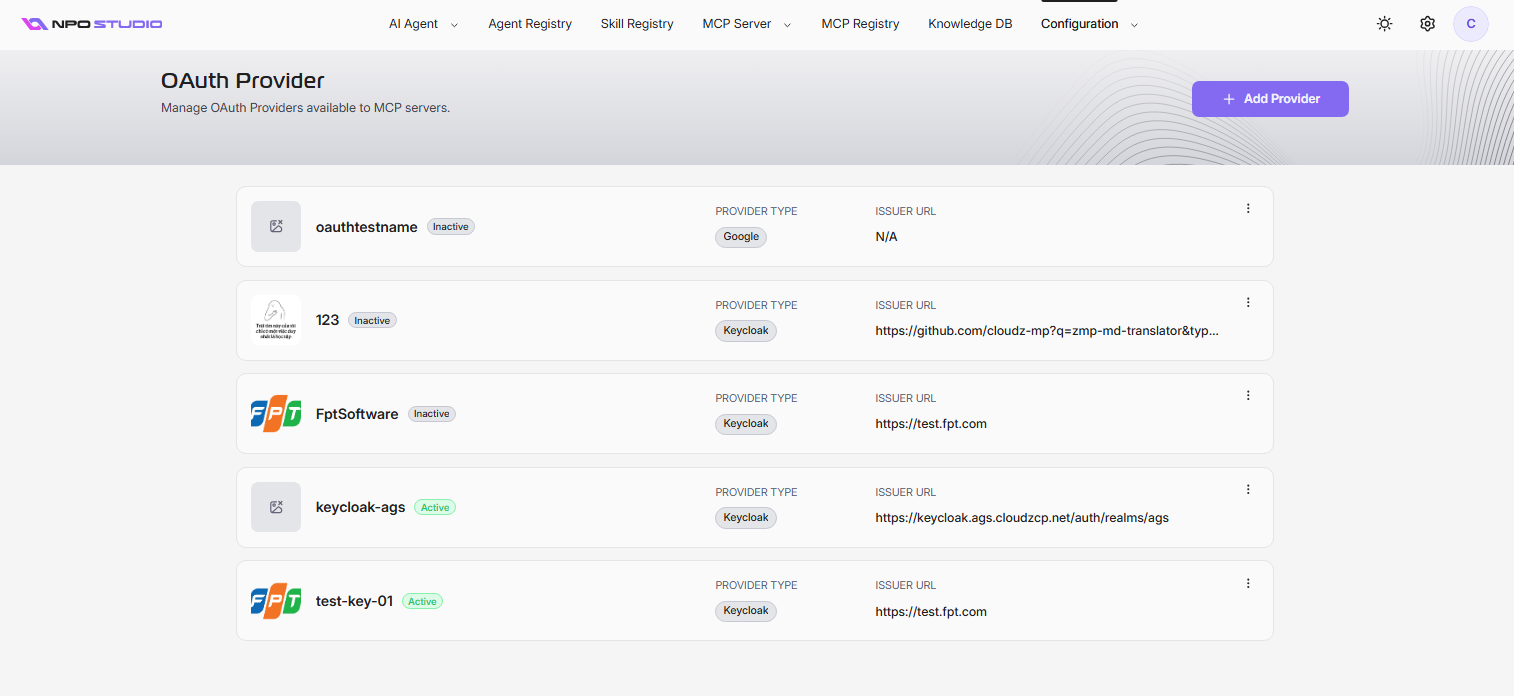
The OAuth Provider page displays all registered providers. Each entry shows:
- Display Name and cover image
- Provider Type (e.g., Keycloak, Google, GitHub, Azure)
- Issuer URL — the OAuth issuer endpoint (or N/A if not applicable)
- Status — Active or Inactive
Use the three-dot menu (â‹®) on each entry to edit, activate/deactivate, or delete a provider.
Add a Provider
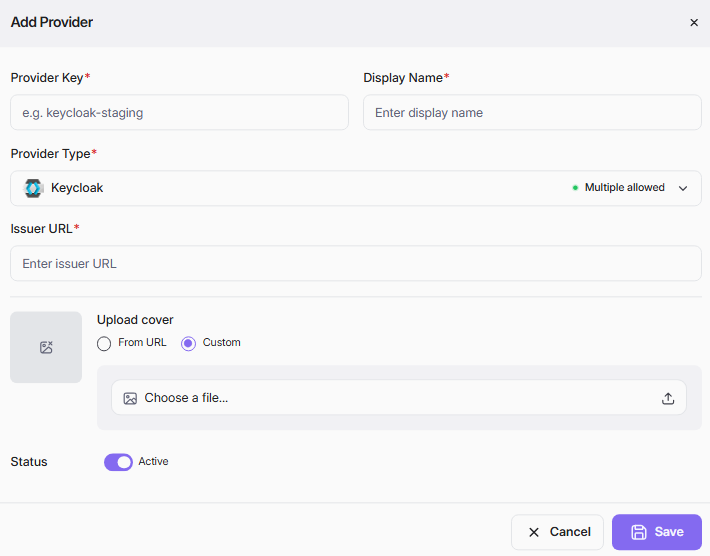
- Click + Add Provider.
- Fill in the required fields and click Save.
| Field | Required | Description |
|---|---|---|
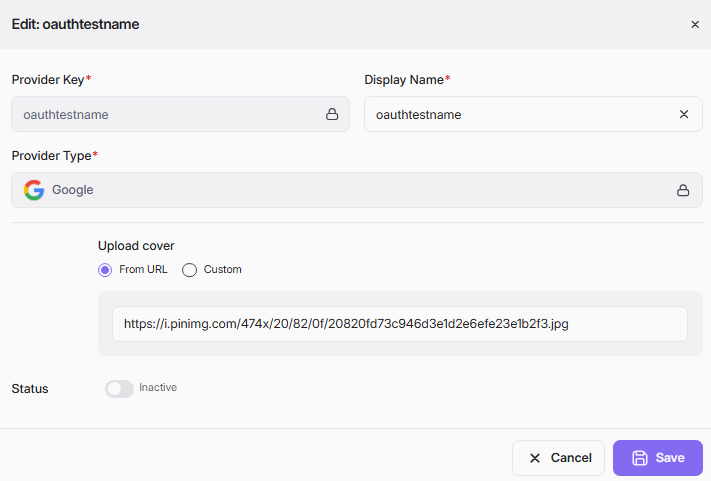
| Provider Key | Yes | A unique identifier key (e.g., keycloak-staging). Cannot be changed after creation. |
| Display Name | Yes | A human-readable name for the provider. |
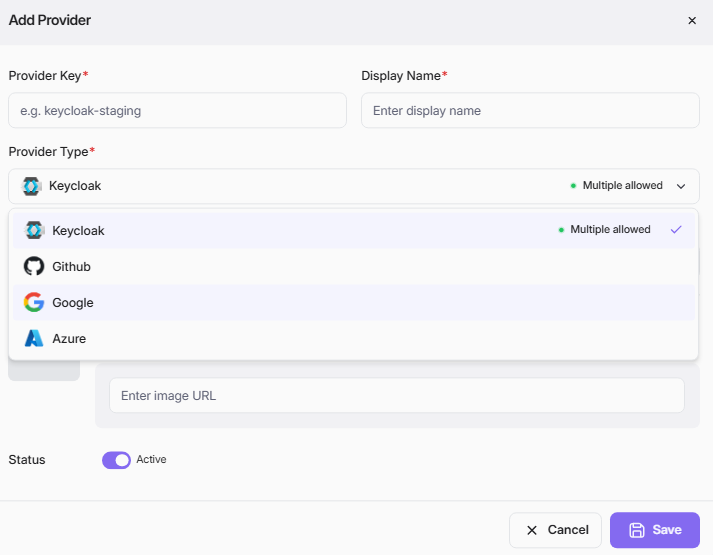
| Provider Type | Yes | The OAuth identity provider: Keycloak (multiple allowed), GitHub, Google, or Azure. |
| Issuer URL | Yes | The OAuth issuer URL (shown for Keycloak; may vary by provider type). |
| Upload Cover | No | A cover image. Options: From URL (provide an image URL) or Custom (upload a file). |
| Status | No | Toggle Active or Inactive. Defaults to Active. |
Note: Keycloak is marked Multiple allowed, meaning you can register more than one Keycloak provider. Other types may be limited to a single instance.
Edit a Provider
- Click the three-dot menu (⋮) on the provider and select Edit.
- Update editable fields (Display Name, Issuer URL, Upload Cover, Status). Provider Key and Provider Type are locked after creation.
- Click Save.
Activate OR Deactivate a Provider
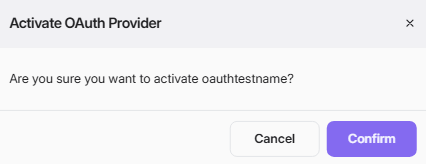
- Click the three-dot menu (⋮) and select Activate or Deactivate.
- Confirm the action in the dialog.
Delete a Provider
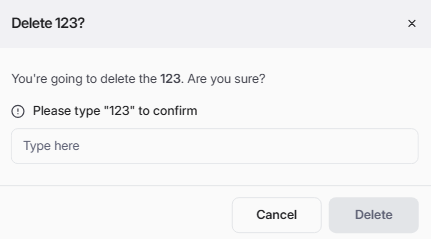
- Click the three-dot menu (⋮) and select Delete.
- Type the exact display name to confirm.
- Click Delete.