View List of Registered Backend APIs
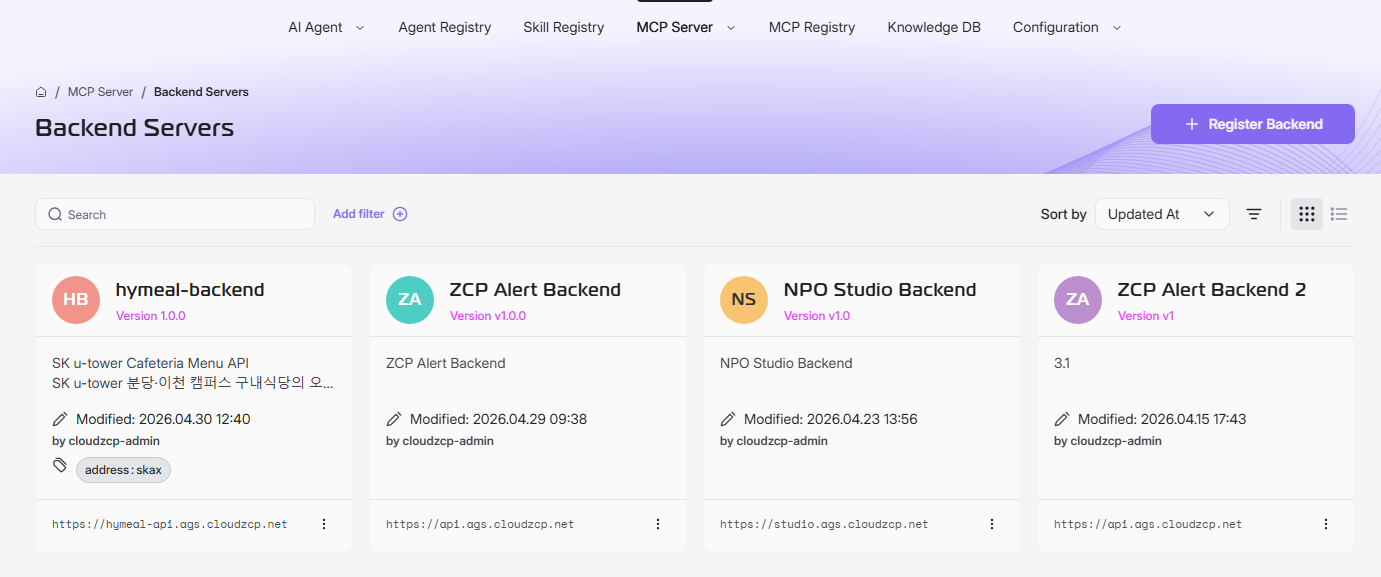
From the AI Agent Studio main menu, click on the Backend Servers tab to open the page where all backend APIs are managed. On this dashboard, you will see all your registered backend APIs displayed as individual cards.
1. Search and Filter
At the top left of the Backend Servers page, you’ll see a search box. Enter keywords such as the backend API name or description to quickly locate a specific API from the list. As you type, the displayed APIs will update in real time to match your search criteria.
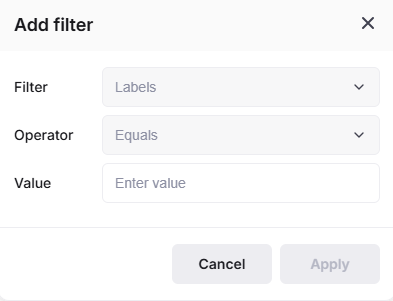
Next to the search box, use the Add filter option to apply custom filters and further refine your API list. You can filter by attributes such as owner, creation date, modified date, or other metadata.
2. Sort the API List
At the top right of the Backend Servers page, you will find a Sort by dropdown menu. Use this to select criteria for sorting your APIs:
- Name: Sort APIs alphabetically by name.
- Version: Sorts APIs based on their version.
- Created At: Sort APIs by creation date and time. The most recently registered backend API will appear at the top, making it easy to verify new entries.
- Updated At: Sort APIs by their last modified date and time. This help you to quickly identify APIs that have been recently updated.
You can also use the icon beside the Sort by dropdown to toggle between ascending and descending order for your selected sort criteria.
3. Chang API List Layout
Changing Views
By default, the Backend Servers page displays APIs in Grid View.
- To switch to List View, click the List icon.
- To return to Grid View, click the Grid icon.
Grid View Details
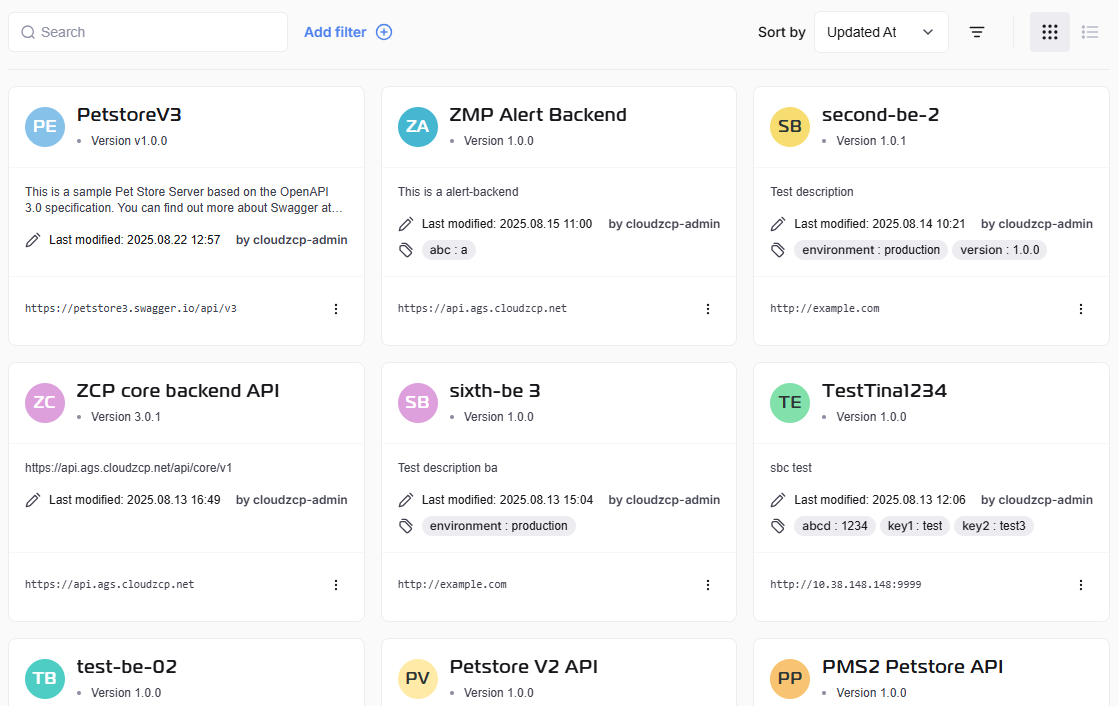
Each card in the Grid View displays key information including API name, version, description, last modified date, labels, and URL.
List View Details
List View presents APIs in a table format with columns for API name, version, URL, and labels, making it easier to scan and manage large numbers of APIs.
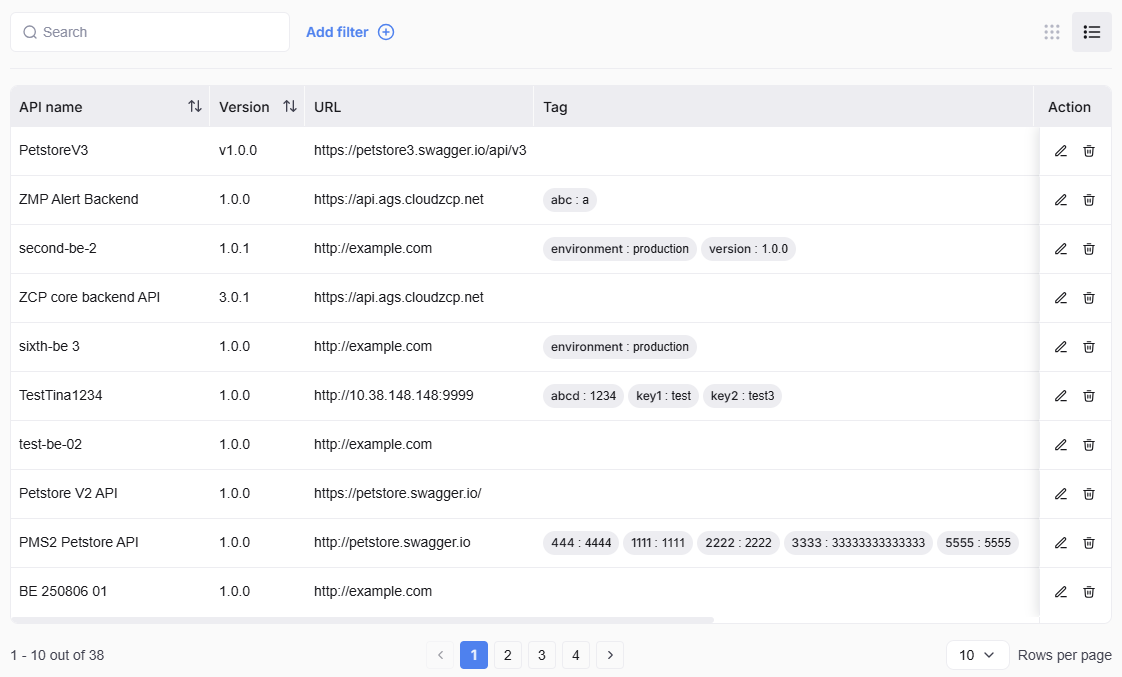
You can click on each row to view the overview of the AP on the right hand side. Refer to (9+) View API Settings | Notion for details.