MCP Registry Playground
This guide will walk you through the process of testing an MCP Registry using the Playground feature in NPO Studio. Testing in the Playground allows you to verify the MCP’s functionality before publishing or deploying it to ensure your MCP is configured and working as expected.
Access MCP Registry Playground
Follow the steps below to open the Playground of your MCP Registry:
-
Navigate to the MCP Registry page from the main menu.
-
Click on the MCP Registry to open its detail page.
-
In the top-left corner of the Registry detail page, click on the Try In Playground button to launch the MCP Playground environment. Refer to (9+) Playground a MCP Instance | Notion for playground settings and step to do.

Configure Playground Settings
Before proceeding to the Playground, you need to configure the environment settings.
For Internal MCP Registry
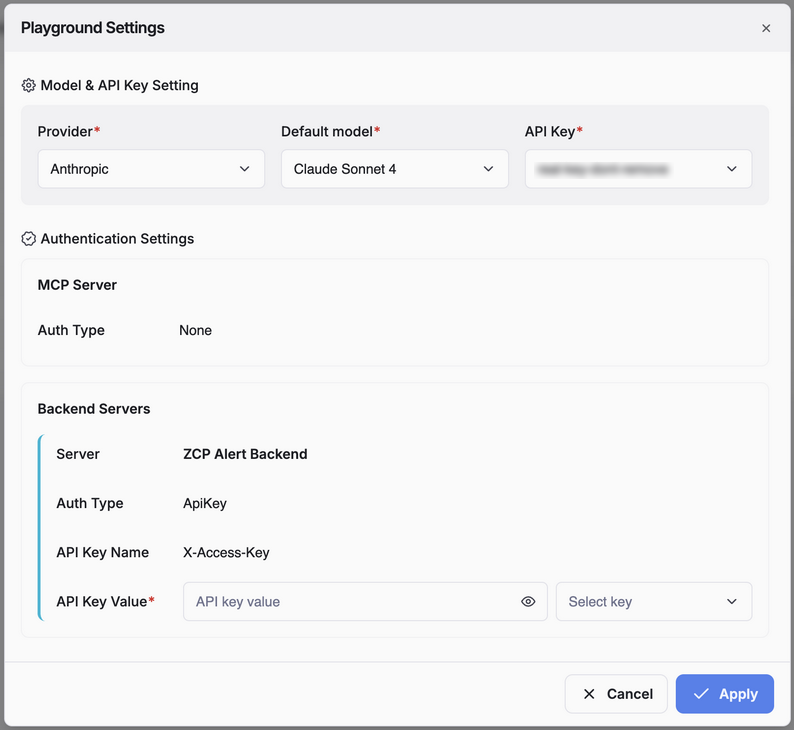
In the Playground Settings dialogue for internal MCP Registry, you need to configure the information below:
-
Model & API Key Setting
- Provider: Select your model provider from the dropdown list (e.g., Anthropic).
- Default Model: Choose the model you wish to use for testing (e.g., Claude Sonnet 4).
- API Key: Select or enter the API Key required for authentication.
-
Authentication Settings
- MCP Server:
- Auth Type: Confirm the authentication type (e.g., None if no authentication is required).
- Backend Servers:
- Server: Display the backend server associated with the MCP.
- Auth Type: Specify authentication (e.g., ApiKey).
- API Key Name & API Key Value: provide the correct API key pair to ensure backend tools access.
- MCP Server:
After configuring all fields, click Apply to save your settings. If you need to cancel, click Cancel.
For External MCP Registry
In the Playground Settings dialogue for external MCP Registry, the settings panel offers a simplified interface allowing you to configure MCP parameters through a JSON editor.
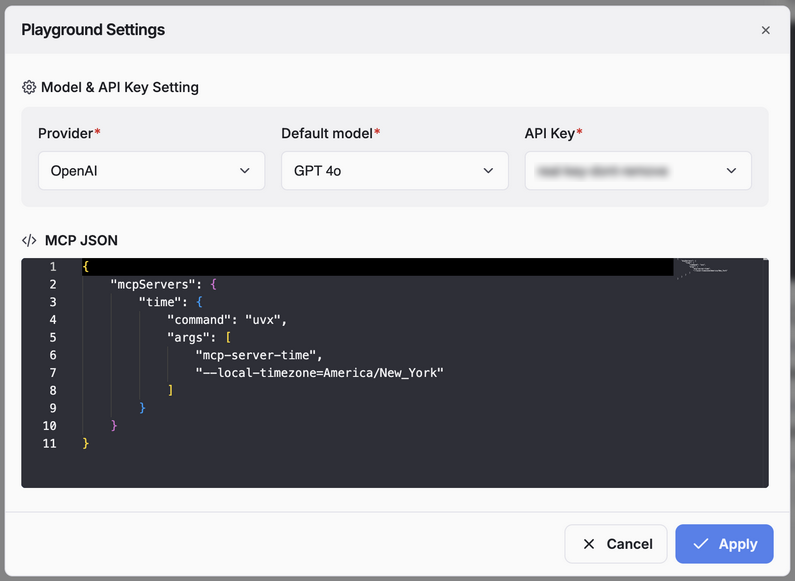
You need to configure the information below:
-
Model & API Key Setting
- Provider: Select your model provider from the dropdown list (e.g., OpenAI).
- Default Model: Choose the AI model you want to use for Playground testing (e.g., GPT 4.0).
- API Key: Choose or enter the API Key associated with your selected provider. This key is necessary to authenticate your requests to the external service.
-
MCP JSON
- The MCP JSON editor allows you to directly modify the parameters and commands that will be sent to your external MCP server during testing.
- The JSON object defines how the Playground interacts with your external MCP Registry.
After configuring the provider, model, API key, and MCP JSON, click Apply to save your settings. If you do not wish to save your changes, click Cancel to exit the settings dialog without applying modifications.
Add Credentials
When you click on API Key to select, you will see the Add new key button at the bottom of the API list:
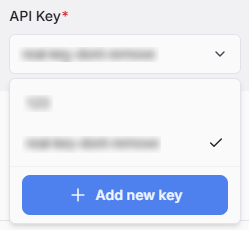
This Add Credential screen allows you to securely connect the Playground to an external AI service by saving your API key.
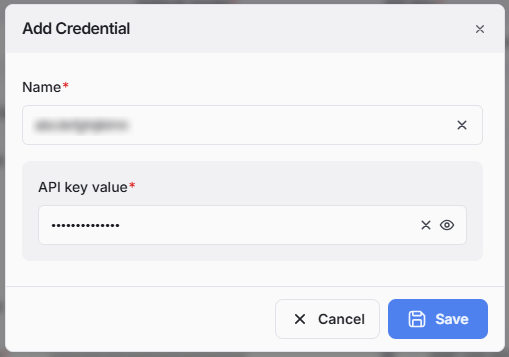
To add a new credential, you need to fill out the following required fields:
- Name: Enter a unique, memorable name for this credential. This is a friendly label that helps you identify the key later, especially if you have multiple credentials.
- API key value: Paste the secret API key from your provider into this field. For security, the characters are hidden by default. You can click the eye icon to toggle visibility and confirm the key is correct.
Click the Save button so that you can select it from the API Key list or click the Cancel button if you wish to discard any information you've entered and closes the window.
Test MCP Functionality in Playground
On the right side of the Playground, you will see an overview of the MCP server, including its purpose and available tools:
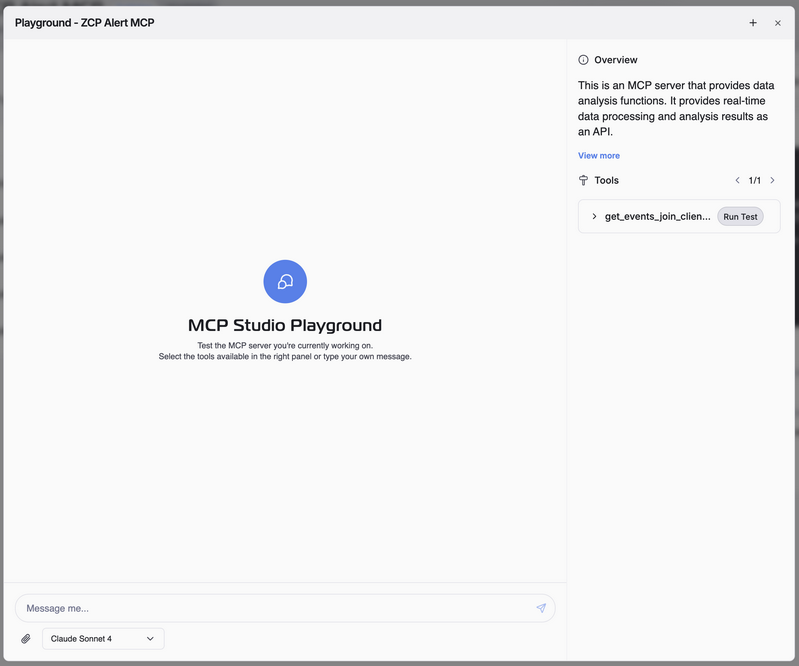
- You can use the message input field at the bottom to send queries or test prompts directly to the MCP server.
- Alternatively, select available tools from the right panel and click Run Test to execute them.
- Review the MCP’s responses to ensure it processes data and returns results as expected.
- Try multiple scenarios or edge cases to test the robustness of the MCP logic.