View an MCP Instances Details
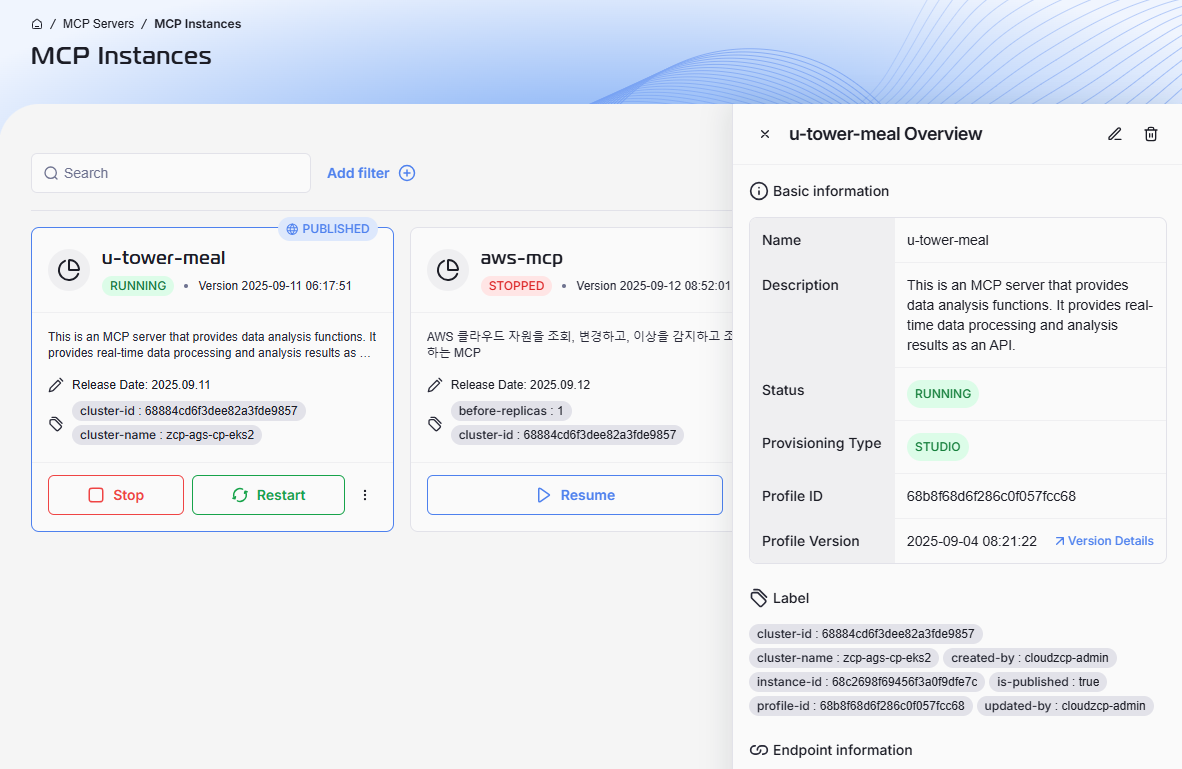
The Instance Overview screen provides a centralized, detailed view of a specific MCP server instance. Use this page for monitoring health, verifying configurations, troubleshooting issues, and managing your deployment.
Access the Details Screen
- Navigate to MCP Servers > MCP Instances from the main menu.
- From the list, click on the instance you wish to inspect.
This will open the instance’s Overview details on the right side of the screen.
Understand the Detailed Overview
The overview is divided into several sections, each providing specific details about the instance's configuration and status.
Basic Information
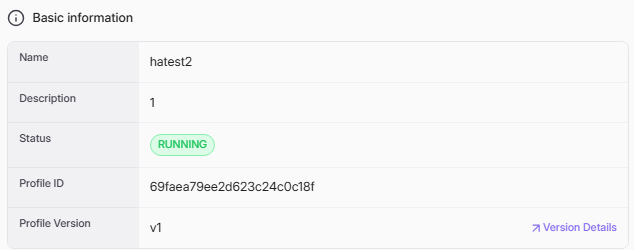
This section contains the core identifying details of the instance.
- Name: The unique, user-defined name of the instance.
- Description: A summary of the instance's purpose or function.
- Status: The current operational state (e.g.,
RUNNING,STOPPED). - Profile ID: The unique identifier for the MCP Profile used to create this instance.
- Profile Version: The latest “provisioning†profile version of MCP Profile (not the version created after Save) with the link to view all version history.
Label
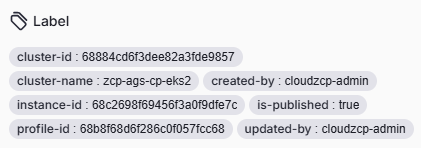
This section displays key-value pairs used to categorize and filter your instances. Using consistent labels is a best practice that helps you quickly locate and organize your deployments.
Endpoint Information
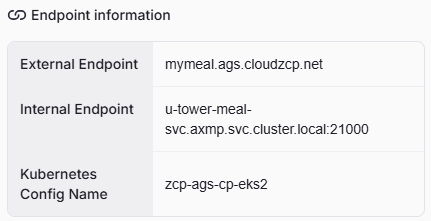
This section provides the essential connection details required to access the MCP instance. Use these endpoints to integrate with other services, test connectivity, or configure networking within your environment.
- External Endpoint: The public-facing URL or address used to connect to the instance from outside your organization’s internal network. This is typically required for integrations, API calls, or external access by users and systems.
- Internal Endpoint: The internal address for connecting to the instance within your organization’s private network or cluster. This endpoint is commonly used for secure communication between internal services, backend systems, or microservices.
- Kubernetes Config Name: The configuration name used within your Kubernetes cluster to identify and connect to this specific instance. This is useful for deployments, service discovery, and automation scripts in Kubernetes-managed environments.
Resource Settings
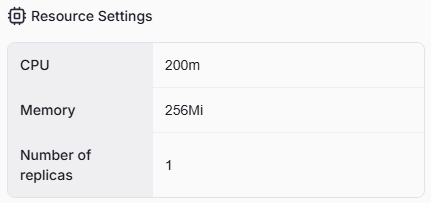
This section details the computational resources allocated to the instance. Checking these settings is crucial when diagnosing performance issues.
- CPU(s): The number of CPU cores assigned.
- Memory: The total amount of RAM allocated.
- Number of Replicas: The total storage capacity available to the instance.
Network Settings

This section provides information about how the MCP instance is exposed and accessed within the cluster. These details are important for understanding connectivity, service routing, and integration with other applications.
- Exposure Type: Indicates how the instance is made accessible within the Kubernetes cluster. In this example, ClusterIP means the service is reachable only from within the cluster, ensuring internal communication and security.
- Port: Specifies the port number (e.g., 21000) through which the service is exposed. This is the entry point for network traffic directed to the instance.
- Protocol: Displays the network protocol used for communication, such as TCP in this case. The protocol determines how data is transmitted and ensures compatibility with other networked services.
Use this section to verify how your MCP instance is exposed, which ports are configured, and what protocol is used. This information is essential for setting up integrations, troubleshooting network issues, and maintaining secure internal communications.
Deployment Information
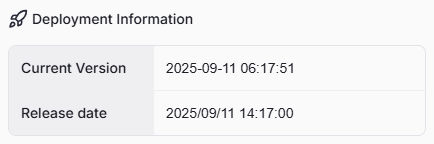
This section provides key details about the version and release schedule of the MCP instance. This information helps users track updates, monitor release cycles, and ensure they are working with the intended deployment.
- Current Version: Displays the timestamp indicating when the latest version of this instance was deployed. This helps users confirm they are viewing or interacting with the most recent instance configuration.
- Release Date: Shows the official release date and time for the current version of the instance. This is useful for change tracking, auditing updates, and coordinating with release schedules.
Use this section to verify the deployment status and plan management activities according to the instance’s release timeline.
Meta Information
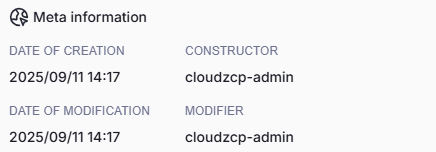
This section provides basic audit and tracking details for the MCP instance. It is useful for maintaining an audit trail, ensuring accountability, and tracking the lifecycle of the MCP instance.
- Date of Creation: Shows the exact date and time when the instance was initially created.
- Constructor: Indicates the user account or service that created the instance.
- Date of Modification: Displays the date and time when the instance was last modified.
- Modifier: Shows the user account or service that performed the most recent modification.