Users
The User Management section allows administrators to view and update system users, maintain profile information, and control role and group assignments. This module helps ensure that each user has the correct access level and organizational membership.
To register user, follow step 1, section General steps to get your Agent ready for running on (9+) Overview | Notion
User DashboardThe User Management dashboard provides a complete view of registered users and their access information. User records displayed in this module are loaded from the User list in the IAM Console.
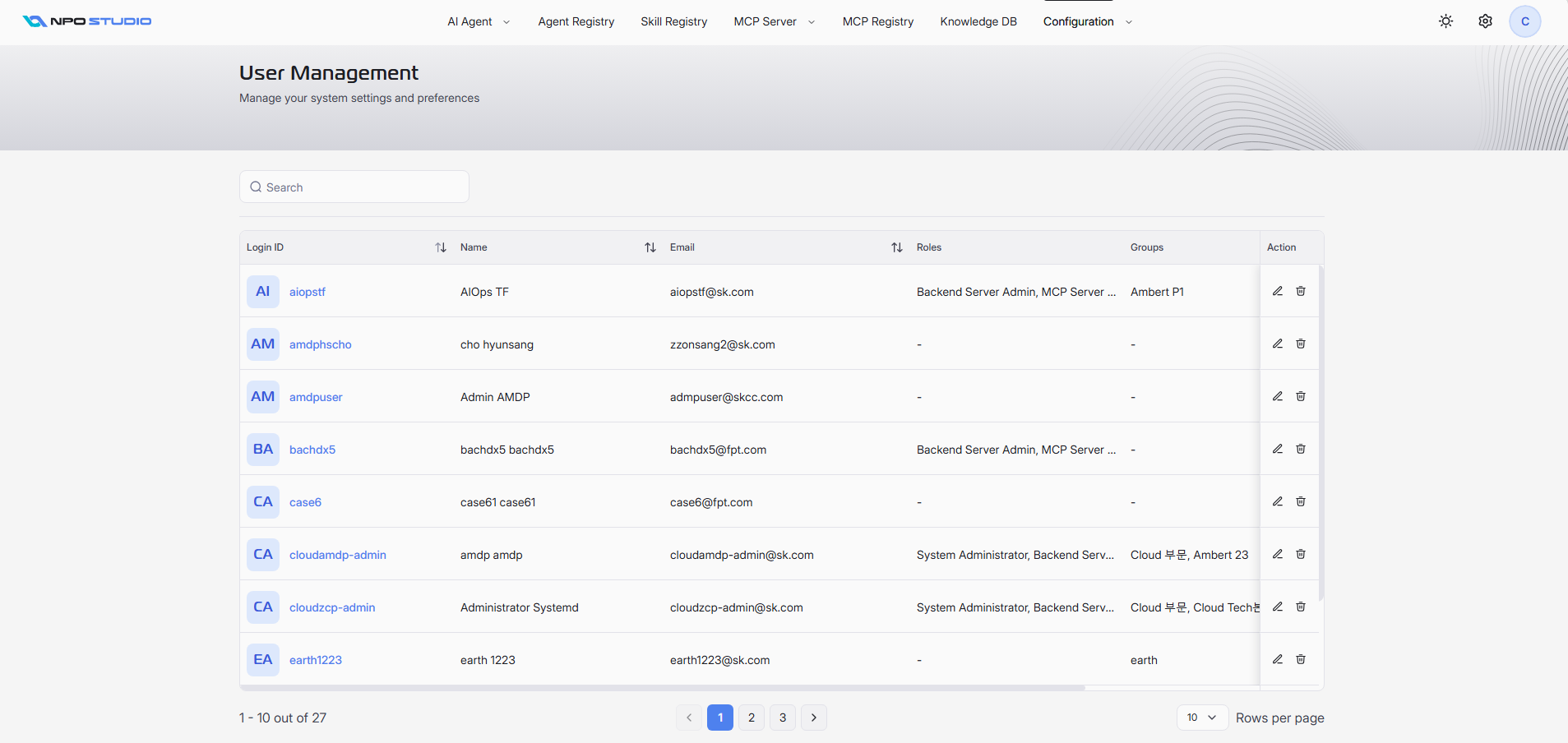
The main table displays all available users with key information:
- Login ID: Unique login name of the user.
- Name: User's display name.
- Email: Registered email address.
- Roles: Roles currently assigned to the user.
- Groups: Groups the user belongs to.
- Action:
- Edit: Open the selected user to review or update details.
- Delete: Remove the user from the system.
Additional controls on this screen:
- Search: Filter users by keyword.
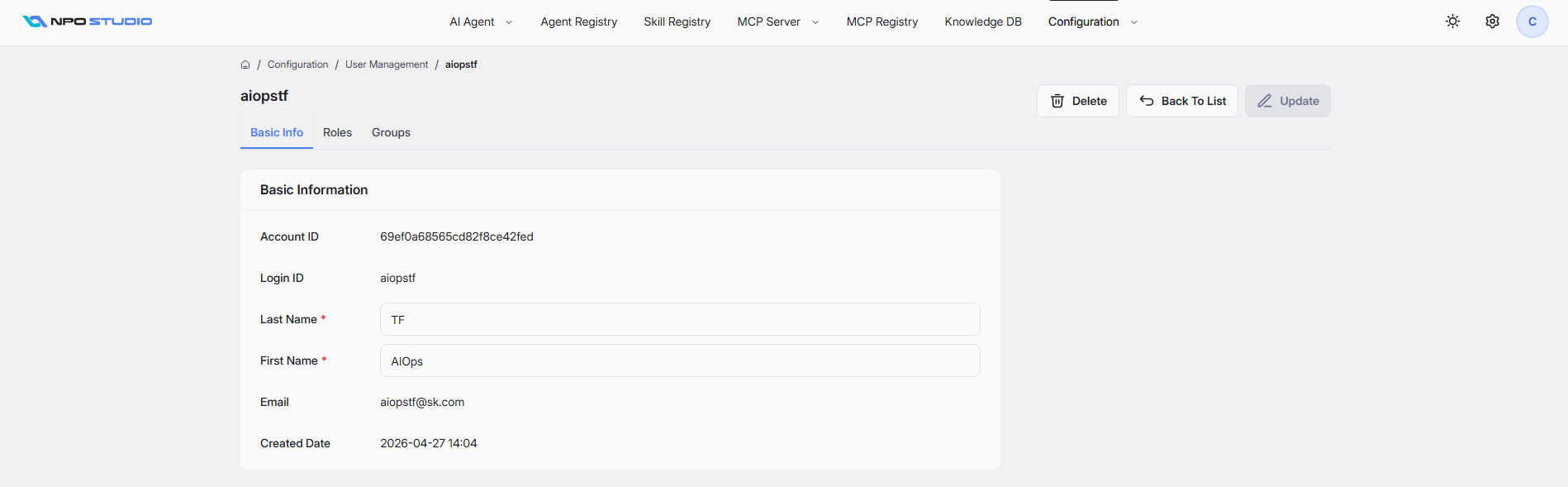
After click to edit a user from the list, the detail page provides three tabs: Basic Info, Roles, and Groups.
Basic Info Tab
The Basic Info tab contains the user's profile details and core account information:
- Account ID: Internal identifier for the user account.
- Login ID: User login name.
- Last Name (required): User surname.
- First Name (required): User given name.
- Email: Registered email address.
- Created Date: Timestamp when the user account was created.
Top-right actions:
- Update: Save changes made to the user's profile.
- Delete: Remove the current user.
- Back To List: Return to the User Management list.
Roles Tab
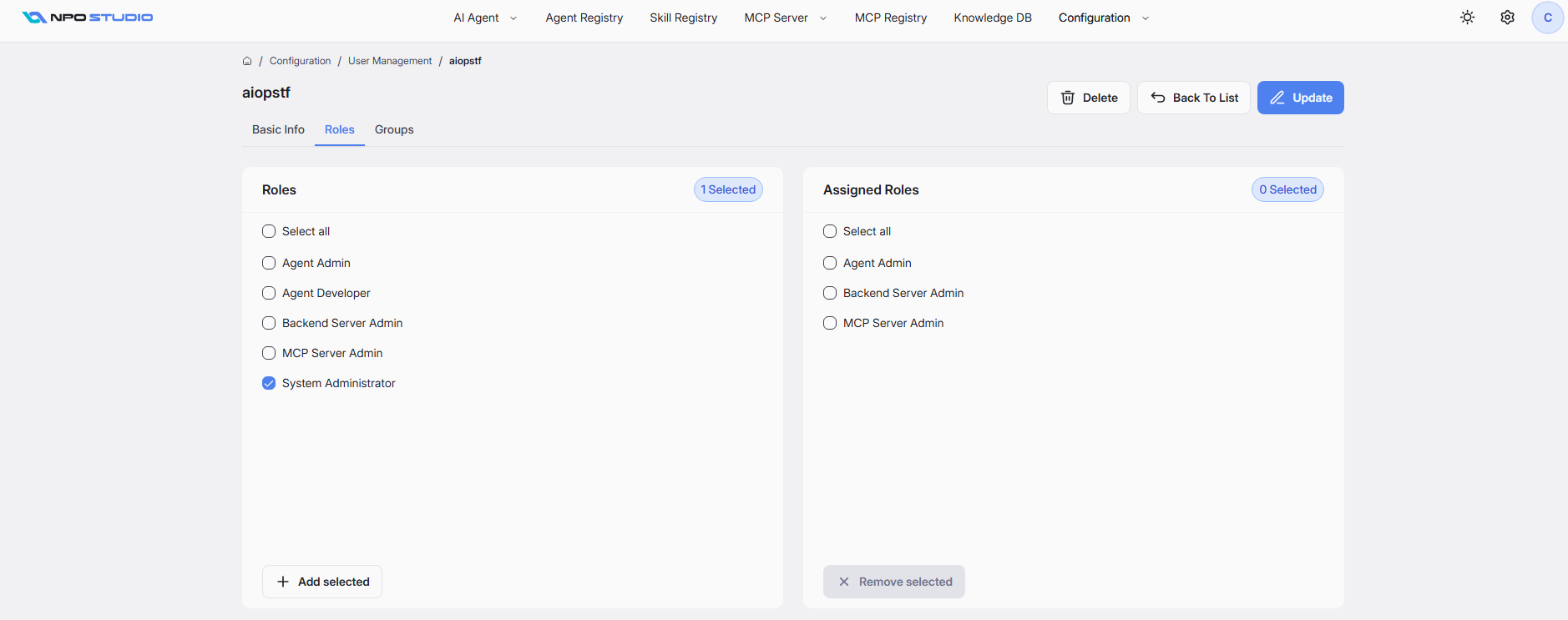
The Roles tab is used to manage role assignments for the selected user.
This screen includes two panels:
- Roles: Shows available roles that can be selected.
- Assigned Roles: Shows roles currently assigned to the user.
Available capabilities:
- Select individual roles: Choose one or more roles from the available list.
- Select all: Quickly select all roles in a panel.
- Add selected: Assign the chosen roles to the user.
- Remove selected: Remove assigned roles from the user.
- Selection counter: View how many roles are currently selected.
Typical roles shown in this module include:
- Agent Admin
- Agent Developer
- Backend Server Admin
- MCP Server Admin
- System Administrator
Groups Tab
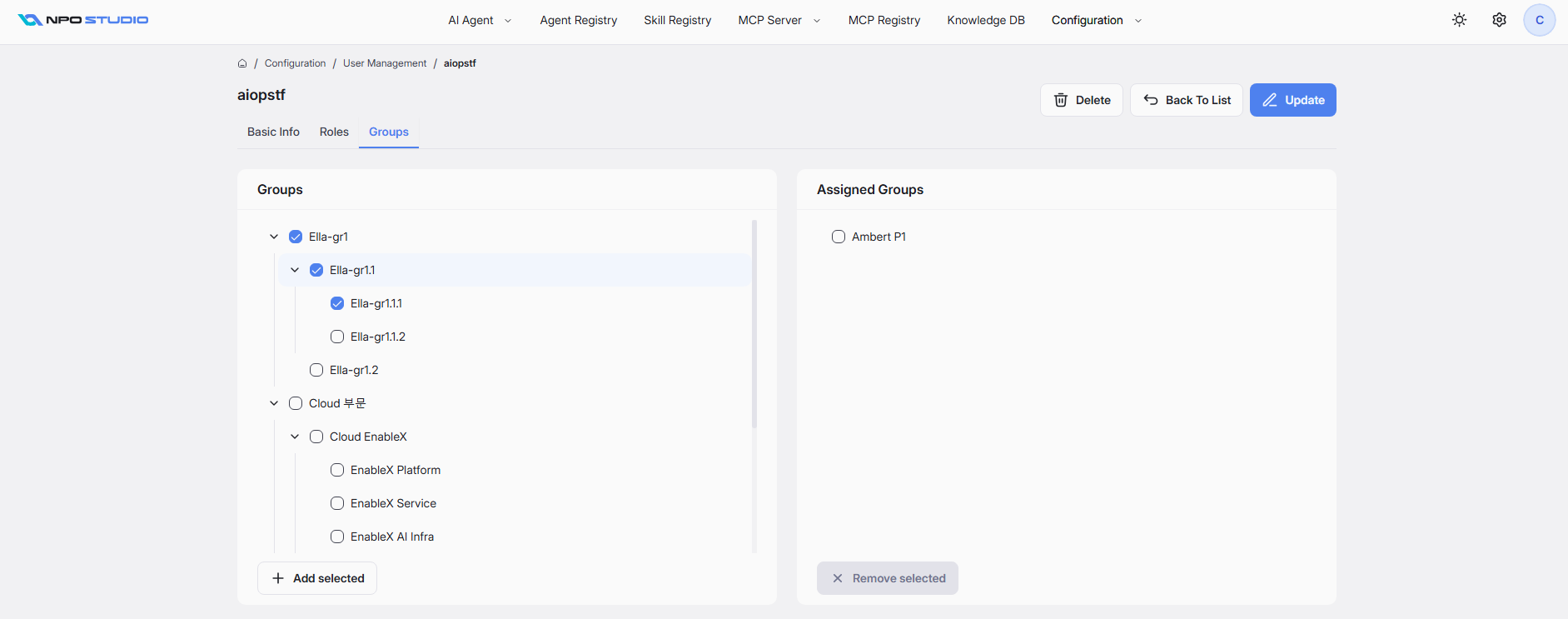
The Groups tab is used to manage group memberships for the selected user.
This screen includes two panels:
- Groups: Displays the available group hierarchy.
- Assigned Groups: Displays groups currently linked to the user.
Available capabilities:
- Browse hierarchical groups: Expand or collapse parent and child groups.
- Select groups: Choose one or more groups from the hierarchy.
- Add selected: Assign the selected groups to the user.
- Remove selected: Remove groups from the user's membership.