View List of My Agents
The My Agents feature in NPO Workspace allows you to manage and explore all AI Agents you have created.
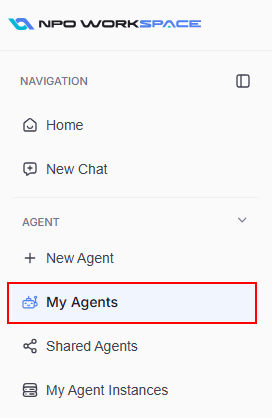
On the left navigation panel, click on My Agents under the AGENT section:
You will see a list of all agents that you have created:
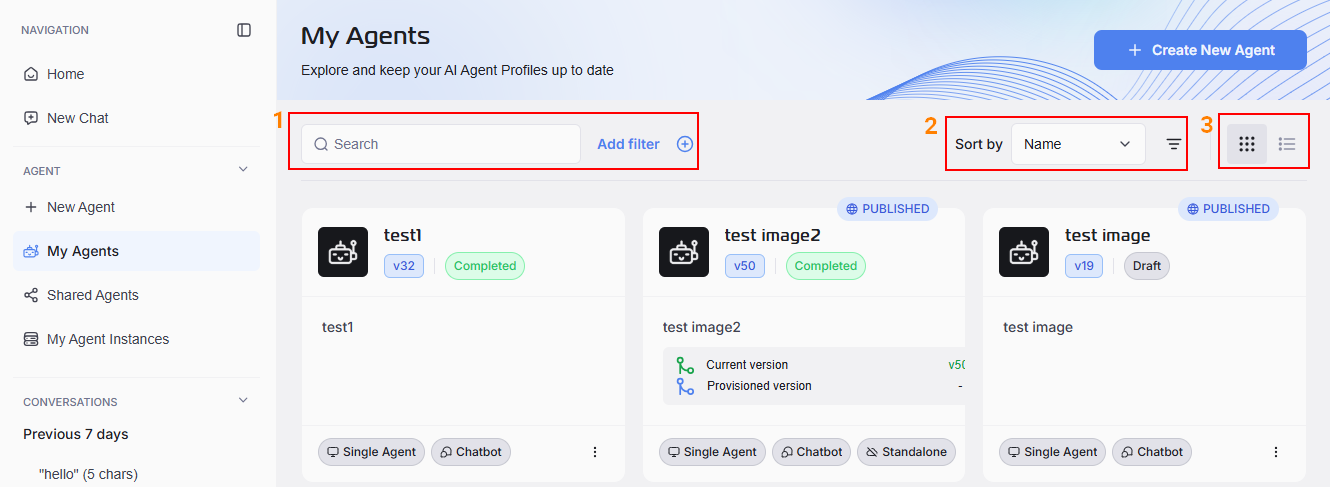
1. Search and Filter
To easily find specific AI Agent, use the set of tools located below the header:
- Search: Use the search box to quickly find agents by typing in their name or keywords from their description.
- Add filter: Click this button to apply attribute-based filters to refine the agent list.
Use filters and search together for precise results.
Search for an Agent
At the top of the agent list, use the search bar to quickly find the desired agent by typing its name or keyword. The list updates in real time as you enter your search query.
Add Filter Based on Criteria
- Click on Add filter next to the search bar.
- In the filter dialog, choose your desired Filter (such as Labels, Type, Status, Runtime Type, Usage Type).
- Select the appropriate Operator (e.g., equals, contains).
- Enter or select the Value for your filter.
- Click Apply to filter the agents based on your chosen criteria.
2. Sort
You can customize the listing order of agents to suit your needs:
- Use the Sort by dropdown to organize your agent list.
- You can sort agents by Name, Created At, or Updated At.
- Select your preferred option to update the list order.
3. Change Layout
In the top right of the agent list, you will see icons to switch between Grid View and List View.
- Grid View:Â Displays agents as cards with key information for each agent.
- List View:Â Presents agents in a table format with columns for details like version, status, type, deployed date, and actions.
Click the appropriate icon to switch to your preferred view mode.