Access API Details Screen
From the API List screen, click the name on a table row to navigate to API Details Screen.
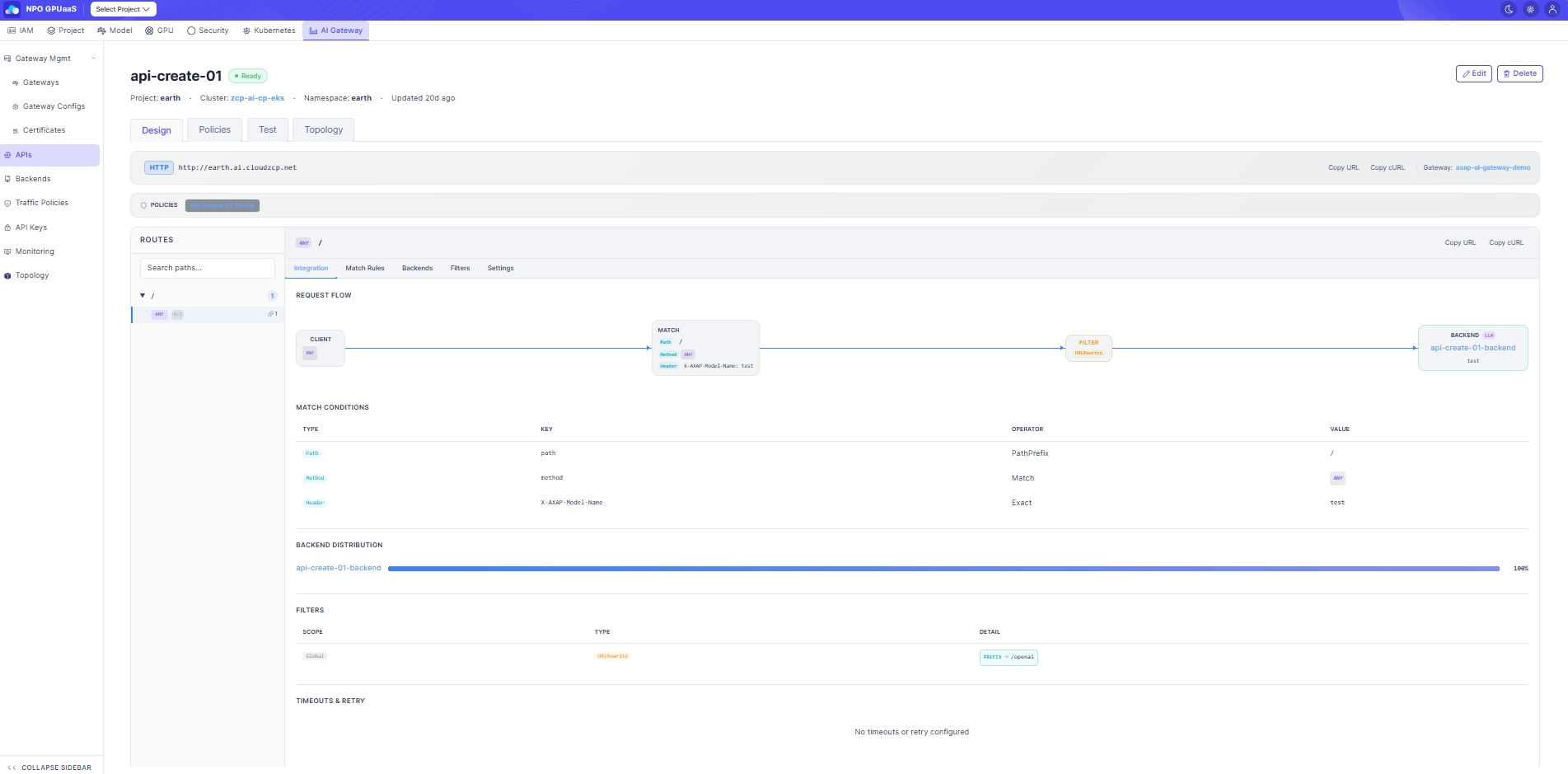
Switch Tabs
You can switch between tabs to view different perspectives:
- Design: Shows route structure and traffic flow (default).
- Policies: Shows Traffic Policies applied to this API and their priority.
- Test: Allows users to send a live request.
- Topology: Shows traffic graph centered around this API.
Design tab
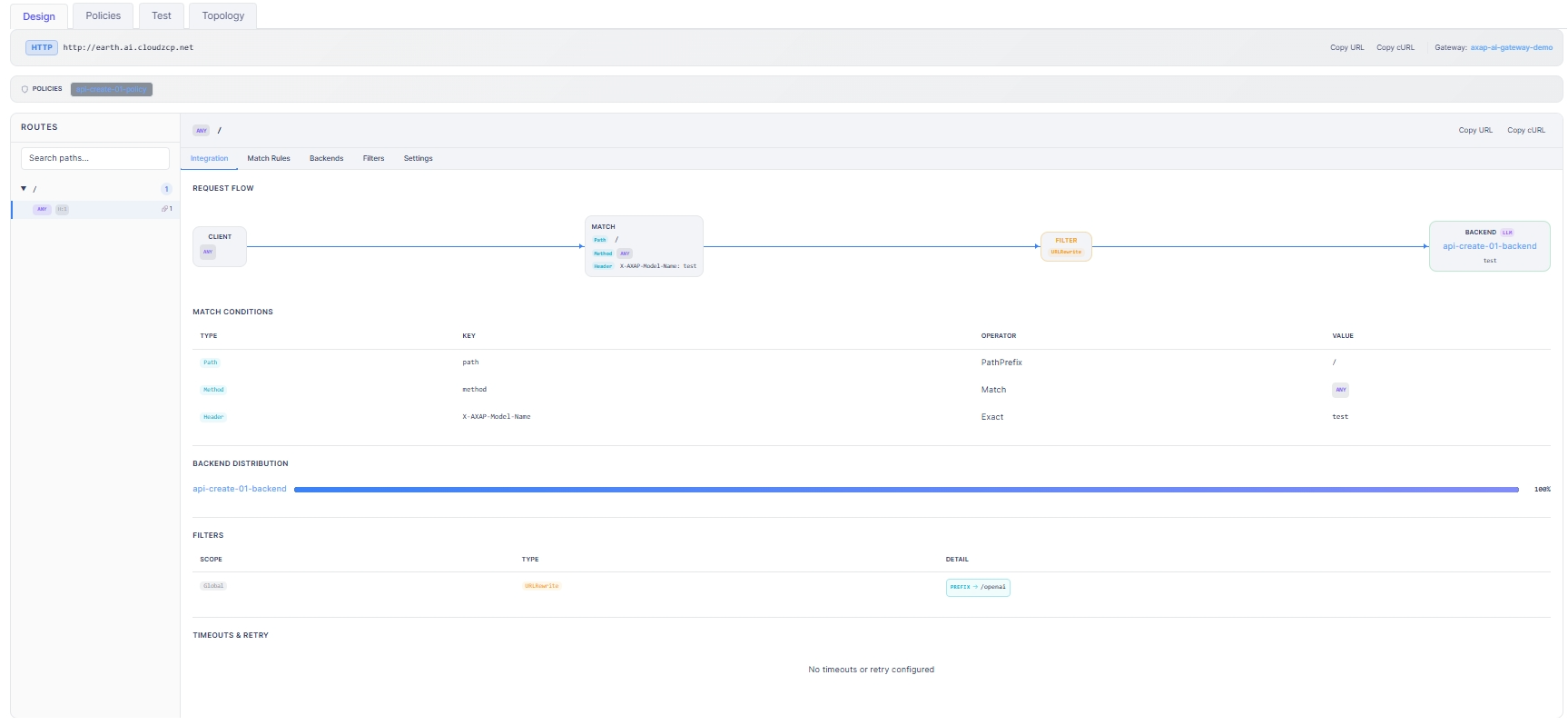
Endpoint & Policies
- Endpoint bar shows:
- Protocol badge (HTTP/HTTPS)
- The Endpoint URL (Gateway hostname + path prefix)
- Copy URL and Copy cURL for quick sharing/testing
- Gateway name, click to navigate to Gateway Detail
- POLICIES bar displays all applied Traffic Policy.
Routes Panel (Left)
- This section helps you find and pick a route from the route tree.
- User can use search function to quickly find a route.
The Route Detail panel (right) will automatically refresh to display the configuration of the selected route.
Route Detail (Right)
The Route Detail panel provides the following sub-tabs:
- Integration: Displays the REQUEST FLOW (CLIENT → MATCH → FILTER → BACKEND) diagram and the Match Conditions table.
- Match Rules / Backends / Filters / Settings: Shows detailed information for each route configuration section.
Copy URL / Copy cURL action is also available in the route detail header.
Policies Tab
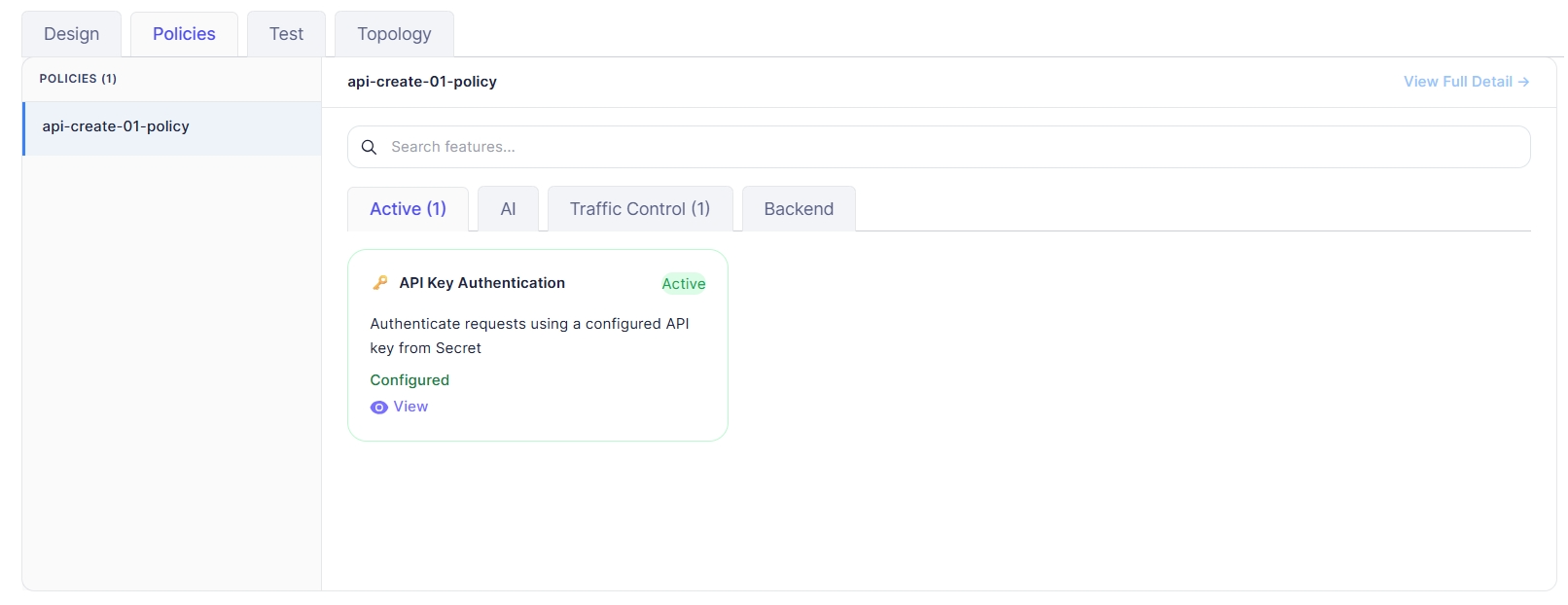
Policies List (Left panel)
- Display list of policies applied to the API.
- The header displays the total number of policies.
- User can click a policy name to load its details on the right.
Policy Detail (Right panel)
View Full Detail
On click, the system navigates to the Traffic Policy Detail screen of the corresponding policy.
Search features
User can use search function to quickly find a specific feature within the selected policy.
Feature cards
Each feature is displayed as a card with key information:
- Feature name
- Status (e.g., Active)
- Short description of what the feature does
- Configuration status
- View action to open a popup to display the feature’s current settings.
Test Tab
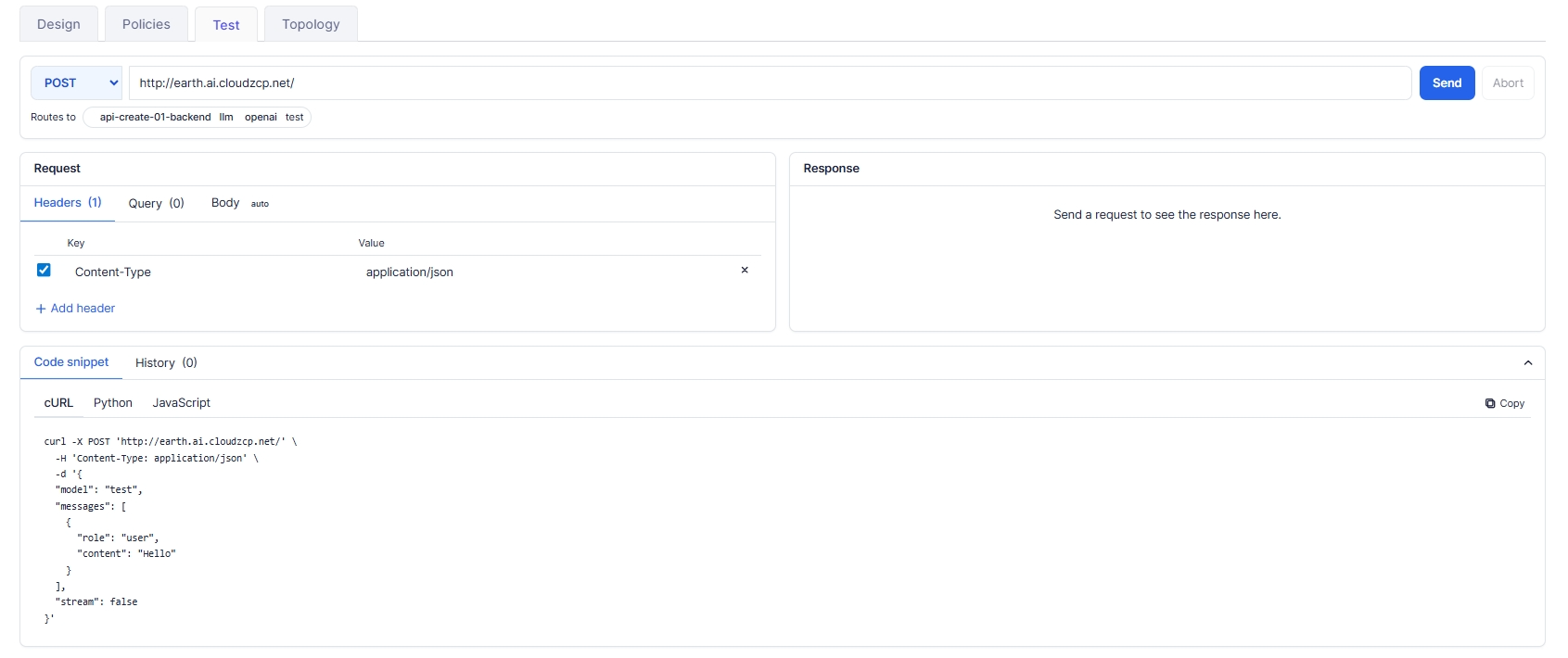
The Test tab allows users to send a live request to the selected API endpoint, inspect the response, and copy ready-to-use code snippets (cURL/Python/JavaScript) generated from the current request configuration.
Topology Tab
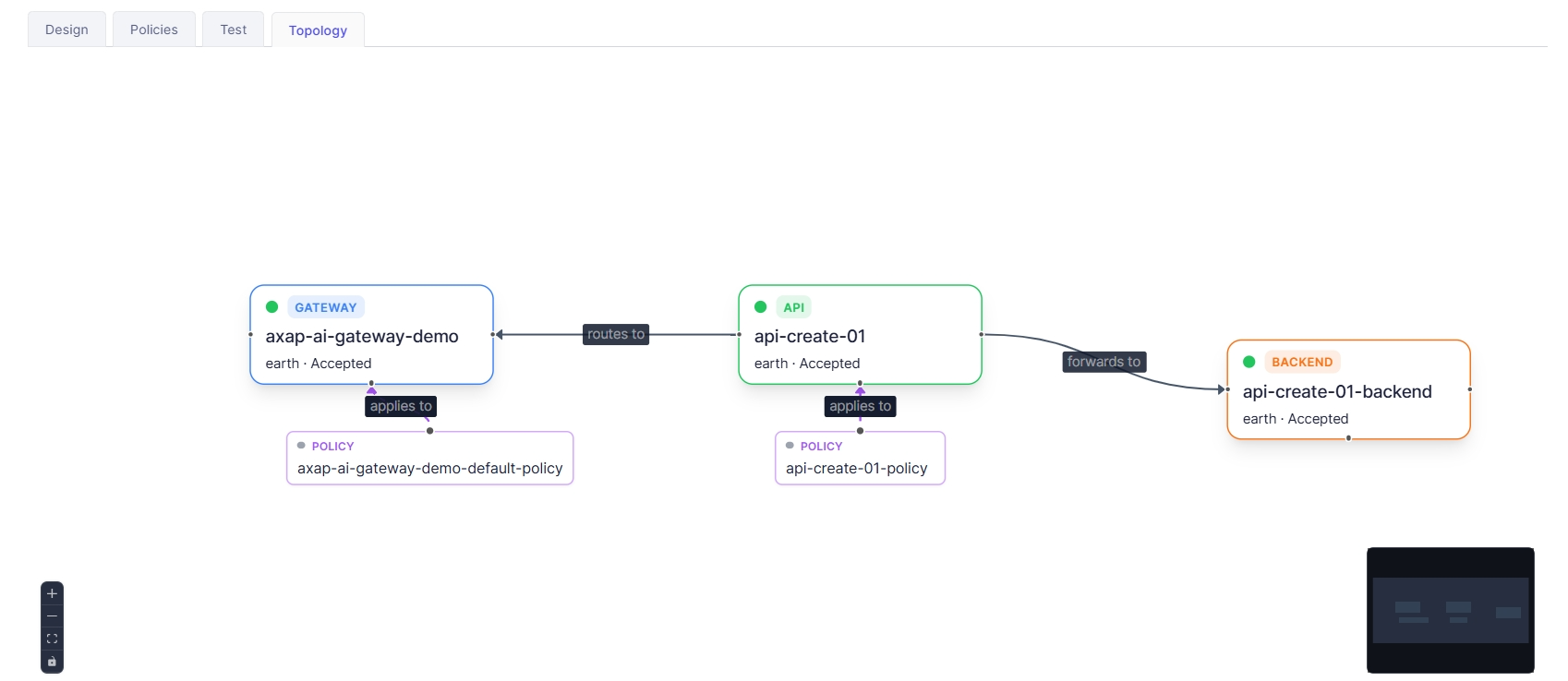
The Topology tab provides a graphical view of how the selected API is connected to related resources, helping users quickly understand the traffic path and applied policies.
Action
Edit
User can click Edit to navigate to Edit API. The form is pre-filled with the current API configuration.
Delete
User can delete a API by clicking the Delete button. Upon clicking, a confirmation popup will appear, and users must enter the API name to confirm deletion:
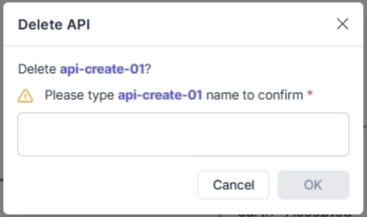
After deletion, redirect to the API List page.